10 Clipboard Shortcuts Every Mac User Should Know
Learn 10 clipboard shortcuts for Mac, including copy, paste, cut, undo, select all, search, paste without formatting, screenshots, and clipboard history.

The short answerThe best Mac clipboard shortcuts are not obscure. They are the small keyboard habits that remove repeated mouse clicks from copy, paste, search, and cleanup.
The overview
Many Mac users know Command C and Command V, but lose time around formatting, screenshots, search, undo, and repeated snippets.
Clipboard shortcuts matter because copy and paste sits inside almost every workflow.
Once these shortcuts become automatic, a clipboard manager becomes even faster because you can open history, search, preview, and paste from the keyboard.
Why it happens
Mac apps share common editing shortcuts, but individual apps may add their own variations.
Formatting is often the hidden problem: pasted text may carry fonts, colors, links, or spacing you did not want.
Clipboard history adds one more shortcut layer for older copied items.
Your step-by-step guide
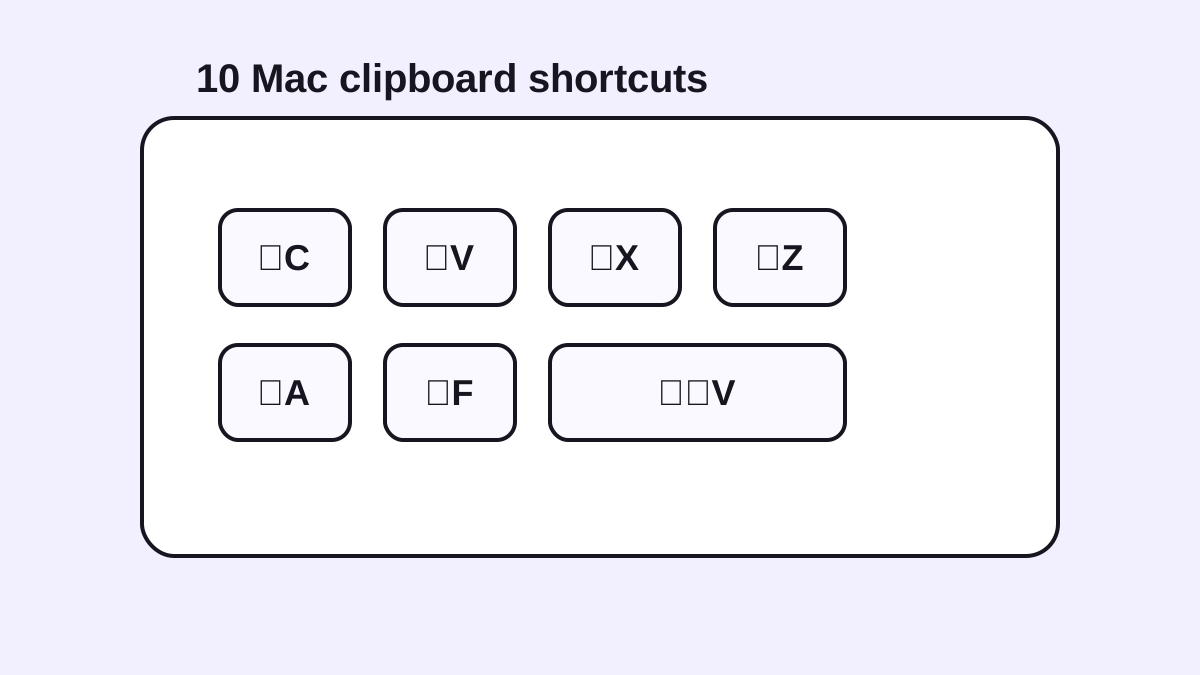
Command C: copy
Copy selected text, files, links, images, or app content into the clipboard.
Command V: paste
Paste the latest copied item into the active app.
Command X: cut
Remove selected text and place it on the clipboard when the app supports cutting.
Command Z: undo
Undo the last edit when a paste or cut goes wrong.
Option Shift Command V: paste and match style
In many Mac apps, this pastes text using the destination formatting instead of the source formatting.
Common mistakes to avoid
- Pasting formatted text into clean documents without using paste and match style.
- Copying again before confirming the important item was pasted.
- Using the mouse for repeated copy-paste workflows that have shortcuts.
- Forgetting that app-specific shortcuts can vary.
Small changes. A faster workflow.
- Use Command A before copying a whole field or document.
- Use Command F to find text before copying the exact section you need.
- Assign your clipboard manager a shortcut that does not conflict with system shortcuts.
- Practice shortcut sequences, not isolated keys: copy, search history, paste, undo.
Compare your options
| Option | Best for | Limits |
|---|---|---|
| Basic shortcuts | Every Mac user | Only current clipboard item |
| Paste without formatting | Writing, docs, email, and CMS work | Shortcut support can vary by app |
| Clipboard history shortcut | Finding older copied items | Requires a clipboard manager |
Basic shortcuts
Best forEvery Mac user
LimitsOnly current clipboard item
Paste without formatting
Best forWriting, docs, email, and CMS work
LimitsShortcut support can vary by app
Clipboard history shortcut
Best forFinding older copied items
LimitsRequires a clipboard manager
Put it into practice with Historr
Historr is designed around keyboard-first clipboard history on Mac.
Open history with a shortcut, search by a remembered fragment, preview the result, and paste without leaving your workflow.
Pairing Mac editing shortcuts with Historr favorites and Paste Stack turns copy-paste into a much faster habit.
- Instant search
- Unlimited history
- Favorites
- Keyboard shortcuts
- Privacy
- Offline storage
- Quick preview
- Paste Stack

Keep your next good idea.
Free, private clipboard history for your Mac.
Questions, answered.
What is the copy shortcut on Mac?
Command C copies the selected item.
What is the paste shortcut on Mac?
Command V pastes the current clipboard item.
How do I paste without formatting on Mac?
Many apps support Option Shift Command V, often called paste and match style.
Is there a Mac shortcut for clipboard history?
macOS does not provide full history by default, but clipboard managers usually let you set a shortcut.
What shortcut should I assign to a clipboard manager?
Choose one that is easy to reach and does not conflict with shortcuts you already use.
Take it from here
Mac clipboard shortcuts compound quickly. Learn the basics, add paste without formatting, then give clipboard history a shortcut you can use without thinking.
If you're looking for a faster way to search, organize, and reuse everything you copy, try Historr and see how much time you can save.