Installation
- Download the latest
Historr.dmg. - Open it and drag Historr into your Applications folder.
- Launch Historr - a
 icon appears in the menu bar.
Historr is a universal app and runs on macOS 13 Ventura or later · Apple Silicon & Intel.
The app is signed with a Developer ID and notarized by Apple, so it opens right away - no security warnings, no extra steps.
Permissions
Capturing your copy history needs no permission. To paste into other apps, Historr uses macOS Accessibility access - you'll be prompted on first launch.
To grant it manually:
- Open System Settings → Privacy & Security → Accessibility.
- Turn on Historr.
Keyboard shortcuts
| ⌥H | Open / close the clipboard history |
| ⌥⌘V | Paste the next item in the Paste Stack |
| ⌥⇧D | Open a new Drag Shelf at the pointer |
| ↑ / ↓ | Move the selection |
| ⏎ | Paste the selected item |
| ⌘1-9 | Paste the Nth item instantly |
| Space | Quick Look preview (when search is empty) |
| ⌘Z | Undo a delete or clear |
| Esc | Close preview, then the window |
Images & screenshots
Historr remembers images too - not just text. Copy an image or take a screenshot to the clipboard and it appears in your history with a thumbnail.
- Copy an image, or take a screenshot to the clipboard with ⌃⇧⌘4.
- Open Historr with ⌥H - the image shows as a thumbnail labelled with its size.
- Select it and press Return (or ⌘1-9) to paste the image into any app.
- Press Space to preview the full image before pasting.
Images are stored locally on your Mac alongside your text history - nothing is uploaded. Text-only actions like transforms and the Paste Stack don't apply to images.
Paste Stack
The Paste Stack lets you queue several clips and paste them in order - great for filling forms or moving values between fields.
- Right-click items and choose Add to Paste Stack.
- Switch to your target app.
- Press ⌥⌘V repeatedly - each press pastes the next item.
A banner in the popup shows how many items remain; clear it anytime.
Drag Shelf
Drag Shelf is a floating shelf for drag and drop. It holds files, folders, images, links and text while you gather them, then lets you drag everything out in one move.
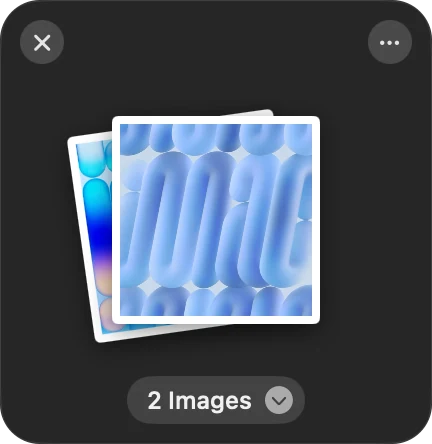
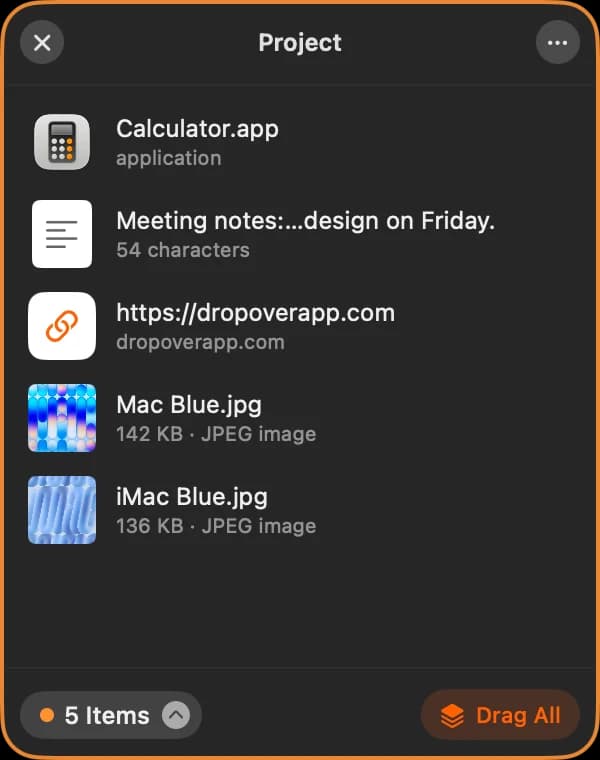
- Start dragging something - files in Finder, a photo, selected text, a link.
- While still holding the mouse button, shake the pointer left and right. A shelf appears under the pointer.
- Let go to drop. Add more from anywhere; the count below the pile updates.
- To use them, drag the pile into Finder, Mail, Messages or any app. Every item is dropped as a copy.
You can also open an empty shelf with ⌥⇧D, or drop items straight onto the Historr menu-bar icon. Click the pile or its count to see individual items, and use the … menu for Quick Look, Share, AirDrop, Save to Folder, Compress to ZIP, Resize Images and Extract Text.
Transforms
Right-click any clip → Paste as to reshape it on the way out:
- Plain Text · Trimmed
- lowercase · UPPERCASE
- slug-case · Pretty JSON
Smart actions
Historr recognizes what you copied and offers one-tap actions:
- URLs → Open Link
- Emails → Compose Email
- Hex colors → live swatch + Copy as RGB
Privacy & auto-expire
Historr is 100% local - no cloud, no account, no telemetry. Copies from password managers (marked concealed/transient) are ignored automatically.
Auto-expire detects card numbers, one-time codes, and tokens and removes them after a few minutes. Toggle it and set the duration in Preferences → Privacy. Use Pause Recording in the menu bar for fully incognito work.
Favorites & undo
Click the ★ on any clip to favorite it - favorites pin to the top and survive Clear History. Deleted something by mistake? Press ⌘Z to bring it back (up to 10 levels).
Preferences
- Launch at login - start Historr automatically.
- Max history items - how many clips to keep.
- Auto-expire sensitive copies - on/off + duration.
- Automatically check for updates - on by default.
- Drag Shelf - shake to open, shake sensitivity, and whether a shelf closes after you drag everything out.
Open Preferences from the menu-bar icon or with ⌘,.
Updates
From version 0.1.5, Historr updates itself. It checks for a new version once a day; when one is ready, an Update Available item appears in the menu bar menu. Click it to read what's new, then choose Install Update. Historr downloads, installs and relaunches in a few seconds.
Choose Check for Updates… from the menu bar icon anytime, and turn automatic checks on or off in Preferences. Every update is signed and verified before it installs.
On 0.1.4 or earlier? Download the latest version once from this site (or run brew upgrade --cask historr). After that, updates arrive automatically.