Short answer
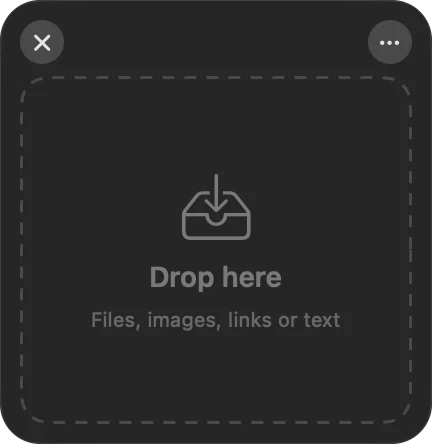
Drag Shelf gives your drags somewhere to land. Instead of juggling two Finder windows or piling files on the Desktop, you drop things on a small shelf that floats above your apps, gather everything you need, then drop the whole pile where it belongs.

How to use it
- Start dragging files, a photo, a link or some selected text.
- Keep holding the mouse button and shake the pointer left and right a few times.
- A shelf appears under the pointer. Let go to drop.
- Collect more items from other folders, apps or windows.
- Drag the pile into Finder, Mail, Messages, Slack or any app. Everything is dropped as a copy.
Other ways to open a shelf
- ⌥⇧D opens an empty shelf at the pointer.
- Drop items on the Historr menu-bar icon to create a shelf holding them.
- Choose New Shelf from the menu-bar menu, or reopen one from Recent Shelves.
You can have several shelves open at once, for example one per project.
Working with the items
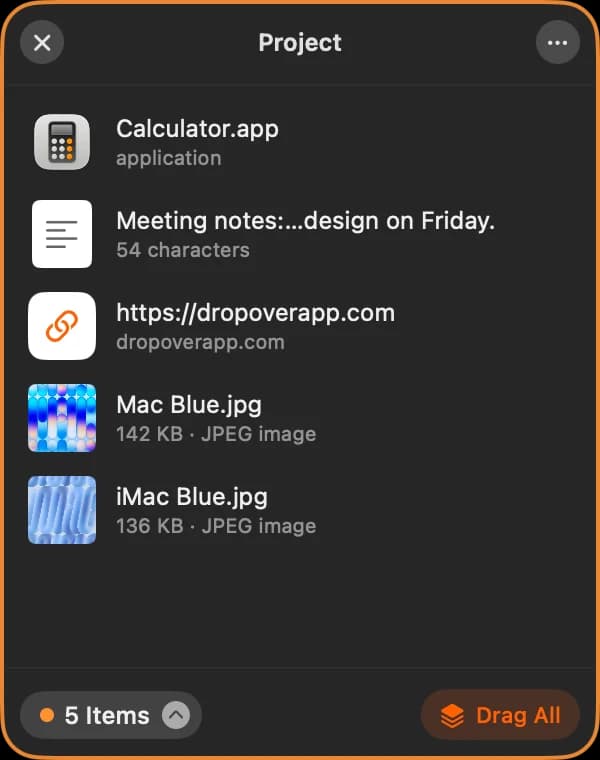
- Click the pile or the count pill to list every item. Drag a single item out, double-click to open it, or hover and click ✕ to remove it.
- Right-click an item for actions that apply just to it.
- The … menu works on the whole shelf: Quick Look, Open, Reveal in Finder, Copy, Paste from Clipboard, Share, AirDrop, Save to Folder, Compress to ZIP, Resize Images, Extract Text, Rename, Color, Clear and Close.
- Resize Images makes resized copies (50%, or at most 2048, 1024 or 512 pixels) and never changes your originals.
- Extract Text reads the text in images on your Mac and copies it to the clipboard.
Keyboard shortcuts on a shelf
- Space: Quick Look the items.
- ⌘C: copy the items; ⌘V: add what's on the clipboard.
- Esc: collapse the list, then close the shelf. ⌘W: close.
Settings
In Preferences → Drag Shelf you can turn the shake gesture on or off, set its sensitivity (Low, Medium, High), and choose whether a shelf closes after you drag everything out of it.
Privacy
Shelves are temporary and stay on your Mac. Files you drop are referenced where they already are; images, text, links and items from apps like Photos are saved as temporary files that Historr deletes when you remove them, clear the shelf, or quit. The shake gesture only watches mouse movement during drags. It never reads what you type.
Want the full walkthrough with tips? Read how Drag Shelf works.
Quick answers
How do I open a Drag Shelf?
Shake the pointer left and right while you are dragging something. You can also press Option-Shift-D for an empty shelf, or drop items onto the Historr menu-bar icon.
Does dragging items out of the shelf move or copy them?
Copy. Items are dropped into the destination as copies, so the originals stay where they were.
What can I put on a shelf?
Files, folders, images (including photos from Photos and images dragged from a browser), links and plain text.
Why doesn't shaking open a shelf?
The shake gesture needs Historr's Accessibility permission, the same one used for pasting. Check System Settings, Privacy & Security, Accessibility, and make sure Shake while dragging is on in Historr Preferences.
Are shelves saved after I quit Historr?
No. Shelves are temporary. Closed shelves stay under Recent Shelves until you quit, and any copies Historr made for the shelf are cleaned up.