Clipboard History Mac Shortcut: Built-in and Historr Options
Answer “clipboard history mac shortcut” with current Mac options, privacy checks, shortcuts and a practical recommendation.

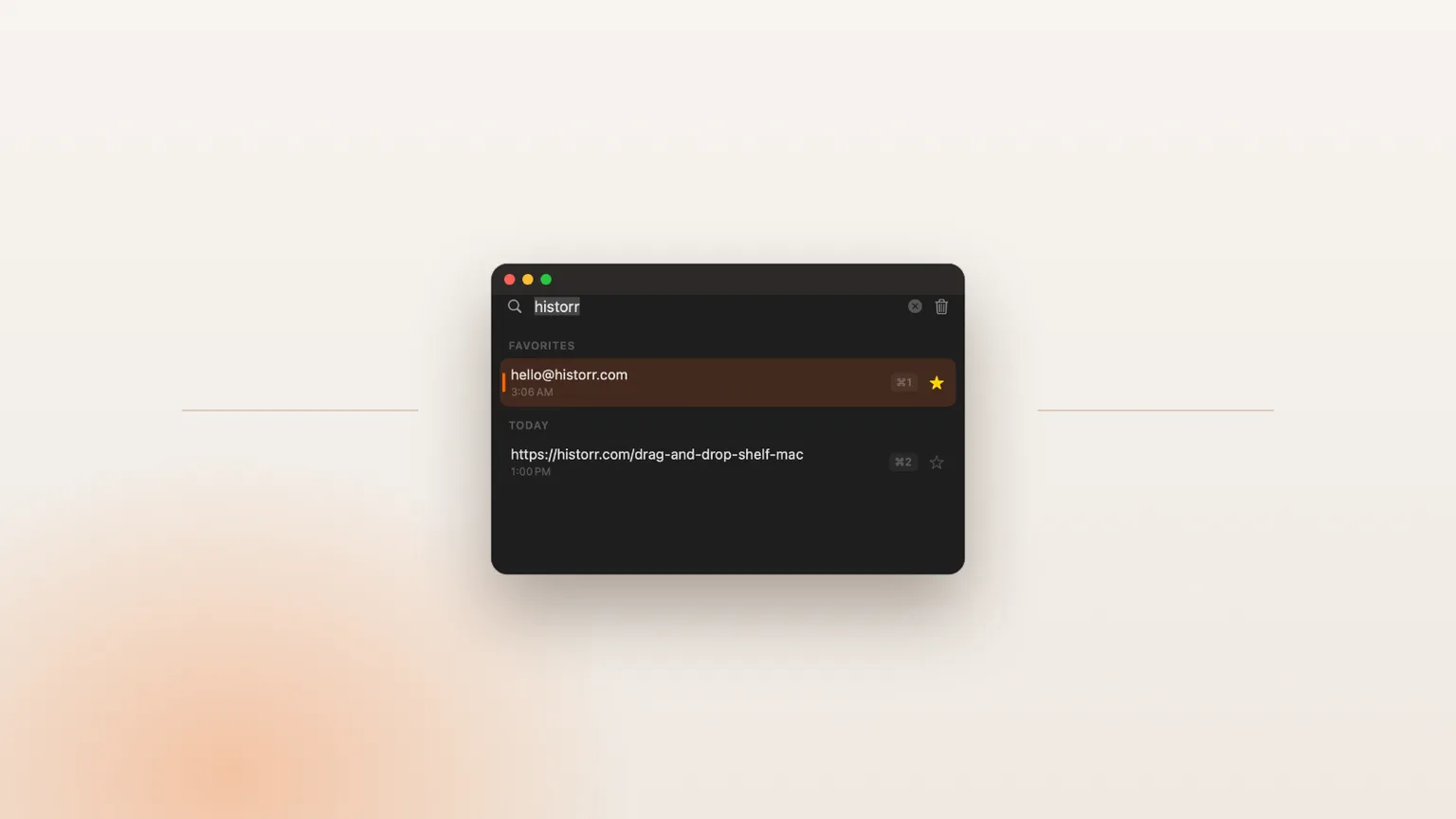
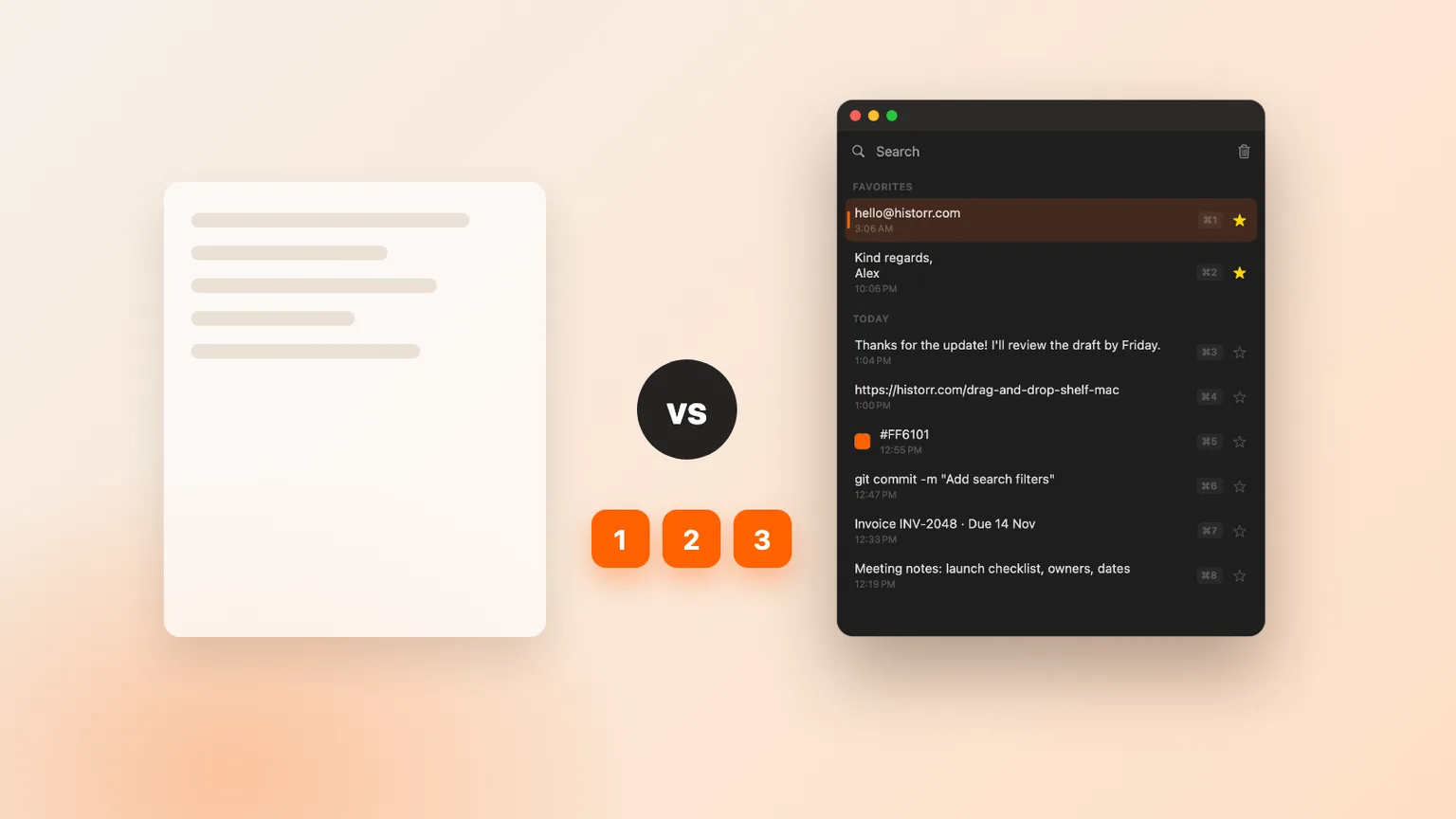
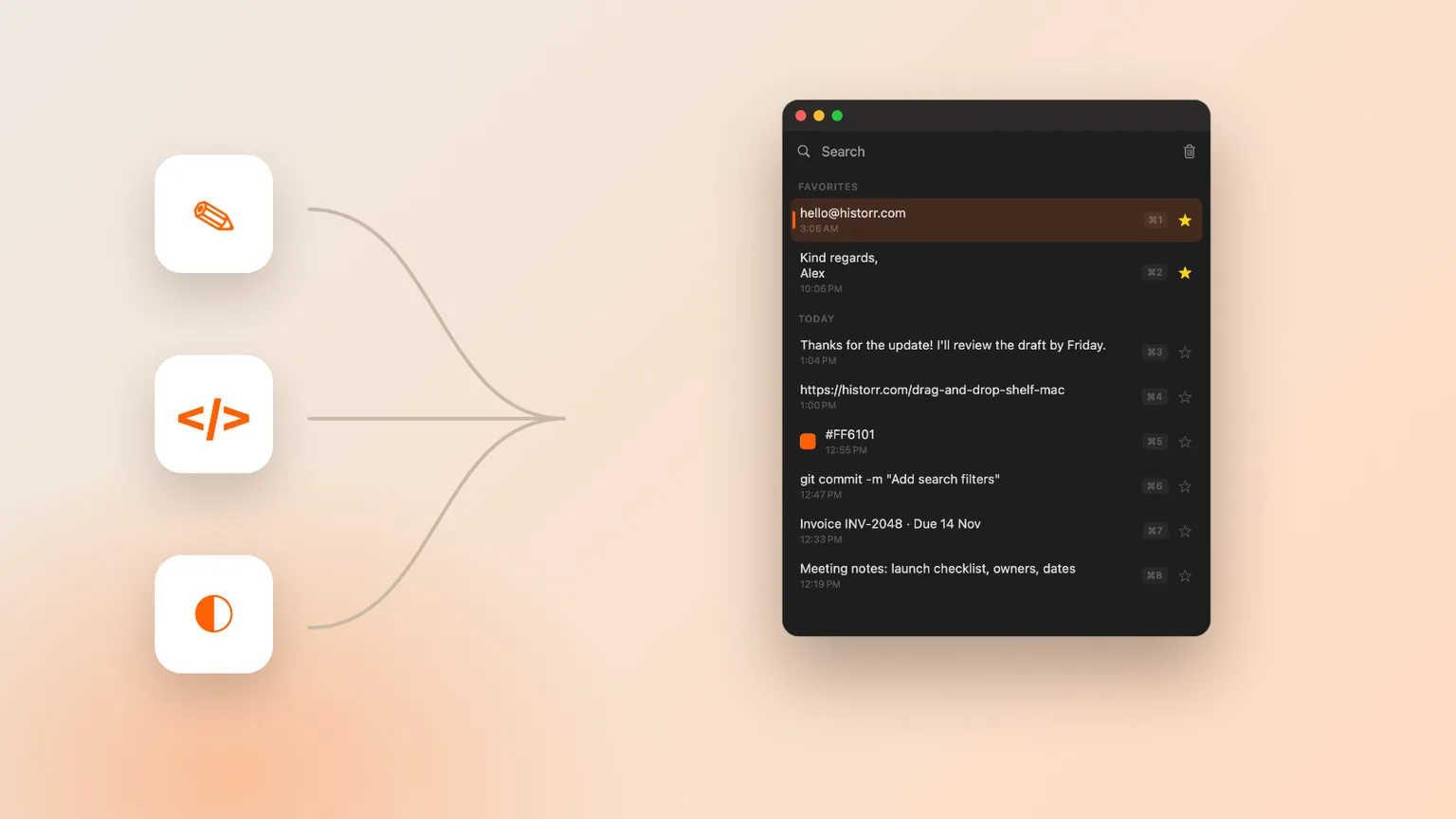
Original Historr editorial artwork using sample data; no private clipboard content is shown.
The short answerUse the built-in sequence for occasional retrieval or configure Historr's shortcut for a dedicated keyboard-first history workflow. A shortcut is useful only when its destination and behavior are clear. Current macOS documentation describes Command-Space then Command-4 for Spotlight Clipboard history; Historr uses a configurable Option-H default.
The overview
The useful answer to “clipboard history mac shortcut” now includes both macOS and dedicated apps. Apple documents Command-Space followed by Command-4 for Clipboard history in Spotlight on supported systems. Historr opens its dedicated history with Option-H by default, and the shortcut can be changed.
A shortcut is useful only when its destination and behavior are clear. Current macOS documentation describes Command-Space then Command-4 for Spotlight Clipboard history; Historr uses a configurable Option-H default. Do not confuse Command-V, which pastes the current item, with a history shortcut that opens a chooser. A reliable workflow uses one gesture to find the item and a clear second action to paste it.
Why it happens
Shortcuts conflict when launchers, window managers and utilities claim the same keys. A configurable combination matters more than memorizing the developer's default, especially on a heavily customized Mac.
The best test is physical: open history from three different apps, search without reaching for the mouse and paste the selected result. If focus is lost or the combination is awkward, change it before building muscle memory.
Your step-by-step guide
Try the built-in route
On a supported macOS release, press Command-Space and then Command-4. Search for a sample clip, select it, copy it and paste into a blank document.
Try a dedicated shortcut
Install Historr, press Option-H, type to search and press Return. Use Command-1 through Command-9 for a visible item or Option-Command-V for the next Paste Stack entry.
Resolve conflicts deliberately
If another app responds, change the clipboard shortcut in settings. Choose a combination you can reach comfortably and verify it in the apps where you copy most.
Learn only the shortcuts you need
Begin with open, search and paste. Add Quick Look, instant-number paste or Paste Stack after the basic retrieval loop feels automatic.
Common mistakes to avoid
- Choosing from a ranking without testing the actual shortcut and paste flow.
- Using a real password or token to test clipboard privacy behavior.
- Treating clipboard history as a permanent archive or backup.
Small changes. A faster workflow.
- Use a distinctive synthetic phrase when testing search.
- Preview a recovered clip before pasting it into live work.
- Review clear, pause and retention controls before daily use.
Compare your options
| Option | Best for | Limits |
|---|---|---|
| Built-in macOS history | Occasional recent-item retrieval on supported systems | Workflow depth and availability depend on macOS |
| Minimal clipboard manager | Fast keyboard-first history | May omit queues, transforms or file staging |
| Historr | Local history plus Paste Stack, transforms, images and Drag Shelf | Mac only; no cloud sync |
Built-in macOS history
Best forOccasional recent-item retrieval on supported systems
LimitsWorkflow depth and availability depend on macOS
Minimal clipboard manager
Best forFast keyboard-first history
LimitsMay omit queues, transforms or file staging
Historr
Best forLocal history plus Paste Stack, transforms, images and Drag Shelf
LimitsMac only; no cloud sync
Put it into practice with Historr
Historr stores clipboard history locally on the Mac, has no account or telemetry, ignores concealed or transient password-manager copies, and can auto-expire content that resembles card numbers, one-time codes or tokens. Pause Recording is available for work that should not enter history.
Open Historr with Option-H, search as you type, use the arrow keys and press Return to paste. It also remembers images, previews clips with Space, supports plain-text and other transforms, queues ordered values in Paste Stack, and includes a temporary Drag Shelf for files, links, images and text.
Run one repeatable five-minute test before making it part of your workflow. Copy a synthetic paragraph, a URL, an image and a fake token; open history; search for each item; preview the image; paste the safe clips into a blank document; and check how the fake token is handled. Clear the test history, restart the app and confirm the expected result. This small routine turns an abstract recommendation into evidence from your own Mac. If you cannot explain where the clips live, how to remove them or which permission enables pasting, review the documentation before using the app with real work.
- Instant search
- Unlimited history
- Favorites
- Keyboard shortcuts
- Privacy
- Offline storage
- Quick preview
- Paste Stack

Keep your next good idea.
Free, private clipboard history for your Mac.
Questions, answered.
Clipboard history mac shortcut?
Use the built-in sequence for occasional retrieval or configure Historr's shortcut for a dedicated keyboard-first history workflow.
Does macOS include clipboard history now?
Apple documents searchable Clipboard history in Spotlight on supported current releases. Availability depends on your macOS version, and dedicated apps can add different retention and workflow features.
Is Historr safe for sensitive clipboard content?
Historr keeps history locally, ignores concealed password-manager copies and can auto-expire detected sensitive items. Still pause recording before deliberately copying material you do not want stored.
Take it from here
Use “clipboard history mac shortcut” as a decision question rather than a hunt for the longest feature list. Use the built-in sequence for occasional retrieval or configure Historr's shortcut for a dedicated keyboard-first history workflow. Verify the current behavior with synthetic data, keep durable information elsewhere and revisit the choice if your Mac workflow changes.
If you're looking for a faster way to search, organize, and reuse everything you copy, try Historr and see how much time you can save.
Continue with these guides
- Historr documentation
Check shortcuts, images, Paste Stack, privacy controls and Drag Shelf.
- Download Historr
Try the free local clipboard manager for macOS.