10 Copy and Paste Mistakes That Slow Down Your Workflow
Avoid common copy and paste productivity mistakes: losing copied text, duplicate copying, poor organization, missing shortcuts, and unsafe clipboard habits.

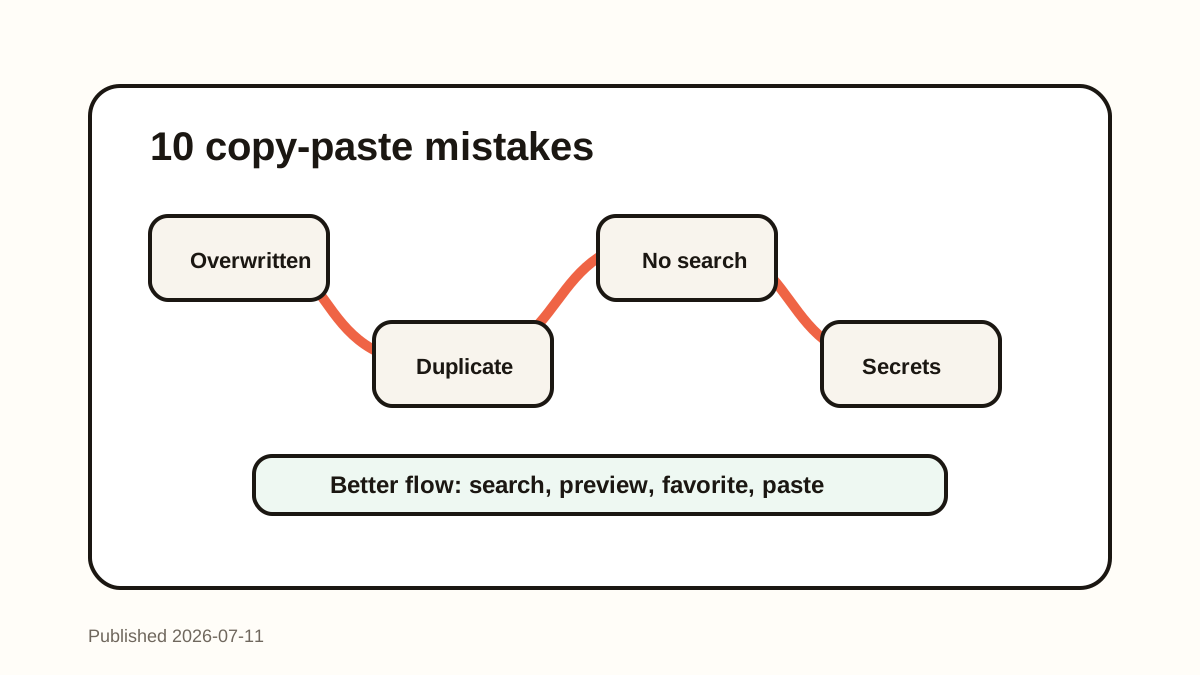
The short answerCopy and paste productivity improves when you stop treating the clipboard as invisible. The biggest mistakes are small: copying the same item twice, losing text, missing shortcuts, and saving sensitive data carelessly.
The overview
Copy and paste feels too simple to optimize, which is why inefficient habits survive for years.
Every repeated search for old text, copied link, snippet, email reply, or command creates a tiny context switch.
Fixing the basics can save more time than adding another complicated productivity system.
Why it happens
The default clipboard hides its state, so people do not notice how often they repeat the same work.
Most workflows span several apps, and a new copy overwrites the old item immediately.
Without search or favorites, reusable text is scattered across memory, chats, docs, and old emails.
Your step-by-step guide
Stop recopying the same item
Use clipboard history to paste a previous item instead of returning to the source app.
Do not rely on memory
Search for copied fragments by keyword, link, ID, or phrase before recreating them.
Favorite repeated snippets
Save addresses, replies, commands, prompts, and templates you use often.
Preview before pasting
For long text, code, and customer replies, confirm the exact item before it lands in the wrong place.
Protect sensitive content
Clear passwords, API keys, payment details, and private customer data from history.
Common mistakes to avoid
- Copying over important text before pasting it.
- Opening old emails or docs just to copy the same phrase again.
- Ignoring keyboard shortcuts and relying only on menus.
- Saving passwords, tokens, or payment data in clipboard history.
- Letting favorite snippets grow without pruning them.
Small changes. A faster workflow.
- Search by the most unique word you remember.
- Use favorites for weekly snippets, not one-time clips.
- Keep clipboard history local for private work.
- Clear sensitive clips as soon as the task is done.
Compare your options
| Option | Best for | Limits |
|---|---|---|
| Default clipboard | Single immediate paste | Loses previous items |
| Clipboard history | Recovery and repeated use | Needs cleanup habits |
| Snippet library | Stable reusable text | Requires manual organization |
Default clipboard
Best forSingle immediate paste
LimitsLoses previous items
Clipboard history
Best forRecovery and repeated use
LimitsNeeds cleanup habits
Snippet library
Best forStable reusable text
LimitsRequires manual organization
Put it into practice with Historr
Historr addresses the most common copy-paste mistakes with local history, search, favorites, preview, and Paste Stack.
Instead of returning to the source app, you can recover a copied item by search and paste it from the keyboard.
Privacy settings and good habits keep the workflow useful without turning clipboard history into a place for sensitive data.
- Instant search
- Unlimited history
- Favorites
- Keyboard shortcuts
- Privacy
- Offline storage
- Quick preview
- Paste Stack

Keep your next good idea.
Free, private clipboard history for your Mac.
Questions, answered.
What is the biggest copy-paste mistake?
The biggest mistake is assuming copied text can be recovered after it is overwritten when no clipboard history app was running.
How can I copy and paste faster?
Use keyboard shortcuts, clipboard history search, favorites for repeated snippets, and preview for long items.
Why do I keep losing copied text?
Most default clipboards store only the latest copied item, so a new copy replaces the previous one.
Are clipboard managers safe?
They can be safe when they store history locally and give you controls for sensitive content.
Should every copied item become a snippet?
No. Favorite only repeated items and let ordinary clips stay searchable in history.
Take it from here
Better copy-paste habits are boring in the best way. Once history, search, favorites, and privacy cleanup become automatic, everyday work loses a surprising amount of friction.
If you're looking for a faster way to search, organize, and reuse everything you copy, try Historr and see how much time you can save.