How to Save Frequently Used Email Templates With Clipboard History
Learn how to save email templates for Gmail, Outlook, customer support, recruiting, sales outreach, and reusable responses with clipboard history.

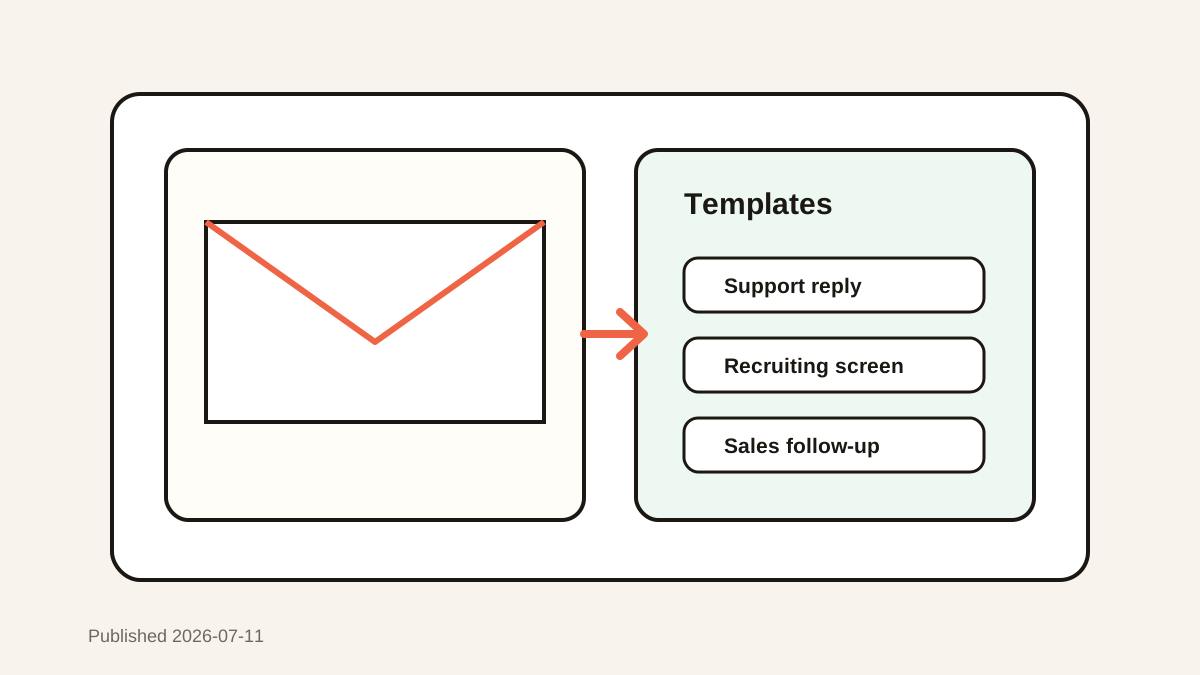
The short answerYou can save frequently used email templates with clipboard history by copying your best replies, favoriting the reusable versions, and searching them by purpose, customer type, or subject.
The overview
Email templates often start as a reply you wrote under pressure, then disappear into sent mail.
Gmail and Outlook can store templates, but many people still copy from old messages, docs, Slack, or notes.
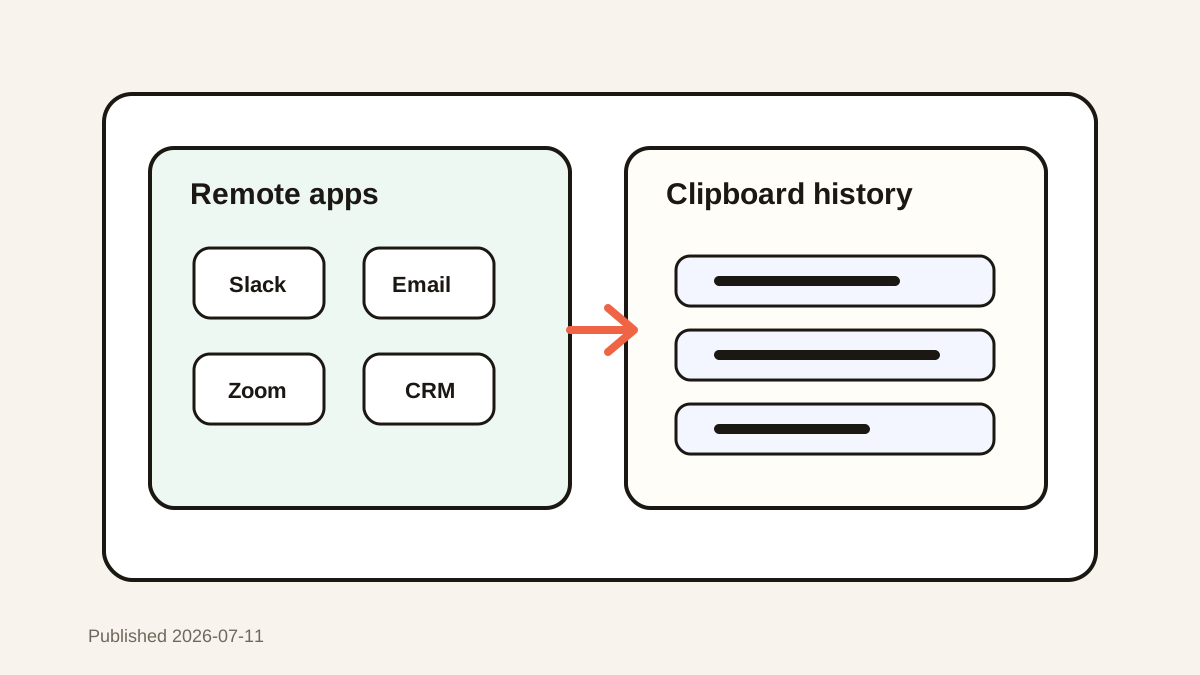
Clipboard history catches the useful replies you already copy and makes them easier to reuse.
Why it happens
Most teams have repeated email patterns: introductions, follow-ups, support replies, recruiting outreach, and sales next steps.
The best version often lives in a sent email, not in an official template library.
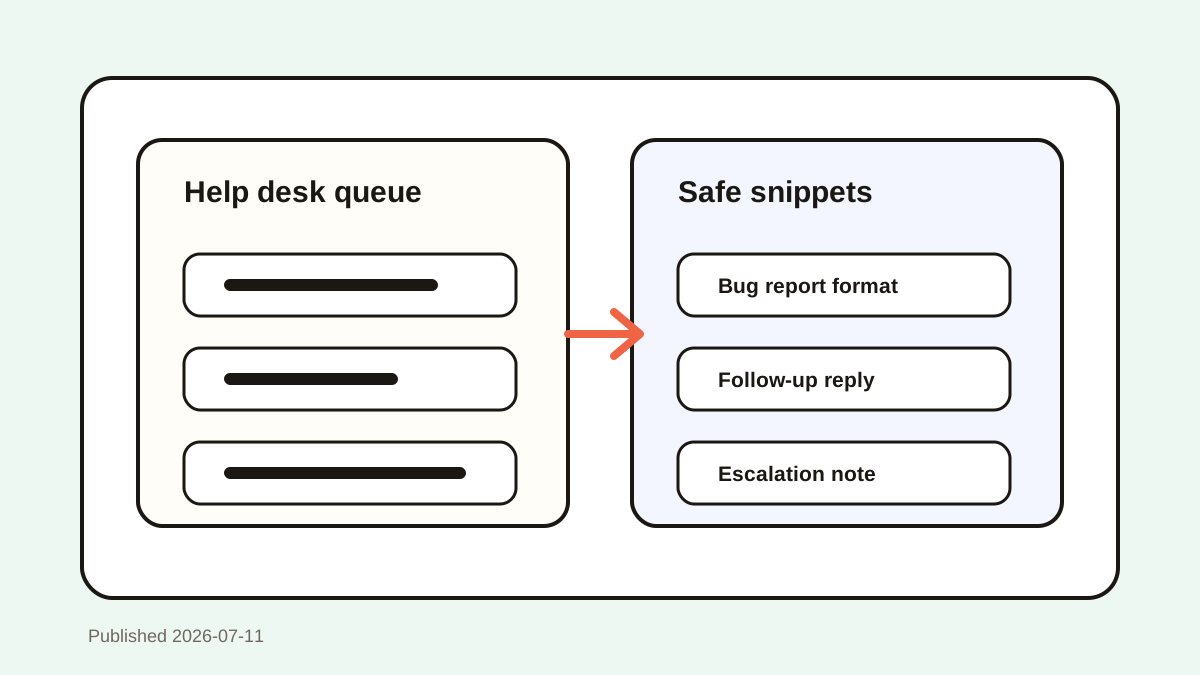
Clipboard history gives individuals a fast personal layer for snippets that are not ready for a team system.
Your step-by-step guide
Copy your best recent replies
Find the emails you rewrite often and copy the version that sounds clear, complete, and human.
Remove private details
Replace names, dates, prices, and account details with placeholders before favoriting the template.
Name templates by use case
Use searchable phrases such as intro follow-up, refund explanation, recruiting screen, or sales pricing reply.
Favorite frequent templates
Keep daily templates in favorites and leave less common replies searchable in history.
Personalize before sending
Paste the template, then adjust greeting, context, tone, and next steps so the reply does not feel canned.
Common mistakes to avoid
- Saving templates with private customer or candidate data.
- Sending pasted templates without personalizing them.
- Favoriting too many templates until the list becomes hard to scan.
- Keeping outdated pricing, policy, or product language in old snippets.
Small changes. A faster workflow.
- Use placeholders for names, dates, links, and account details.
- Keep the first sentence personal whenever possible.
- Review templates after policy or product changes.
- Use clipboard search for less frequent replies instead of making every template a favorite.
Compare your options
| Option | Best for | Limits |
|---|---|---|
| Gmail or Outlook templates | Official repeatable emails | Lives inside one email app |
| Docs or notes | Team-approved libraries | Slower to paste during replies |
| Clipboard history | Fast personal reusable responses | Needs privacy cleanup |
Gmail or Outlook templates
Best forOfficial repeatable emails
LimitsLives inside one email app
Docs or notes
Best forTeam-approved libraries
LimitsSlower to paste during replies
Clipboard history
Best forFast personal reusable responses
LimitsNeeds privacy cleanup
Put it into practice with Historr
Historr helps you turn copied email replies into local, searchable templates without leaving Gmail, Outlook, or your browser.
Favorites work well for support replies, recruiting outreach, sales follow-ups, and personal templates you use constantly.
Preview helps prevent pasting the wrong template into a sensitive thread.
- Instant search
- Unlimited history
- Favorites
- Keyboard shortcuts
- Privacy
- Offline storage
- Quick preview
- Paste Stack

Keep your next good idea.
Free, private clipboard history for your Mac.
Questions, answered.
Can clipboard history save email templates?
Yes. Copy a reusable reply, remove private details, and favorite it for quick reuse.
Should I use Gmail templates or clipboard history?
Use Gmail or Outlook templates for official email patterns and clipboard history for fast personal snippets across apps.
How do I keep templates from sounding robotic?
Paste the reusable structure, then personalize the greeting, context, and next step before sending.
What email templates are worth saving?
Save follow-ups, support replies, recruiting outreach, sales responses, scheduling notes, and common explanations.
Is it safe to save email templates in clipboard history?
It is safer when templates use placeholders and avoid private customer, candidate, or account data.
Take it from here
Email templates save time only when they are easy to find and safe to reuse. Clipboard history makes personal templates fast while still leaving room for human edits before you send.
If you're looking for a faster way to search, organize, and reuse everything you copy, try Historr and see how much time you can save.