How Remote Workers Can Save Hours Using Clipboard History
Learn how remote workers use clipboard history for email templates, Slack replies, Zoom links, CRM updates, and repetitive copy-paste workflows.

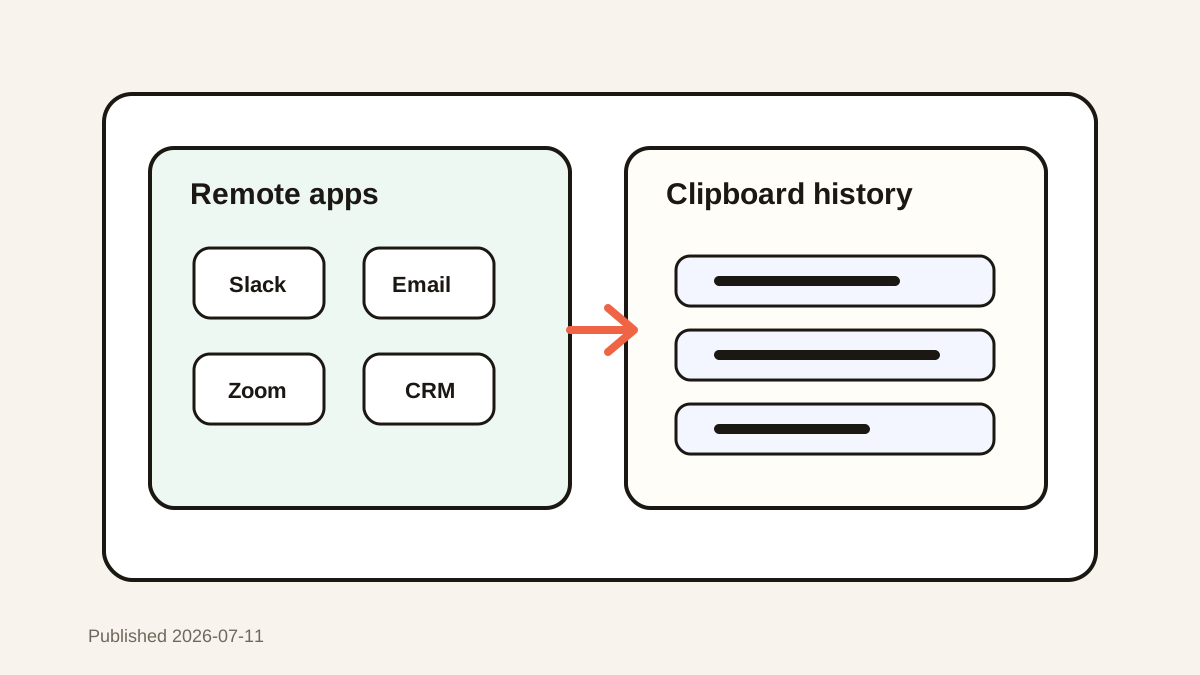
The short answerClipboard history helps remote workers save hours by turning repeated messages, links, client details, meeting notes, and CRM updates into searchable items instead of one-off copy-paste chores.
The overview
Remote work spreads context across chat, email, calendars, video calls, documents, task tools, and CRMs.
The same details get copied repeatedly: meeting links, customer names, project URLs, status updates, addresses, and short replies.
Without history, every overwritten copy creates a small interruption that compounds across the day.
Why it happens
Remote workers switch tools more often because communication is distributed across apps.
Many repeated phrases are too small to deserve a full document but too common to retype every time.
Clipboard history keeps these fragments available without changing the tools your team already uses.
Your step-by-step guide
Save your daily reply patterns
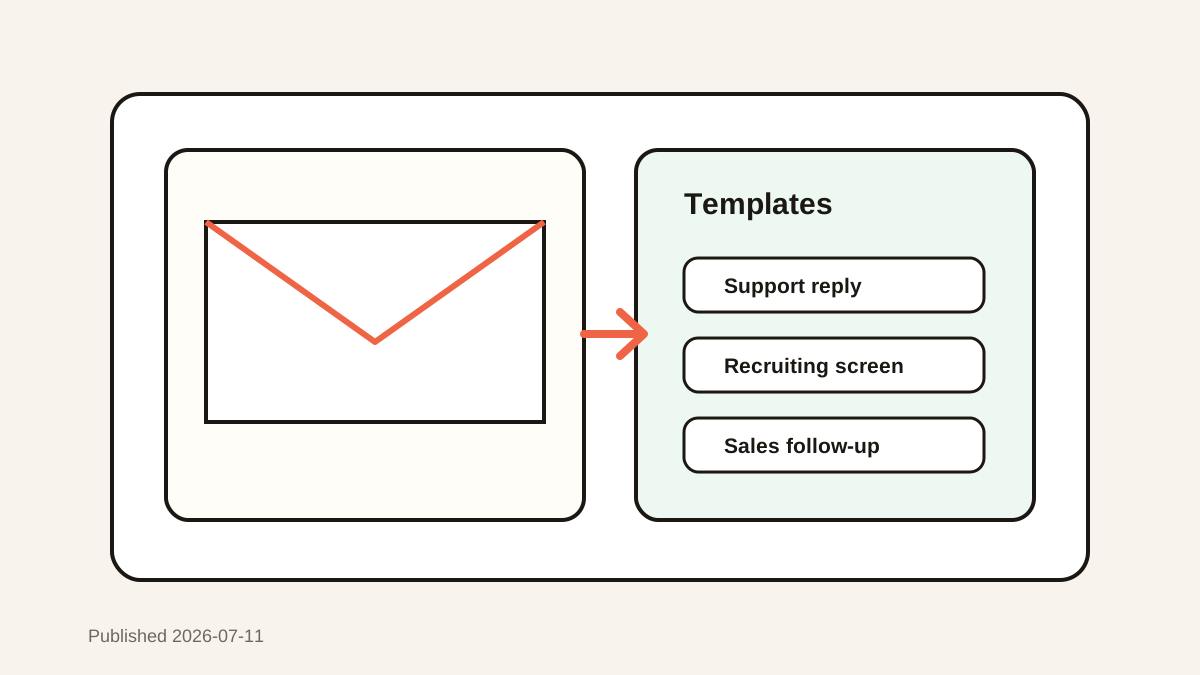
Copy the Slack replies, email phrases, handoff notes, and meeting follow-ups you send repeatedly, then favorite the ones you use most.
Search by project or customer
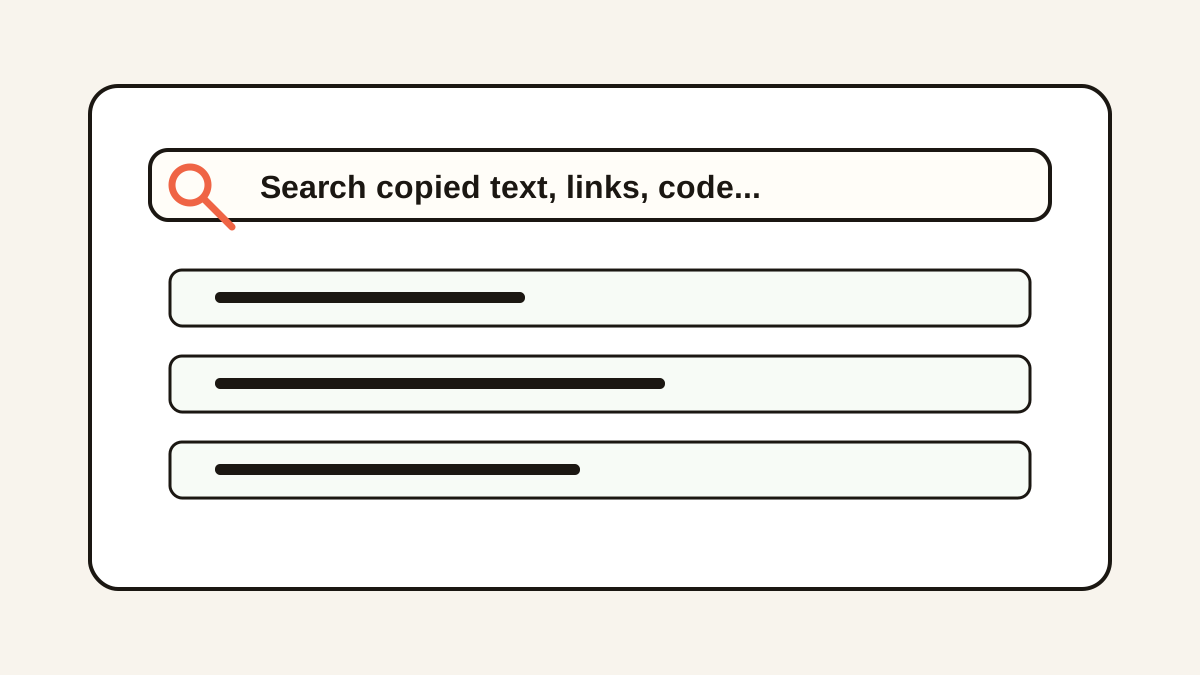
Use customer names, ticket IDs, meeting titles, and project codes as search anchors when you need old copied context.
Keep Zoom and calendar links recoverable
Copied meeting links often get overwritten. Clipboard history makes it easy to paste them again without reopening the calendar.
Build CRM update snippets
Create reusable lines for call notes, next steps, qualification details, and follow-up reminders.
Clear private items promptly
Remote workers often handle customer data. Delete sensitive clips and avoid saving passwords, payment details, and private HR information.
Common mistakes to avoid
- Retyping the same status update every day.
- Saving private customer information longer than needed.
- Keeping too many favorites instead of searching history.
- Copying meeting links from calendars again and again instead of recovering them from history.
Small changes. A faster workflow.
- Favorite only templates you use weekly.
- Search with project codes, customer names, and issue IDs.
- Use short snippets for Slack and longer templates for email.
- Set privacy rules before saving team or customer data.
Compare your options
| Option | Best for | Limits |
|---|---|---|
| Manual copy-paste | One-off tasks | Easy to lose or repeat |
| Team docs | Official templates | Slow for small fragments |
| Clipboard history | Fast personal reuse | Needs privacy discipline |
Manual copy-paste
Best forOne-off tasks
LimitsEasy to lose or repeat
Team docs
Best forOfficial templates
LimitsSlow for small fragments
Clipboard history
Best forFast personal reuse
LimitsNeeds privacy discipline
Put it into practice with Historr
Historr gives remote workers a searchable local history for the small pieces of context that usually disappear between apps.
Favorites are useful for repeated replies, while search helps recover recent meeting links, notes, customer names, and project snippets.
Because the workflow is keyboard-first, it works across Slack, email, docs, browsers, and CRM tools without forcing a new workspace.
- Instant search
- Unlimited history
- Favorites
- Keyboard shortcuts
- Privacy
- Offline storage
- Quick preview
- Paste Stack

Keep your next good idea.
Free, private clipboard history for your Mac.
Questions, answered.
How can clipboard history save remote workers time?
It reduces repeated typing and lets workers recover links, replies, notes, and customer details after they are overwritten.
What should remote workers save as snippets?
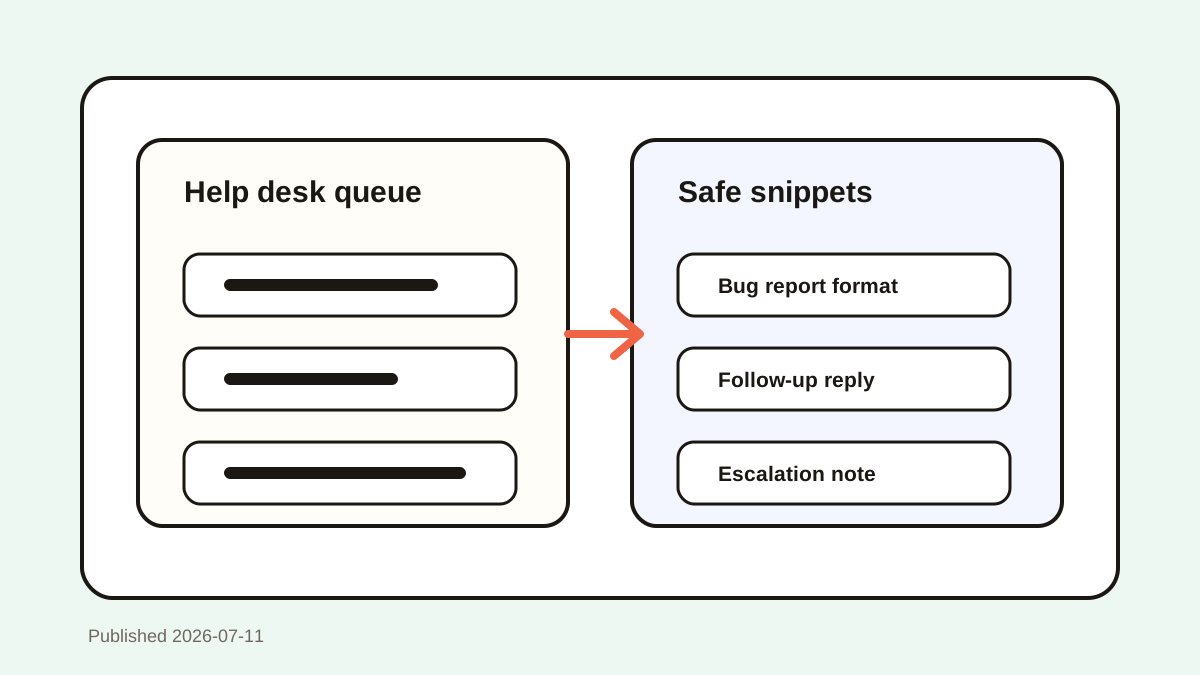
Common email replies, Slack updates, meeting follow-ups, CRM note formats, and project links are good candidates.
Is clipboard history safe for remote work?
Use local storage, delete sensitive items, avoid saving passwords, and follow company data policies.
Can clipboard history help with Zoom links?
Yes. If you copied a meeting link earlier, searchable history can help you paste it again quickly.
Should teams share one clipboard library?
Official templates belong in team docs, while clipboard history is best for personal speed and recovery.
Take it from here
Remote work has enough context switching already. Clipboard history saves time by keeping repeated fragments close, searchable, and ready when the next message or update needs them.
If you're looking for a faster way to search, organize, and reuse everything you copy, try Historr and see how much time you can save.