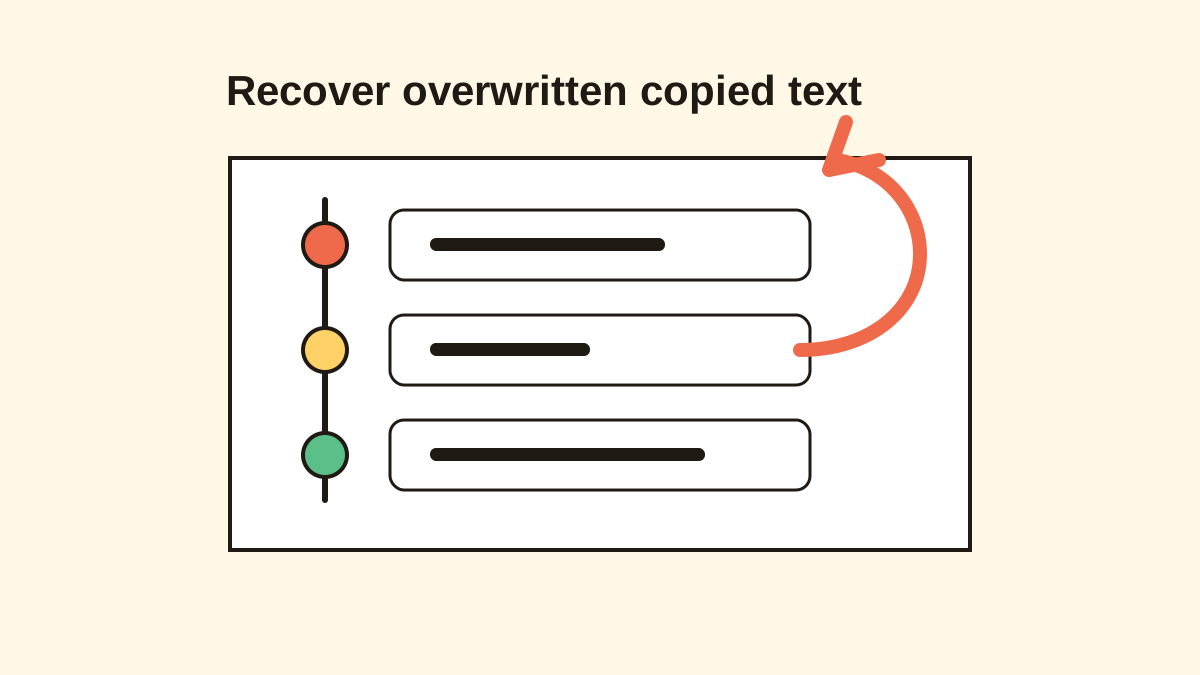
How to Search Everything You’ve Ever Copied
Learn how searchable clipboard history helps you find copied text, links, code, prompts, file paths, and snippets by remembered fragments.

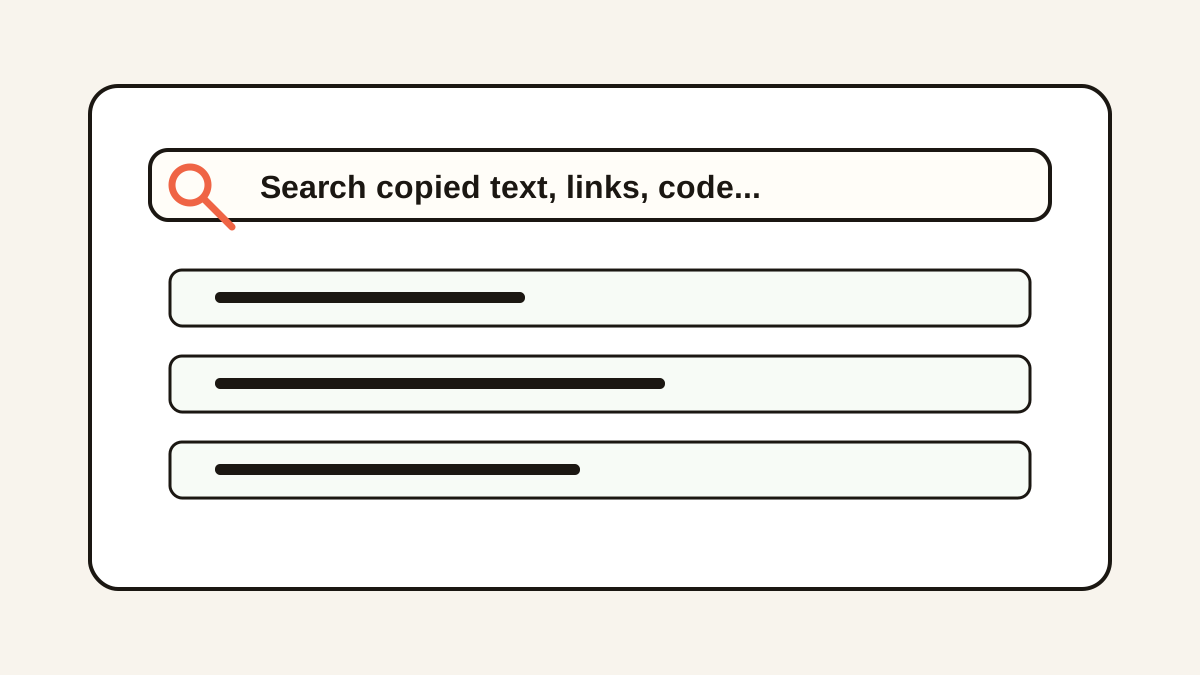
The short answerYou can search everything you have copied only if a clipboard history app was already saving it. Once enabled, searchable clipboard history lets you find items by words, links, IDs, paths, or code fragments.
The overview
Scrolling through clipboard history works for the last few items, but it breaks down once you copy dozens of things a day.
Most people remember fragments: a domain, a variable name, a customer name, a sentence, or an error code.
Search turns clipboard history from a timeline into a retrieval tool.
Why it happens
The original source is often forgotten after switching apps several times.
Recent history is chronological, but memory is associative.
Searchable clipboard history bridges that gap by indexing copied text as it is captured.
Your step-by-step guide
Install a searchable clipboard history app
Choose a tool that indexes text locally and opens from a keyboard shortcut.
Search unique fragments
Use uncommon words, URLs, file paths, function names, IDs, or exact phrases.
Preview before pasting
For long clips, preview the result so you do not paste the wrong item into a document or chat.
Favorite repeated search results
If you search for the same item twice, it probably belongs in favorites.
Clear sensitive matches
Delete private or regulated content when it no longer needs to be searchable.
Common mistakes to avoid
- Expecting search to find items copied before history was enabled.
- Using broad search terms that match too many clips.
- Keeping sensitive content indexed forever.
- Saving images when what you need later is searchable text.
Small changes. A faster workflow.
- Search for the rarest word you remember.
- Try partial URLs, extensions, flags, and IDs.
- Favorite items you reuse, but leave one-time items in history.
- Use local storage when copied data includes work material.
Compare your options
| Option | Best for | Limits |
|---|---|---|
| Visual scanning | Last few copied items | Slow and error-prone at scale |
| Keyword search | Finding remembered fragments | Works best for text |
| Favorites | Repeated known snippets | Requires curation |
Visual scanning
Best forLast few copied items
LimitsSlow and error-prone at scale
Keyword search
Best forFinding remembered fragments
LimitsWorks best for text
Favorites
Best forRepeated known snippets
LimitsRequires curation
Put it into practice with Historr
Historr is built around fast searchable clipboard history on Mac.
Open Historr, type the fragment you remember, preview the item, and paste without returning to the original source.
Local storage keeps search fast and private, while favorites and Paste Stack help with repeated workflows.
- Instant search
- Unlimited history
- Favorites
- Keyboard shortcuts
- Privacy
- Offline storage
- Quick preview
- Paste Stack

Keep your next good idea.
Free, private clipboard history for your Mac.
Questions, answered.
Can I search everything I have ever copied?
Only copied items captured after clipboard history was enabled can be searched.
Can macOS search clipboard history by default?
No. macOS does not include a full searchable clipboard history by default.
Can Windows 11 search clipboard history?
Windows 11 has a clipboard history panel, but dedicated clipboard managers usually provide stronger search.
What should I search for?
Use unique fragments like domains, names, IDs, commands, file paths, function names, or exact phrases.
Can image clipboard items be searched?
Some apps can show copied images, but text search works best for text and metadata.
Take it from here
Searchable clipboard history is powerful because it matches how people remember work. You do not need the source app if you can remember one specific fragment.
If you're looking for a faster way to search, organize, and reuse everything you copy, try Historr and see how much time you can save.