How to Recover Copied Text After It Was Overwritten
Learn when you can recover copied text after it was overwritten, where to check first, and how clipboard history prevents lost copied text.

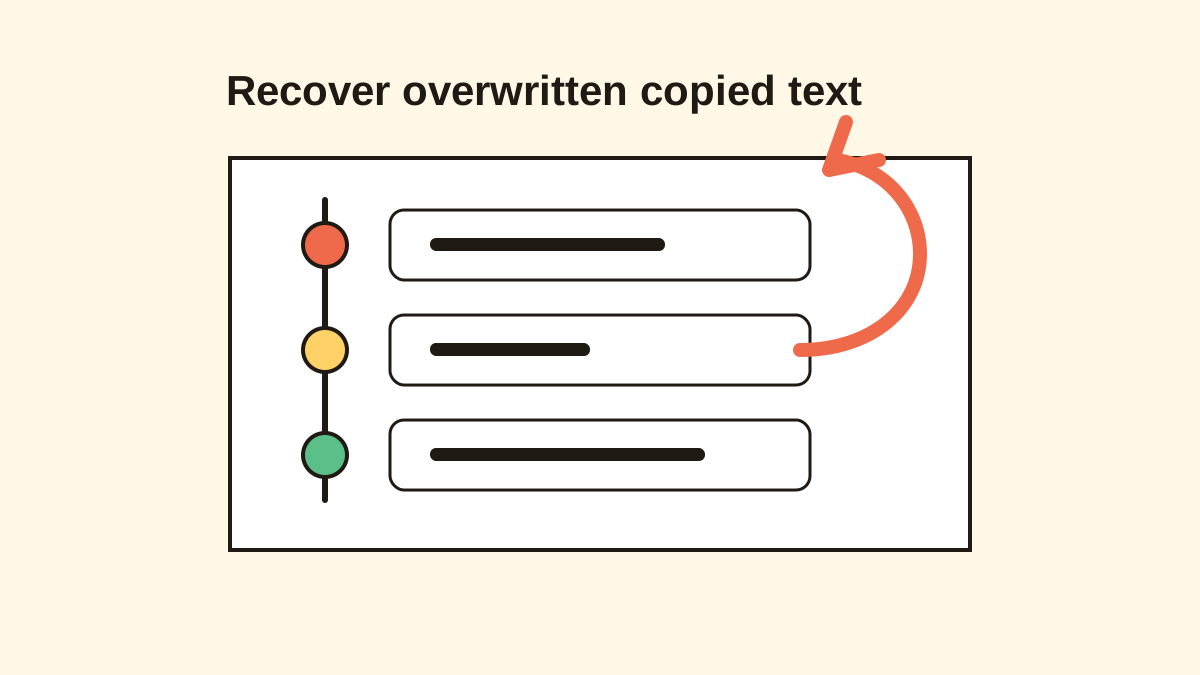
The short answerIf you copied new text over something important, recovery depends on whether that older text exists somewhere else or was captured by clipboard history before it was overwritten.
The overview
The clipboard feels like memory, but without history it usually holds only the latest item.
That means an email draft, command, quote, prompt, address, or support reply can disappear the moment you copy something else.
Recovery is possible in some cases, but prevention is much more reliable than rescue.
Why it happens
A standard clipboard replaces the previous item when you copy a new one.
Operating systems cannot recreate text that was never saved in history, an app draft, undo stack, version history, or another source.
Clipboard managers solve this by saving copied items as they happen.
Your step-by-step guide
Stop copying new items
Avoid overwriting anything else while you investigate. More copying creates more confusion.
Check the source app
Look at the original document, browser tab, chat, email, PDF, note, or code editor where the text came from.
Use undo or version history
Try undo in the app, document version history, browser form recovery, or autosaved drafts.
Open clipboard history
Use Win + V on Windows or your clipboard manager on Mac. If history was already running, the older text may be there.
Install prevention for next time
Set up a clipboard history app with search, local storage, and privacy rules so the next overwritten item is recoverable.
Common mistakes to avoid
- Copying more content while trying to recover the previous item.
- Assuming macOS has a hidden full clipboard archive.
- Installing a clipboard manager after the loss and expecting it to recover past items.
- Ignoring drafts, undo stacks, and version history in the source app.
Small changes. A faster workflow.
- Search browser history if the copied text came from a web page.
- Check notes, chat logs, and sent messages for repeated phrases.
- Use clipboard favorites for snippets you cannot afford to lose.
- Set sensitive copied items to expire instead of saving everything forever.
Compare your options
| Option | Best for | Limits |
|---|---|---|
| Source app | Text copied from visible documents or pages | Not helpful if the source is closed or changed |
| Undo/version history | Drafts and edited documents | Depends on app support |
| Clipboard history | Text captured before overwrite | Must have been enabled already |
Source app
Best forText copied from visible documents or pages
LimitsNot helpful if the source is closed or changed
Undo/version history
Best forDrafts and edited documents
LimitsDepends on app support
Clipboard history
Best forText captured before overwrite
LimitsMust have been enabled already
Put it into practice with Historr
Historr helps prevent lost copied text by saving your Mac clipboard history locally as you work.
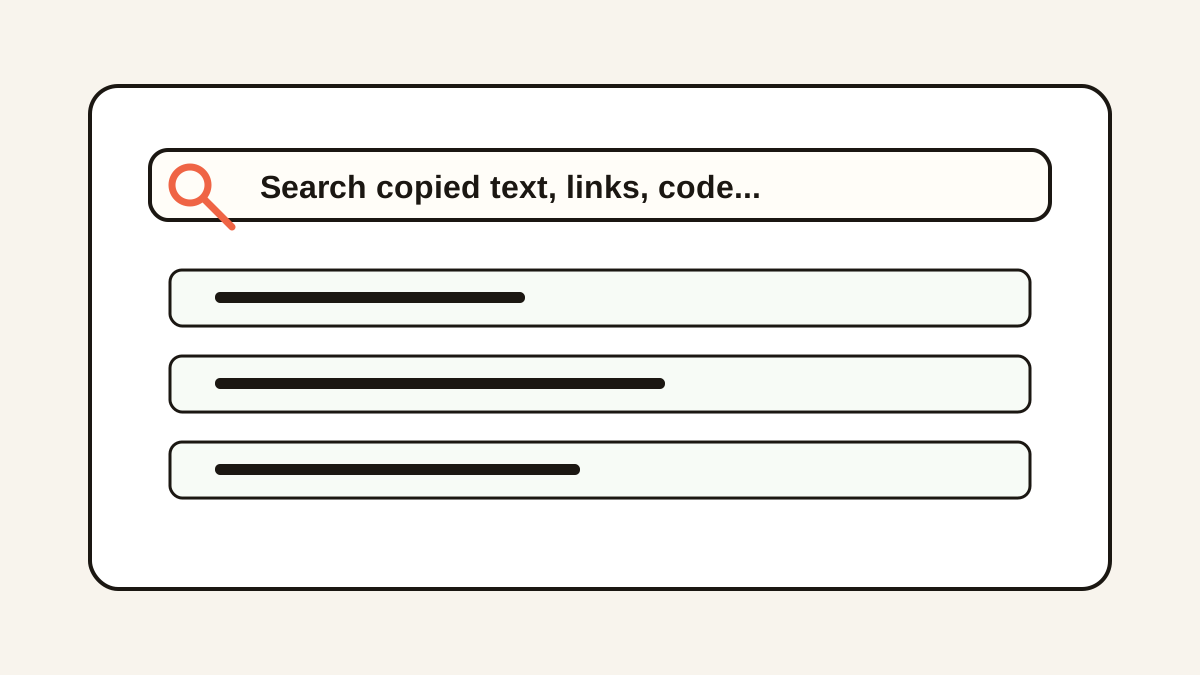
When something is overwritten, you can search for a remembered word, preview the clip, and paste it again.
It also gives you privacy controls, favorites, and Paste Stack so recovery does not require keeping sensitive data forever.
- Instant search
- Unlimited history
- Favorites
- Keyboard shortcuts
- Privacy
- Offline storage
- Quick preview
- Paste Stack

Keep your next good idea.
Free, private clipboard history for your Mac.
Questions, answered.
Can I recover copied text after copying something else?
Only if it still exists in the source app, undo history, version history, or a clipboard manager that was already capturing history.
Can a new clipboard manager recover old copied text?
No. A clipboard manager can only save items copied after it is installed and running.
Does Mac keep old copied text?
macOS does not provide a built-in searchable archive of old clipboard items.
Does Windows 11 help recover copied text?
Yes, if clipboard history was enabled before the text was overwritten.
How do I avoid losing copied text again?
Use clipboard history, search, favorites, and privacy rules for sensitive content.
Take it from here
The honest answer is that overwritten copied text is not always recoverable. The best fix is to make sure your next important copy is captured before it disappears.
If you're looking for a faster way to search, organize, and reuse everything you copy, try Historr and see how much time you can save.