How to Recover Lost Clipboard History
Need to recover lost clipboard history? Learn what you can try after copying over text, what is impossible, and how to prevent future loss.


The short answerTrying to recover lost clipboard history is stressful because the clipboard feels invisible. If you copied something else, restarted your computer, or closed the source app, recovery depends on whether another app or clipboard manager already saved the item.
The overview
The clipboard is not the same as a document. It is a temporary transfer space between apps.
When you copy a new item, most operating systems replace the previous one. That is why an important copied paragraph can vanish after you copy a URL.
Recovery is sometimes possible, but prevention is much more reliable.
Why it happens
The system clipboard prioritizes speed. It keeps the current paste item available to apps.
Older copied content is not normally stored in a permanent place unless a history feature or manager captured it.
Restarts, app quits, private browsing, remote desktops, and security tools can also affect what stays available.
Your step-by-step guide
Stop copying new content
Every new copy can overwrite the item you are trying to recover. Pause and check the easiest recovery paths first.
Try undo in the source app
If the text came from a document, editor, form, or CMS, use undo, document history, draft recovery, or browser form recovery.
Check app-specific history
Chat apps, code editors, design tools, and note apps may keep drafts, versions, local history, or recently copied snippets.
Open system clipboard history if available
On Windows 11, press Windows+V if clipboard history was enabled. On macOS, use your clipboard manager if one was already running.
Search backups and synced apps
If the content lived in a synced document, cloud note, email draft, or issue tracker, search there for a unique phrase.
Common mistakes to avoid
- Installing a clipboard manager after the loss and expecting it to restore old clips.
- Restarting before checking app drafts or browser history.
- Copying search terms into the clipboard while trying to recover the previous item.
- Ignoring privacy settings after adding clipboard history.
Small changes. A faster workflow.
- Use clipboard history before important research, coding, or writing sessions.
- Favorite clips that are hard to recreate.
- Use quick preview before pasting a long clip.
- Auto-expire sensitive content so prevention does not create a security problem.
Compare your options
| Option | Best for | Limits |
|---|---|---|
| Undo or version history | Text edited in an app | Does not help with content copied from elsewhere |
| Windows+V | Recent Windows clips | Only works if enabled first |
| Clipboard manager | Reliable future recovery | Cannot restore items from before installation |
Undo or version history
Best forText edited in an app
LimitsDoes not help with content copied from elsewhere
Windows+V
Best forRecent Windows clips
LimitsOnly works if enabled first
Clipboard manager
Best forReliable future recovery
LimitsCannot restore items from before installation
Put it into practice with Historr
Historr helps prevent future clipboard loss on Mac by saving copied items locally as you work.
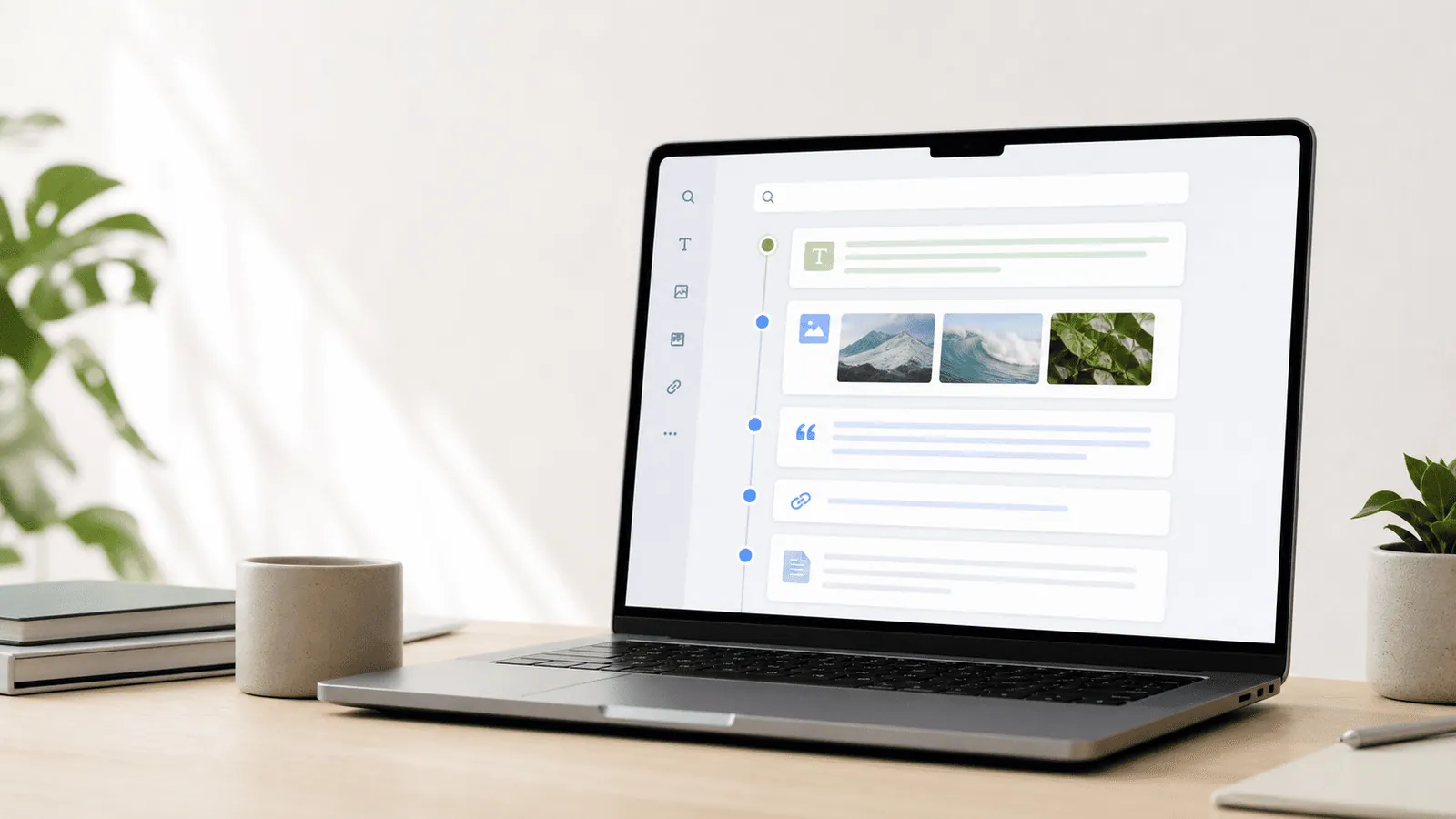
Instant search lets you find a lost quote, link, code block, or copied image by typing a remembered fragment. Favorites keep important clips close, while Quick Look preview reduces wrong pastes.
Historr also treats privacy as part of the recovery workflow. Offline storage, password-manager exclusions, and sensitive auto-expiry help keep history useful without turning it into a risk.
- Instant search
- Unlimited history
- Favorites
- Keyboard shortcuts
- Privacy
- Offline storage
- Quick preview
- Paste Stack
Keep your next good idea.
Free, private clipboard history for your Mac.
Questions, answered.
Can I recover lost clipboard history after copying something else?
Only if another system or app saved the old item. The basic clipboard usually cannot recover overwritten content.
Can a new clipboard manager recover old clipboard history?
No. A clipboard manager can only save items copied while it is installed and running.
Does restart erase clipboard history?
It can erase the current clipboard. Saved history depends on your operating system settings or clipboard manager.
Where should I look first for lost copied text?
Check the source app, undo history, drafts, version history, and any clipboard history tool that was already active.
How do I prevent lost clipboard history?
Use a clipboard manager with search, favorites, preview, and privacy controls before you start important work.
Take it from here
The honest answer is that you often cannot recover lost clipboard history after the fact. The practical fix is to make clipboard history part of your normal workflow before the next high-stakes copy.
If you're looking for a faster way to search, organize, and reuse everything you copy, try Historr and see how much time you can save.