Clipboard History on Windows 11: How to Enable and Use It
Learn how clipboard history Windows 11 works, how to enable it with Windows+V, what it stores, and when a dedicated clipboard manager helps.

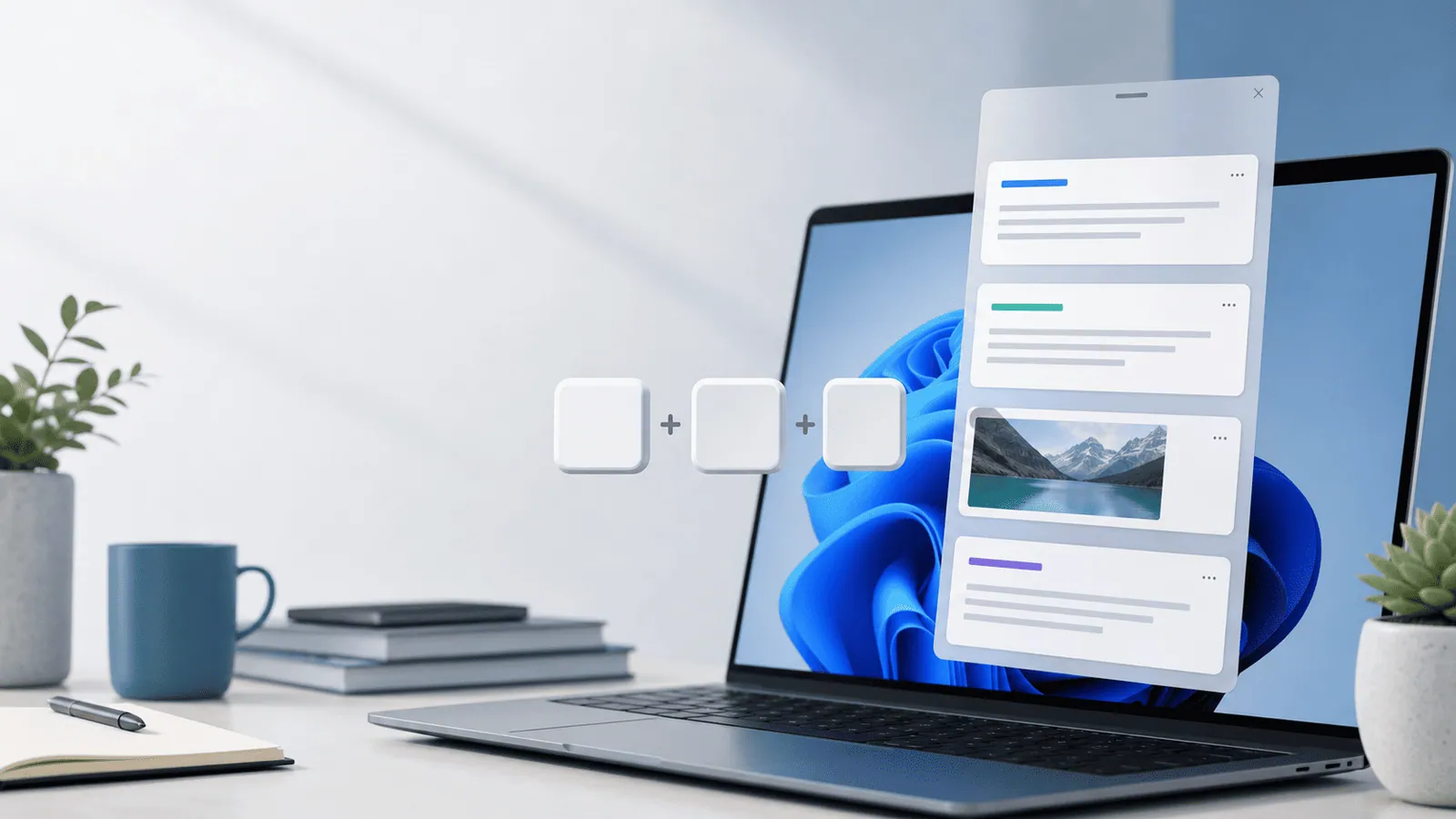
The short answerClipboard history Windows 11 is a built-in feature that lets you press Windows+V to see recent copied items. It is helpful for quick reuse, but it has limits around history depth, search, privacy controls, and long-term organization.
The overview
Windows users often copy from email, spreadsheets, browsers, PDFs, design tools, and chat apps in the same hour. Without history, each new copy replaces the last one.
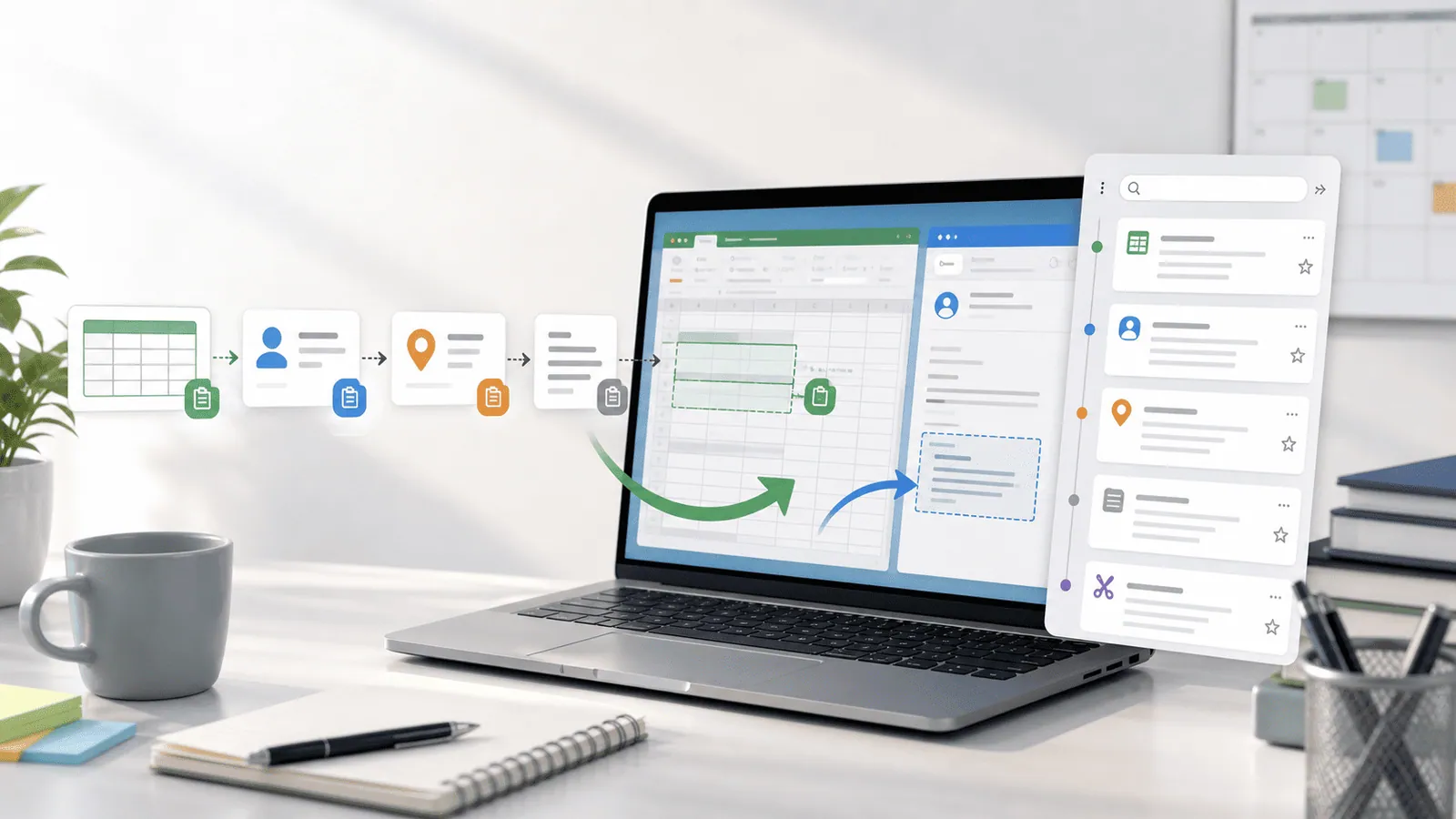
Windows 11 improves this with a built-in clipboard panel. You can enable history, paste older items, pin important clips, and optionally sync across devices.
The key is knowing what Windows does well and where a dedicated clipboard manager gives you more control.
Why it happens
The default clipboard is temporary. It is designed to move one item from one place to another.
Windows 11 adds a history layer, but it is still meant for recent items, not a full searchable knowledge base.
For heavy copy-paste work, the pain usually comes from repetition: copying the same values, losing overwritten text, or switching apps to find a snippet again.
Your step-by-step guide
Enable clipboard history
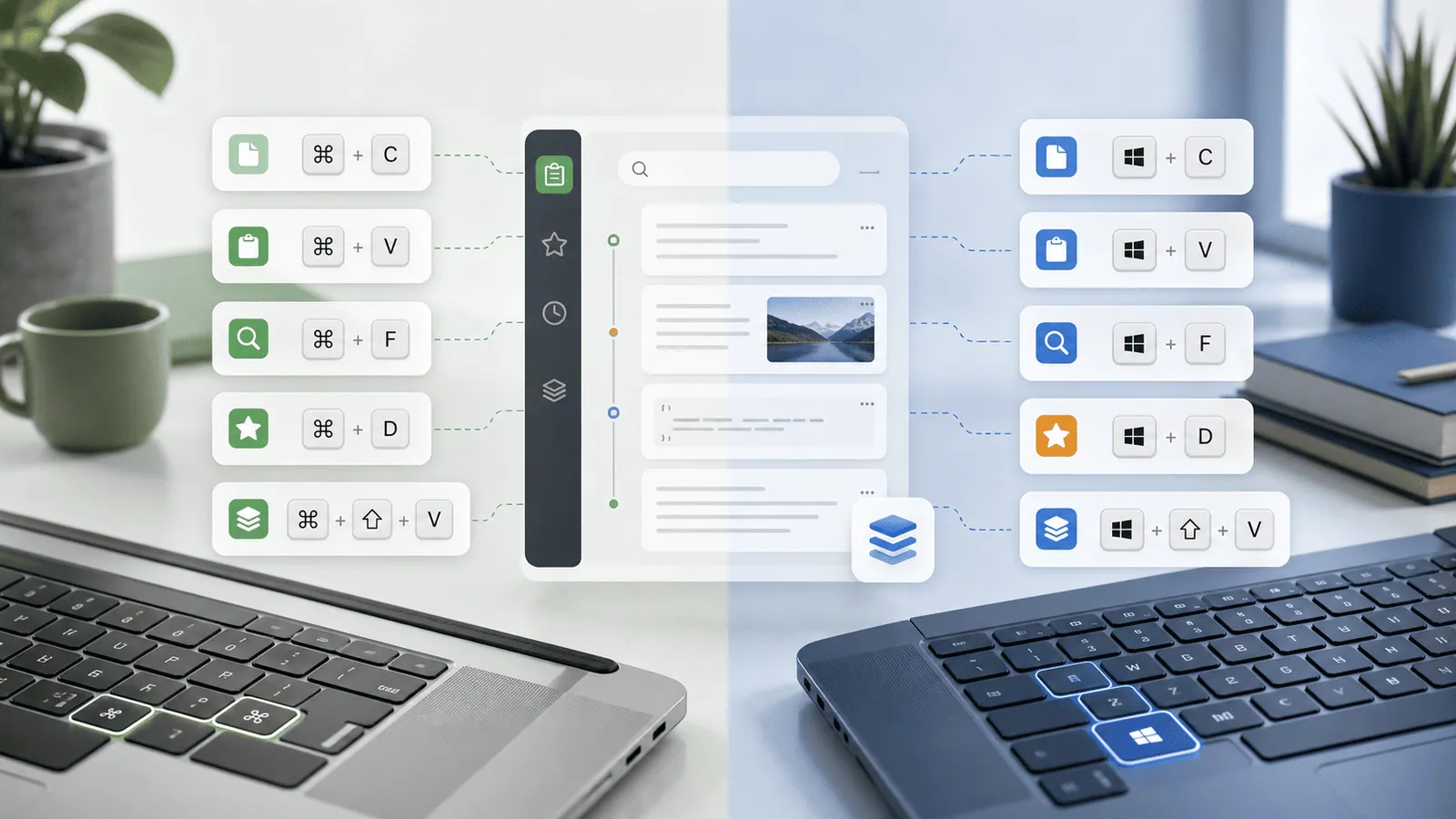
Press Windows+V. If history is off, Windows will ask you to turn it on. You can also open Settings, go to System, then Clipboard, and enable Clipboard history.
Paste from the history panel
Press Windows+V, select the item you want, and Windows will paste it into the active app. This is faster than going back to the source document.
Pin important items
Use pinned items for values you reuse often, such as support replies, office addresses, or standard links. Keep the list short so it stays useful.
Review sync settings
If you use clipboard sync, understand that copied items may move across signed-in devices. Turn it off when you handle sensitive or regulated content.
Use a manager for search-heavy work
If you need unlimited history, favorites, better search, previews, or structured snippet reuse, use a dedicated clipboard manager alongside the built-in panel.
Common mistakes to avoid
- Forgetting to enable Windows+V before expecting history to appear.
- Leaving sensitive values in clipboard history longer than needed.
- Pinning too many items until the panel becomes noisy.
- Assuming synced clipboard is appropriate for every workplace.
Small changes. A faster workflow.
- Use Windows+V as a quick recovery habit after copying over something accidentally.
- Create a short list of pinned office snippets instead of pinning every useful item.
- Clear history after copying private data.
- Use a dedicated tool when you need search by content, date, or type.
Compare your options
| Option | Best for | Limits |
|---|---|---|
| Windows 11 clipboard history | Recent text and quick reuse | Limited organization and search |
| Pinned clipboard items | A few reusable snippets | Gets cluttered quickly |
| Third-party manager | Power users and long-term history | Requires trust and setup |
Windows 11 clipboard history
Best forRecent text and quick reuse
LimitsLimited organization and search
Pinned clipboard items
Best forA few reusable snippets
LimitsGets cluttered quickly
Third-party manager
Best forPower users and long-term history
LimitsRequires trust and setup
Put it into practice with Historr
Historr is currently focused on macOS, so Windows users should start with the built-in Windows 11 clipboard history panel.
The workflow ideas still apply: instant search, favorites, keyboard shortcuts, quick preview, local storage, and privacy controls are the features to look for in any serious clipboard manager.
If Historr adds Windows support in the future, those same principles should guide it: fast search, clear privacy, and less busywork.
- Instant search
- Unlimited history
- Favorites
- Keyboard shortcuts
- Privacy
- Offline storage
- Quick preview
- Paste Stack

Keep your next good idea.
Free, private clipboard history for your Mac.
Questions, answered.
How do I open clipboard history Windows 11?
Press Windows+V. If the feature is off, Windows will prompt you to enable it.
Does Windows 11 save clipboard history automatically?
Only after clipboard history is enabled. The basic clipboard still stores just the current item.
Can I search clipboard history in Windows 11?
The built-in panel is useful for recent items, but search and organization are limited compared with dedicated managers.
Is clipboard history Windows 11 secure?
It depends on your settings and habits. Be careful with sync and clear sensitive items when needed.
Can I recover deleted clipboard history on Windows 11?
Usually no. If history is cleared or was not enabled, Windows cannot reconstruct old copied items.
Take it from here
Clipboard history Windows 11 is worth enabling for almost everyone. For deeper search, long-term organization, and stronger workflow features, treat the built-in panel as a starting point rather than the whole system.
If you're looking for a faster way to search, organize, and reuse everything you copy, try Historr and see how much time you can save.