How to Keep Your Clipboard Private and Secure
Learn how to choose a secure clipboard manager and protect clipboard privacy for passwords, API keys, sensitive data, encryption, and local storage.

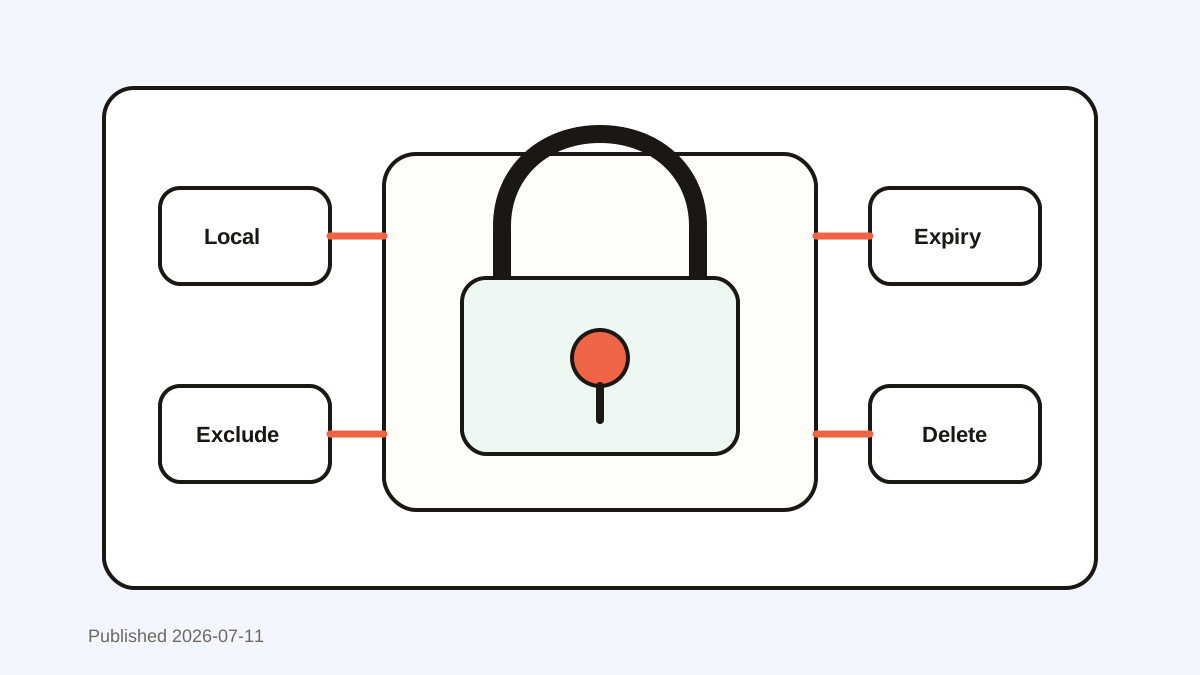
The short answerA secure clipboard manager should make copied text easier to recover without turning sensitive data into a permanent risk. The key is local storage, exclusions, expiry, clear deletion, and careful habits around passwords and API keys.
The overview
The clipboard can briefly hold highly sensitive data: passwords, API keys, customer records, payment details, private messages, and internal documents.
Clipboard history increases usefulness, but it also means copied items may remain available after the original task ends.
Security is not only about the app. It is also about what you choose to save, favorite, sync, or delete.
Why it happens
Copying is universal, so sensitive content passes through the clipboard even when people do not think of it as storage.
Password managers and developer tools often copy secrets for a short time, which can accidentally enter history.
A privacy-focused workflow reduces retention and keeps clipboard history from becoming a hidden archive of risky material.
Your step-by-step guide
Prefer local-first storage
For private work, choose a clipboard manager that stores history on your device unless you intentionally enable sync.
Exclude password manager copies
Use exclusions or app rules so passwords and one-time codes are not stored in history.
Set expiry for sensitive-looking content
Short retention windows reduce risk for tokens, keys, addresses, payment data, and private customer information.
Delete risky clips immediately
If an API key, password, or account detail enters history, remove it instead of relying on memory.
Avoid turning secrets into favorites
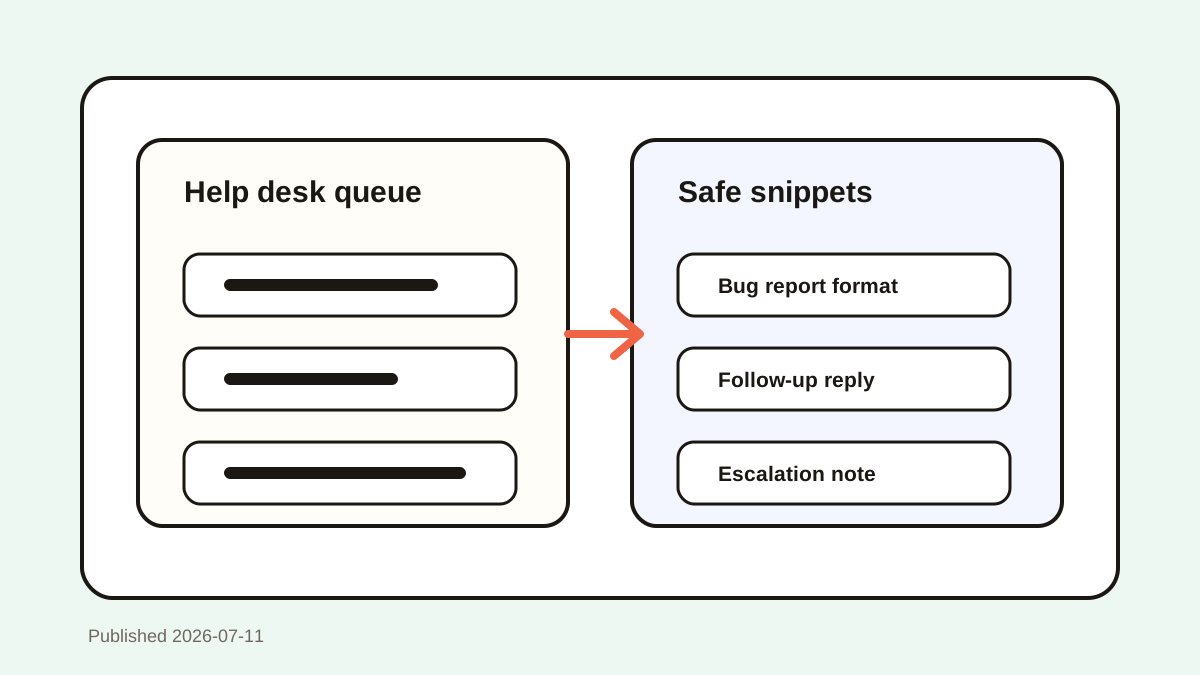
Favorites should be reusable safe snippets, not credentials or private data.
Common mistakes to avoid
- Saving passwords or API keys in clipboard history.
- Enabling sync without checking workplace data rules.
- Using favorites for sensitive customer details.
- Forgetting that screenshots and copied images can also contain private information.
Small changes. A faster workflow.
- Treat clipboard history as recoverable work context, not a password vault.
- Use password managers for credentials and clipboard managers for ordinary snippets.
- Clear history before screen sharing if private clips may appear.
- Review privacy settings before using clipboard history with regulated data.
Compare your options
| Option | Best for | Limits |
|---|---|---|
| Local storage | Private personal workflows | No automatic cross-device access |
| Cloud sync | Multi-device convenience | Requires stronger trust and policy review |
| No history | Highly sensitive sessions | No recovery or reuse |
Local storage
Best forPrivate personal workflows
LimitsNo automatic cross-device access
Cloud sync
Best forMulti-device convenience
LimitsRequires stronger trust and policy review
No history
Best forHighly sensitive sessions
LimitsNo recovery or reuse
Put it into practice with Historr
Historr is designed around local clipboard history on your Mac, which helps keep everyday copied work close to your device.
Use Historr for searchable work context, favorites, and previews while keeping passwords and API keys in a dedicated password manager.
The safest workflow is simple: store locally, exclude sensitive sources, delete risky clips, and avoid making secrets reusable.
- Instant search
- Unlimited history
- Favorites
- Keyboard shortcuts
- Privacy
- Offline storage
- Quick preview
- Paste Stack

Keep your next good idea.
Free, private clipboard history for your Mac.
Questions, answered.
Are clipboard managers secure?
They can be secure when they use local storage, give deletion controls, support exclusions, and are used with sensible privacy habits.
Should passwords be saved in clipboard history?
No. Passwords belong in a password manager and should be excluded from clipboard history when possible.
What clipboard data is sensitive?
Passwords, API keys, tokens, payment details, personal data, customer records, private messages, and internal documents can be sensitive.
Is local storage better than sync?
Local storage reduces cross-device exposure, while sync adds convenience but requires more trust and policy review.
How do I keep clipboard history private?
Use local storage, app exclusions, expiry rules, manual deletion, and avoid storing secrets as reusable snippets.
Take it from here
Clipboard privacy is about retention. Save what helps you work, avoid storing secrets, and choose a clipboard manager that gives you control over where history lives and how long it lasts.
If you're looking for a faster way to search, organize, and reuse everything you copy, try Historr and see how much time you can save.