How to Organize Your Clipboard History Like a Pro
Learn how to organize clipboard history with search, favorites, groups, retention rules, cleanup habits, and privacy-safe snippet workflows.

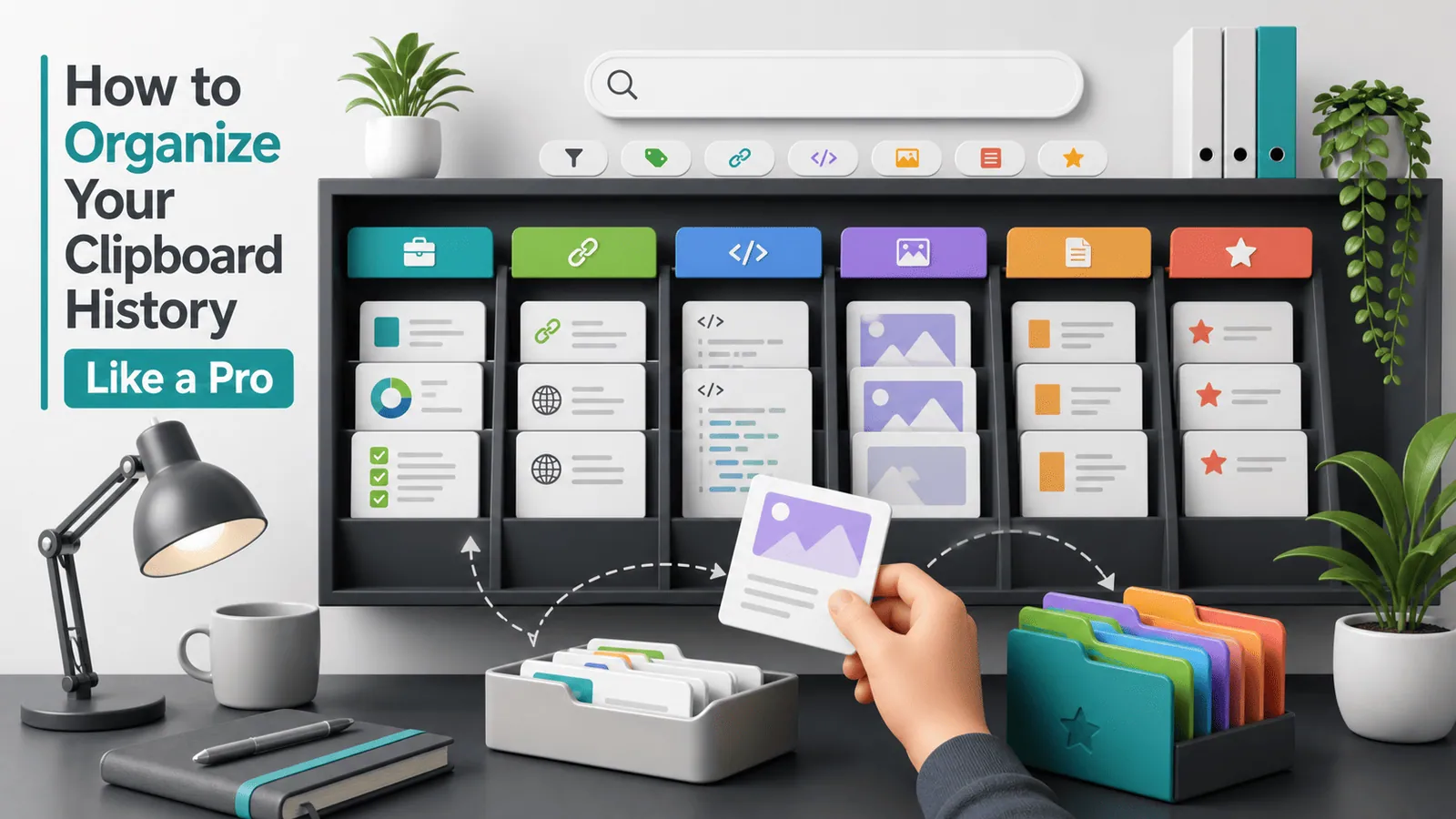
The short answerTo organize clipboard history like a pro, separate reusable snippets from temporary clips, rely on search for everything else, and set privacy rules for sensitive copied content.
The overview
Clipboard history becomes messy when every copied thing is treated equally.
A clean system helps you recover recent items while keeping important snippets easy to find.
Good organization also reduces privacy risk because sensitive items are easier to notice and remove.
Why it happens
Copying is fast, so history fills with duplicate links, partial phrases, screenshots, and one-time values.
Without favorites or cleanup habits, useful snippets get buried under noise.
Most people over-organize at first, then stop using the system because it takes too much effort.
Your step-by-step guide
Use search as the default
Do not manually file every clip. Search by phrase, domain, file path, or keyword when you need something.
Favorite reusable items
Save only snippets you paste repeatedly, such as email replies, addresses, links, commands, and templates.
Create light categories
If your manager supports groups, use broad categories like work, code, links, writing, and support.
Set retention rules
Keep recent history long enough to be useful, but expire old or sensitive-looking clips automatically when possible.
Review weekly
Spend two minutes clearing duplicates, removing stale favorites, and checking whether private content slipped in.
Common mistakes to avoid
- Trying to tag every copied item.
- Saving one-time clips as permanent favorites.
- Keeping sensitive data forever.
- Letting duplicates hide the useful version of a snippet.
Small changes. A faster workflow.
- Name snippets by how you remember them, not by perfect taxonomy.
- Use favorites for reuse and search for recovery.
- Clear screenshots and images if they are not needed long term.
- Keep categories broad enough that you do not have to think.
Compare your options
| Option | Best for | Limits |
|---|---|---|
| No organization | Very light use | History gets noisy fast |
| Favorites only | Reusable snippets | Does not organize one-time clips |
| Search plus light categories | Most power users | Needs occasional cleanup |
No organization
Best forVery light use
LimitsHistory gets noisy fast
Favorites only
Best forReusable snippets
LimitsDoes not organize one-time clips
Search plus light categories
Best forMost power users
LimitsNeeds occasional cleanup
Put it into practice with Historr
Historr keeps organization lightweight with instant search, favorites, preview, and Paste Stack.
That means you can find most copied items by searching and reserve favorites for snippets that genuinely deserve a permanent place.
Because history is local and offline, cleanup and retention stay under your control.
- Instant search
- Unlimited history
- Favorites
- Keyboard shortcuts
- Privacy
- Offline storage
- Quick preview
- Paste Stack

Keep your next good idea.
Free, private clipboard history for your Mac.
Questions, answered.
How should I organize clipboard history?
Use search for recovery, favorites for reusable snippets, and broad groups only when they reduce friction.
Should I tag every copied item?
No. Tagging every clip is too much work for most people.
How long should clipboard history be stored?
Long enough to recover recent work, but sensitive or old items should expire or be cleared.
What belongs in favorites?
Only snippets you reuse regularly, such as replies, commands, URLs, addresses, or templates.
How do I keep organized history private?
Use local storage, password-manager exclusions, sensitive-item expiry, and routine cleanup.
Take it from here
Organized clipboard history should feel effortless. Let search handle the archive, let favorites handle reusable snippets, and let privacy rules keep the system tidy.
If you're looking for a faster way to search, organize, and reuse everything you copy, try Historr and see how much time you can save.