Best Clipboard Manager for macOS in 2026
Compare the best clipboard manager for macOS features in 2026, including search, favorites, privacy, Paste Stack, and local clipboard history.

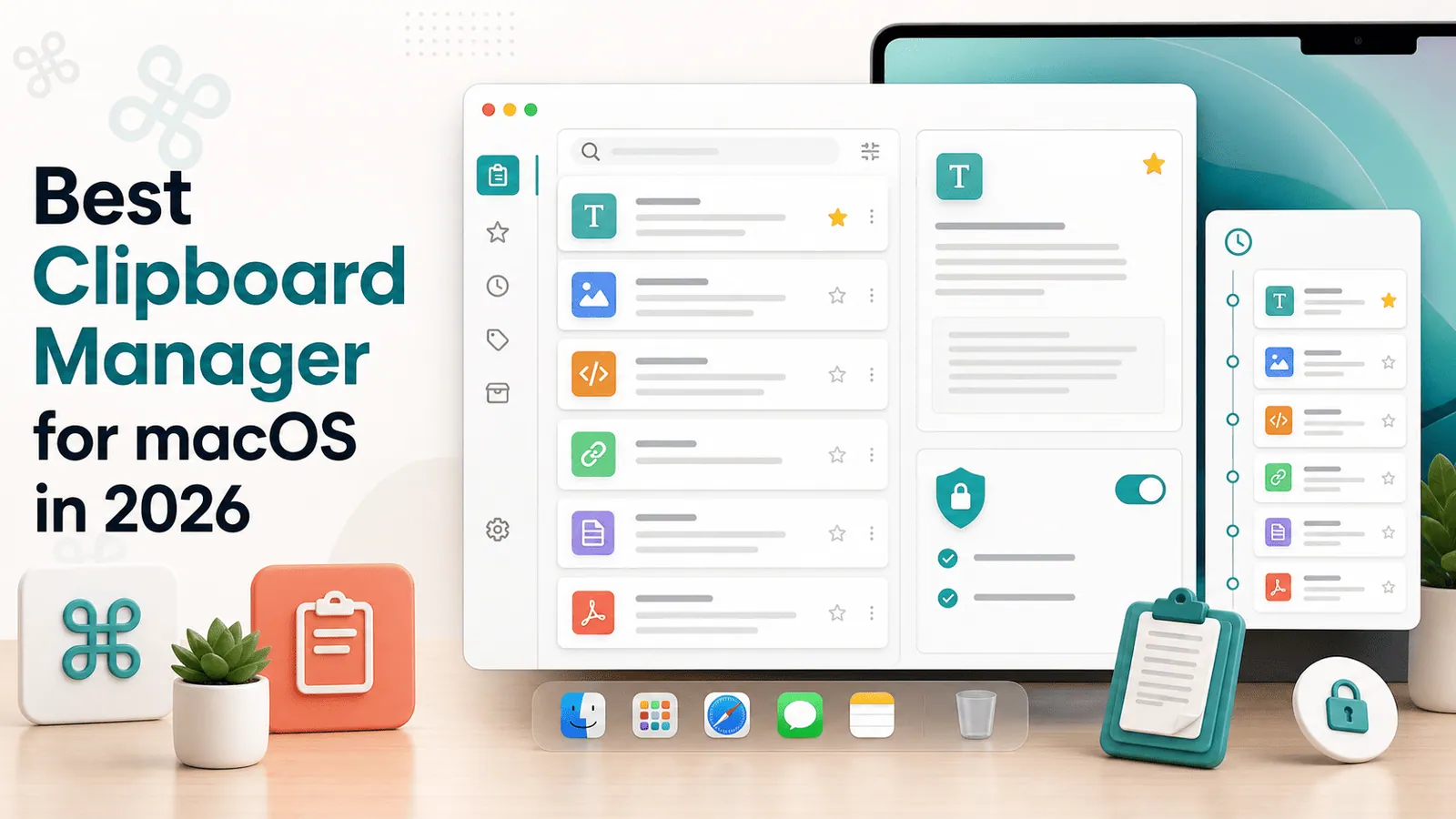
The short answerThe best clipboard manager for macOS in 2026 should do more than save a list of copied items. It should help you find old clips instantly, reuse frequent snippets, protect sensitive content, and stay out of the way while you work.
The overview
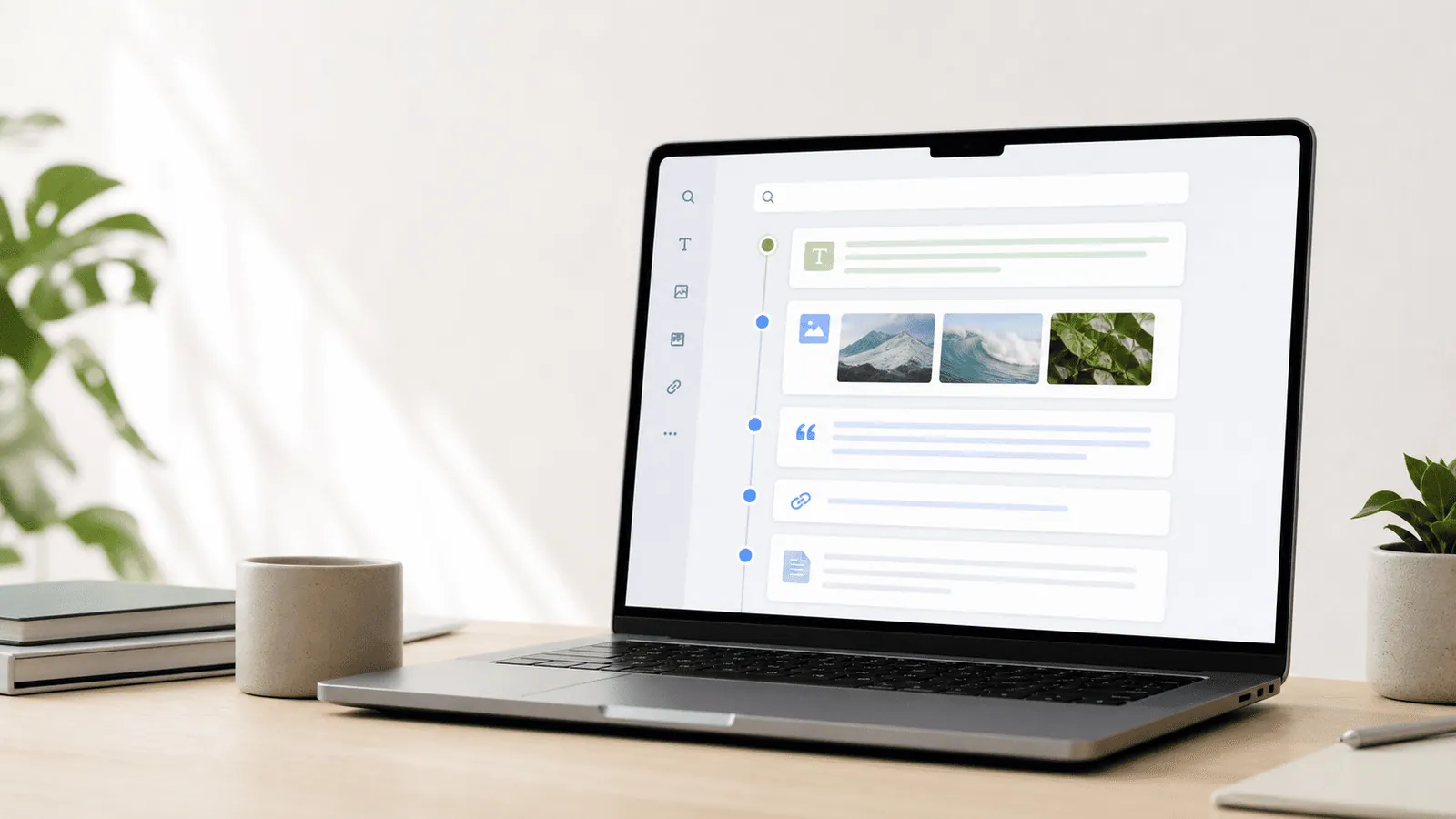
macOS is excellent for copy and paste, but it still does not provide a full visible clipboard history by default.
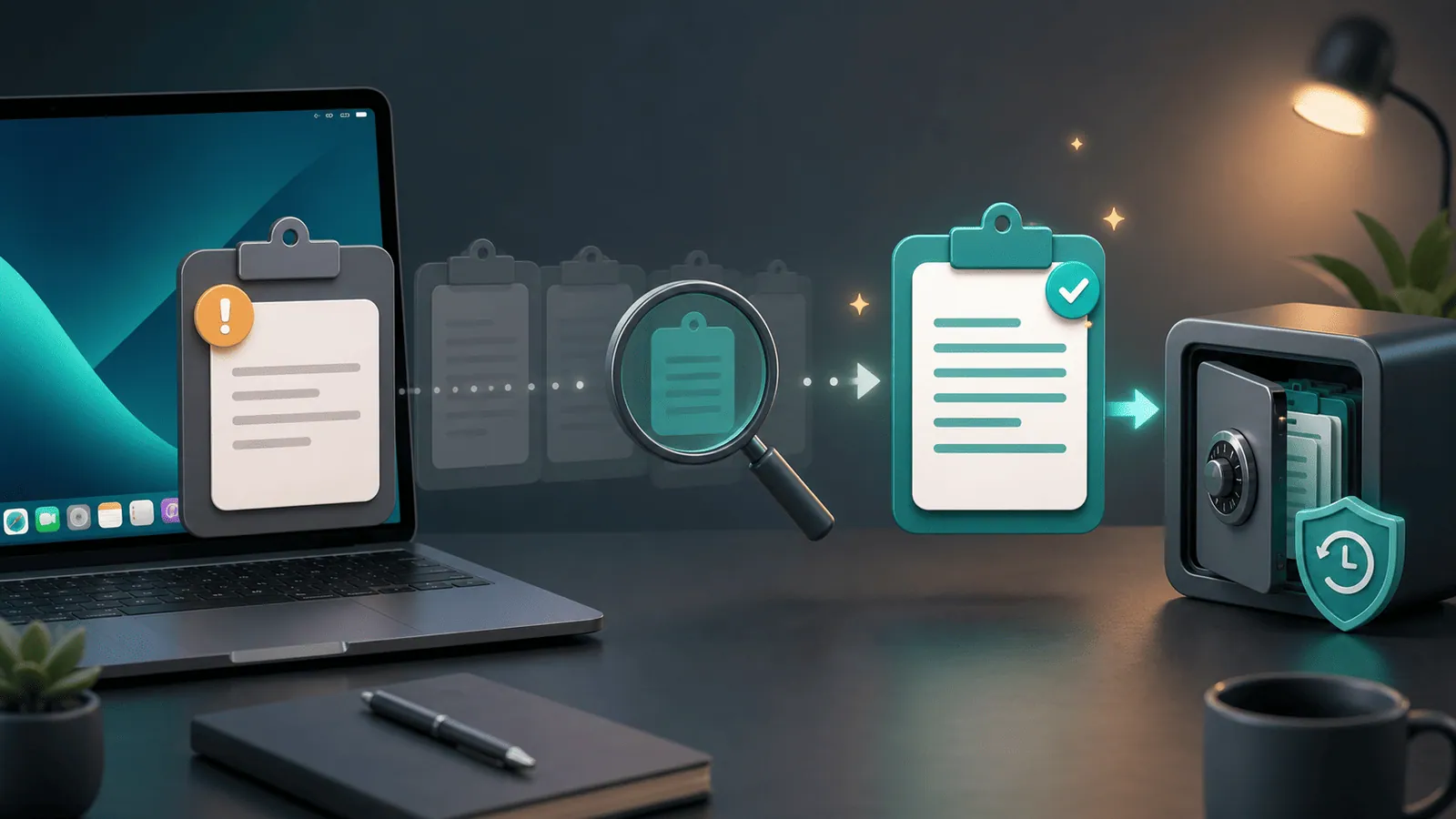
That gap matters when you copy client notes, code, links, email replies, screenshots, and AI prompts all day.
A good Mac clipboard manager turns those tiny copy actions into a searchable workflow instead of a trail of lost context.
Why it happens
The system clipboard is designed as a transfer buffer, not an archive.
Power users need more than one recent item: they need search, grouping, previews, shortcuts, favorites, and sensible privacy rules.
The right choice depends on whether you value speed, organization, cross-device sync, or local-first privacy most.
Your step-by-step guide
Start with privacy
Choose a clipboard manager that can ignore password managers, mask sensitive-looking clips, and store history locally when possible.
Test search speed
Copy ten real items, open history with a shortcut, and search for a word, domain, code symbol, or sentence fragment. Search should feel instant.
Check keyboard workflow
A Mac clipboard manager should let you open history, move through results, preview, favorite, and paste without reaching for the mouse.
Look for reusable organization
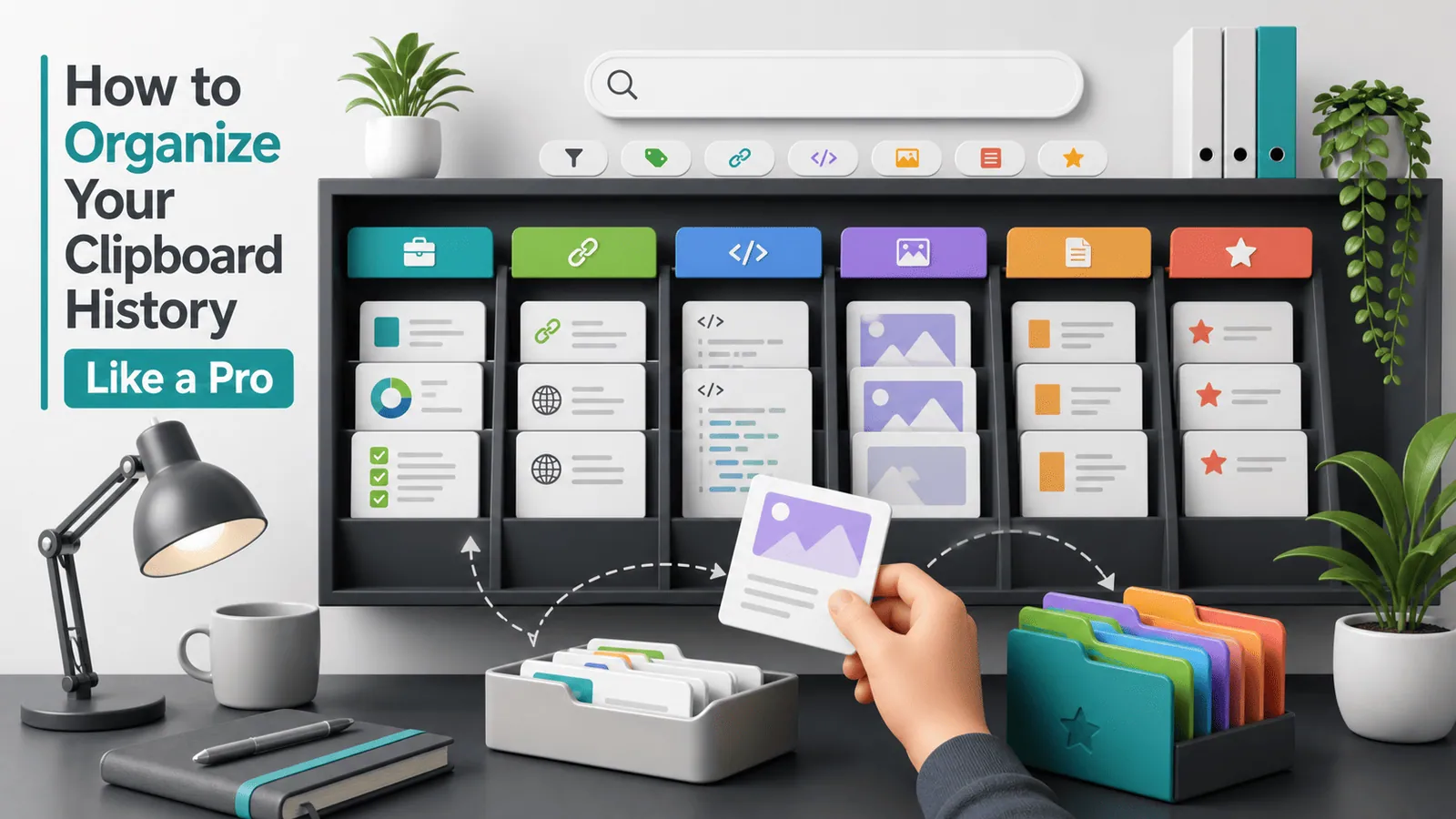
Favorites, pinned snippets, tags, or groups matter when you repeatedly paste the same replies, URLs, file paths, and templates.
Avoid feature clutter
The best tool is the one you will actually keep running. Prefer a focused interface over a giant panel you never open.
Common mistakes to avoid
- Choosing only by screenshot instead of testing search and keyboard speed.
- Ignoring sensitive clipboard exclusions.
- Treating clipboard history as permanent storage.
- Installing several clipboard tools that compete for the same shortcuts.
Small changes. A faster workflow.
- Put clipboard history on a shortcut you can press without looking.
- Favorite only items you reuse weekly so the list stays meaningful.
- Use local storage for work, client, or personal content.
- Review history retention settings before copying sensitive material.
Compare your options
| Option | Best for | Limits |
|---|---|---|
| Built-in macOS clipboard | One current item | No full visible history |
| Simple clipboard history app | Recent recovery | Often weak on organization |
| Full clipboard manager | Search, favorites, snippets, and power workflows | Needs thoughtful privacy setup |
Built-in macOS clipboard
Best forOne current item
LimitsNo full visible history
Simple clipboard history app
Best forRecent recovery
LimitsOften weak on organization
Full clipboard manager
Best forSearch, favorites, snippets, and power workflows
LimitsNeeds thoughtful privacy setup
Put it into practice with Historr
Historr is built for Mac users who want fast local clipboard history without a heavy workflow system.
It focuses on instant search, unlimited history, favorites, quick preview, keyboard shortcuts, and Paste Stack for multi-item paste workflows.
Because Historr stores history offline on your Mac and ignores password-manager copies, it is a strong fit for users who care about speed and privacy.
- Instant search
- Unlimited history
- Favorites
- Keyboard shortcuts
- Privacy
- Offline storage
- Quick preview
- Paste Stack

Keep your next good idea.
Free, private clipboard history for your Mac.
Questions, answered.
What is the best clipboard manager for macOS?
The best choice is fast, searchable, keyboard-friendly, and private. Historr is a strong local-first option for Mac users.
Does macOS include clipboard history?
macOS shows the current clipboard item, but it does not include a full searchable history by default.
Is a Mac clipboard manager safe?
It can be safe when it stores data locally, ignores password managers, and lets you clear or expire sensitive clips.
Should clipboard history sync across devices?
Sync is convenient, but local-only history is often better for private work and sensitive copied content.
What features matter most in 2026?
Instant search, keyboard shortcuts, favorites, privacy rules, image support, and multi-item paste workflows matter most.
Take it from here
The best clipboard manager for macOS is the one that makes recovery and reuse feel instant while keeping private content under control. In 2026, search speed and privacy are the features to judge first.
If you're looking for a faster way to search, organize, and reuse everything you copy, try Historr and see how much time you can save.