Clipboard History vs Built-in Clipboard: What’s the Difference?
Compare built-in clipboard, Windows clipboard history, macOS clipboard behavior, and dedicated clipboard managers for search, recovery, and privacy.

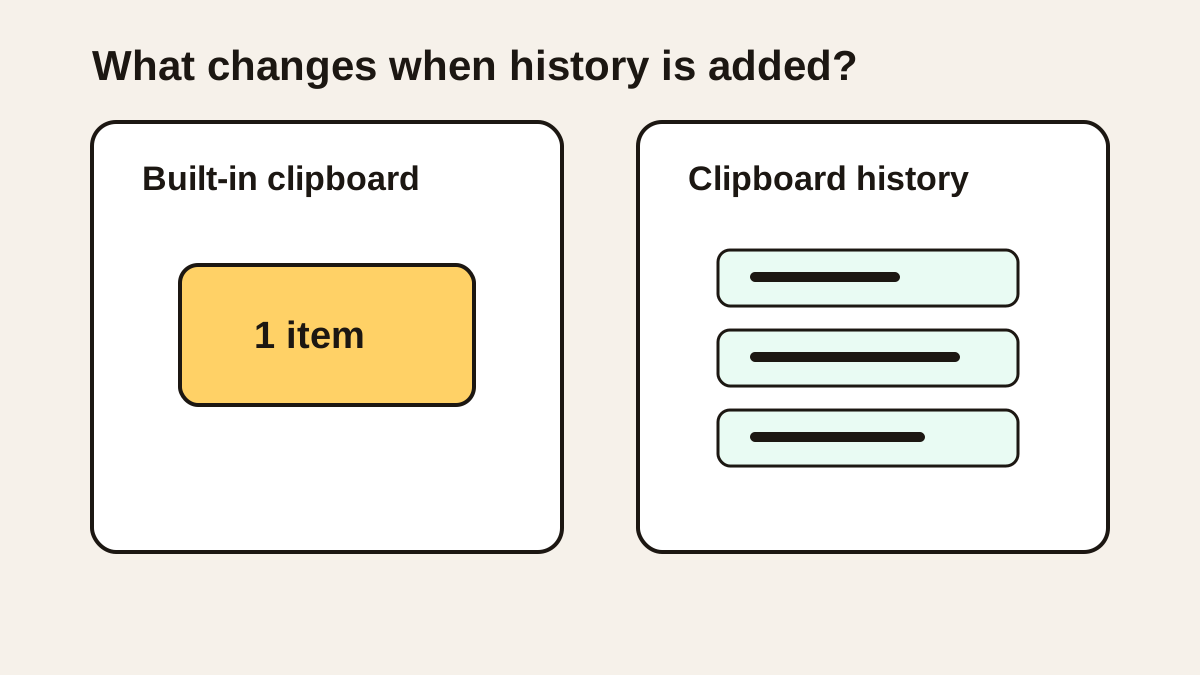
The short answerThe built-in clipboard is for the next paste. Clipboard history is for finding something you copied earlier. A clipboard manager adds search, organization, shortcuts, and privacy controls.
The overview
People often use clipboard, clipboard history, and clipboard manager as if they mean the same thing.
That creates confusion when a user expects macOS to show old items or expects Windows clipboard history to behave like a full archive.
The right tool depends on whether you need one paste, recent recovery, or a searchable workflow.
Why it happens
The basic clipboard is invisible and temporary, so its limits are easy to miss.
Windows 11 includes a history panel, while macOS does not include a comparable full history UI by default.
Dedicated managers vary widely in storage, search, image support, sync, and privacy behavior.
Your step-by-step guide
Use the built-in clipboard for simple transfer
If you only need to copy once and paste once, the default clipboard is enough.
Use OS history for recent recovery
Windows users can press Win + V for recent history. Mac users need a clipboard manager for a similar workflow.
Use a manager for search
Searchable history is essential when you remember part of an item but not where it came from.
Use favorites for repeated snippets
Clipboard managers are strongest when they let you save reusable content separately from recent history.
Use privacy settings for sensitive work
Any history system should include clearing, exclusions, and sensible storage choices.
Common mistakes to avoid
- Expecting a basic clipboard to recover overwritten items.
- Assuming all clipboard managers store data privately.
- Using pinned history as a replacement for organized snippets.
- Keeping sensitive clipboard history without cleanup rules.
Small changes. A faster workflow.
- Match the tool to the frequency of your copy-paste work.
- Use OS clipboard history first if your needs are light.
- Move to a manager when search and reuse become daily needs.
- Review storage and sync settings before copying private data.
Compare your options
| Option | Best for | Limits |
|---|---|---|
| Built-in clipboard | Single copy-paste actions | No meaningful history |
| OS clipboard history | Recent recovery and quick reuse | Limited organization |
| Clipboard manager | Search, favorites, images, shortcuts, and workflow automation | Requires trust and configuration |
Built-in clipboard
Best forSingle copy-paste actions
LimitsNo meaningful history
OS clipboard history
Best forRecent recovery and quick reuse
LimitsLimited organization
Clipboard manager
Best forSearch, favorites, images, shortcuts, and workflow automation
LimitsRequires trust and configuration
Put it into practice with Historr
Historr sits in the dedicated clipboard manager category for Mac.
It adds searchable local history, image support, favorites, keyboard shortcuts, quick preview, unlimited history, and Paste Stack.
That makes it useful when the built-in clipboard is too temporary and a recent-only panel would not be enough.
- Instant search
- Unlimited history
- Favorites
- Keyboard shortcuts
- Privacy
- Offline storage
- Quick preview
- Paste Stack

Keep your next good idea.
Free, private clipboard history for your Mac.
Questions, answered.
What is the built-in clipboard?
It is the system feature that stores the latest item you copied so you can paste it.
What is clipboard history?
Clipboard history stores multiple copied items so you can paste something older.
What is a clipboard manager?
A clipboard manager is an app that adds history, search, previews, favorites, shortcuts, and privacy controls.
Is Windows clipboard history a clipboard manager?
It is a built-in history feature, but dedicated managers usually go further with search and organization.
Does macOS include clipboard history?
macOS does not include a full searchable clipboard history by default.
Take it from here
Clipboard history is the first upgrade from the one-item clipboard. A clipboard manager is the larger workflow upgrade when search, reuse, and privacy matter.
If you're looking for a faster way to search, organize, and reuse everything you copy, try Historr and see how much time you can save.