How to View Clipboard History on Windows 11
Learn how to view clipboard history on Windows 11, enable Windows+V, pin copied items, clear history, and understand built-in limits.

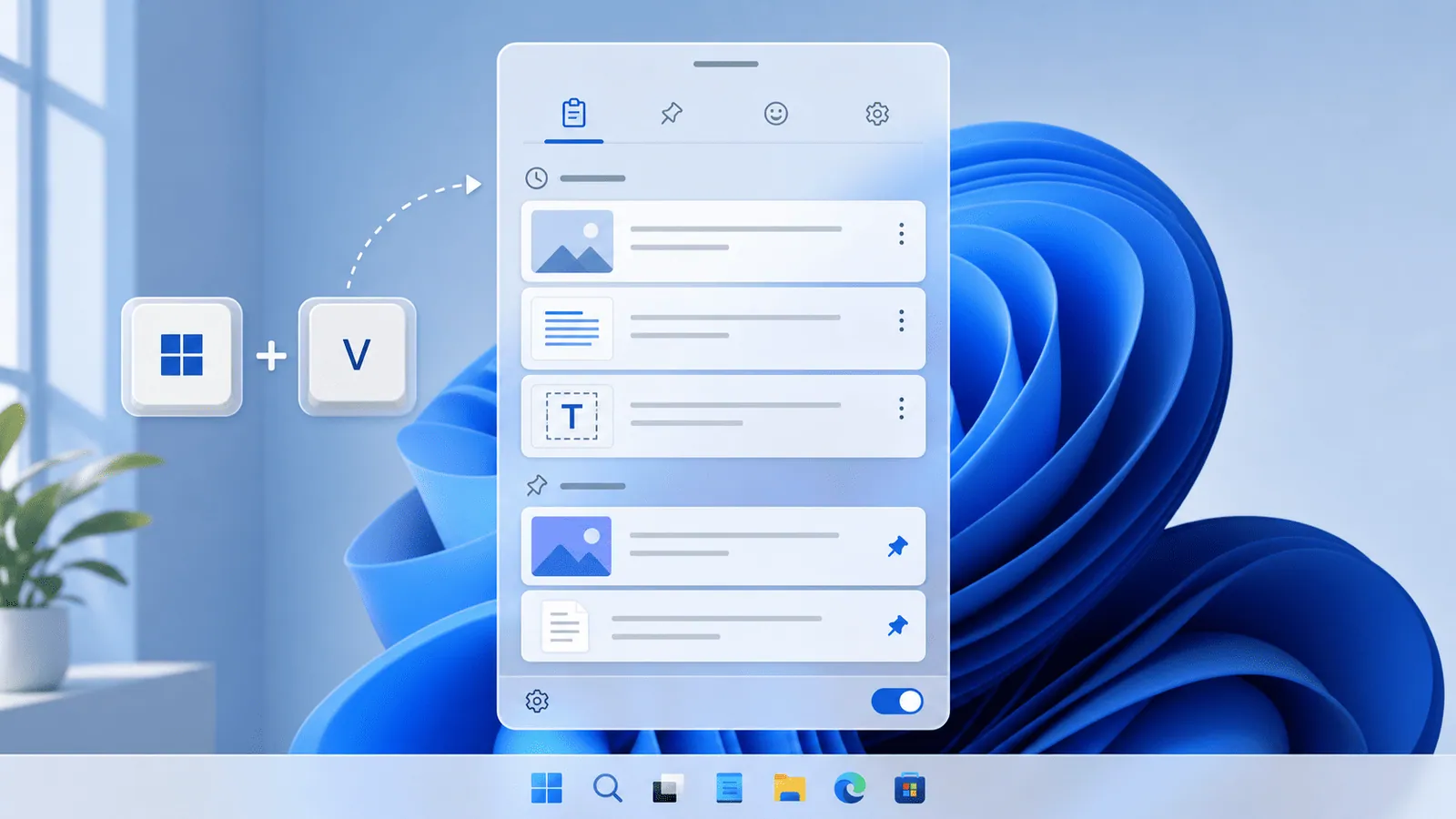
The short answerTo view clipboard history on Windows 11, press Windows+V. If the feature is not enabled yet, Windows will prompt you to turn it on before it starts saving recent copied items.
The overview
Many Windows users copy several values in a row and then realize the item they need has been replaced.
Windows 11 solves part of this with a built-in clipboard history panel for recent copied text and images.
The feature is useful, but you need to know how to enable it, pin important items, and clear private clips.
Why it happens
The ordinary clipboard only keeps the current copied item.
Clipboard history is a separate Windows setting, so it will not help until it is turned on.
Pinned items survive longer than ordinary recent items, but they still need occasional cleanup.
Your step-by-step guide
Press Windows+V
Use the Windows key and V together. If clipboard history is off, select the option to turn it on.
Open Settings if needed
Go to Settings, System, Clipboard, then enable Clipboard history. This is useful if the shortcut does not prompt you.
Paste an older item
Click an item in the Windows+V panel or use keyboard navigation, and Windows will paste it into the active app.
Pin important clips
Pin a few reusable items such as addresses, support links, and common replies. Keep the pinned list short.
Clear sensitive history
Use the panel or Settings to clear clipboard history after copying passwords, tokens, payment data, or personal details.
Common mistakes to avoid
- Expecting old clips to appear before clipboard history was enabled.
- Leaving private values in the Windows+V panel.
- Pinning too many items until history becomes hard to scan.
- Assuming the built-in panel is a complete long-term clipboard archive.
Small changes. A faster workflow.
- Use Windows+V immediately after copying over the wrong item.
- Pin only evergreen snippets, not every useful recent copy.
- Turn off clipboard sync when working with sensitive content.
- Use a dedicated manager when you need deep search or categories.
Compare your options
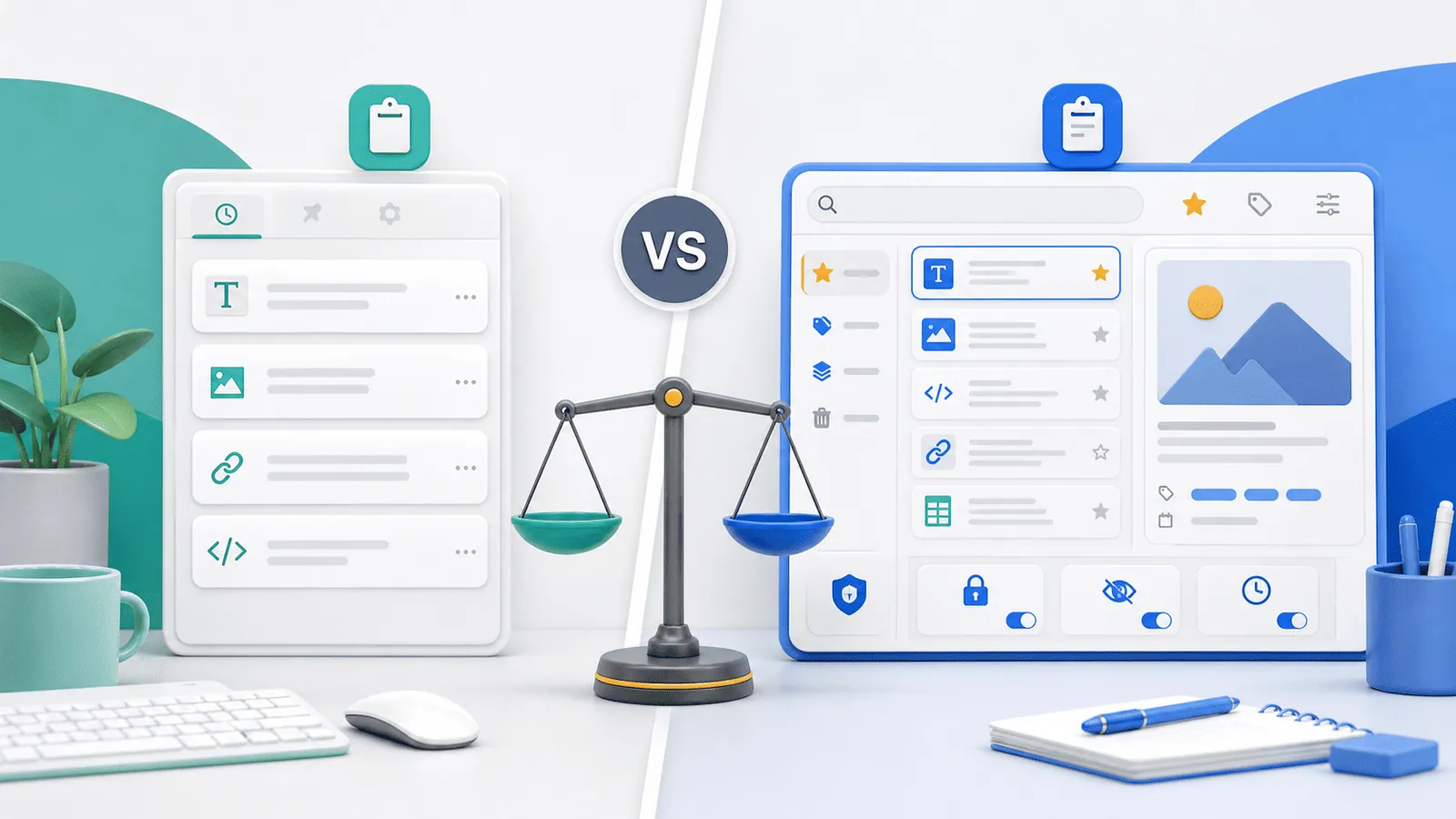
| Option | Best for | Limits |
|---|---|---|
| Windows+V panel | Recent copied items | Limited search and organization |
| Pinned items | A few reusable snippets | Can become cluttered |
| Clipboard manager | Long history and advanced search | Requires separate installation |
Windows+V panel
Best forRecent copied items
LimitsLimited search and organization
Pinned items
Best forA few reusable snippets
LimitsCan become cluttered
Clipboard manager
Best forLong history and advanced search
LimitsRequires separate installation
Put it into practice with Historr
Historr is a macOS app, so Windows users should start with Windows+V for built-in history.
The same productivity principles apply: keyboard access, quick search, favorites, and privacy controls make clipboard history more useful.
For Mac users who want a Windows+V-like workflow with deeper search, Historr fills the missing macOS history layer.
- Instant search
- Unlimited history
- Favorites
- Keyboard shortcuts
- Privacy
- Offline storage
- Quick preview
- Paste Stack

Keep your next good idea.
Free, private clipboard history for your Mac.
Questions, answered.
How do I view clipboard history on Windows 11?
Press Windows+V and enable clipboard history if Windows asks you to turn it on.
Why is clipboard history empty?
It may not have been enabled yet, or history may have been cleared.
Can I pin clipboard items?
Yes. Pin only items you reuse often so the panel stays readable.
Can I search Windows 11 clipboard history?
The built-in panel is mainly for recent items. Dedicated managers offer stronger search.
Is Windows 11 clipboard history private?
It depends on your sync and cleanup habits. Clear sensitive items and review sync settings.
Take it from here
Windows+V is one of the simplest productivity upgrades in Windows 11. Enable it, learn how to pin and clear items, and move to a stronger manager only when your workflow outgrows the built-in panel.
If you're looking for a faster way to search, organize, and reuse everything you copy, try Historr and see how much time you can save.