How to Copy Multiple Items at Once on Windows and Mac
Learn how to copy multiple items on Windows and Mac using clipboard history, clipboard managers, Paste Stack, pinned items, and better workflows.


The short answerTo copy multiple items at once, you need a clipboard history or clipboard manager. The normal clipboard only holds the latest copied item, while a history tool lets you collect, search, and paste several items.
The overview
Multi-item copying shows up everywhere: forms, research notes, product data, code snippets, support replies, and spreadsheets.
Without history, you either bounce between apps repeatedly or paste into a temporary document.
Clipboard history and paste stack workflows let you copy first and paste later in the right order.
Why it happens
Operating systems treat the clipboard as a current item unless a history feature is enabled.
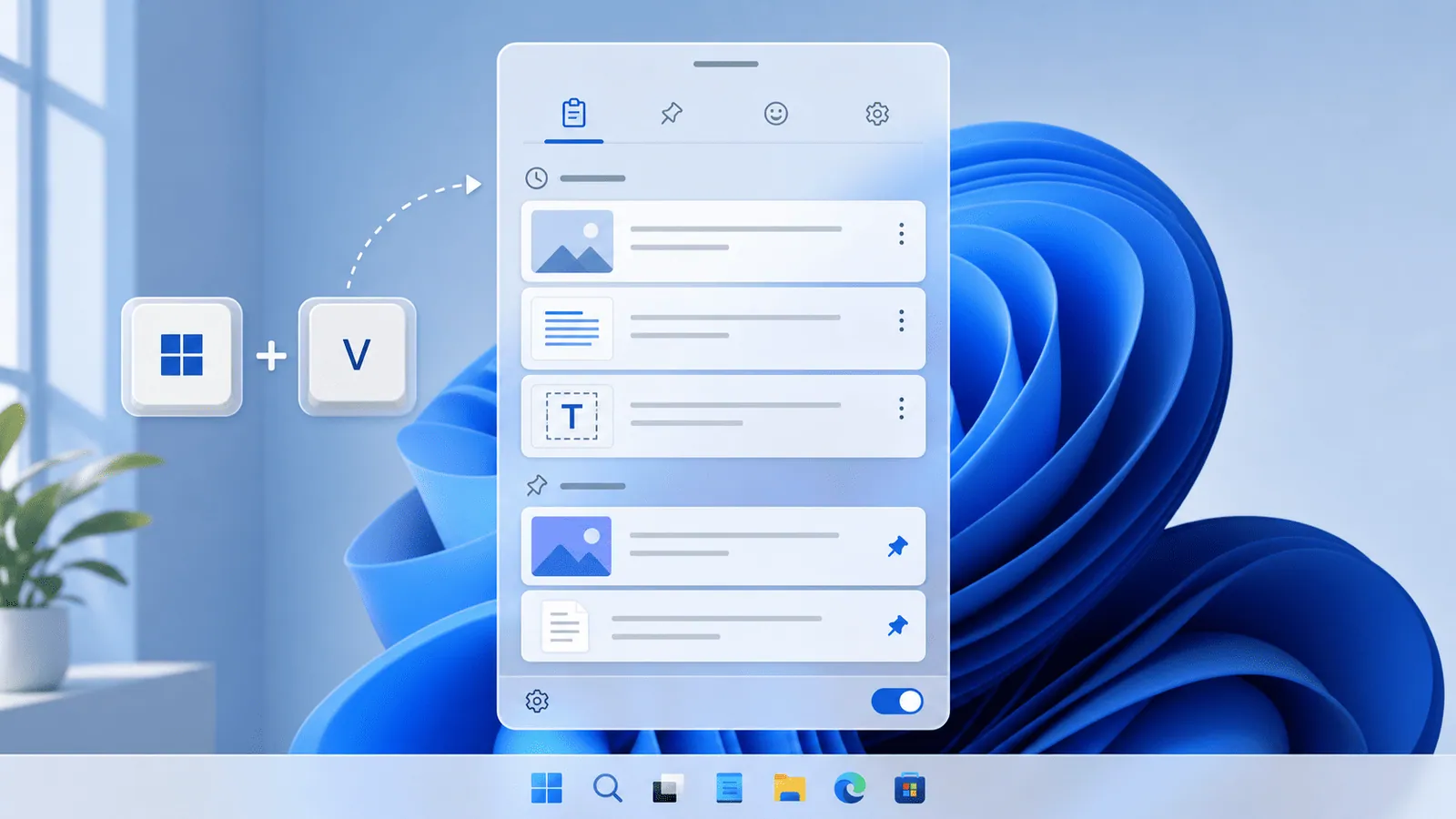
Windows 11 includes basic multi-item history with Windows+V.
Mac users usually need a clipboard manager for a full multi-item workflow.
Your step-by-step guide
Use Windows+V on Windows 11
Enable clipboard history, copy several items, then press Windows+V to choose which one to paste.
Use a Mac clipboard manager
Install a manager that saves copied items and lets you search or paste recent clips with a shortcut.
Try a paste stack
Copy items in order, then paste them one by one from a queue. This is ideal for forms and structured transfer.
Use temporary staging for critical data
For one-off sensitive or high-risk work, paste items into a temporary note or spreadsheet before moving them.
Clear after private workflows
Remove copied passwords, tokens, personal data, or client details from history when the task is done.
Common mistakes to avoid
- Expecting the default clipboard to hold several items.
- Copying items out of order before using a paste queue.
- Leaving sensitive copied values in history.
- Using screenshots when searchable text would be better.
Small changes. A faster workflow.
- Copy items in the same order you plan to paste them.
- Use favorites for values you reuse often, not for one-time clips.
- Search by type, domain, or unique fragment when history is long.
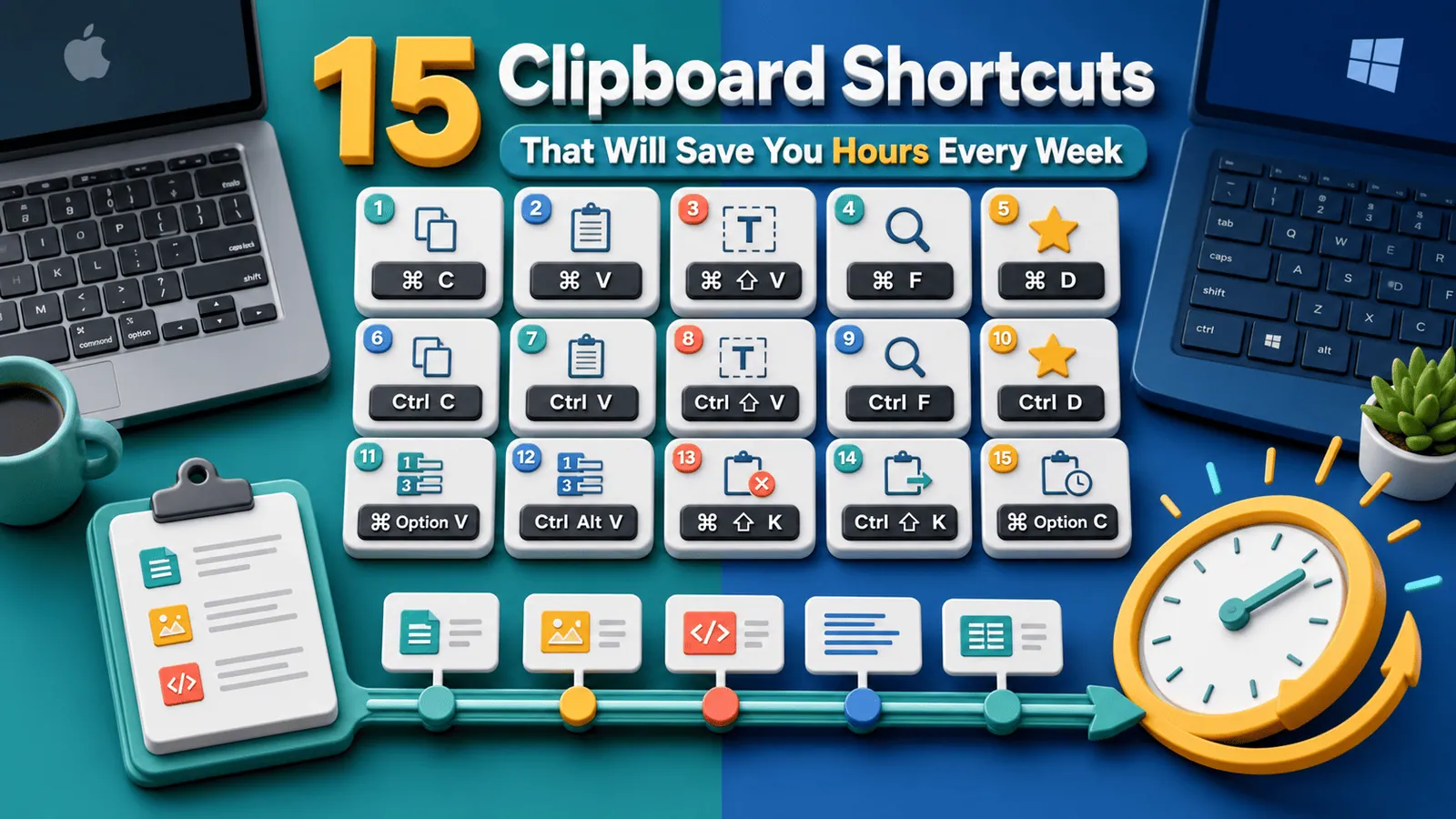
- Use keyboard shortcuts for repeated multi-item workflows.
Compare your options
| Option | Best for | Limits |
|---|---|---|
| Manual switching | One or two items | Slow and error-prone |
| Windows+V | Recent Windows copies | Basic organization |
| Paste stack | Ordered multi-item workflows | Requires a clipboard manager |
Manual switching
Best forOne or two items
LimitsSlow and error-prone
Windows+V
Best forRecent Windows copies
LimitsBasic organization
Paste stack
Best forOrdered multi-item workflows
LimitsRequires a clipboard manager
Put it into practice with Historr
Historr's Paste Stack is designed for exactly this kind of repeated multi-item work on Mac.
You can copy a sequence of items, then paste them back in order without returning to the original source after each paste.
Combined with instant search and favorites, it gives Mac users the multi-item clipboard workflow the default clipboard is missing.
- Instant search
- Unlimited history
- Favorites
- Keyboard shortcuts
- Privacy
- Offline storage
- Quick preview
- Paste Stack

Keep your next good idea.
Free, private clipboard history for your Mac.
Questions, answered.
Can I copy multiple items with the normal clipboard?
Not reliably. The normal clipboard usually keeps only the latest copied item.
How do I copy multiple items on Windows?
Enable clipboard history and use Windows+V to paste earlier copied items.
How do I copy multiple items on Mac?
Use a clipboard manager with history and, ideally, paste stack support.
What is a paste stack?
A paste stack is a queue of copied items that you can paste one after another in order.
Is multi-item clipboard history safe?
It is safer with local storage, password exclusions, and regular cleanup of sensitive data.
Take it from here
Copying multiple items becomes much easier once you stop treating the clipboard as a single slot. Use Windows+V on Windows and a clipboard manager with Paste Stack on Mac.
If you're looking for a faster way to search, organize, and reuse everything you copy, try Historr and see how much time you can save.