15 Clipboard Shortcuts That Will Save You Hours Every Week
Learn 15 clipboard shortcuts for Mac and Windows, including copy, paste, plain-text paste, clipboard history, screenshots, search, and multi-item paste.

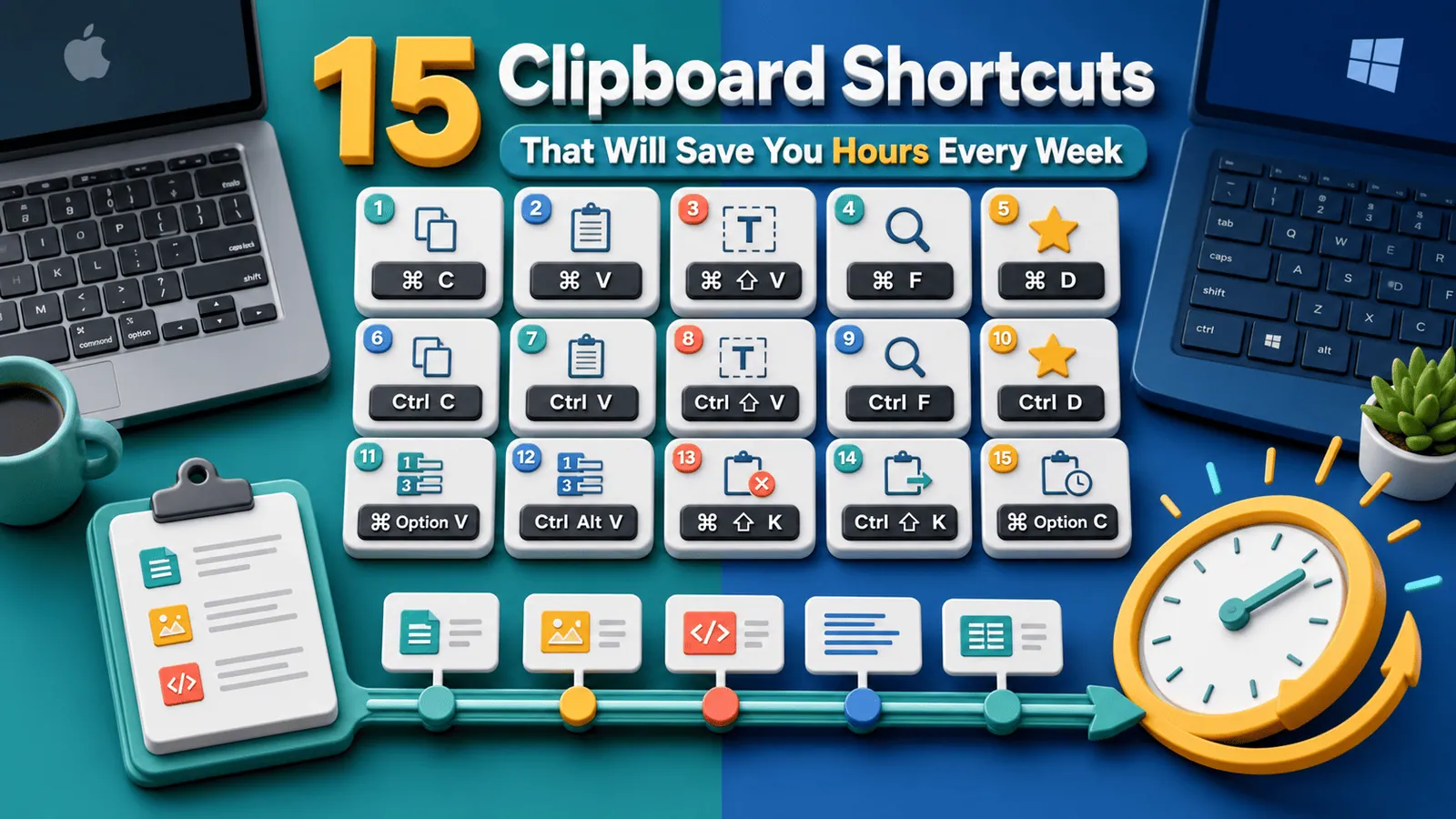
The short answerClipboard shortcuts save hours because they remove tiny pauses from repeated work. Once copy, paste, plain-text paste, history search, and multi-item paste become automatic, your hands stay in flow.
The overview
Most people know copy and paste but still use menus for related actions.
Formatting cleanup, app switching, and re-copying old values create avoidable friction.
A focused set of shortcuts gives you most of the benefit without memorizing every command in every app.
Why it happens
Copy-paste work happens across many apps, so small interruptions repeat all day.
Mac and Windows use different modifier keys, which makes shortcuts harder for people who switch devices.
Clipboard managers add powerful shortcuts, but they work best when the basics are automatic first.
Your step-by-step guide
Master the four basics
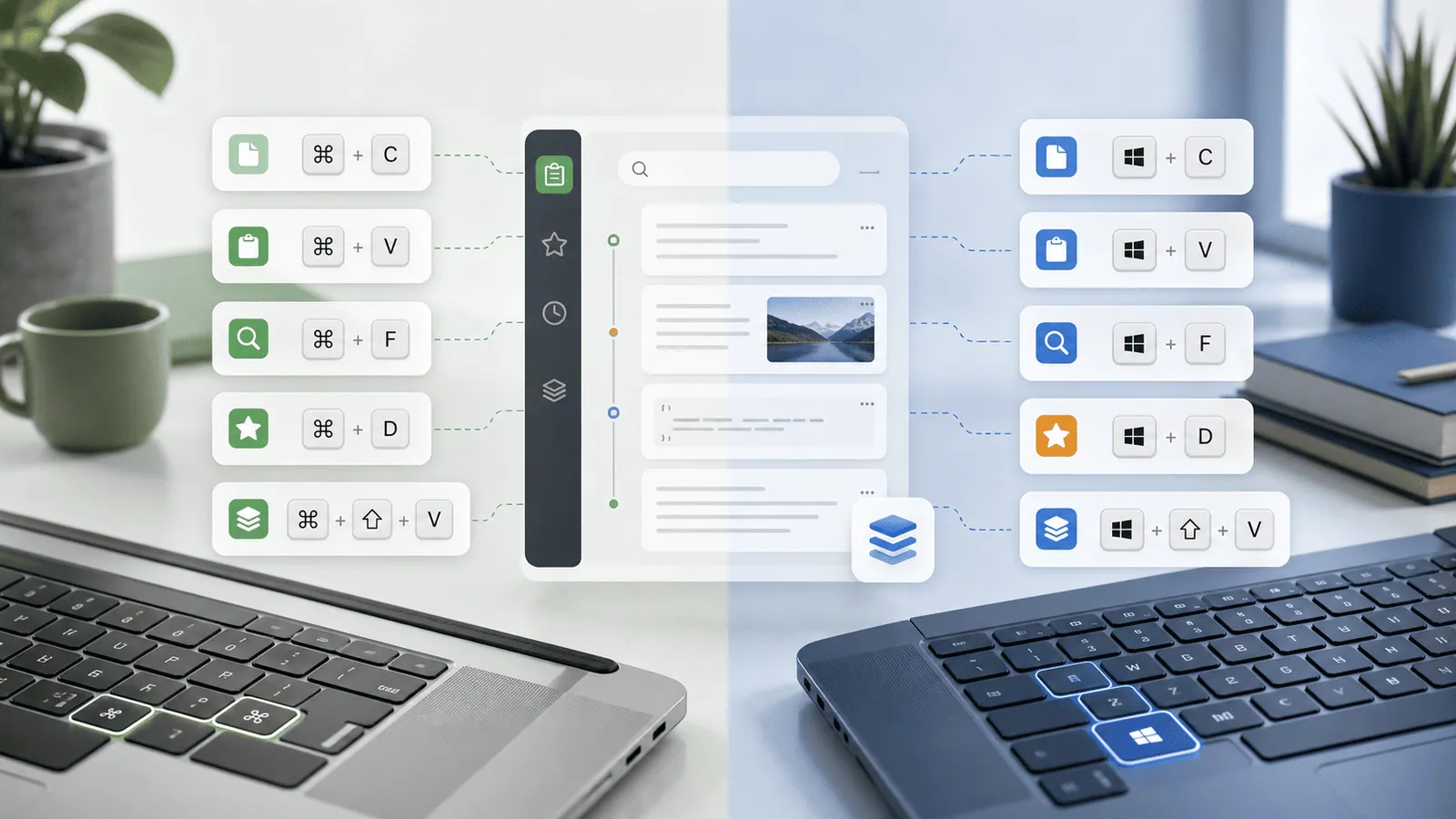
Use Command+C, Command+V, Command+X, and Command+A on Mac. Use Ctrl+C, Ctrl+V, Ctrl+X, and Ctrl+A on Windows.
Add plain-text paste
Try Command+Shift+Option+V on Mac and Ctrl+Shift+V on Windows in supported apps to paste without formatting.
Open clipboard history
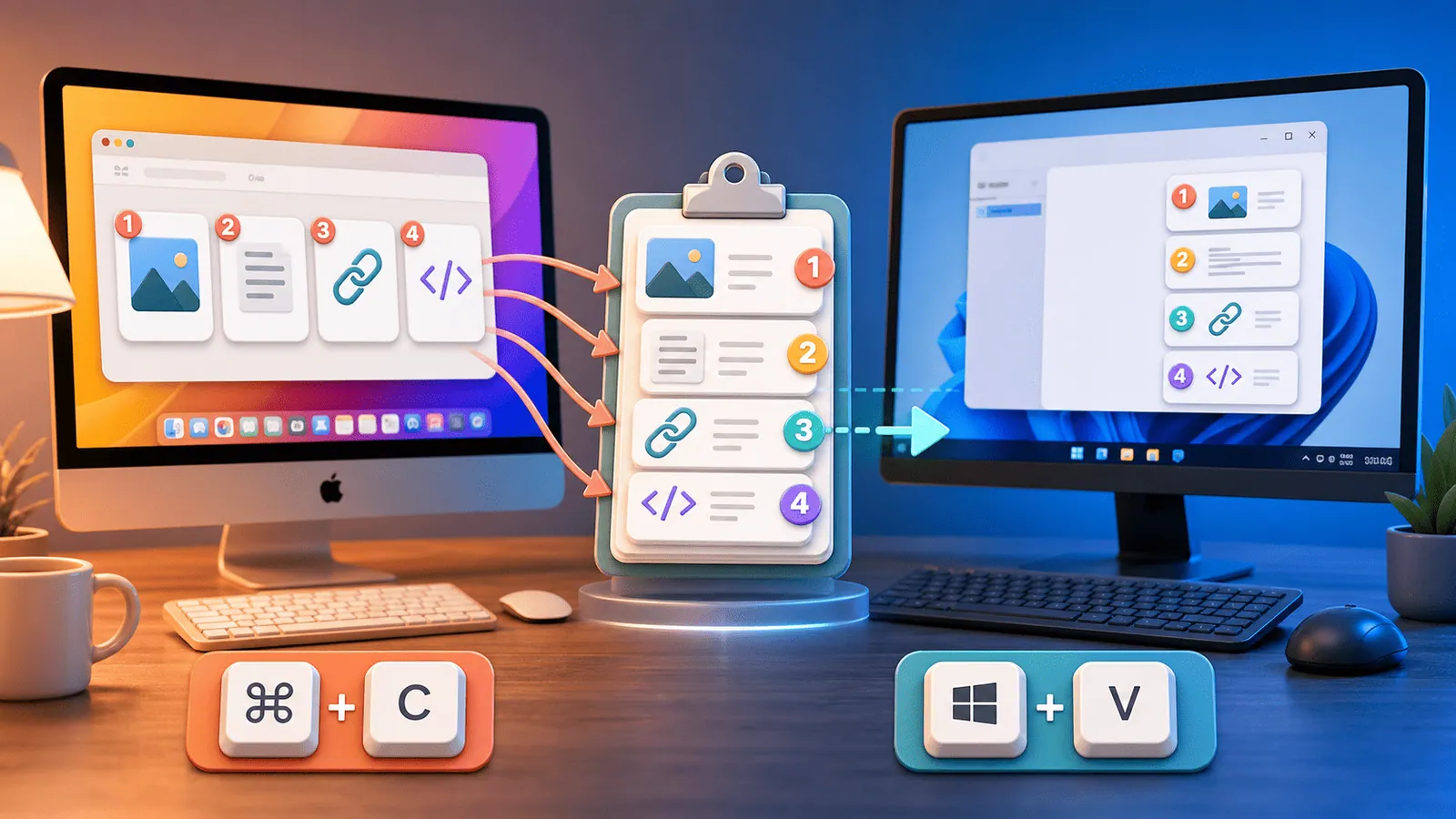
Use Windows+V on Windows 11. On Mac, assign an easy shortcut in your clipboard manager.
Search before switching apps
Open history, type part of a remembered clip, preview it, and paste. This is faster than hunting through tabs.
Use multi-item paste
When filling forms or moving structured data, use paste stack or queue features to paste copied items in order.
Common mistakes to avoid
- Trying to learn too many shortcuts at once.
- Forgetting plain-text paste when working in CMS fields or documents.
- Choosing history shortcuts that conflict with creative or developer apps.
- Relying on history shortcuts without privacy cleanup.
Small changes. A faster workflow.
- Write down only the five shortcuts you use daily.
- Keep history search on the easiest available key combination.
- Use number keys for recent items if your manager supports them.
- Practice shortcuts inside real work, not as a separate study session.
Compare your options
| Option | Best for | Limits |
|---|---|---|
| Basic shortcuts | Everyday editing | No history or organization |
| System history shortcut | Recent copied items | Different support on Mac and Windows |
| Clipboard manager shortcuts | Search, favorites, and multi-item paste | Needs setup |
Basic shortcuts
Best forEveryday editing
LimitsNo history or organization
System history shortcut
Best forRecent copied items
LimitsDifferent support on Mac and Windows
Clipboard manager shortcuts
Best forSearch, favorites, and multi-item paste
LimitsNeeds setup
Put it into practice with Historr
Historr makes clipboard shortcuts useful on Mac by giving history search, favorites, preview, and Paste Stack a fast keyboard workflow.
You can open history, search as you type, select a result, and paste without leaving the keyboard.
Paste Stack is especially useful for form filling, research transfer, and any task where several copied items need to be pasted in order.
- Instant search
- Unlimited history
- Favorites
- Keyboard shortcuts
- Privacy
- Offline storage
- Quick preview
- Paste Stack

Keep your next good idea.
Free, private clipboard history for your Mac.
Questions, answered.
What is the most useful clipboard shortcut?
Copy and paste are the basics, but clipboard history search is the biggest upgrade for heavy users.
What is the Windows clipboard history shortcut?
Press Windows+V to open clipboard history on Windows 11.
What is the Mac clipboard history shortcut?
macOS does not include a full history shortcut by default. Use a clipboard manager to add one.
How do I paste without formatting?
Try Command+Shift+Option+V on Mac or Ctrl+Shift+V on Windows, depending on the app.
Are clipboard manager shortcuts worth it?
Yes if you copy and paste often. They reduce app switching and make older clips searchable.
Take it from here
Clipboard shortcuts are small habits with a large return. Start with the basics, add plain-text paste, then make history search and multi-item paste part of your daily rhythm.
If you're looking for a faster way to search, organize, and reuse everything you copy, try Historr and see how much time you can save.