A Free Dropover Alternative for Photo Delivery on Mac
Collect photo exports, make preset-size copies and hand off a checked batch with Historr's free Drag Shelf and clipboard history.


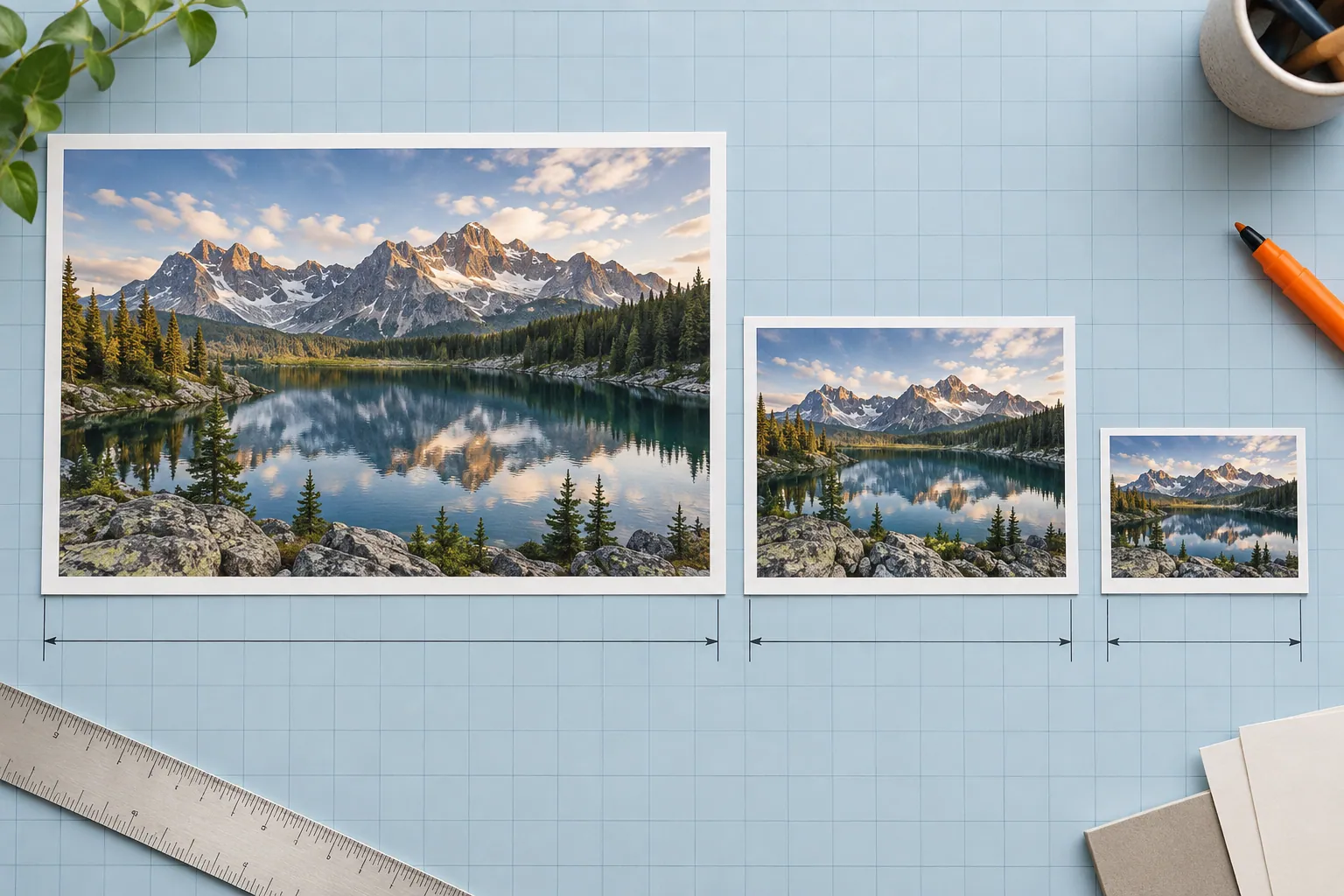
Original conceptual illustration. No competitor interface or logo is shown.
The short answerHistorr is a free Dropover-style option for a photographer who needs to stage selected exports, optionally resize copies at preset maximum edges, and drag or save a verified batch. Its clipboard history helps recover a copied caption or delivery link. Dropover offers broader cloud-upload and automation options; Historr's ordinary shelf staging stays local until you explicitly share or deliver files.
What makes photo delivery fragile?
Photo exports may be split across retouching, web and client-select folders. A copied caption can be overwritten while you gather the files.
A shelf solves collection, but it cannot decide which frame is licensed, which crop is approved or whether the recipient portal alters color after upload.
What happens to source and resized files?
Historr references original disk files and copies on outgoing drags. Its Resize Images action replaces shelf entries with temporary resized copies, leaving original exports alone. The preset controls pixel dimensions, not a guaranteed byte size or color-managed export.
Dropover also provides shelf actions including resize and cloud links. Its FAQ says simply dropping files onto a shelf does not upload them; uploading is explicit. Historr does not have a built-in cloud-link upload service.
How do you stage and verify a batch?
Export approved frames
Use your photo editor for final color, crop, format and quality. Keep RAW masters out of the delivery batch.
Collect and check
Add selected exports to a Historr shelf from each Finder location, expand the list and Quick Look a sample. Confirm filenames and frame IDs against the shortlist.
Resize only when appropriate
For an image-only shelf, choose 50% or a 2048, 1024 or 512-pixel maximum edge if that meets the recipient's requirement. Save the resulting temporary copies before quitting.
Deliver and confirm
Save to Folder or drag into a compatible upload target. Search Historr history for the caption or link if needed, then verify that the destination contains the intended images and text.
Common mistakes to avoid
- Confusing a pixel preset with a file-size guarantee.
- Sending proofs without verifying frame rights.
- Quitting before saving temporary resized copies.
Which tool belongs at each step?
- Keep master exports separate from quick review copies.
- Check the portal's processed thumbnails.
- Use Dropover if one-click cloud links are integral to delivery.
Compare your options
| Option | Best for | Limits |
|---|---|---|
| Historr | Free local staging and copied-caption retrieval | No built-in cloud upload link |
| Dropover | Advanced sharing and cloud integrations | Post-trial delay without Pro |
| Photo editor | Color-critical final export | Does not stage files across windows |
Historr
Best forFree local staging and copied-caption retrieval
LimitsNo built-in cloud upload link
Dropover
Best forAdvanced sharing and cloud integrations
LimitsPost-trial delay without Pro
Photo editor
Best forColor-critical final export
LimitsDoes not stage files across windows
Put it into practice with Historr
Historr combines an easy temporary shelf with local history for captions and links. It can Save to Folder and create ZIPs for a delivery package.
The archive action adds a ZIP beside the input files on the shelf. If the client needs one ZIP, select and send that archive alone rather than the whole shelf.
- Collect files & folders
- Images, links & text
- Multiple shelves
- Quick Look
- Save to Folder
- Compress to ZIP
- Resize Images
- Extract Text

Give your next drag a place to land.
Drag Shelf is included in Historr 0.1.5 and later.
Questions, answered.
Does Historr overwrite source photos when resizing?
No. It creates temporary resized shelf copies and keeps disk originals unchanged.
Does Dropover upload files as soon as they land on a shelf?
No. Dropover's FAQ says upload or sharing requires an explicit action.
Can Historr create a cloud share link?
No built-in cloud-link upload service is provided by Drag Shelf. Use a destination you choose.
Can I retrieve a copied caption?
Yes, if Historr recorded it. Check the caption against the source image before reuse.
Take it from here
A photo handoff succeeds when the file set and caption are verified at the destination. Historr makes the local staging free and quick; Dropover is a stronger fit for upload-heavy automation.
For supported actions, shortcuts, and settings, see the Drag Shelf documentation.