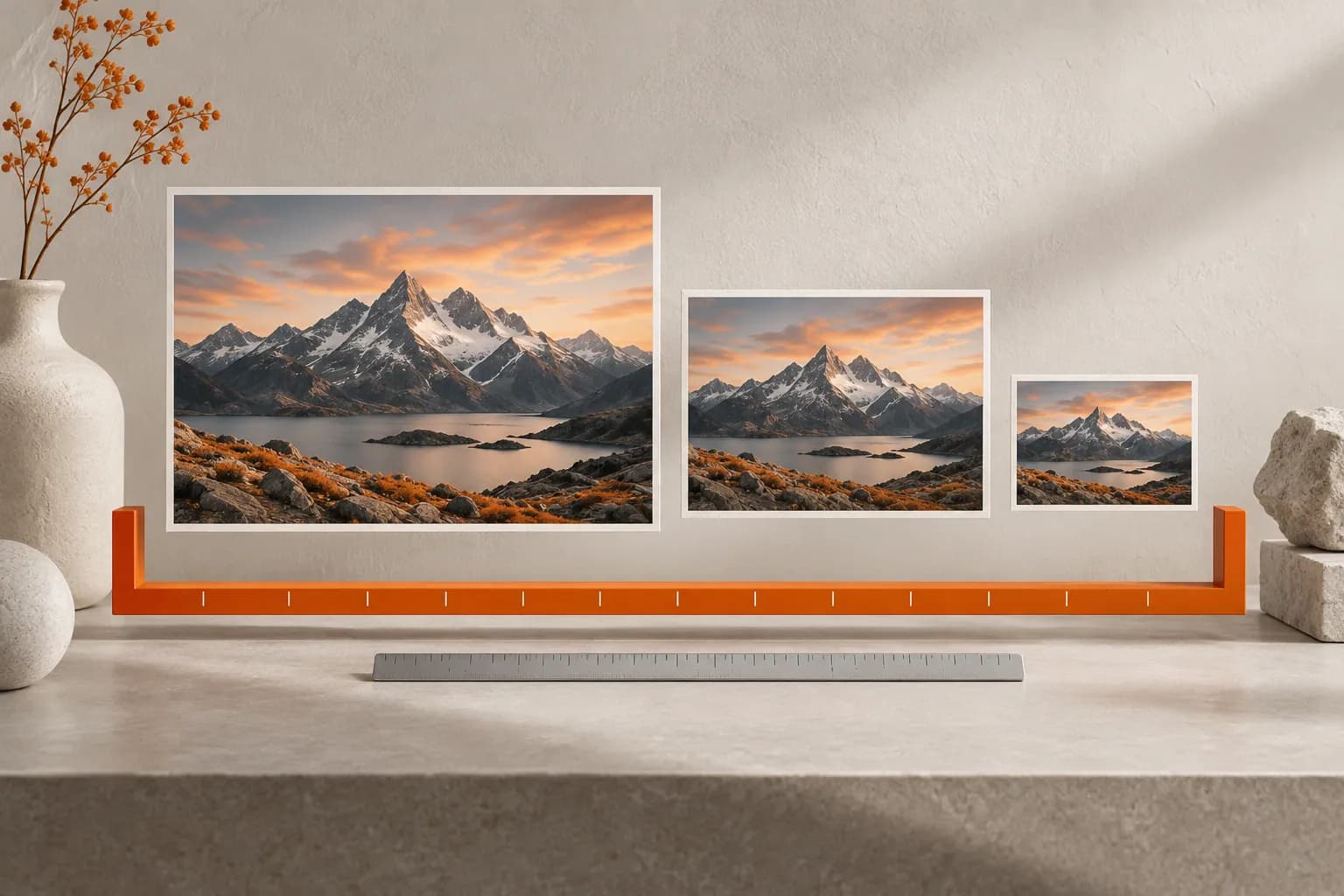
Resize Photo Exports for Delivery Without Touching Masters
Use Drag Shelf's 50% and maximum-edge resize presets on exported images, preserve disk originals, and save the right delivery copies.

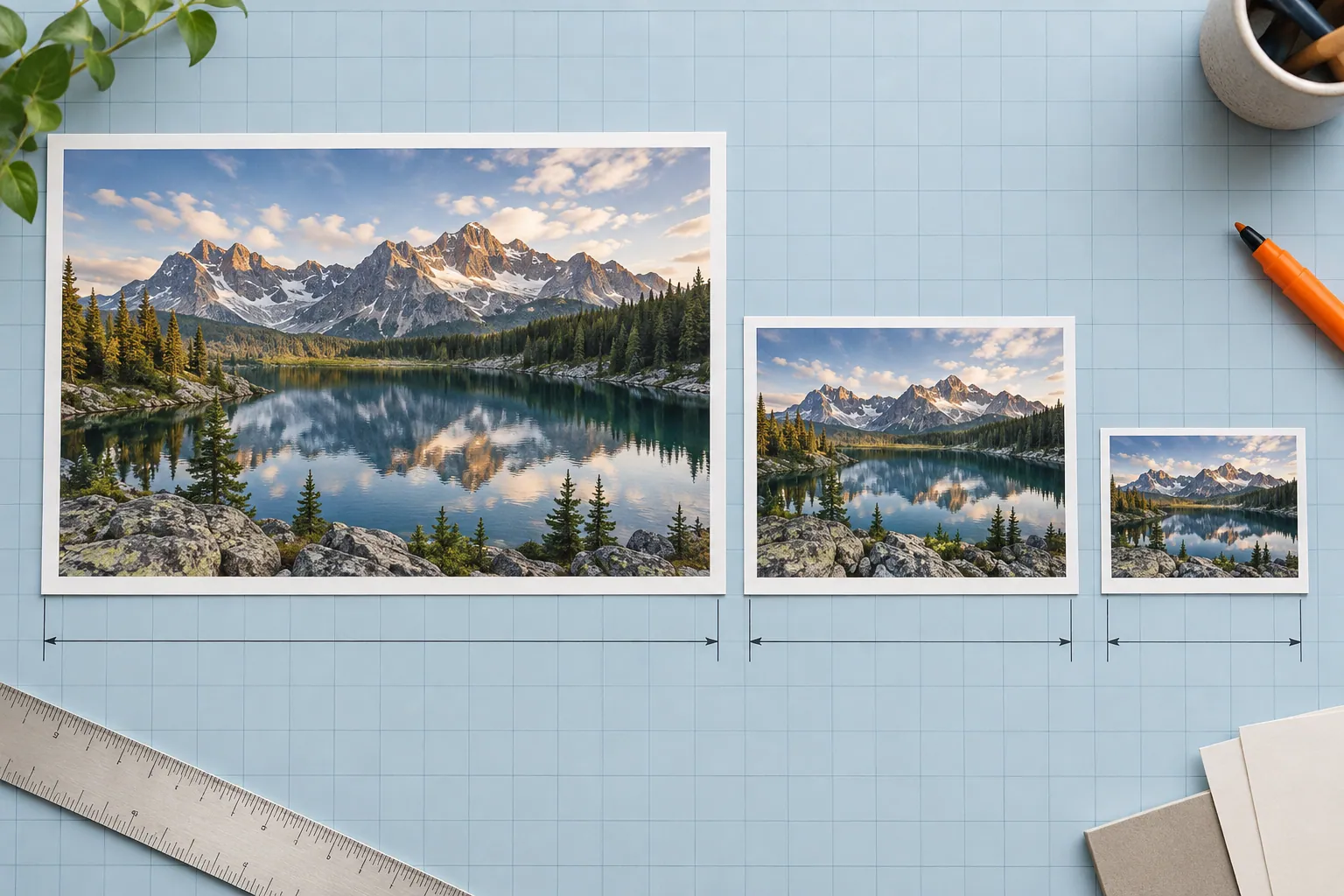
Original conceptual illustration for this workflow; not an app screenshot.
The short answerPut exported image files on a Drag Shelf, choose Resize Images, and select 50% or a maximum edge of 2048, 1024, or 512 pixels. Historr replaces the shelf entries with temporary resized copies while leaving disk originals untouched. Save or deliver the resized files before quitting; these presets do not set crop, custom dimensions, file-size targets, or color profile.
Why make smaller delivery copies?
Sending an oversized image may slow upload and review. Editing the only export to make it smaller risks losing a clean full-resolution copy.
Photographers also need to distinguish pixel dimensions from compressed file size. A 1024-pixel maximum edge tells you the geometry, not the final byte count or whether a portal will recompress it.
What do the presets change?
Drag Shelf's image resize action works on image-only selections. Maximum-edge presets preserve proportions and do not enlarge a smaller image. The 50% choice scales the current shelf image, so repeating it acts on the resized result.
The shelf entry is replaced by a temporary output; the original disk file remains where it was. Historr writes in the source format when available, otherwise PNG. That does not imply ICC-profile management, custom crop, or a guaranteed size in kilobytes.
How do you resize and save a photo set?
Start from an export
Finish edits and export from your photography app. Keep RAW masters, layered originals, and color-managed final exports in their established project folders.
Collect only images
Add the delivery exports to a shelf and remove links, folders, or text before using the whole-shelf resize action. For a mixed shelf, resize an individual image instead.
Choose a preset
Use 2048 for a larger review copy, 1024 or 512 for smaller previews, or 50% to scale the current copy. Check the recipient's stated pixel requirements before choosing.
Inspect and save
Review representative outputs for detail and orientation, then Save to Folder or drag them into a compatible destination. Check filename, dimensions, file size, and color behavior in the final delivered files.
Common mistakes to avoid
- Mistaking maximum edge for a byte-size guarantee.
- Resizing the same shelf copy repeatedly without noticing cumulative reduction.
- Quitting before saving the temporary resized files.
Which resizing method fits the requirement?
- Keep a separate full-resolution export folder.
- Use a recipient's exact dimensions when they provide them; Historr offers fixed presets rather than arbitrary sizes.
- Inspect an image in the target portal after upload, since the portal may process it again.
Compare your options
| Option | Best for | Limits |
|---|---|---|
| Editing app export | Exact format, crop, quality, and profile | More setup for a quick preview |
| Drag Shelf resize | Fast proportional copies at presets | No custom geometry or byte target |
| Recipient portal | Final display | May alter uploaded images |
Editing app export
Best forExact format, crop, quality, and profile
LimitsMore setup for a quick preview
Drag Shelf resize
Best forFast proportional copies at presets
LimitsNo custom geometry or byte target
Recipient portal
Best forFinal display
LimitsMay alter uploaded images
Put it into practice with Historr
Historr keeps disk originals untouched and puts resized outputs in the temporary shelf. The new shelf files can be copied out or saved to a folder for a durable handoff.
The action is a convenience for common preview sizes. Keep using a full photo export workflow for exact client specifications and color-critical work.
- Collect files & folders
- Images, links & text
- Multiple shelves
- Quick Look
- Save to Folder
- Compress to ZIP
- Resize Images
- Extract Text

Give your next drag a place to land.
Drag Shelf is included in Historr 0.1.5 and later.
Questions, answered.
Will a 512-pixel preset enlarge a smaller image?
No. Maximum-edge presets do not upscale smaller images.
Does it overwrite my original photo?
No. The shelf entry becomes a temporary resized copy; the disk original remains.
Can I enter a custom width?
No. Drag Shelf offers 50% and fixed maximum-edge presets.
Can I guarantee an email attachment size?
No. Check the saved output's actual bytes and the destination's limits.
Take it from here
Resize the delivery copy, then inspect the actual file before sending it. Keeping masters and temporary previews separate makes both quality control and recovery easier.
For supported actions, shortcuts, and settings, see the Drag Shelf documentation.