Prepare a Clean File Handoff With Historr Drag Shelf
Build a focused handoff of documents, images, and reference links on Mac. Preview the batch, save delivery copies, and check the destination before sending.


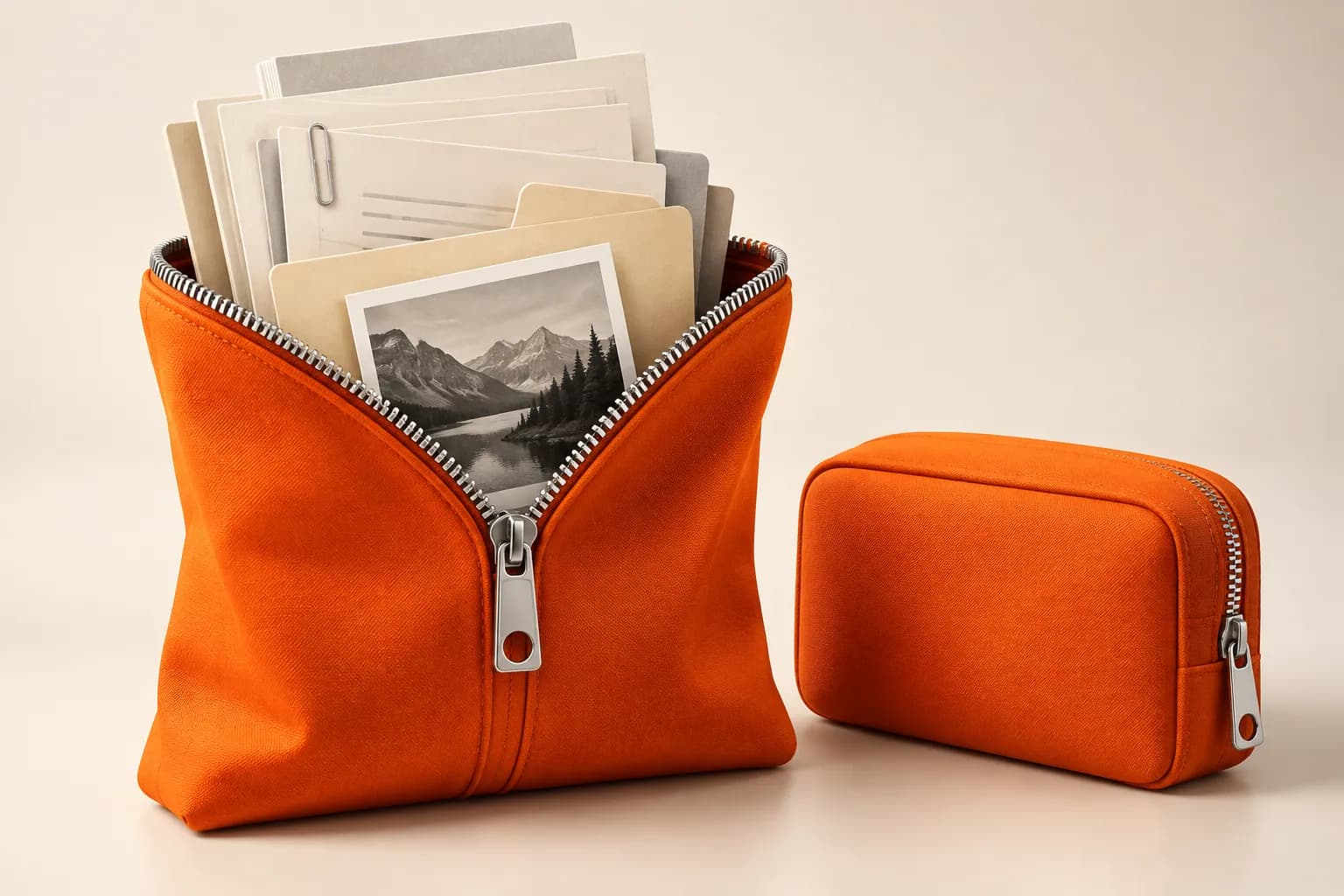
Conceptual illustration of the workflow, not a screenshot of Historr.
The short answerCreate a named Drag Shelf for one handoff, gather only the requested files and references, preview the items, and save copies to a delivery folder. Check the saved batch before sharing. Historr organizes the transfer; it does not decide which revision is approved or grant access to linked resources.
What belongs in a clean file handoff?
A folder full of everything is rarely a good handoff. The recipient may need one PDF, two exported images, and a reference link, while the working directory contains source files, old exports, and unrelated material.
For example, a design review might need the current mockup, a comparison screenshot, and a short note explaining the open question. Assemble those items as a delivery set rather than dragging the entire project folder into a message.
What can a shelf verify for you?
Files are usually organized around production, not around the next recipient's needs. A temporary shelf lets you select from multiple sources while leaving that production structure intact.
A shelf also cannot infer approval status or access permissions. A link may work for you but not for the recipient; a thumbnail may hide the wrong revision. Inspection and destination checks remain necessary.
How do you prepare and check the delivery?
Define the recipient's next action
Write down what the recipient must review, edit, or publish. Select only the assets supporting that action. If approval is still pending, make the status explicit in your accompanying note instead of treating the file as final.
Build a named shelf
Open a shelf with Option-Shift-D and choose Rename Shelf from its menu. Use a task-specific name such as Website review. Add the relevant files, images, text note, and reference links from their original locations.
Preview before packaging
Expand the shelf and use Quick Look on the files. Check the revision, image dimensions, and visible content. Remove obsolete or unrelated entries from the shelf. Removing a referenced disk file from the collection does not delete its original.
Save a durable delivery set
Choose Save to Folder and select a delivery location. Text snippets are represented as text files and links as web-location files when saved as files. Decide whether the recipient instead needs those words and URLs written directly into a message.
Inspect the receiving side
Open the delivery folder, verify the expected filenames, and check link access in the service hosting each document. Then attach or share the set using the intended app. Historr does not publish the files or change permissions automatically.
Common mistakes to avoid
- Sending a whole working directory when only a few exports are needed.
- Assuming a saved web-location file makes a private document accessible.
- Quitting Historr before saving temporary text, image, or archive outputs.
Which handoff format fits the recipient?
- Use separate shelves for separate recipients when their deliverables differ.
- Keep a short accompanying note that identifies the requested action and current status.
- After creating a ZIP, send the archive itself rather than the shelf pile containing both originals and the new archive.
Compare your options
| Option | Best for | Limits |
|---|---|---|
| Raw project folder | A recipient who genuinely needs all working files | May include obsolete or unrelated material |
| Curated delivery folder | A durable, inspectable handoff | Needs explicit revision and access checks |
| Drag Shelf | Collecting and previewing the set before delivery | Not approval tracking, publishing, or permission management |
Put it into practice with Historr
Quick Look, Save to Folder, Compress to ZIP, and Share make the shelf useful between selection and delivery. Use the action appropriate to the recipient instead of treating every handoff as one large attachment.
- Collect files & folders
- Images, links & text
- Multiple shelves
- Quick Look
- Save to Folder
- Compress to ZIP
- Resize Images
- Extract Text

Give your next drag a place to land.
Drag Shelf is included in Historr 0.1.5 and later.
Questions, answered.
Can Drag Shelf send a client handoff automatically?
No. It stages items and exposes sharing actions. You choose the destination and complete the transfer in the receiving or sharing interface.
What happens to a link saved from a shelf?
Historr creates a .webloc file for the link. The file points to the original URL and does not change permissions on that resource.
Does Save to Folder overwrite existing files?
Historr chooses an available filename when a name already exists, rather than overwriting the existing file.
Can I preview the documents before sharing?
Yes. Use Quick Look from the shelf or an item's context menu, then verify anything Quick Look cannot display in its source app.
Take it from here
A clean handoff is a selection with a purpose. Let Drag Shelf hold the batch while you check it, then save and deliver the specific files the recipient needs.
For supported actions, shortcuts, and settings, see the Drag Shelf documentation.