Collect Files From Multiple Folders on Mac With Drag Shelf
Gather files from different Finder folders into one temporary Historr shelf, review the batch, and copy it to a destination without Desktop clutter.

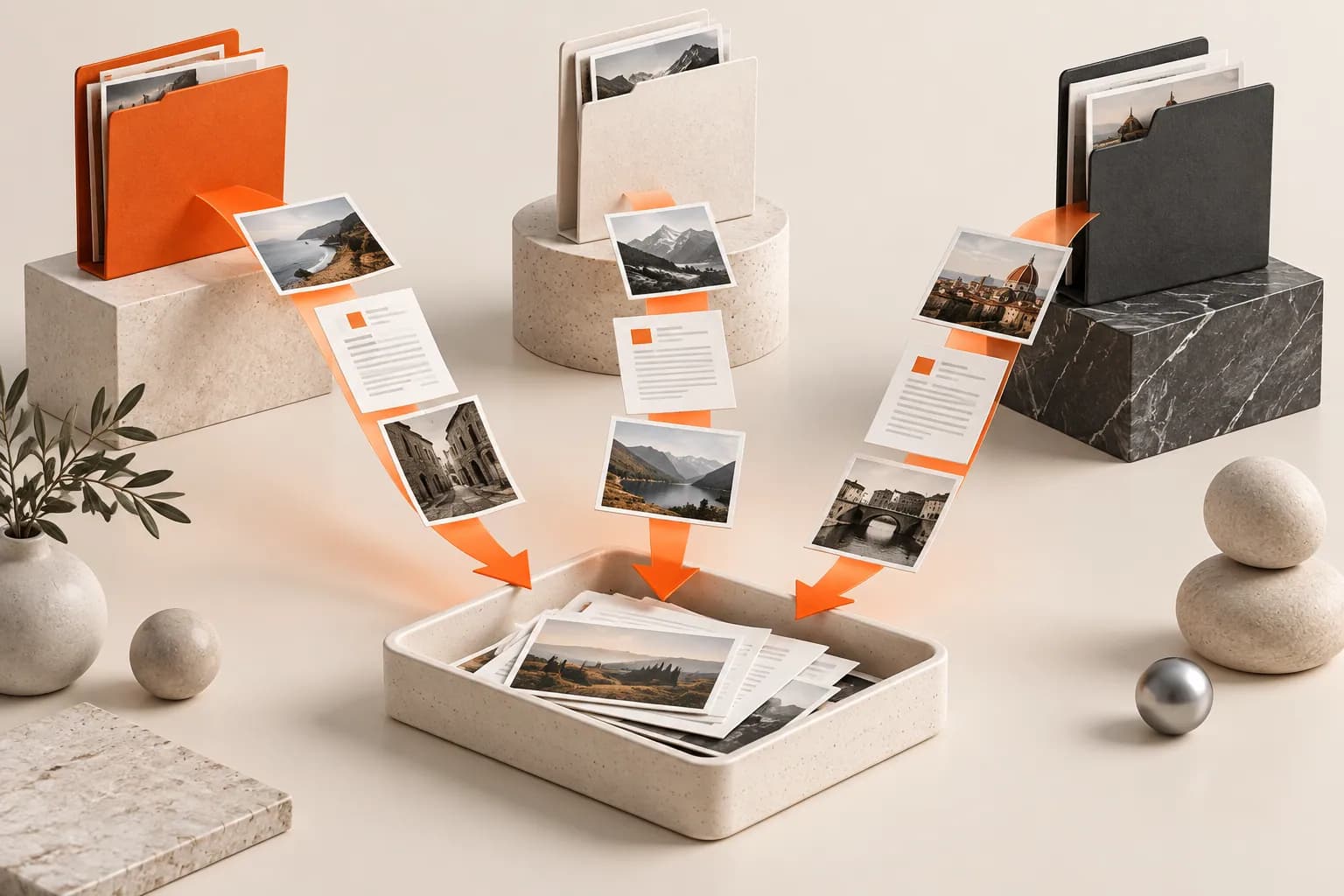
Conceptual illustration of the workflow, not a screenshot of Historr.
The short answerOpen Historr Drag Shelf with Option-Shift-D and drop files onto it from each Finder location. Review the expanded list, then use Drag All or drag the pile to a compatible destination. Historr copies items out; the original files stay in their source folders.
Why collect files before delivering them?
A multi-source attachment task often starts with the Desktop as a holding area. That works, but it leaves a second cleanup task and can make it unclear which files are original work and which are delivery copies.
A shelf separates gathering from delivery. You can release the mouse after each addition, find the next folder, and build a visible batch without first creating a new project directory.
Does the shelf store copies of your files?
Selecting several files inside one Finder location is different from keeping a selection across unrelated locations. A temporary collector is useful when you need a specific mix rather than every item matching a search rule.
Historr references files dropped from disk in their existing locations. It does not make a protected backup when you collect them. Leave the sources accessible until you have copied or saved the batch successfully.
How do you gather files from different folders?
Open the collector first
Press Option-Shift-D, or begin dragging a file and shake the pointer while holding the mouse button. If you prefer the menu bar, drop the first selection onto Historr's icon to create a populated shelf.
Visit each source location
Drag the relevant files from your first Finder folder onto the shelf, release them, and navigate to the next folder. Repeat for the remaining sources. You can also add a folder when the whole folder belongs in the delivery.
Audit the expanded list
Click the pile or item count to inspect the collection. Use Quick Look to distinguish similarly named revisions and Remove from Shelf for an unwanted entry. Adding the same file URL again is ignored, but separate copies of similar files can still appear.
Choose the destination deliberately
Drag the pile or Drag All into the target folder or an app that accepts the batch. Alternatively, choose Save to Folder to create copies in a selected location. Historr's save action avoids overwriting an existing filename by choosing an available name.
Check the delivered files
Open the destination and confirm the expected items are present. If you need the collection after quitting Historr, keep the saved destination folder. A closed shelf can be reopened during the session, but it is not a permanent collection.
Common mistakes to avoid
- Deleting or moving originals before finishing a shelf-based delivery.
- Treating ignored duplicate URLs as a content-based duplicate finder.
- Dropping a mixed batch into a target that accepts only one file type.
When is a shelf better than a delivery folder?
- Name the shelf after the task, such as Review attachments, rather than a vague Inbox.
- Use Save to Folder when the finished batch needs a durable home.
- For a large directory, decide whether the recipient needs the folder itself or selected files inside it.
Compare your options
| Option | Best for | Limits |
|---|---|---|
| Finder selection | Several files in a single location | Does not itself hold a collection assembled from unrelated folders |
| Temporary delivery folder | A batch that must remain available later | Creates copies and needs storage organization |
| Drag Shelf | Gathering across locations during the current session | References original disk files and disappears on quit |
Put it into practice with Historr
Drag Shelf accepts folders as well as files, so you can mix a whole asset directory with a single document. The expanded view and Quick Look let you inspect that mixed collection before copying it out.
- Collect files & folders
- Images, links & text
- Multiple shelves
- Quick Look
- Save to Folder
- Compress to ZIP
- Resize Images
- Extract Text

Give your next drag a place to land.
Drag Shelf is included in Historr 0.1.5 and later.
Questions, answered.
Does collecting a file on a shelf move it?
No. Files from disk are referenced in place, and dragging them out of the shelf requests a copy operation.
Can I add the same file twice?
Historr ignores a repeated standardized file URL on the same shelf. It is not a general duplicate-content scanner.
Can I collect folders too?
Yes. Drag Shelf accepts folders, and you can deliver them alongside individual files where the destination supports them.
How do I keep the collection for tomorrow?
Use Save to Folder or copy the items to a permanent destination before quitting Historr.
Take it from here
Use the shelf to assemble the selection and a real folder to preserve it. That keeps multi-folder gathering convenient without confusing temporary staging with file storage.
For supported actions, shortcuts, and settings, see the Drag Shelf documentation.