Organize Multiple Projects With Named Drag Shelves on Mac
Use multiple Historr Drag Shelves with names and color labels to separate active tasks. Learn how empty shelves, recent shelves, and auto-close behave.

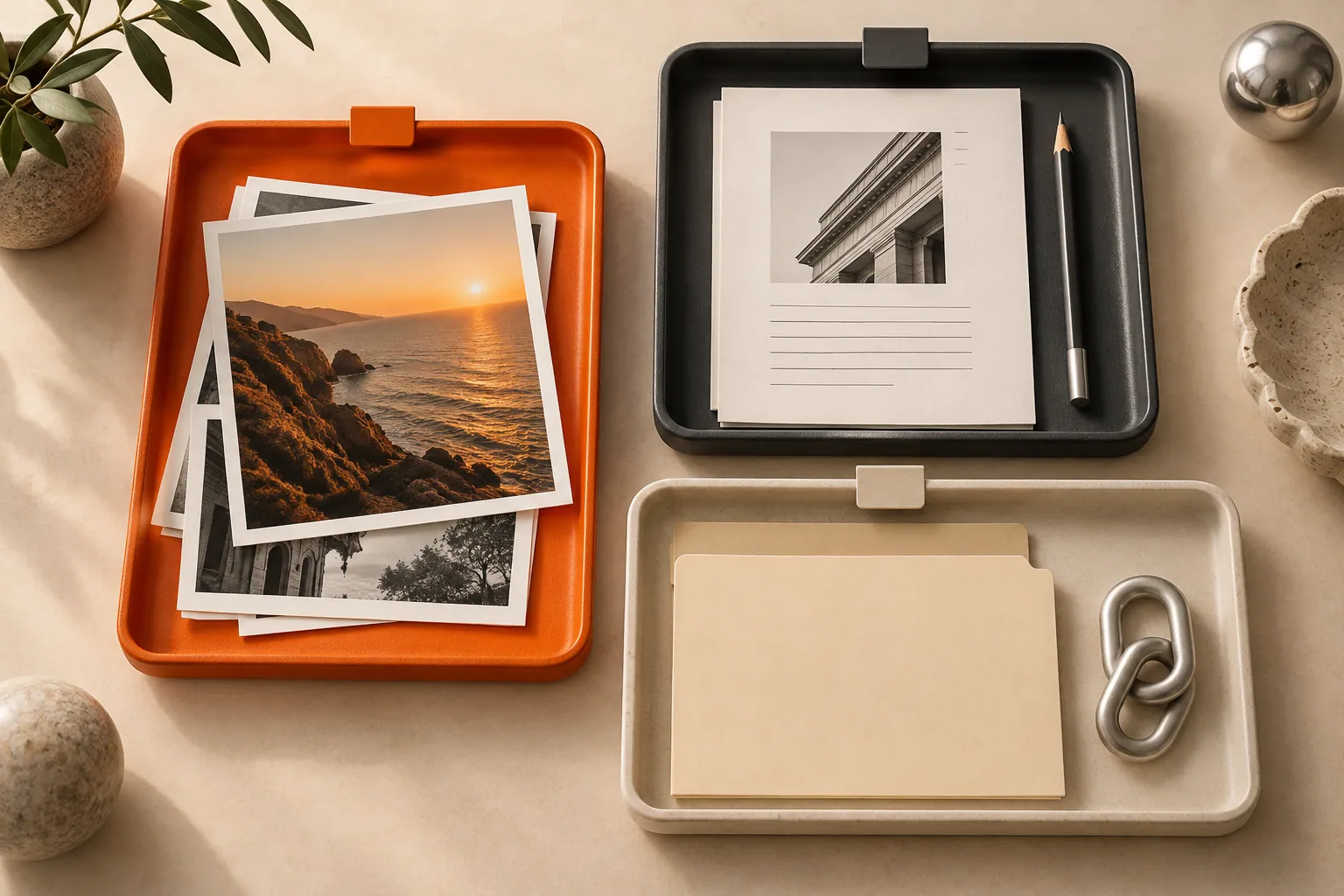
Conceptual illustration of the workflow, not a screenshot of Historr.
The short answerCreate a populated Drag Shelf for each active task, then use Rename Shelf and Color to distinguish them. Historr can keep several shelves open and retains up to ten recently closed populated shelves during the current app session. Empty shelves may be reused; all shelves are discarded when Historr quits.
When do separate shelves help?
Imagine preparing a review packet while collecting screenshots for a support request. Mixing those items on one shelf makes the final drag convenient but the final selection uncertain.
Separate shelves make the boundary visible. One holds review assets, another holds troubleshooting evidence. Names state the purpose; color labels offer a quick visual cue without becoming the only way to identify the collection.
Why might Historr reuse an empty shelf?
Temporary collections are useful precisely because they are easy to create. Without a simple rule for naming and closing them, they can become another layer of clutter above your apps.
Opening a shelf also does not always create a new object. Historr reuses an existing empty shelf when available, and shaking over an already visible shelf does not spawn another one. This keeps accidental duplicates down, but can surprise someone expecting an empty shelf on every shortcut press.
How do you organize and reopen shelves?
Give the first shelf a specific job
Open a shelf with Option-Shift-D and populate it with the first task's items. Choose Rename Shelf and use a short name such as Review exports or Support screenshots. Choose a color if it helps distinguish active collections.
Create the next collection
Move the pointer away from an existing shelf and summon another when needed. If there is an empty shelf, Historr may bring that one to the pointer. A drop on the menu-bar icon creates a shelf for the dropped items.
Review one destination at a time
Expand the intended shelf and inspect its contents before dragging. Do not rely solely on color or position, especially if several collections contain similar screenshots or filenames.
Choose whether delivery closes the shelf
In Preferences, use Close shelf after dragging everything out to control automatic closing after a successful whole-collection drag. A cancelled drag or an individual item drag is not the same as a successful Drag All operation.
Reopen recent work when needed
Use Recent Shelves in Historr's menu bar to reopen a populated shelf you closed during this session. Up to ten are retained. Save important outputs before quitting; recent shelves do not provide recovery after relaunch.
Common mistakes to avoid
- Expecting unlimited recent-shelf history across app launches.
- Using identical names for collections with different recipients.
- Assuming opening an empty shelf repeatedly always creates new shelves.
How should you manage active and recent collections?
- Use names for meaning and colors for quick recognition.
- Close a completed collection to reduce visual clutter, then save anything that must outlast the session.
- If two batches contain different delivery versions, name them by purpose rather than relying on their current screen positions.
Compare your options
| Option | Best for | Limits |
|---|---|---|
| One mixed shelf | One task with one destination | Different deliveries become easy to confuse |
| Named active shelves | Several tasks being assembled now | Need deliberate review and remain temporary |
| Recent Shelves | Reopening up to ten closed populated shelves in the session | Not a persistent archive or an undo history for removed items |
Put it into practice with Historr
Shelf names and labels organize the temporary collection, not the source files. Renaming a shelf does not rename its files, and its color label is not a Finder tag applied to every entry.
- Collect files & folders
- Images, links & text
- Multiple shelves
- Quick Look
- Save to Folder
- Compress to ZIP
- Resize Images
- Extract Text

Give your next drag a place to land.
Drag Shelf is included in Historr 0.1.5 and later.
Questions, answered.
Can several Drag Shelves stay open together?
Yes. Historr supports multiple active shelves, which you can distinguish using names and color labels.
How many closed shelves can I reopen?
Historr keeps up to ten recently closed populated shelves during the current app session.
Why did the shortcut bring back an empty shelf?
Historr reuses an available empty shelf instead of creating another empty one every time.
Does a shelf color change Finder tags?
No. It labels the shelf itself; it does not apply a Finder tag to the referenced files.
Take it from here
One shelf per active destination is a useful starting rule. Name the purpose, inspect the contents, and treat recent shelves as short-term convenience rather than saved project state.
For supported actions, shortcuts, and settings, see the Drag Shelf documentation.