Resize Images on Mac With Drag Shelf, Keep the Originals
Use Historr Drag Shelf to resize images to 50% or a maximum of 2048, 1024, or 512 pixels. Save resized copies while keeping original files unchanged.

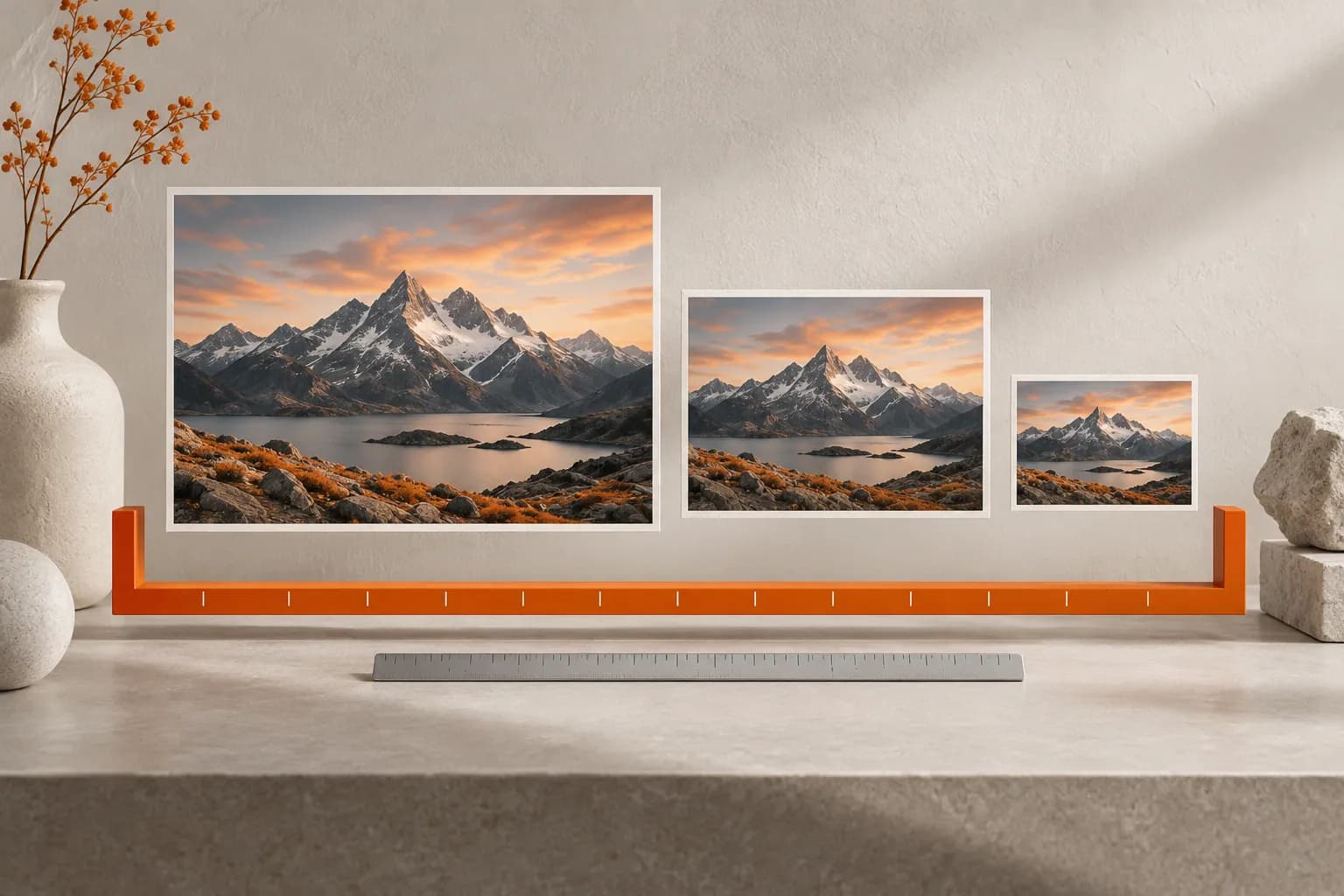
Conceptual illustration of the workflow, not a screenshot of Historr.
The short answerAdd images to Historr Drag Shelf and choose Resize Images from the shelf menu or an image's context menu. Select 50%, Max 2048 px, Max 1024 px, or Max 512 px. Historr creates resized copies and replaces the corresponding shelf entries; original files on disk remain unchanged.
When should you resize a delivery copy?
A camera image may contain far more pixels than a recipient needs to inspect a layout. Sending the original by habit creates larger attachments, while resizing it in place risks losing the full-resolution source.
The useful outcome is a separate, checked export. A shelf can collect several images, resize their entries together, and let you save the results into a delivery folder without overwriting the originals.
What do the resize presets actually change?
Pixel dimensions and file size are related but are not the same measurement. The amount of detail, output format, and compression affect bytes. A maximum-pixel preset does not promise that every result will fit a particular upload limit.
Historr's maximum presets limit the longest side and do not enlarge an image already below that cap. The 50% option halves the longest dimension. It preserves the image proportions rather than forcing every image into a fixed-width rectangle.
How do you resize images without overwriting originals?
Collect the images to deliver
Open a shelf and add the image files. Expand the list and inspect the selection. The shelf-wide resize action targets image items, leaving other kinds of items outside the resize operation.
Choose scope before size
Right-click one image to resize that item, or use the shelf's menu to resize its images together. Choose Max 2048 px, Max 1024 px, Max 512 px, or 50% according to the intended use and recipient requirements.
Wait for the replacement copies
Historr shows a resizing status while it creates the outputs. The resulting copies replace the affected entries on the shelf. The new filenames include the resulting dimensions, which helps distinguish them from the source files.
Inspect the result
Preview the resized image and check small text, thin lines, and other important detail. A 4000 by 3000 image capped at 1024 pixels is approximately 1024 by 768; an image below the cap is not enlarged by that preset.
Save before quitting
Use Save to Folder or drag the resized items to a destination that accepts image files. Check the actual file sizes if there is an attachment limit. The resized shelf files are temporary until you save or copy them elsewhere.
Common mistakes to avoid
- Confusing a 1024-pixel maximum edge with a 1024-kilobyte file limit.
- Assuming the resized version is added beside the original on the shelf; it replaces that entry.
- Applying 50% repeatedly without checking how small the current copy has become.
Which image size should you choose?
- Use a pixel cap when delivery requirements specify a maximum dimension.
- Keep full-resolution source files in their working folder for later edits.
- Historr keeps a writable source image format where possible and uses PNG as a fallback; it is not a selectable-format export editor.
Compare your options
| Option | Best for | Limits |
|---|---|---|
| 50% | A relative reduction from the current image dimensions | Different source sizes still produce different output sizes |
| Maximum-pixel preset | Capping the longest side at 2048, 1024, or 512 | Does not guarantee a particular byte size |
| Dedicated image editor | Cropping, format selection, or fine compression control | Requires a separate export workflow |
Put it into practice with Historr
Resize Images is an action on images already collected in Drag Shelf. It complements a file-transfer task; it does not replace detailed photo editing, cropping, or an export pipeline with exact format requirements.
- Collect files & folders
- Images, links & text
- Multiple shelves
- Quick Look
- Save to Folder
- Compress to ZIP
- Resize Images
- Extract Text

Give your next drag a place to land.
Drag Shelf is included in Historr 0.1.5 and later.
Questions, answered.
Does Historr overwrite the original image?
No. Resize Images creates a separate file and replaces the shelf entry. The original file on disk is not modified.
Does Max 2048 px enlarge small images?
No. The maximum-pixel presets cap the longest side and do not upscale an image that is already smaller.
Can I choose a custom width and height?
The current menu provides 50% and maximum edges of 2048, 1024, or 512 pixels. It does not offer arbitrary width-and-height entry.
Where do resized copies go?
They are created in the shelf's temporary storage and replace its image entries. Save or drag them out before quitting Historr.
Take it from here
Choose a preset, inspect the copy, and save it to its destination. That is the quickest reliable way to reduce delivery dimensions while keeping your original image available.
For supported actions, shortcuts, and settings, see the Drag Shelf documentation.