Extract Text From Screenshots on Mac With Drag Shelf
Turn screenshot text into editable text with Historr Drag Shelf's on-device Extract Text action. Learn how batch OCR works and what to check afterward.

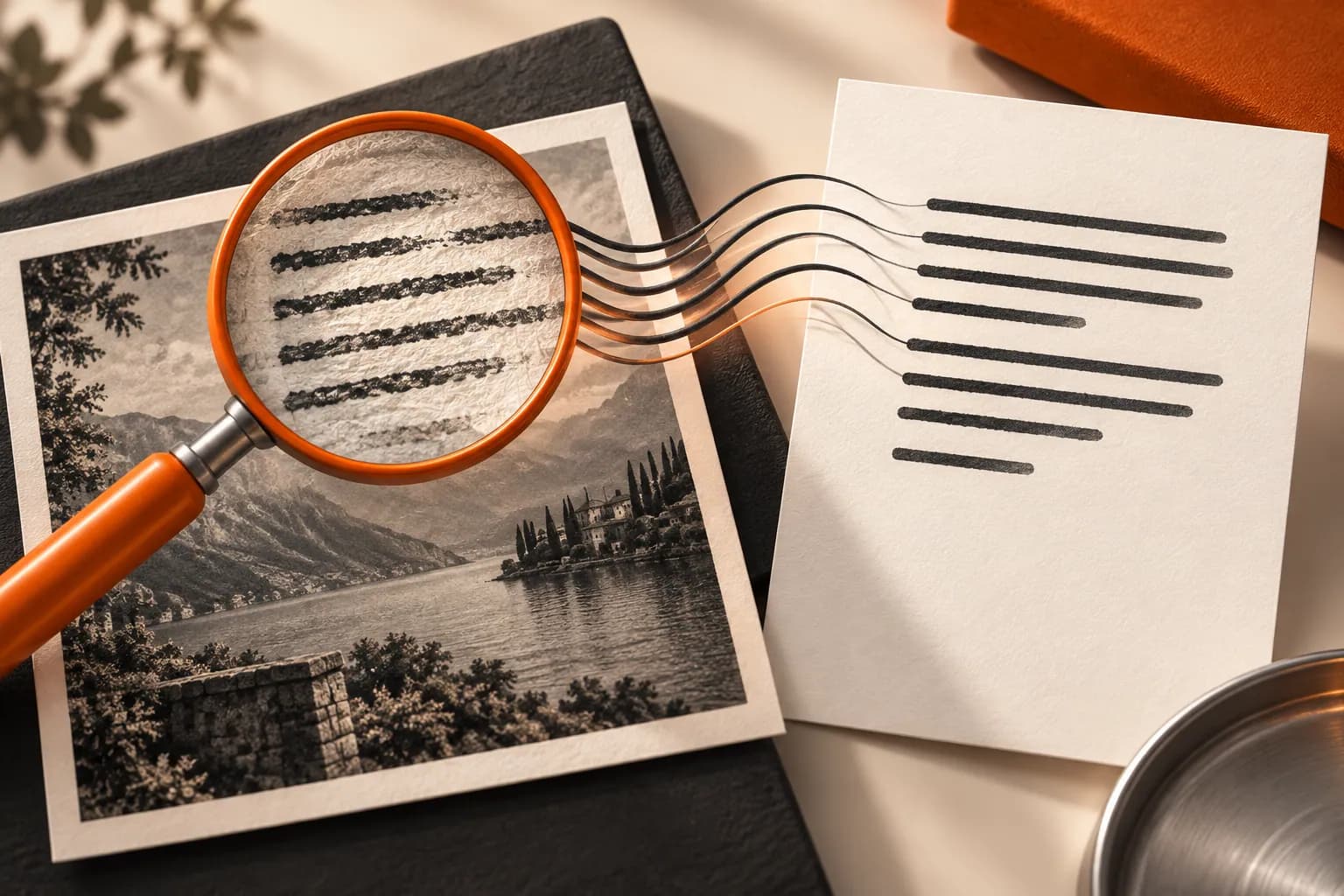
Conceptual illustration of the workflow, not a screenshot of Historr.
The short answerDrop an image onto Historr Drag Shelf, right-click it, and choose Extract Text. Historr recognizes text on your Mac and copies the result to the clipboard. The shelf-wide action reads its image items and joins their results with blank lines. Paste and proofread the output before using it.
When is screenshot OCR useful?
A support report might contain several screenshots of error dialogs. Rewriting each message manually can introduce mistakes, especially in filenames, identifiers, and punctuation that matter when searching a log or reporting a bug.
Optical character recognition, or OCR, offers a starting point. It is useful for recovering the words in an image, but it does not verify their meaning, reconstruct every document layout, or guarantee exact transcription.
Why can recognized text need correction?
An image stores pixels rather than editable text. Historr uses Apple's Vision text-recognition framework to identify likely text in image items and return a plain-text result.
Low resolution, blur, unusual letterforms, columns, and tiny characters can affect recognition. A screenshot containing a table may produce lines of text without preserving the original cells. The output needs review in the context of its source image.
How do you copy text from shelf images?
Add a readable image
Open Drag Shelf with Option-Shift-D and add the screenshot or image file. Prefer the clearest available source. If the image is a small preview from a messaging app, obtain the original-size version before trying to extract precise text.
Choose one image or the batch
Right-click an image and choose Extract Text to process that item. To process the images on a shelf together, use Extract Text from the shelf menu. Non-image entries are not the OCR targets.
Wait for Text copied
Historr shows Reading text while recognition runs. A successful result replaces the current clipboard text; it does not create a new document on the shelf. If nothing is recognized, the app reports No text found.
Paste into an appropriate editor
Paste into a note, editor, or report field. For multiple images, recognized results are separated by blank lines. Add your own source labels so you can identify which screenshot each passage came from.
Compare with the images
Check names, numbers, symbols, URLs, and line breaks against the originals. Do not run a recovered command or trust a copied identifier simply because OCR produced it. Preserve the original image when context matters.
Common mistakes to avoid
- Expecting a PDF file on the shelf to be processed as an image by this action.
- Assuming OCR reconstructs spreadsheets, columns, or formatting exactly.
- Forgetting that extraction replaces the current clipboard contents.
Which text-extraction workflow fits the task?
- Extract one screenshot at a time when accurate source attribution matters more than batch convenience.
- Keep the image available for Quick Look while editing the recognized text.
- Treat recovered commands and numerical values as transcriptions to verify, not instructions to execute automatically.
Compare your options
| Option | Best for | Limits |
|---|---|---|
| Manual transcription | A short passage requiring close inspection | Slow for several screenshots and still subject to typing errors |
| Drag Shelf Extract Text | On-device text recovery from collected image items | Copies plain text; recognition and layout need review |
| Document OCR workflow | Searchable PDFs or structured document processing | A separate workflow beyond the shelf's image action |
Put it into practice with Historr
The implemented action runs recognition locally using Apple Vision. Extracted text lands on the macOS clipboard; copying or later pasting it into another service is a separate action you control.
- Collect files & folders
- Images, links & text
- Multiple shelves
- Quick Look
- Save to Folder
- Compress to ZIP
- Resize Images
- Extract Text

Give your next drag a place to land.
Drag Shelf is included in Historr 0.1.5 and later.
Questions, answered.
Does Extract Text upload my screenshot?
The shelf's OCR action uses on-device Apple Vision processing. It does not upload the image for recognition.
Can I extract text from several images at once?
Yes. Use Extract Text in the shelf menu. Historr processes the image entries and joins recognized results with blank lines.
Where is the extracted text saved?
It is copied to the clipboard. Paste it into a document if you need a durable saved result.
Why does Extract Text say No text found?
The images may contain no recognizable text or may be too unclear. Try a sharper source and inspect its text at a readable size.
Take it from here
OCR removes repetitive transcription, not the need to check it. Use Drag Shelf to recover the text, then compare it with the source before searching, quoting, or sharing it.
For supported actions, shortcuts, and settings, see the Drag Shelf documentation.