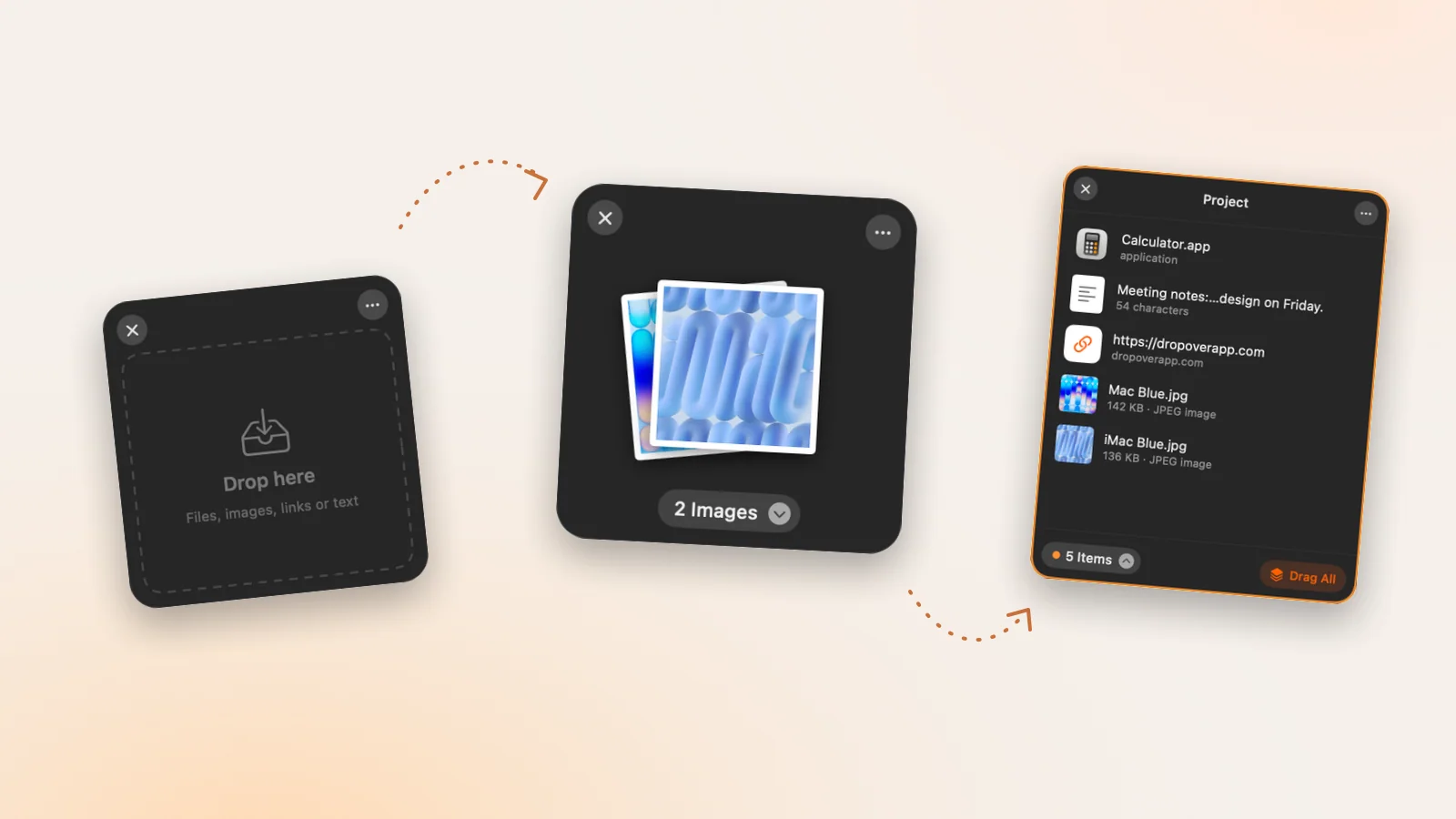
Drag Shelf vs Clipboard History vs Paste Stack on Mac
Choose the right Historr tool: Drag Shelf for file batches, clipboard history for previous copies, and Paste Stack for pasting text in sequence.

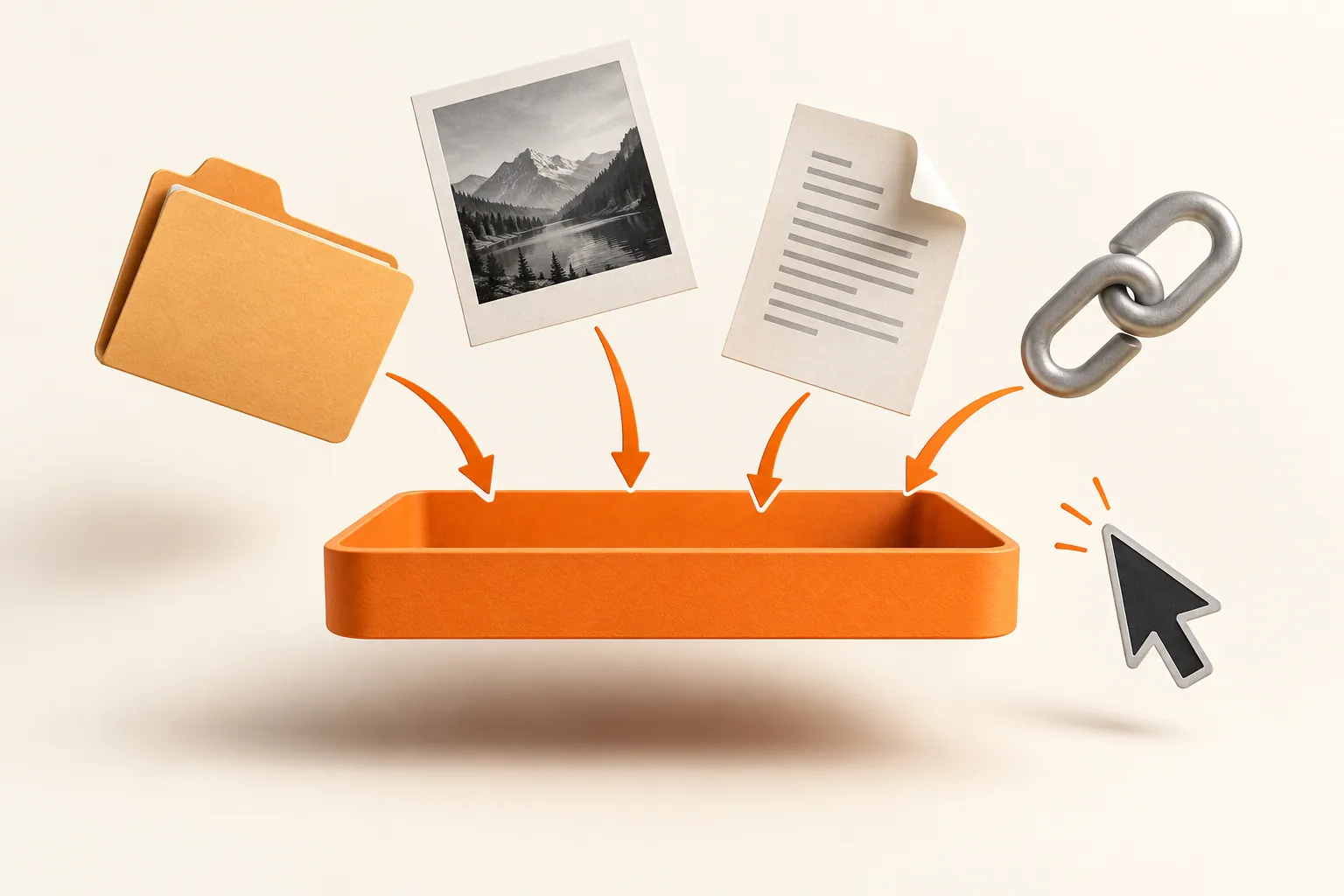
Conceptual illustration of the workflow, not a screenshot of Historr.
The short answerUse Drag Shelf to gather files, folders, images, links, and text for a drop into a destination. Use clipboard history to find earlier copies. Use Paste Stack to paste queued text items one at a time with Option-Command-V. They solve different parts of a Mac workflow.
Which tool fits your next action?
Suppose you are submitting a project. You need to attach three files, recover a copied project URL, and enter a name, title, and description into separate fields. Those are three tasks, even though all involve moving information between apps.
Trying to do everything with one clipboard creates unnecessary switching. A shelf holds the attachments while you prepare the destination. History recovers the URL. A paste queue handles the separate text fields without reopening the history for every value.
How do collection and retention differ?
Clipboard history records supported copies. Drag Shelf collects items you deliberately drop or paste onto it. A file that exists in Finder does not automatically appear on a shelf, and opening a shelf does not add anything to Paste Stack.
Retention is different too. Historr keeps clipboard history between launches, subject to its retention controls. Drag Shelves are temporary; closing a populated shelf can make it available in Recent Shelves, but quitting the app discards shelves.
How do you combine the three tools?
Identify the destination
If the destination accepts file attachments or dropped objects, start with Drag Shelf. If it is a text field, decide whether you need one previous copy or a sequence of values. This choice avoids preparing content in the wrong form.
Collect the attachment batch
Press Option-Shift-D to open a shelf, then drag the required files onto it. Expand the pile to check each item. Dropping files out of Historr creates copies, so the shelf is not a command for relocating originals.
Recover text from history
Press Option-H, search for the earlier URL or passage, and select the matching copy. Preview longer content before pasting. Clipboard history is the right place to look for something you copied earlier, not a shelf you never populated.
Queue repeated field values
Add the needed text clips to Paste Stack and use Option-Command-V in the target fields. Advance the target application's focus yourself between pastes. Keep file attachments on the shelf; Paste Stack is not a batch file uploader.
Finish in the destination
Confirm that the files arrived and the text went into the correct fields. Save anything needed for later into a real folder before quitting Historr. The destination, rather than the temporary shelf, should hold the finished work.
Common mistakes to avoid
- Assuming a shelf automatically collects every clipboard copy.
- Expecting a shelf to paste text fields sequentially.
- Using a temporary shelf as the only copy of work needed tomorrow.
Which Historr tool should you choose?
- Use Option-H for history, Option-Shift-D for a shelf, and Option-Command-V for the next Paste Stack item.
- Keep a shelf open while you compose the text portion of a submission.
- Drop into a compatible target and verify the result; accepting files is a destination-app capability.
Compare your options
| Option | Best for | Limits |
|---|---|---|
| Drag Shelf | Gathering a mixed batch for a deliberate drop | Temporary; destination must accept the item types |
| Clipboard history | Finding and reusing previous copies | Depends on what was captured and retained |
| Paste Stack | Pasting queued text values in order | Does not fill forms or advance fields automatically |
Put it into practice with Historr
These three tools live in the same Historr menu-bar app. Calling the shelf Dropover-style describes its interaction pattern; Drag Shelf is Historr's own feature, not a connection to another app or a claim of identical capabilities.
- Collect files & folders
- Images, links & text
- Multiple shelves
- Quick Look
- Save to Folder
- Compress to ZIP
- Resize Images
- Extract Text

Give your next drag a place to land.
Drag Shelf is included in Historr 0.1.5 and later.
Questions, answered.
Is Drag Shelf the same as clipboard history?
No. Drag Shelf is a manually populated temporary collection. Clipboard history records supported copied content for later search and reuse.
Can Paste Stack send a group of files?
Use Drag Shelf for file batches. Paste Stack is designed to paste queued text items one at a time.
Does Historr need Dropover installed?
No. Drag Shelf is built into Historr 0.1.5 and later; it does not require the separate Dropover app.
Which tool should I use for a copied link?
Use history to find an earlier copied link, or drop a link on a shelf to collect it with other items for the current task.
Take it from here
Choose the tool by the next action, not by the content alone. Gather objects on a shelf, recover copies in history, and use Paste Stack when order matters across text fields.
For supported actions, shortcuts, and settings, see the Drag Shelf documentation.