Free Dropover Alternatives for Mac, Compared
The free ways to get a Dropover-style drag and drop shelf on Mac: built-in Finder tricks, Historr's free shelf, and when a paid app is still worth it.


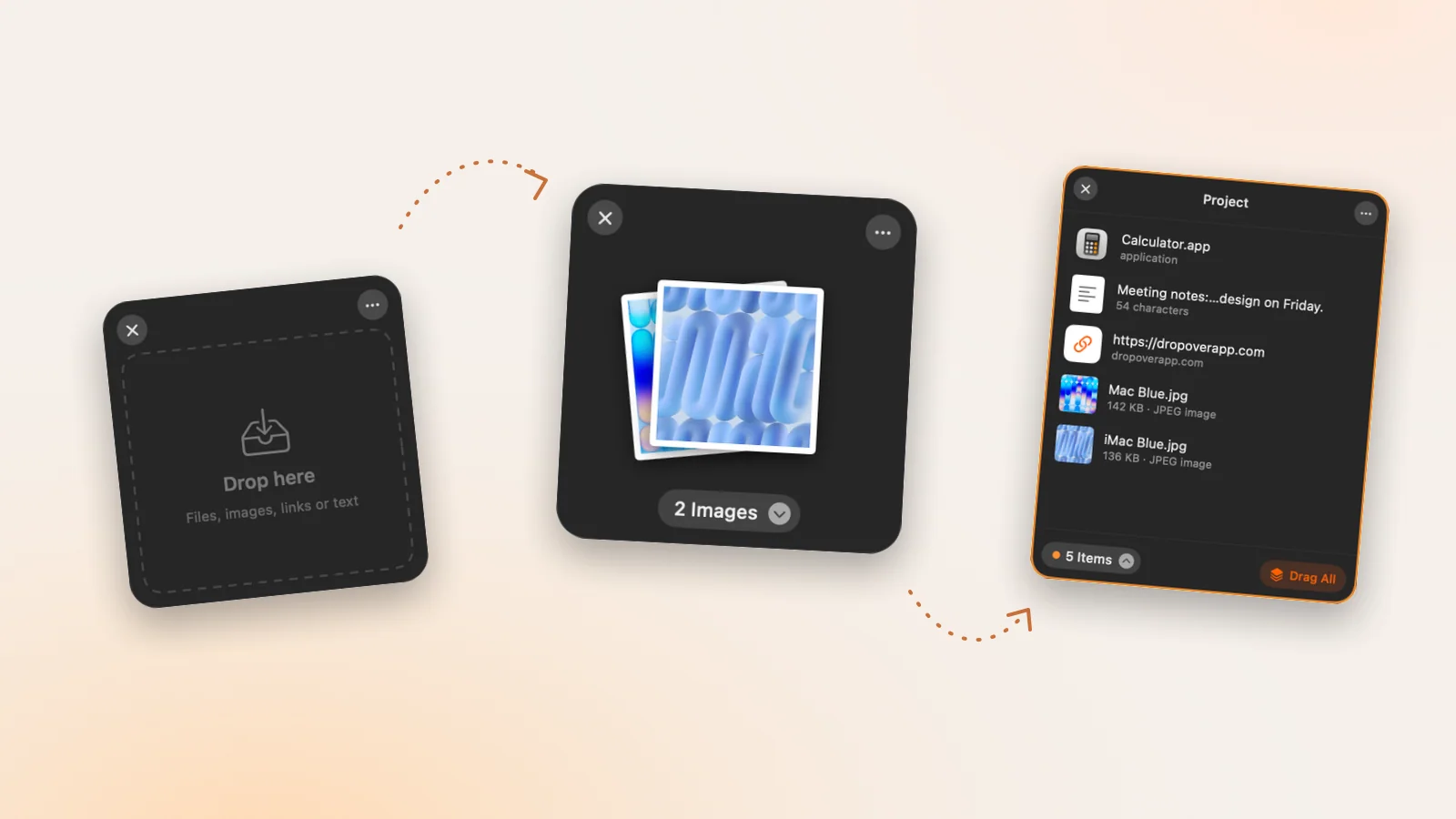
Original cover made from Historr screenshots with sample data.
The short answerThe best free Dropover alternative is Historr: a shake-to-open drag and drop shelf with no trial, no delay and no purchase, plus a clipboard manager in the same menu-bar app. If you would rather install nothing, a Finder staging folder or the Dock can stand in for a shelf, but you lose the floating window that appears where you are. Dropover itself is free to try, then adds a short delay unless you buy Pro; Yoink is a paid one-time purchase.
What a free shelf has to do
A shelf earns its place when you are collecting things from several places at once: three files from different Finder windows, an image from Safari, a link from Messages. Without one, you juggle windows or make a temporary folder you forget to delete.
So a real alternative has to do four things: open fast without leaving the drag, accept files, images, links and text, show what you collected, and let you drag everything out together. Anything less is a workaround.
Why most free options fall short
macOS has no built-in shelf. The closest things are a folder on the Desktop, Stacks, or a folder in the Dock. They hold files, but they do not appear under your pointer, they do not accept text or links cleanly, and they move or copy files in ways that are easy to get wrong.
Most dedicated shelf apps are paid. Dropover offers a free trial and then adds a short wait before each shelf unless you buy Pro. Yoink and similar utilities are one-time purchases. That is fair pricing for polished tools, but it is why people search for a free option.
How to set up a free shelf in five minutes
Decide whether you need a floating shelf
If you only park files once a week, a Desktop folder called Staging is enough. If you collect items from several apps every day, a floating shelf will save real time.
Install Historr
Download it from historr.com, drag it into Applications and open it. It lives in the menu bar and is free, with no account.
Allow Accessibility once
macOS asks for Accessibility so Historr can notice the shake gesture and paste for you. Enable it in System Settings, Privacy and Security, Accessibility.
Shake while dragging
Start dragging a file or image, wiggle the pointer left and right, and drop onto the shelf that appears. Prefer a key? Press Option-Shift-D for an empty shelf, or drop onto the menu bar icon.
Drag the pile out
Grab the pile and drop it into Finder, Mail or Slack. Items leave as copies, so your originals stay put.
Common mistakes to avoid
- Using a Desktop folder as a shelf and forgetting it holds moved originals.
- Running two shelf apps that both respond to shaking, so two shelves open.
- Treating a temporary shelf as storage; save anything important to a real folder.
Small changes. A faster workflow.
- Pick one shelf app and turn off the shake gesture in any other.
- Use the expanded list view to check a pile before you send it.
- Use Save to Folder or Compress to ZIP when a batch has to leave your Mac.
Compare your options
| Option | Best for | Limits |
|---|---|---|
| Historr | A free floating shelf plus clipboard history | No cloud uploads or scripts |
| Finder folder or Dock stack | Installing nothing at all | No floating window; moves files unless you hold Option |
| Dropover | Cloud uploads, scripts and folder actions | Short delay after the trial unless you buy Pro |
| Yoink | Handoff with iPhone and iPad | Paid one-time purchase |
Historr
Best forA free floating shelf plus clipboard history
LimitsNo cloud uploads or scripts
Finder folder or Dock stack
Best forInstalling nothing at all
LimitsNo floating window; moves files unless you hold Option
Dropover
Best forCloud uploads, scripts and folder actions
LimitsShort delay after the trial unless you buy Pro
Yoink
Best forHandoff with iPhone and iPad
LimitsPaid one-time purchase
Why Historr is the free pick
Historr's Drag Shelf covers the move people actually use Dropover for: shake, drop, collect, drag out. You can keep several shelves open, reopen recent ones, and use Quick Look, AirDrop, Compress to ZIP, Resize Images and Extract Text from the shelf menu.
It is free with no limits, and the same app also keeps a private clipboard history with search, favorites and a Paste Stack. If you later need cloud uploads or scripting, Dropover remains a good paid upgrade.
- Instant search
- Unlimited history
- Favorites
- Keyboard shortcuts
- Privacy
- Offline storage
- Quick preview
- Paste Stack

Keep your next good idea.
Free, private clipboard history for your Mac.
Questions, answered.
Is there a completely free alternative to Dropover?
Yes. Historr includes a free shake-to-open drag and drop shelf for macOS 13 or later, with no trial, delay or purchase.
Can I get a shelf on Mac without installing anything?
Only approximately. A Desktop folder, Stacks or a Dock folder can hold files, but none of them appears under your pointer or accepts text and links like a shelf.
Does Historr's shelf move my files?
No. Files dragged out of a Historr shelf are dropped as copies, so the originals stay where they were.
Can I use Historr and Dropover at the same time?
Yes, but turn off the shake gesture in one of them, or open Historr's shelf with Option-Shift-D instead.
The bottom line
If the shake-and-collect move is all you need, a free shelf does the job. Start with Historr, and only pay for a shelf app when you need features like cloud uploads.
If you're looking for a faster way to search, organize, and reuse everything you copy, try Historr and see how much time you can save.
Continue with these guides
- Historr vs Dropover feature table
A side-by-side look at shelf features and pricing.
- Free drag and drop shelf for Mac
How Historr's shelf works, step by step.