Collect Licensed European Cultural Images on Mac for a Campaign
Stage cultural images for a campaign while recording each object's rights statement, source and attribution before any reuse.

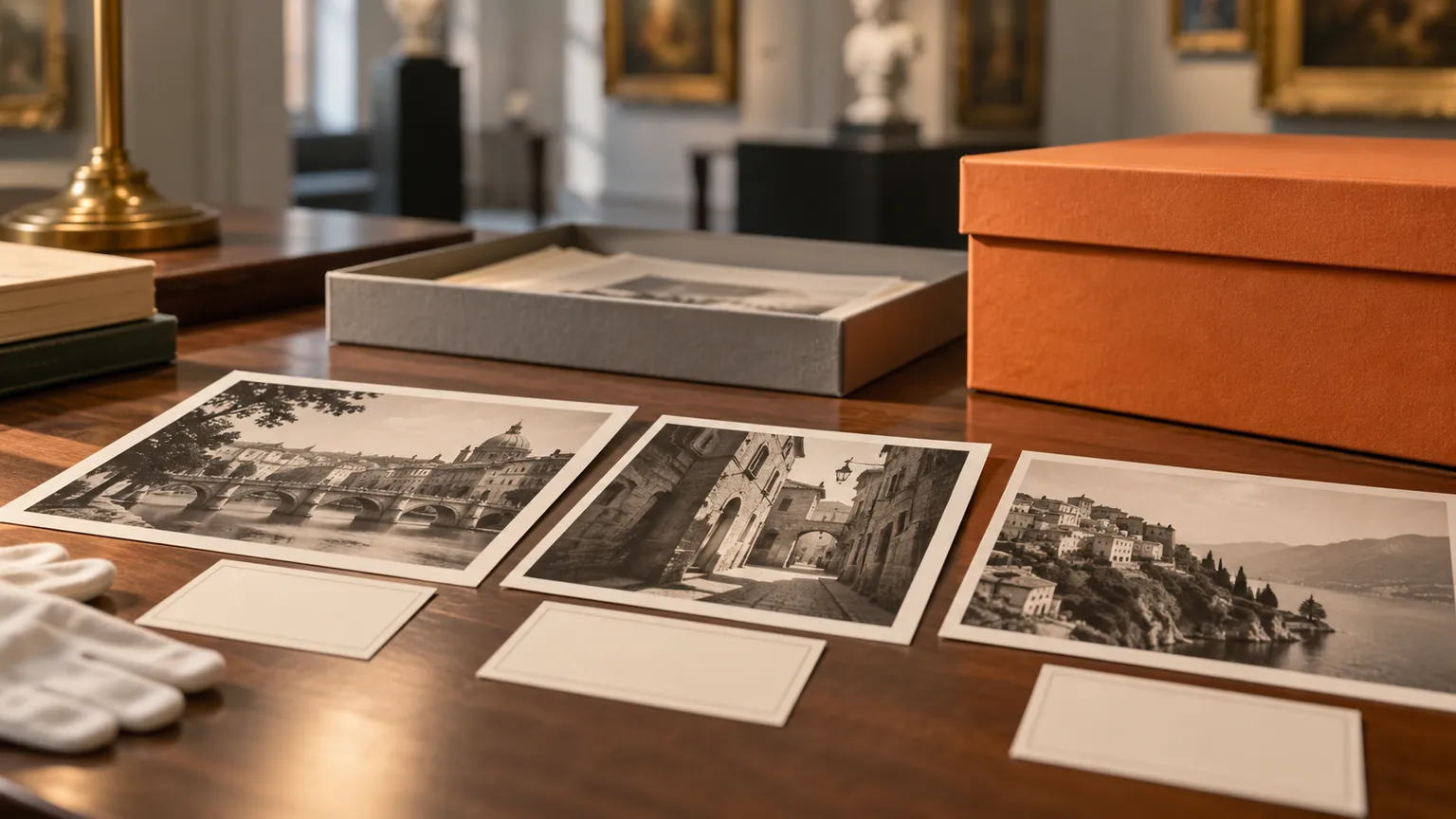
Original conceptual cover. No real client, speaker, research or archive data is shown.
The short answerWhen collecting images from European cultural collections, check each object's rights statement and source record before adding a local file to a Historr Drag Shelf. Keep a separate provenance sheet with the object URL, creator, license or rights statement and any required credit. Historr can stage and copy files, but it does not grant reuse rights or generate attribution. Europeana explains that the rights statement on an object page tells users how it may be reused.
Why do image rights get lost in a moodboard?
A download button is not an open license. Two images from the same collection can have different rights statements, and a low-resolution preview may not be the permitted campaign asset.
A temporary shelf is useful for comparing candidates. It should not strip the link between a file and its provenance or approval decision.
What does a shelf not know about reuse?
Historr's shelf gathers local files from Finder without moving originals and can hold a visual candidate batch during a review session.
Europeana places rights information on individual object pages. Creative Commons recommends recording title, author, source and license for attribution where relevant. Historr does not read or enforce those terms.
How do you shortlist with provenance?
Check each object page
Open the original collection page and read its rights statement. Record the object URL, creator and the exact file you intend to use.
Stage a candidate batch
Download only the files your workflow allows, open a shelf with Option-Shift-D and add the candidate images from their source folders.
Keep attribution beside the files
Create a separate provenance sheet with title, author, source, license or rights statement, and any requested credit. Do not rely on the filename alone.
Review before publishing
Verify the planned campaign use against the rights information and your organisation's review process. Save approved files and the provenance sheet to a durable project folder.
Common mistakes to avoid
- Assuming every Europeana item is free for commercial reuse.
- Losing the object-page URL after downloading a file.
- Treating the shelf as proof that an image is licensed.
Where should license information live?
- Keep one provenance row per asset.
- Check the rights statement on the exact object, not a search result snippet.
- Save approvals outside temporary shelves.
Compare your options
| Option | Best for | Limits |
|---|---|---|
| Historr shelf | Reviewing candidate local images | No rights interpretation |
| Europeana object page | Source and rights statement | Must be checked for each object |
| Provenance sheet | Durable credit and approval trail | Requires careful upkeep |
Historr shelf
Best forReviewing candidate local images
LimitsNo rights interpretation
Europeana object page
Best forSource and rights statement
LimitsMust be checked for each object
Provenance sheet
Best forDurable credit and approval trail
LimitsRequires careful upkeep
Put it into practice with Historr
Historr's free shelf makes it easy to assemble a visual batch for internal review while keeping original downloads in place.
The legal and editorial work happens outside the app: check the object-specific rights information and record the source before reuse.
- Collect files & folders
- Images, links & text
- Multiple shelves
- Quick Look
- Save to Folder
- Compress to ZIP
- Resize Images
- Extract Text

Give your next drag a place to land.
Drag Shelf is included in Historr 0.1.5 and later.
Questions, answered.
Does Historr tell me whether an image is licensed?
No. Check the original object page and your organisation's approval process.
Are all Europeana images free to reuse?
No. Rights statements vary by object; inspect the specific page.
Can I save the reviewed batch?
Yes. Save it to a durable folder, together with the provenance information, before quitting.
What credit information should I retain?
Record the available title, creator, source and license or rights statement, then follow the actual terms for that item.
Take it from here
A strong campaign image shortlist preserves the story of each file: where it came from, what use is allowed and how it must be credited.
For supported actions, shortcuts, and settings, see the Drag Shelf documentation.
Continue with these guides
- Collect visual references in separate shelves
Keep candidate sets distinct during review.
- Europeana rights statements
Read how object-specific reuse information is presented.