A Minimalist Clipboard Manager for Mac: What to Keep and What to Skip
How to choose a minimalist clipboard manager for Mac: the five features worth keeping, the clutter to skip, and a quiet setup that stays out of your way.

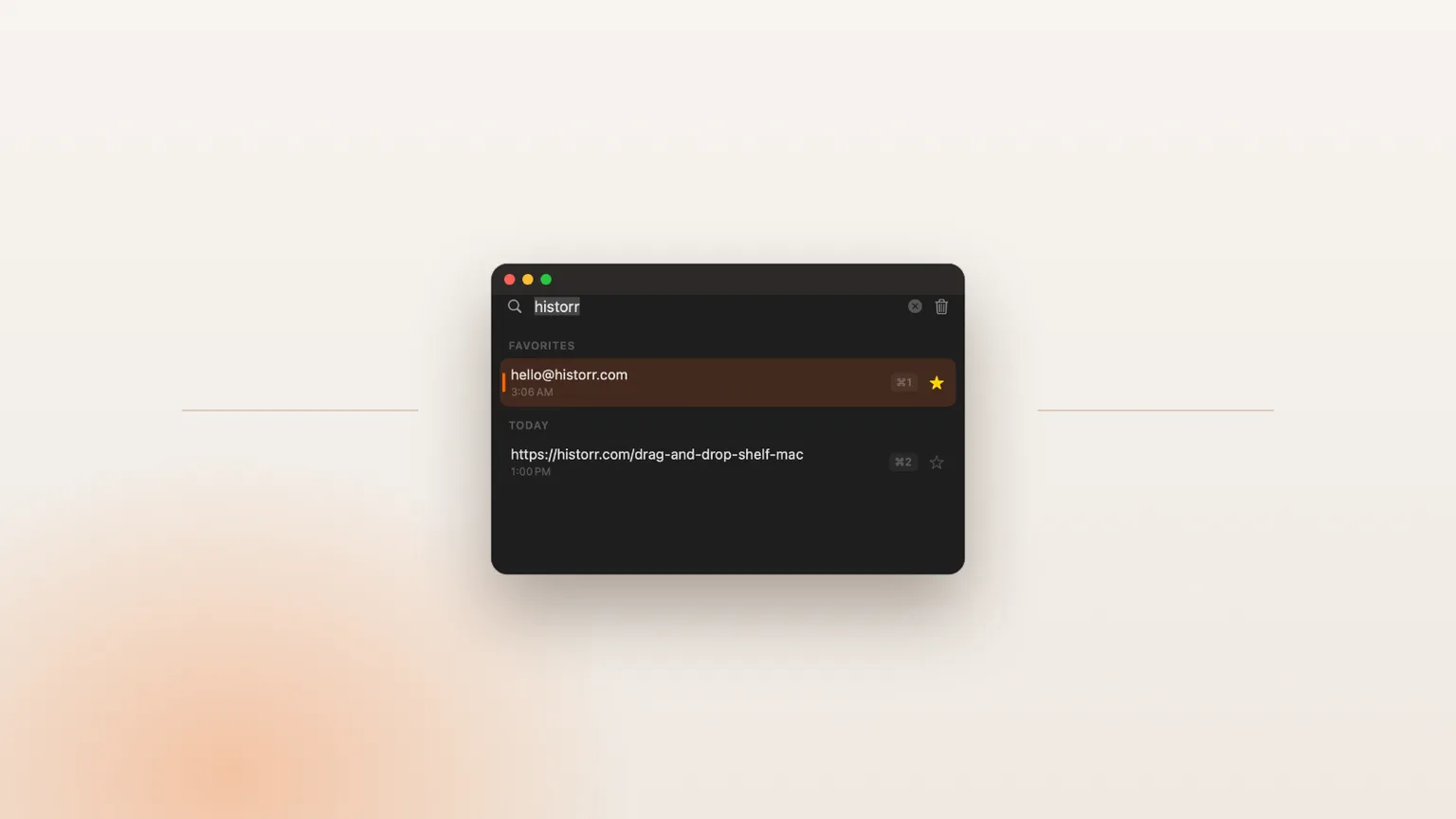
Original cover made from Historr screenshots with sample data.
The short answerA minimalist clipboard manager for Mac should do five things well: remember what you copy, open with one shortcut, search as you type, paste with Return, and keep everything on your Mac. Skip anything that needs an account, a full-screen board or constant notifications. Historr is a free menu-bar app built this way: press Option-H, type, press Return. ¿Buscas un gestor de portapapeles minimalista para Mac? Historr es gratuito, local y se abre con Option-H.
What minimal really means
You copy dozens of things a day. Most of the time you only need the last one, which macOS already handles. The clipboard manager matters in the moments when you need something from ten minutes ago, and in those moments speed is everything.
A minimalist tool should therefore be invisible most of the day, open instantly with a single shortcut, and put the right item back on your clipboard in a keystroke or two.
Minimal also means predictable. The newest item should always be at the top, the same shortcut should work in every app, and nothing should move around between updates. Predictability is what lets your hands learn the tool so your head can stay on the work.
Why clipboard apps get cluttered
Clipboard apps tend to grow. Boards, tags, sync, themes and sidebars each make sense alone, but together they turn a quick lookup into a small project, and many add a subscription to pay for the extra infrastructure.
The other kind of clutter is noise: icons that change, sounds, pop-ups and badges. A minimalist setup removes those so the app only appears when you ask for it.
A quiet five-minute setup
Keep it in the menu bar
Choose an app that runs from the menu bar with no Dock icon. It should never need a window open to work.
Learn one shortcut
In Historr that is Option-H. Press it, type a word you remember, and press Return to paste. Esc closes it.
Cap the history
Keep 100 items by default; raise it only if you often search further back. A shorter list is faster to scan.
Pin only true favorites
Star a handful of items you paste every week, like an address or sign-off. Favorites stay at the top and survive clearing.
Turn on launch at login
Set it once in Settings, then forget the app exists until you need it.
Common mistakes to avoid
- Installing a feature-heavy app and ignoring 90% of it.
- Keeping thousands of items you will never search.
- Favoriting everything, which turns favorites back into clutter.
Small changes. A faster workflow.
- Use Command-1 to Command-9 to paste the first nine items without arrows.
- Press Space to preview a long item before pasting it.
- Pause recording before you copy anything private.
Compare your options
| Option | Best for | Limits |
|---|---|---|
| Historr | Menu-bar history, search and paste, free and local | No cloud sync by design |
| Maccy | An even smaller free, open-source history list | Fewer extras; needs macOS 14 or later |
| Board-style apps | Visual libraries and sync | More interface, often a subscription |
Historr
Best forMenu-bar history, search and paste, free and local
LimitsNo cloud sync by design
Maccy
Best forAn even smaller free, open-source history list
LimitsFewer extras; needs macOS 14 or later
Board-style apps
Best forVisual libraries and sync
LimitsMore interface, often a subscription
A minimalist setup with Historr
Historr keeps the core loop short: Option-H, type, Return. It groups items into Favorites, Today, Yesterday and Earlier, so the list stays scannable without folders or tags.
The extras stay out of sight until you right-click: paste as plain text, smart actions for links and colors, and a Paste Stack. Nothing syncs, and the app is free with no account.
- Instant search
- Unlimited history
- Favorites
- Keyboard shortcuts
- Privacy
- Offline storage
- Quick preview
- Paste Stack

Keep your next good idea.
Free, private clipboard history for your Mac.
Questions, answered.
What is the most minimalist clipboard manager for Mac?
Look for a free menu-bar app with one shortcut, instant search and local storage. Historr and Maccy both fit; Historr adds a few optional extras behind a right-click.
¿Existe un gestor de portapapeles minimalista para Mac?
Sí. Historr es un gestor de portapapeles gratuito para macOS que vive en la barra de menús: pulsa Option-H, escribe y pulsa Return. Todo se guarda solo en tu Mac.
Does a minimalist clipboard manager slow down my Mac?
A well-built menu-bar app uses very little memory and only checks the clipboard for changes. Keep the history to a sensible size and you will not notice it.
Do I need clipboard sync between devices?
Usually not. Apple's Universal Clipboard already moves your latest copy between your own devices.
Can a minimalist app still handle images?
Yes. Historr saves copied images and screenshots with a small thumbnail in the same list, so you do not need a separate tool for them.
Less, but better
The best minimalist clipboard manager is the one you forget about until the moment you need it. Choose one shortcut, keep the list short, and let the tool stay quiet.
If you're looking for a faster way to search, organize, and reuse everything you copy, try Historr and see how much time you can save.
Continue with these guides
- Historr keyboard shortcuts
Every shortcut in one short list.
- Best free clipboard manager for Mac
Why Historr is free and what it includes.