OS X Clipboard Manager: Compatibility for Older Macs
A practical OS X clipboard manager guide covering setup, privacy, current Mac options, trade-offs and a safe test method.

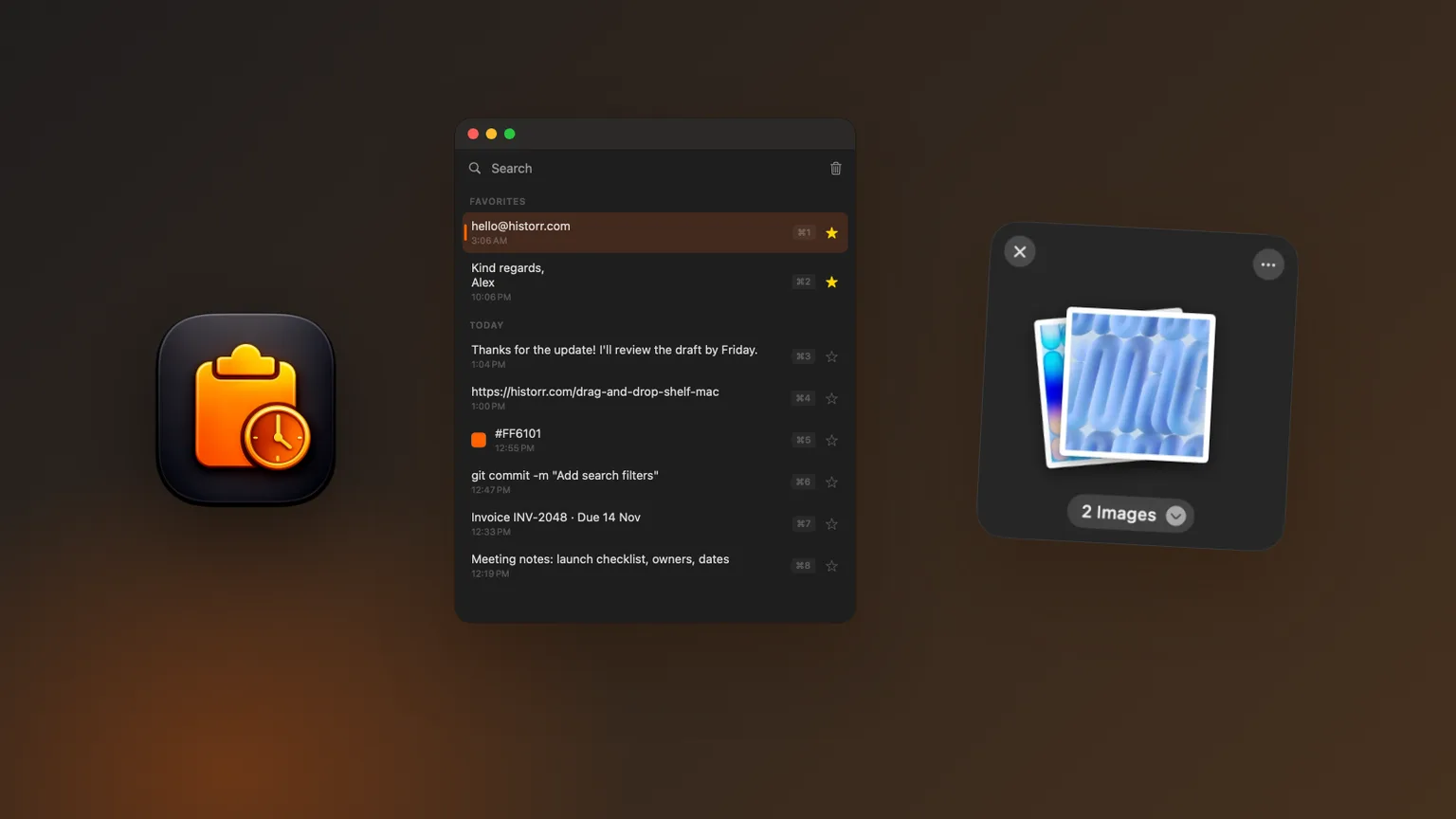
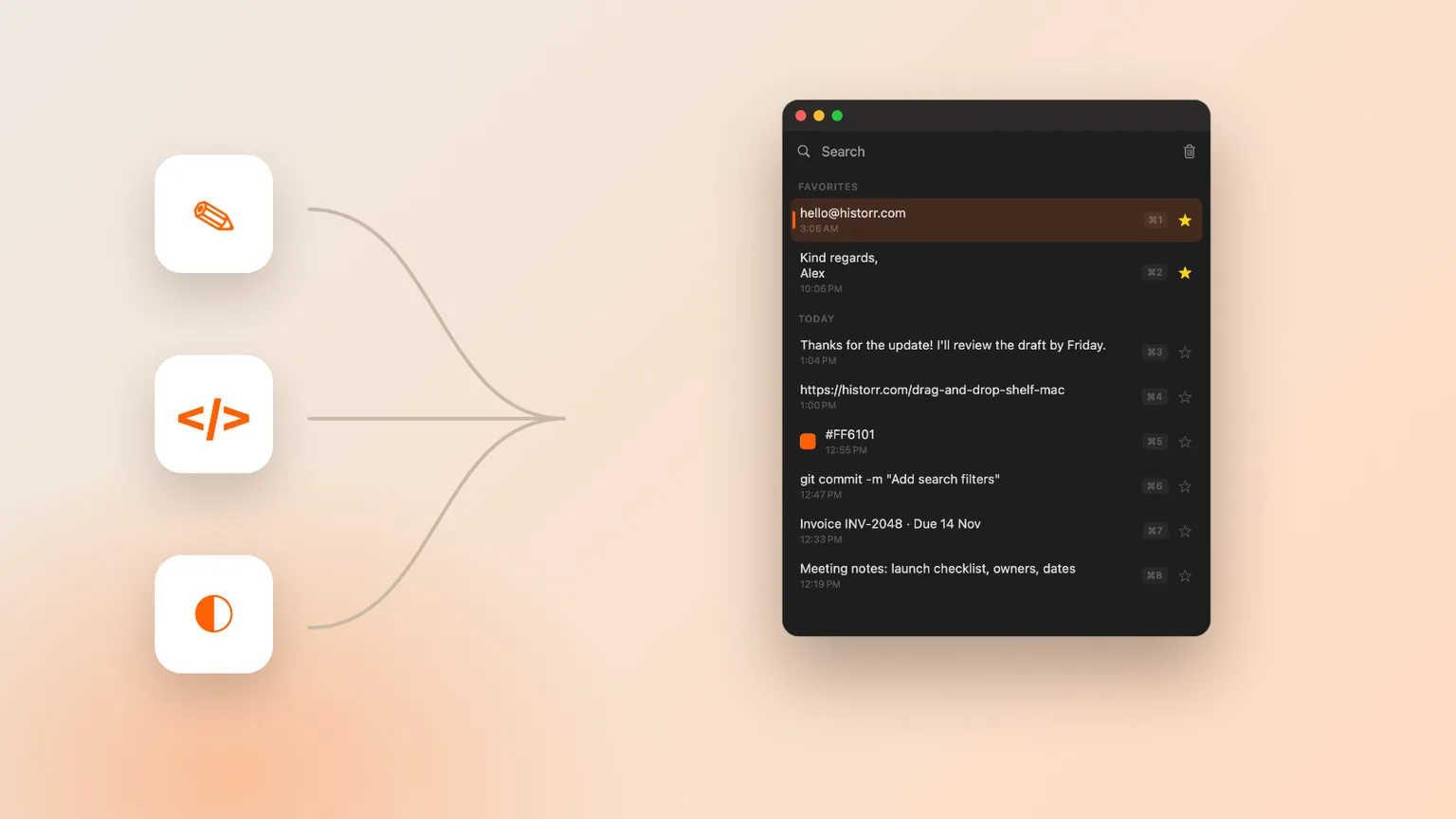
Historr editorial artwork using sample content; no private clipboard data is shown.
The short answerTreat ‘OS X clipboard manager’ as a compatibility question: identify the exact operating-system version first, then use a release that officially supports it.
The overview
OS X is the older name many people still use when searching for Mac software. Compatibility depends on the exact release and hardware, not the wording in the search box. Check About This Mac before choosing a download.
Historr requires macOS 13 Ventura or later and supports Apple silicon and Intel Macs. If the Mac runs an older release, use a clipboard manager version whose publisher explicitly lists that system. Do not install an old package from an unofficial archive simply because a current build will not open.
Why it happens
Clipboard apps integrate closely with system behavior, shortcuts and permissions. A package built for a newer macOS release may fail to launch, lack security updates or behave differently from current documentation.
Apple’s current Spotlight Clipboard history also depends on the installed system. On an older Mac, a third-party tool may be the only history interface, but its supported release must still come from a trustworthy source.
Your step-by-step guide
Record the exact system
Open Apple menu, About This Mac and note the version number, Mac model and Intel or Apple silicon processor before searching for an app.
Read the official requirements
Match the publisher’s minimum macOS version to your machine. A general claim that an app supports ‘Mac’ is not precise enough.
Avoid unofficial legacy builds
Use the developer’s release archive or store listing when provided. Unknown mirrors create unnecessary risk for a utility with clipboard access.
Plan the fallback
If no maintained tool supports the system, use normal copy and paste plus durable notes rather than installing abandoned software from an unverified source.
Common mistakes to avoid
- Choosing from a feature count without testing a normal task.
- Using real credentials or private client data during evaluation.
- Running several clipboard recorders without knowing which one stores each clip.
Small changes. A faster workflow.
- Use the same synthetic text, URL, image and fake token in every comparison.
- Preview a result before pasting it into live work.
- Recheck official requirements and pricing before downloading or paying.
Compare your options
| Option | Best for | Limits |
|---|---|---|
| Apple Clipboard history | Occasional built-in retrieval on supported macOS | Availability and workflow depth depend on the system |
| Maccy | Minimal, open-source, keyboard-first history | Fewer workflow layers by design |
| Historr | Local text and image history with Paste Stack and Drag Shelf | Requires macOS 13 or later; Mac only |
Apple Clipboard history
Best forOccasional built-in retrieval on supported macOS
LimitsAvailability and workflow depth depend on the system
Maccy
Best forMinimal, open-source, keyboard-first history
LimitsFewer workflow layers by design
Historr
Best forLocal text and image history with Paste Stack and Drag Shelf
LimitsRequires macOS 13 or later; Mac only
Put it into practice with Historr
Historr is a free Mac clipboard manager that runs on macOS 13 Ventura or later on Apple silicon and Intel Macs. Its documentation says history stays local with no account, cloud history or telemetry. Concealed or transient password-manager copies are ignored, and optional sensitive-item expiry can remove content that resembles tokens, codes or payment details.
Press Option-H to open history, type to search, use the arrow keys and press Return to paste. Historr stores text and images, supports Quick Look previews, favorites and text transforms, and can queue values in Paste Stack for repeated ordered pasting.
Drag Shelf is included for temporary files, folders, links, images and text. Open it by shaking while dragging, pressing Option-Shift-D or dropping onto the menu-bar icon. That combined workflow is useful when copied content and dragged project assets move through the same task, but it does not replace cloud sync or a permanent document system.
- Instant search
- Unlimited history
- Favorites
- Keyboard shortcuts
- Privacy
- Offline storage
- Quick preview
- Paste Stack

Keep your next good idea.
Free, private clipboard history for your Mac.
Questions, answered.
OS X clipboard manager?
Treat ‘OS X clipboard manager’ as a compatibility question: identify the exact operating-system version first, then use a release that officially supports it.
Does macOS already include clipboard history?
Apple documents Clipboard history in Spotlight on supported current macOS releases. Availability depends on the system, while dedicated apps provide their own retention and workflow features.
What should I test before keeping a clipboard manager?
Test search, preview, pasting, clearing, pause behavior and sensitive-item handling with synthetic text, an image and a fake token. Confirm the result again after restarting the Mac.
Take it from here
Treat ‘OS X clipboard manager’ as a compatibility question: identify the exact operating-system version first, then use a release that officially supports it. Use current official documentation, test with safe sample data and keep the app only when it solves the stated task more reliably than your existing workflow. Clipboard history is a convenience and recovery layer, not a permanent archive or password vault.
If you're looking for a faster way to search, organize, and reuse everything you copy, try Historr and see how much time you can save.
Continue with these guides
- Historr documentation
Verify shortcuts, privacy controls, images, Paste Stack and Drag Shelf.
- Clipboard privacy guide
Review local storage, exclusions, expiry and pause controls.