How to View Clipboard History on Windows 11
Learn how to view clipboard history on Windows 11, enable Win + V, paste older clips, pin items, clear history, and understand built-in limits.

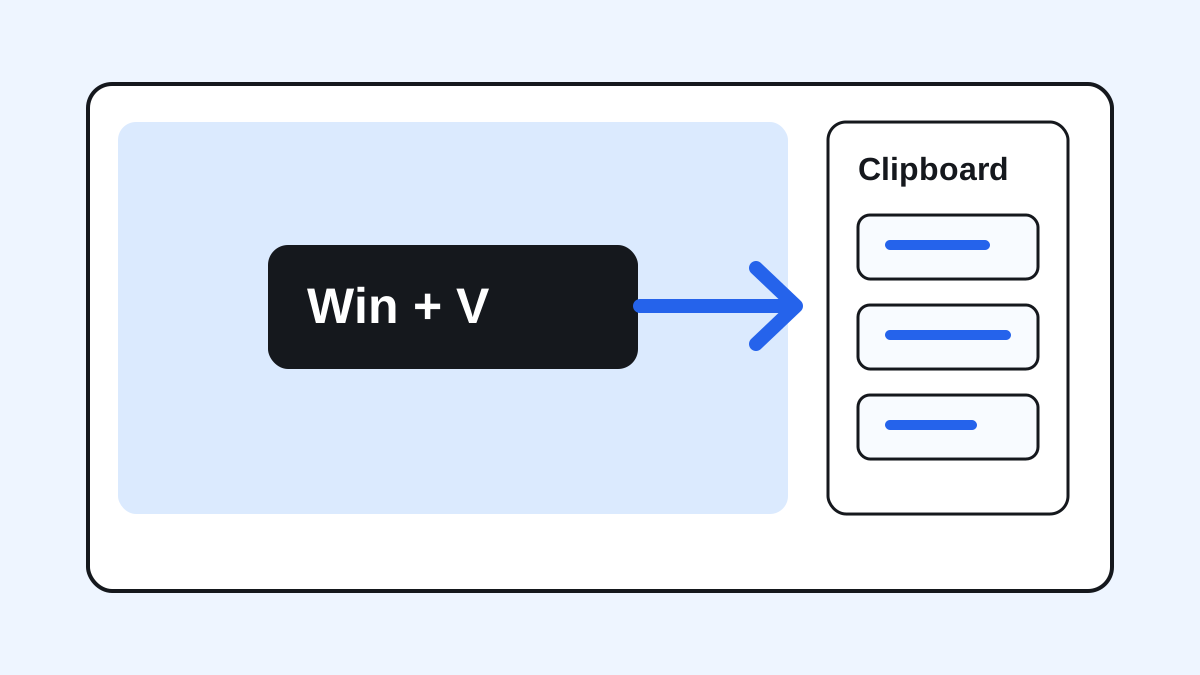
The short answerTo view clipboard history on Windows 11, press Win + V. If clipboard history is not enabled yet, Windows will prompt you to turn it on.
The overview
Windows 11 includes a built-in clipboard history panel, but many people never discover it because copy and paste still works without it.
Once enabled, clipboard history can help you paste recently copied text and images without returning to the original app.
The feature is useful for quick recovery, but it is not the same as a full searchable clipboard manager.
Why it happens
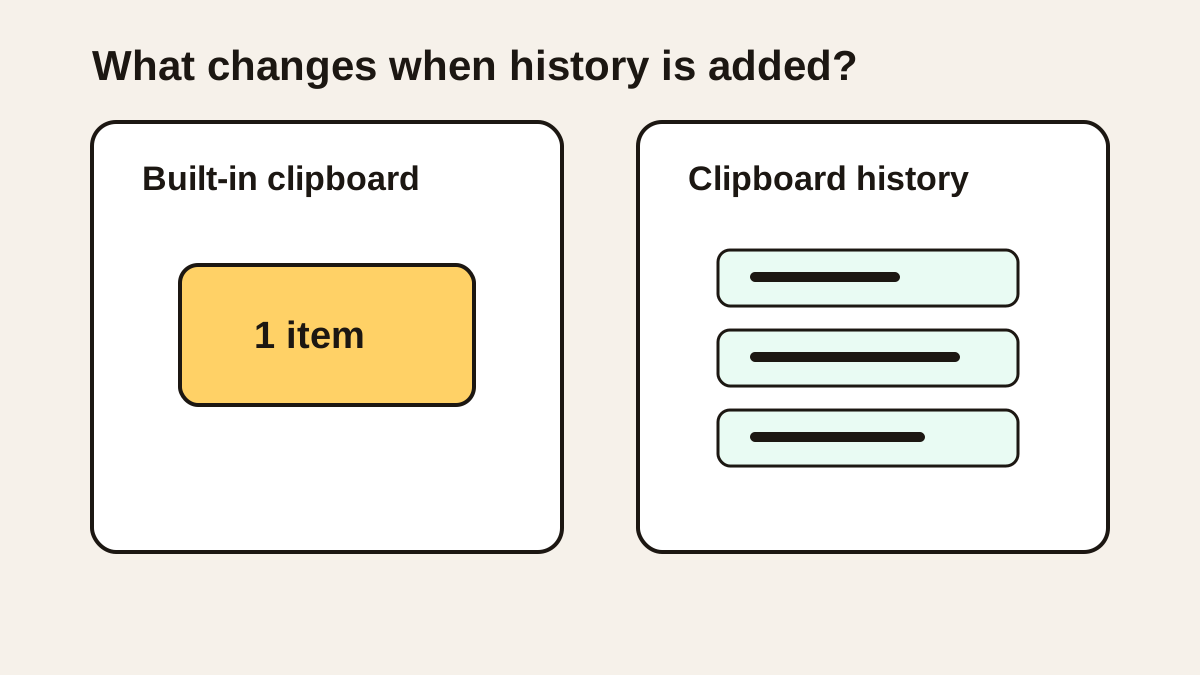
The normal clipboard stores the active item you will paste next.
Clipboard history adds a recent-items panel behind the Win + V shortcut.
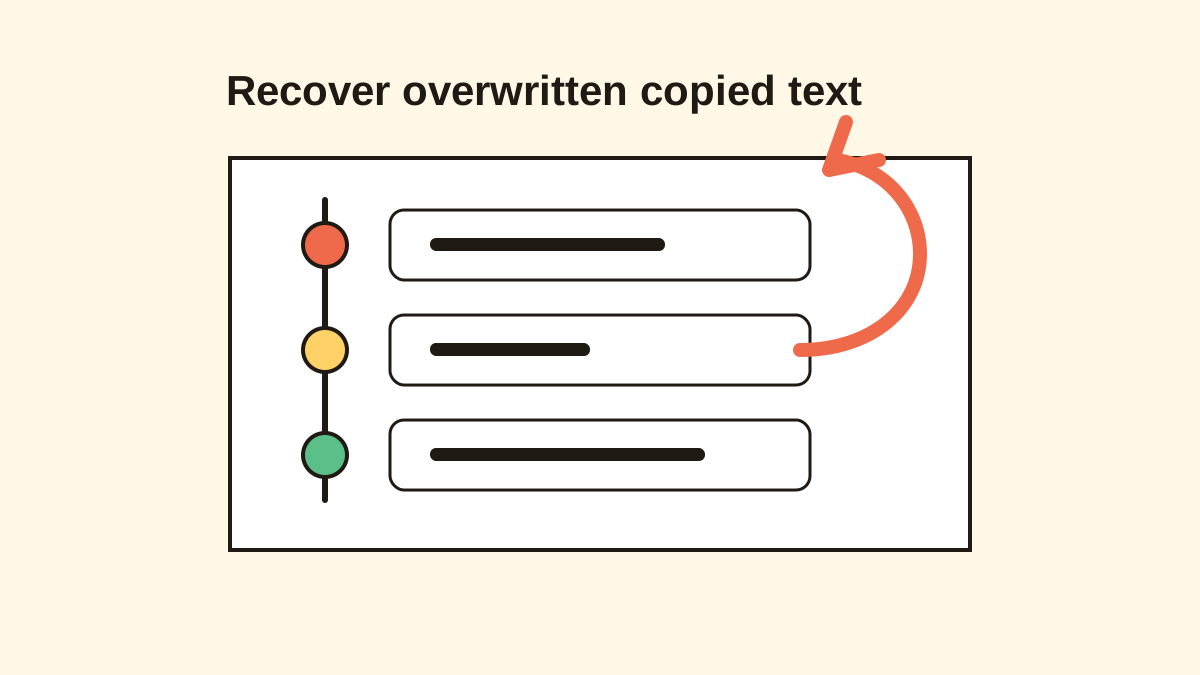
Older items can be lost when history is disabled, cleared, or unavailable after certain restarts and settings changes.
Your step-by-step guide
Press Win + V
Open any text field or app, then press Win + V to open the Windows 11 clipboard history panel.
Turn on clipboard history
If Windows says clipboard history is off, choose Turn on. You can also go to Settings, System, Clipboard, then enable Clipboard history.
Select an older item
Click an item in the panel to paste it into the active app. This is helpful when you copied something else by mistake.
Pin reusable clips
Pin only the items you truly reuse, such as a standard reply, address, or support link.
Clear private history
After copying passwords, tokens, private notes, or customer information, clear clipboard history from the panel or settings.
Common mistakes to avoid
- Expecting Win + V to work before history is enabled.
- Using pinned items as a long-term knowledge base.
- Leaving clipboard sync on without thinking about privacy.
- Assuming cleared history can always be recovered.
Small changes. A faster workflow.
- Learn Win + V before you need it during a deadline.
- Pin fewer items than you think you need.
- Use a dedicated manager when you need search or organization.
- Clear history after handling sensitive data.
Compare your options
| Option | Best for | Limits |
|---|---|---|
| Ctrl + V | Pasting the latest copied item | No history selection |
| Win + V | Recent clipboard history | Limited search and organization |
| Clipboard manager | Power users, teams, and long-term search | Requires installing a trusted app |
Ctrl + V
Best forPasting the latest copied item
LimitsNo history selection
Win + V
Best forRecent clipboard history
LimitsLimited search and organization
Clipboard manager
Best forPower users, teams, and long-term search
LimitsRequires installing a trusted app
Put it into practice with Historr
Historr is currently a Mac-focused clipboard manager, so Windows users should start with Win + V.
The same workflow principles apply on any platform: fast access, searchable history, privacy controls, favorites, and clear cleanup.
If your Windows workflow outgrows Win + V, look for a dedicated clipboard manager with local storage and keyboard-first search.
- Instant search
- Unlimited history
- Favorites
- Keyboard shortcuts
- Privacy
- Offline storage
- Quick preview
- Paste Stack

Keep your next good idea.
Free, private clipboard history for your Mac.
Questions, answered.
What shortcut opens clipboard history on Windows 11?
Press Win + V to open the clipboard history panel.
How do I enable clipboard history on Windows 11?
Press Win + V and choose Turn on, or open Settings, System, Clipboard, and enable Clipboard history.
Can Windows 11 search clipboard history?
The built-in panel is mainly for recent selection. Dedicated clipboard managers usually offer stronger search.
Can I recover clipboard history after it was cleared?
Usually no. Cleared or never-captured clipboard items cannot normally be reconstructed.
Is Win + V safe to use?
It is useful, but you should clear private items and review any sync settings before handling sensitive data.
Take it from here
Win + V is one of the simplest Windows 11 productivity upgrades. Turn it on, learn the habit, and move to a fuller clipboard manager only when you need search and organization.
If you're looking for a faster way to search, organize, and reuse everything you copy, try Historr and see how much time you can save.