Clipboard Manager on Mac: What It Is and How It Works
A plain-English guide to clipboard managers on Mac: what the macOS clipboard keeps, how a clipboard manager saves your history, and how to use one safely.


Original cover made from Historr screenshots with sample data.
The short answerA clipboard manager on Mac is a small app that remembers everything you copy, not just the last item. macOS keeps only one clipboard item at a time; a clipboard manager watches for new copies, saves each one locally, and lets you search and paste any of them again. Good ones skip passwords from password managers, stay on your Mac, and open with a single shortcut, such as Option-H in Historr.
What the Mac clipboard keeps on its own
When you press Command-C, macOS puts the item on the system clipboard, also called the pasteboard. Command-V reads it back. In Finder, Edit then Show Clipboard shows what is there right now.
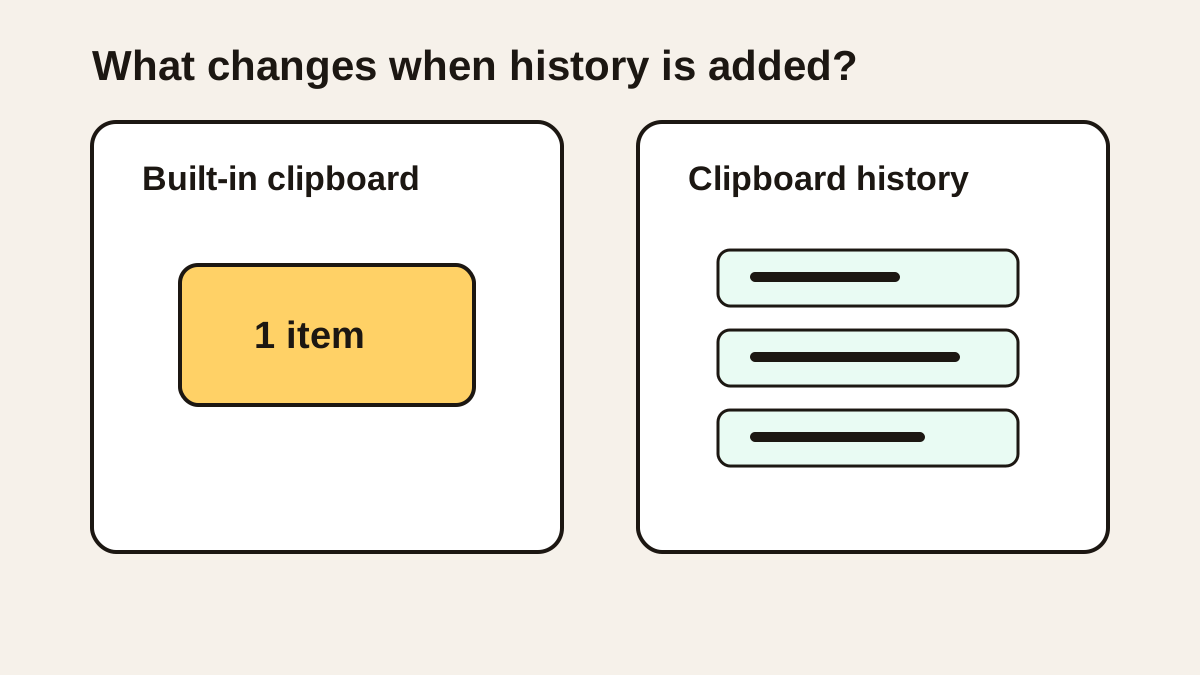
That is all the built-in clipboard does. There is no list of earlier copies, so a link copied ten minutes ago is lost the moment you copy a phone number. Universal Clipboard can pass your latest copy to your iPhone, but it is still one item.
The clipboard can also hold more than plain text. Copy a styled paragraph and it carries fonts and links; copy a file in Finder and it holds a reference to that file; take a screenshot to the clipboard and it holds an image. A good clipboard manager understands which of these it is saving.
How a clipboard manager works
A clipboard manager runs quietly in the background and checks the clipboard for changes a couple of times a second. When something new appears, it saves a copy in a local history: text, links and, in many apps, images and screenshots.
When you open the manager, you see that history with the newest items first. Pick one and the app puts it back on the clipboard and, with Accessibility permission, pastes it into the app you were using. Careful apps also skip items marked as secret by password managers and let you pause recording.
Everything happens on your Mac. A local clipboard manager does not need an internet connection to work, and nothing you copy has to leave your computer. That is worth checking before you install one, because some apps sync history to their own servers.
How to start using one
Install a clipboard manager
Choose one that runs in the menu bar and stores history locally. Historr is free and works on macOS 13 or later.
Grant Accessibility
This lets the app paste into other apps for you. macOS asks once; you can review it in System Settings, Privacy and Security, Accessibility.
Copy as usual
Nothing changes about how you copy. The history fills up in the background as you work.
Open, search, paste
Press the shortcut, type part of what you copied, and press Return. The item is pasted where your cursor was.
Common mistakes to avoid
- Expecting it to recover things copied before it was installed; it cannot.
- Choosing an app that uploads history without checking where it goes.
- Leaving sensitive copies in history forever instead of using expiry or pause.
Small changes. A faster workflow.
- Search with words you remember, like a domain, a name or a number.
- Favorite reusable snippets such as an address or email sign-off.
- Use paste as plain text when moving text between styled documents.
Compare your options
| Option | Best for | Limits |
|---|---|---|
| Built-in clipboard | One quick copy and paste | Remembers only the latest item |
| Universal Clipboard | Moving one copy between Apple devices | No history |
| Clipboard manager | Finding and reusing anything you copied | Only records copies made while it runs |
Built-in clipboard
Best forOne quick copy and paste
LimitsRemembers only the latest item
Universal Clipboard
Best forMoving one copy between Apple devices
LimitsNo history
Clipboard manager
Best forFinding and reusing anything you copied
LimitsOnly records copies made while it runs
How Historr does it
Historr saves text and images you copy, keeps them on your Mac, and opens with Option-H. Type to search, use the arrow keys, and press Return to paste; Command-1 to Command-9 paste the first nine items directly.
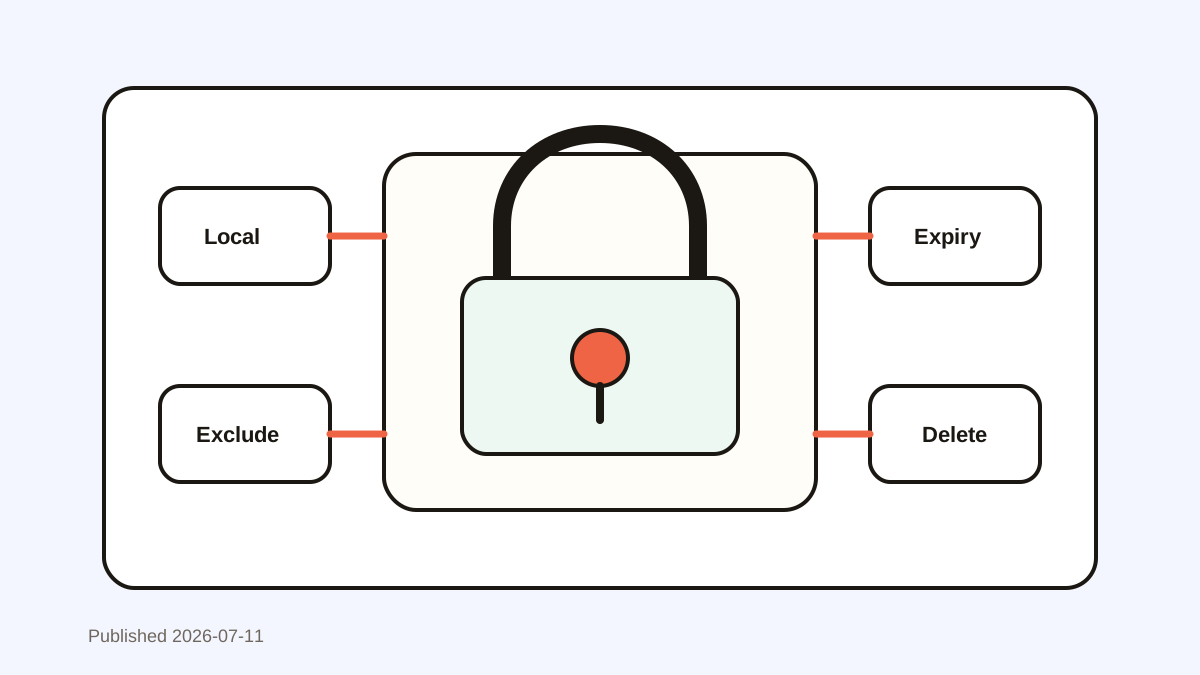
It skips items that password managers mark as concealed, automatically removes card numbers, one-time codes and tokens after a few minutes, and lets you pause recording from the menu bar.
Beyond history, Historr can queue several items and paste them in order with Option-Command-V, paste text as plain text or pretty JSON, and open links or preview hex colors straight from the list.
- Instant search
- Unlimited history
- Favorites
- Keyboard shortcuts
- Privacy
- Offline storage
- Quick preview
- Paste Stack

Keep your next good idea.
Free, private clipboard history for your Mac.
Questions, answered.
Does Mac have a built-in clipboard manager?
No. macOS keeps only the most recent copied item. You need a clipboard manager app to keep a history.
Is a clipboard manager safe?
It can be. Choose one that stores history locally, skips password manager copies, and lets you pause recording or expire sensitive items.
Why does a clipboard manager need Accessibility permission?
To paste into other apps for you. Without it, the app can still record history, but you would paste with Command-V yourself.
Can a clipboard manager save images?
Many can. Historr saves copied images and screenshots with thumbnails and pastes them back with Return.
Will a clipboard manager slow down my Mac?
No. Checking the clipboard for changes is a tiny amount of work, and a menu-bar app like Historr uses very little memory with a normal history size.
In short
A clipboard manager gives your Mac the one thing its clipboard lacks: memory. Pick a local, private one, learn its shortcut, and you will stop losing things you copied.
If you're looking for a faster way to search, organize, and reuse everything you copy, try Historr and see how much time you can save.
Continue with these guides
- How to view clipboard history on Mac
Where macOS shows the clipboard and what it keeps.
- Historr documentation
Setup, shortcuts and privacy settings.