Collect Meeting Attachments From Different Mac Folders
Stage an agenda, deck and spreadsheet from separate folders in one temporary Mac shelf, then verify files and recipients before sending.

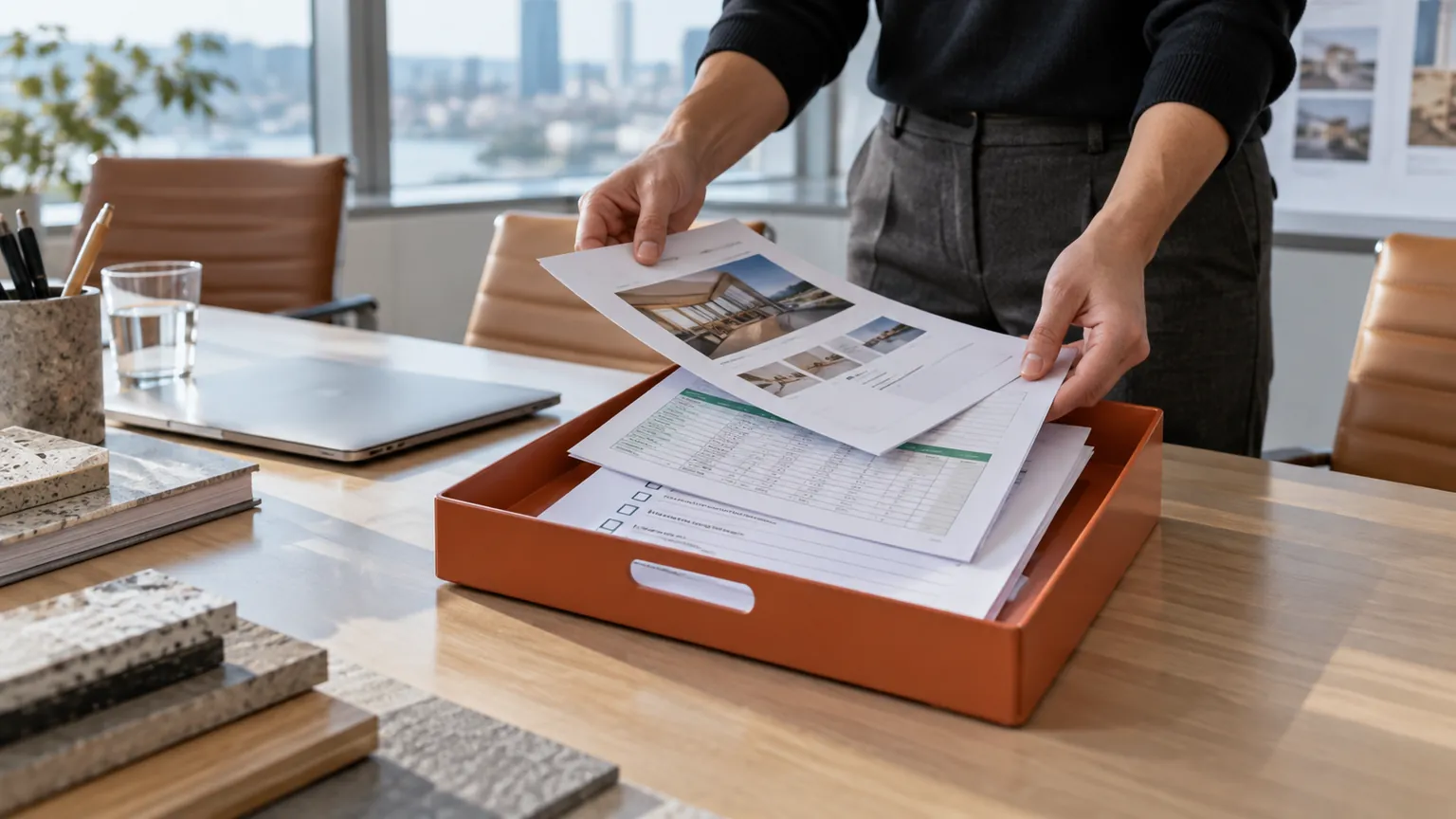
Original conceptual image created for this guide; no real documents or personal details are shown.
The short answerOpen a Historr Drag Shelf with Option-Shift-D, add the agenda, deck and supporting files from their Finder folders, then expand the shelf and verify filenames and versions. Drag the batch into a compatible mail or meeting app, or use Save to Folder for a durable package. Check recipients and attachment limits before sending; the shelf itself clears when Historr quits.
Why do meeting packs pick up wrong files?
Meeting preparation is a collection problem before it becomes an email problem. Several Finder windows can hide which file is final.
A temporary shelf helps stage a batch but does not validate confidentiality, mail limits or whether a recipient has permission to see every file.
How does a temporary shelf handle originals?
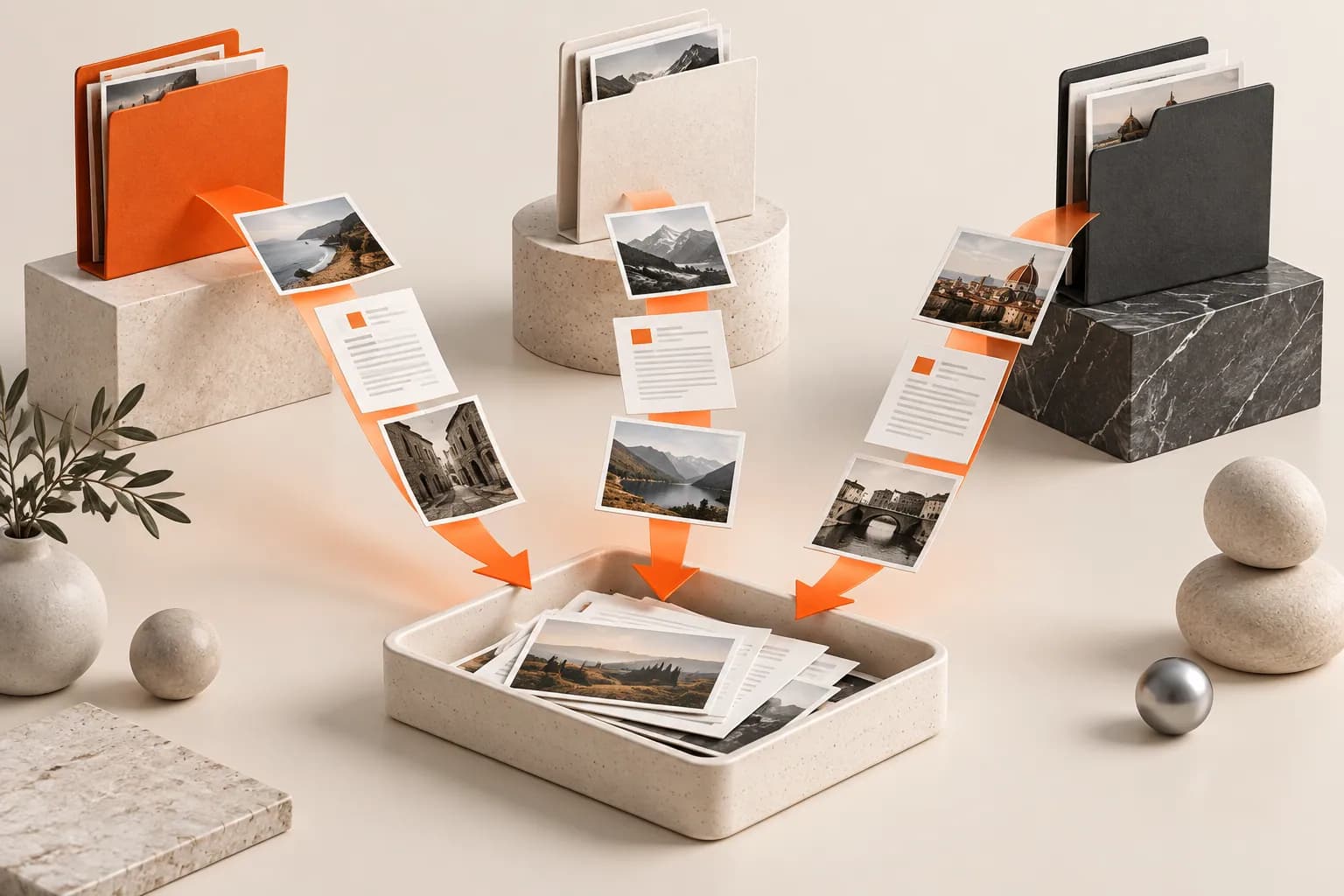
Historr's Drag Shelf holds references to existing disk files, letting you collect them without first moving the originals. Outgoing drags copy existing files to compatible destinations.
A shelf is temporary. It is not the meeting archive, and files created as temporary shelf output need explicit saving before quit.
How do you assemble and deliver the batch?
Identify final versions
Check the agenda date, presentation revision and spreadsheet export before staging. Remove draft or internal-only files from the candidate set.
Collect across Finder windows
Press Option-Shift-D for a shelf, then drag the approved files into it from each location. Name the shelf for the meeting if several batches are open.
Inspect the batch
Expand the shelf and Quick Look representative files. Confirm the count, names and types match the meeting checklist.
Deliver and verify
Drag into a compatible message or upload target, or Save to Folder first. Check recipients, file size limits and the final attachment list before sending.
Common mistakes to avoid
- Adding a draft deck with a similar filename.
- Assuming the shelf is the permanent meeting folder.
- Sending before checking recipient permissions and attachment size.
Where should the meeting record live?
- Use a checklist for recurring meeting packs.
- Name the shelf for the date or meeting.
- Save a durable copy when a record of the sent package matters.
Compare your options
| Option | Best for | Limits |
|---|---|---|
| Historr shelf | Staging scattered files | Temporary; does not send or authorize access |
| Finder folder | Durable meeting pack | Requires copying or organizing files |
| Mail or meeting app | Delivery | May reject large or restricted files |
Historr shelf
Best forStaging scattered files
LimitsTemporary; does not send or authorize access
Finder folder
Best forDurable meeting pack
LimitsRequires copying or organizing files
Mail or meeting app
Best forDelivery
LimitsMay reject large or restricted files
Put it into practice with Historr
Historr is free and opens an empty Drag Shelf at the pointer with Option-Shift-D. A shake during an active drag also opens one where you are working.
Use the shelf for collection and review. The final record belongs in an approved folder or the destination app.
- Collect files & folders
- Images, links & text
- Multiple shelves
- Quick Look
- Save to Folder
- Compress to ZIP
- Resize Images
- Extract Text

Give your next drag a place to land.
Drag Shelf is included in Historr 0.1.5 and later.
Questions, answered.
Does adding a file to the shelf move it from Finder?
No. Existing files are referenced in place; outgoing shelf drags copy them.
Can I attach the whole batch at once?
You can drag the collected batch into a compatible destination, subject to that app's file support and limits.
Will the shelf survive a restart?
No. Historr shelves are temporary and clear on quit.
Does Historr check who can receive the files?
No. Verify recipients and permissions in your sending workflow.
Take it from here
A shelf reduces window juggling during meeting prep. The essential final step is reviewing the exact files and recipients at the destination.
For supported actions, shortcuts, and settings, see the Drag Shelf documentation.