Extract Design Brief Text From Screenshots on Mac
Use Drag Shelf's on-device image text extraction to recover brief wording from screenshots, then verify and save the result.

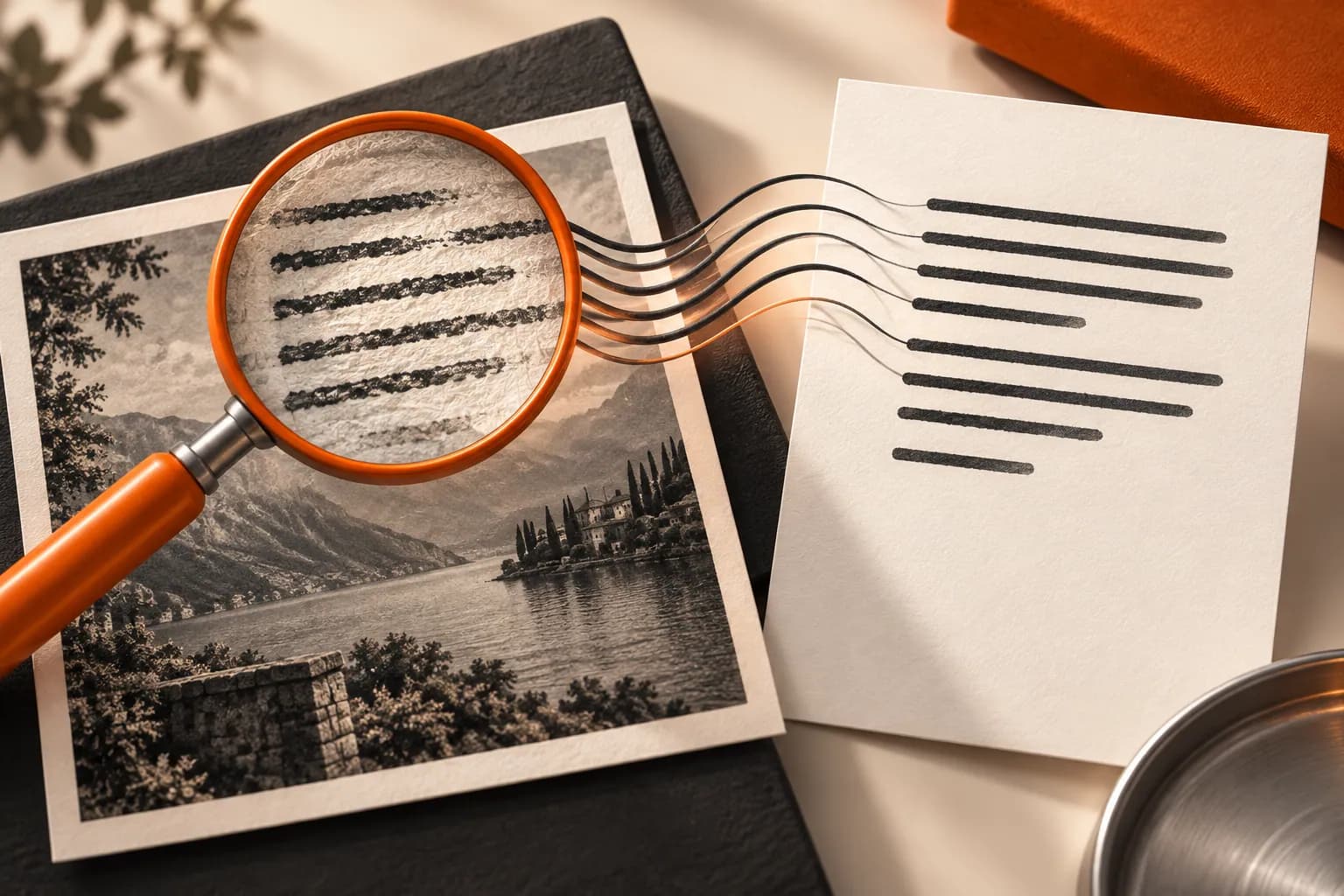
Original conceptual illustration for this workflow; not an app screenshot.
The short answerAdd image files or screenshots to an image-only Drag Shelf, choose Extract Text, then paste the recognized plain text from the clipboard into a reviewable note. Historr uses Apple's on-device Vision text recognition. Check every name, number, line break, and approval detail against the image; the action does not preserve layout or create a new document in the shelf.
Why transcribe screenshot briefs?
Rewriting a photographed requirement by hand can introduce errors in dimensions, dates, names, or legal copy. A quick extraction can save typing, but an OCR result is only a draft transcription.
Designers often need to separate actionable wording from decoration, annotations, and older drafts. The image remains the evidence for what was actually sent.
What does the OCR action return?
Historr's Extract Text action uses Apple Vision on the Mac for supported shelf images. It combines recognized text into plain text and puts it on the general clipboard; it does not create a rich-text document or retain visual hierarchy.
The whole-shelf action expects images only. Text recognition can miss faint writing, unusual type, low-contrast backgrounds, or small labels. A PDF is not the same image workflow.
How do you extract and verify the wording?
Start with readable images
Use clear screenshots or exported image files. Crop or improve legibility in a photo editor first if the original has glare, tiny lettering, or overlapping notes.
Collect an image-only shelf
Open Drag Shelf and add the relevant screenshots. Remove folders, links, and unrelated items before running Extract Text on the whole shelf.
Extract and paste
Choose Extract Text. Paste the resulting plain text into a project note immediately; the action replaces the current general clipboard contents.
Proofread against the visual source
Check client names, dates, dimensions, URLs, and exact approved language against each screenshot. Restore headings and order in your note, then save the verified brief.
Common mistakes to avoid
- Treating OCR output as approved copy without review.
- Expecting the action to preserve layout or make a new shelf document.
- Running an image-only action on a mixed collection.
Which source should be trusted?
- Extract small batches when source order matters.
- Keep the screenshots alongside the verified note for context.
- Copy sensitive client material only under the project's handling rules.
Compare your options
| Option | Best for | Limits |
|---|---|---|
| Manual transcription | Small critical phrases | Slow and error-prone at volume |
| Drag Shelf OCR | Draft plain text from images | Needs proofreading and layout repair |
| Original brief file | Authoritative wording and context | May not be available |
Manual transcription
Best forSmall critical phrases
LimitsSlow and error-prone at volume
Drag Shelf OCR
Best forDraft plain text from images
LimitsNeeds proofreading and layout repair
Original brief file
Best forAuthoritative wording and context
LimitsMay not be available
Put it into practice with Historr
Historr's Extract Text action operates locally through Apple Vision and copies recognized words to the clipboard. It helps move image-borne text into a searchable note without retyping every line.
The result is not a canonical brief. Save a reviewed version in the project system and retain the original screenshots when provenance matters.
- Collect files & folders
- Images, links & text
- Multiple shelves
- Quick Look
- Save to Folder
- Compress to ZIP
- Resize Images
- Extract Text

Give your next drag a place to land.
Drag Shelf is included in Historr 0.1.5 and later.
Questions, answered.
Does Extract Text work on PDFs?
The Drag Shelf action is for images; use a separate PDF workflow for PDFs.
Does it save a new text file in the shelf?
No. The recognized plain text goes to the general clipboard.
Is the recognition on device?
Yes. Historr uses Apple's Vision text recognition on the Mac for this action.
Will it preserve headings and layout?
No. Proofread the plain text and reconstruct structure in your project note.
Take it from here
OCR can turn a screenshot into an editable starting point. The reliable creative brief is the version a person checks against the source and saves in the project record.
For supported actions, shortcuts, and settings, see the Drag Shelf documentation.