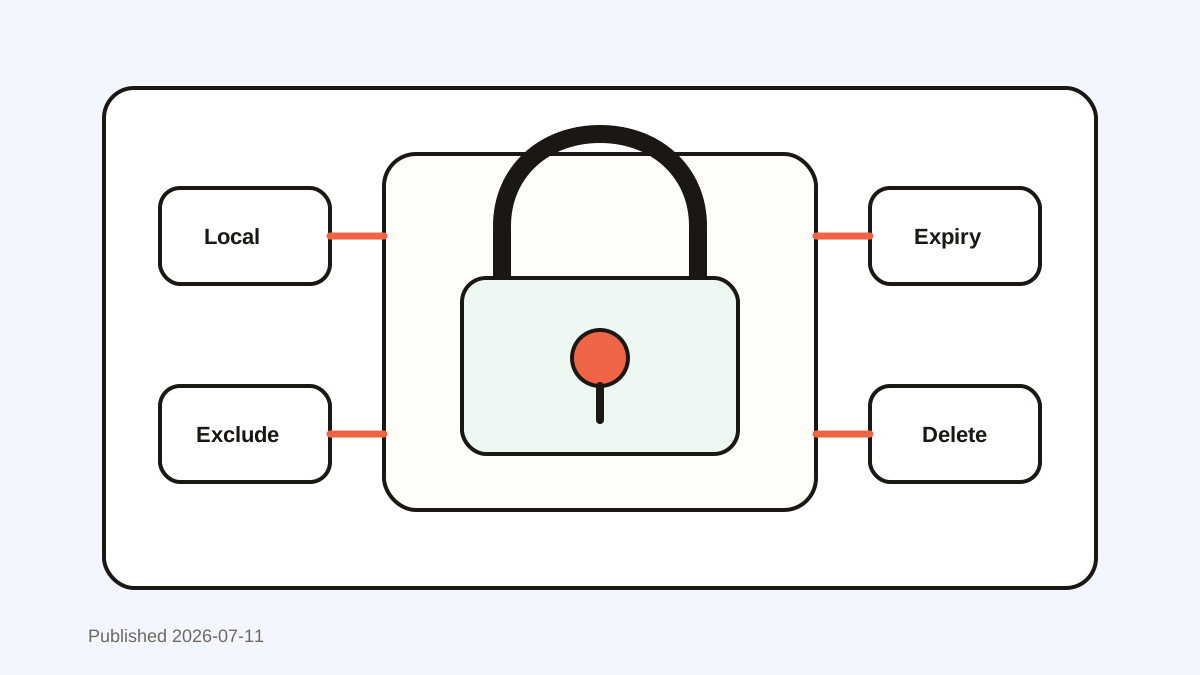
How to Clear Clipboard History on Mac Safely
Learn how to clear clipboard history on Mac, replace the current pasteboard item, delete saved clips, and protect sensitive copied data.

The short answerTo clear clipboard history on Mac, copy harmless text to replace the current macOS pasteboard, then delete saved items inside your clipboard manager. Use Clear All only when you understand its scope. macOS exposes one current clipboard item; a manager may keep hundreds of local entries until you remove or expire them.
The overview
macOS makes Command-C and Command-V simple, but the current pasteboard is not a visible multi-item archive. Clipboard managers add that history layer.
A copied password, customer record, or private message can remain available longer than expected when a history app is running. A clear routine limits that retention.
Why it happens
The system pasteboard keeps the latest copied item so another app can paste it. A third-party manager observes copy events and may save many entries locally.
Deleting one item, clearing all history, and quitting the app have different results. Quitting usually stops new capture; it does not always erase stored history.
Your step-by-step guide
Replace the current clipboard
Copy a harmless character or short phrase. This replaces the latest system pasteboard item without changing files or documents.
Delete the sensitive saved item
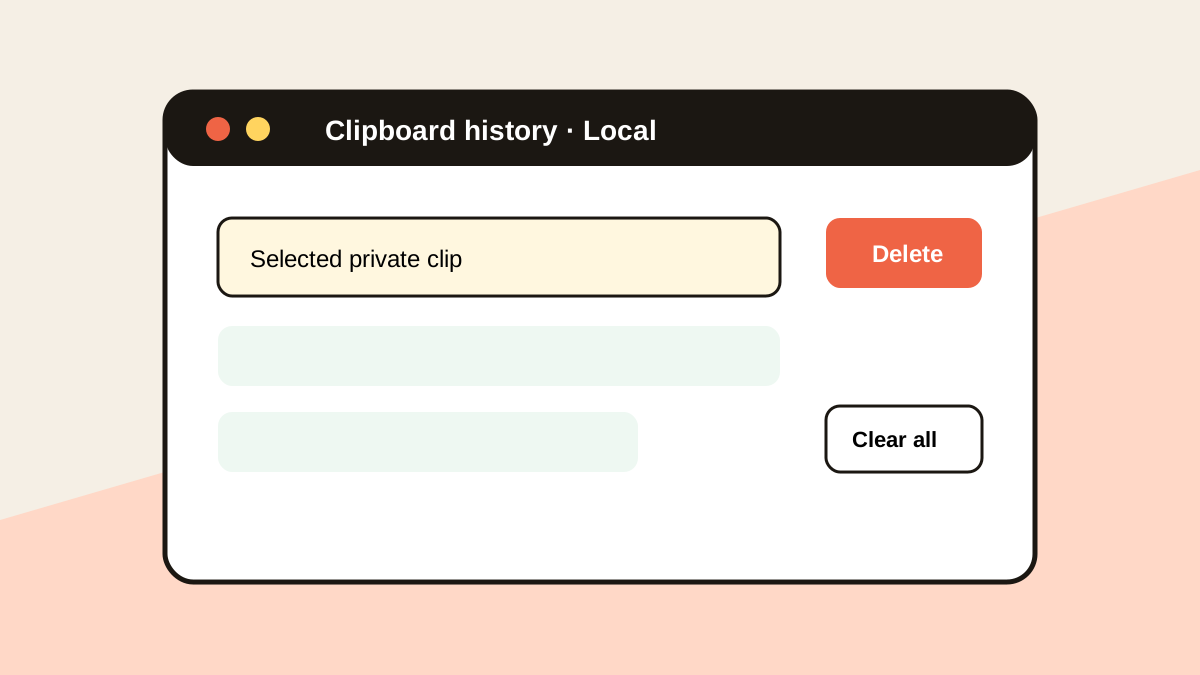
Open your clipboard manager, search for a unique phrase, select the matching clip, and use its delete action.
Clear all history only when needed
Use Clear All for a shared-device handoff, privacy reset, or policy requirement. Confirm whether favorites are included.
Set automatic expiry
Use short retention for one-time codes, card numbers, tokens, and similar sensitive patterns so cleanup does not depend on memory.
Common mistakes to avoid
- Assuming a restart erases every clipboard manager database.
- Clearing all history when only one sensitive item needs deletion.
- Saving credentials as favorites.
- Forgetting copied images can also contain private information.
Small changes. A faster workflow.
- Search before deleting so you target the correct clip.
- Use a password manager for credentials.
- Check the app's local storage and expiry settings.
- Clear private clips before screen sharing.
Compare your options
| Option | Best for | Limits |
|---|---|---|
| Copy harmless text | Replacing the current macOS clipboard | Does not erase manager history |
| Delete one saved clip | Targeted privacy cleanup | Requires a history app |
| Clear all history | Full local reset | May remove useful favorites |
Copy harmless text
Best forReplacing the current macOS clipboard
LimitsDoes not erase manager history
Delete one saved clip
Best forTargeted privacy cleanup
LimitsRequires a history app
Clear all history
Best forFull local reset
LimitsMay remove useful favorites
Put it into practice with Historr
Historr lets you search for and delete individual local clips, or clear the history when you need a full reset.
Sensitive-looking items can auto-expire, password-manager copies are ignored, and Instant Undo can restore an accidental deletion for up to 10 actions.
Use targeted deletion for ordinary cleanup and Clear All for deliberate privacy resets.
- Instant search
- Unlimited history
- Favorites
- Keyboard shortcuts
- Privacy
- Offline storage
- Quick preview
- Paste Stack

Keep your next good idea.
Free, private clipboard history for your Mac.
Questions, answered.
Does Mac have a Clear Clipboard button?
macOS does not provide a general multi-item history panel. Copy harmless text to replace the current item.
Does restarting clear clipboard history?
It may clear the current item, but a clipboard manager can keep its saved local database.
Can I delete one clipboard item?
Yes, if your clipboard manager supports individual deletion.
Should I clear clipboard history every day?
Not necessarily. Automatic exclusions and expiry are more dependable for sensitive content.
Take it from here
Clear the smallest possible scope: replace the current pasteboard, delete one risky clip, or reset all saved history. Good retention rules make emergency cleanup rare.
If you're looking for a faster way to search, organize, and reuse everything you copy, try Historr and see how much time you can save.