A Paste Alternative for Screenshot Copy History on Mac
Compare Paste and Historr for copied screenshots on Mac: capture, preview, image-text search, local storage and the right workflow for each.


Original conceptual cover; no real client or design data is shown.
The short answerIf you mainly need to recover a screenshot copied earlier on one Mac, Historr records copied images locally, shows thumbnails and opens a larger preview with Space. Paste also saves images and offers stronger search inside image text, along with filters and pinboards. Choose Paste when OCR search or a long-term cross-device visual library is central; choose Historr for free, local image history alongside its Drag Shelf. Neither app can recover an image copied before it was running.
The overview
Screenshots can be visually similar. A tiny thumbnail may hide a different revision or a private detail, so recovering the first matching image is not enough.
The destination also matters. A pasted bitmap is not the same as an original source file with layers, metadata and an approved export size.
Why it happens
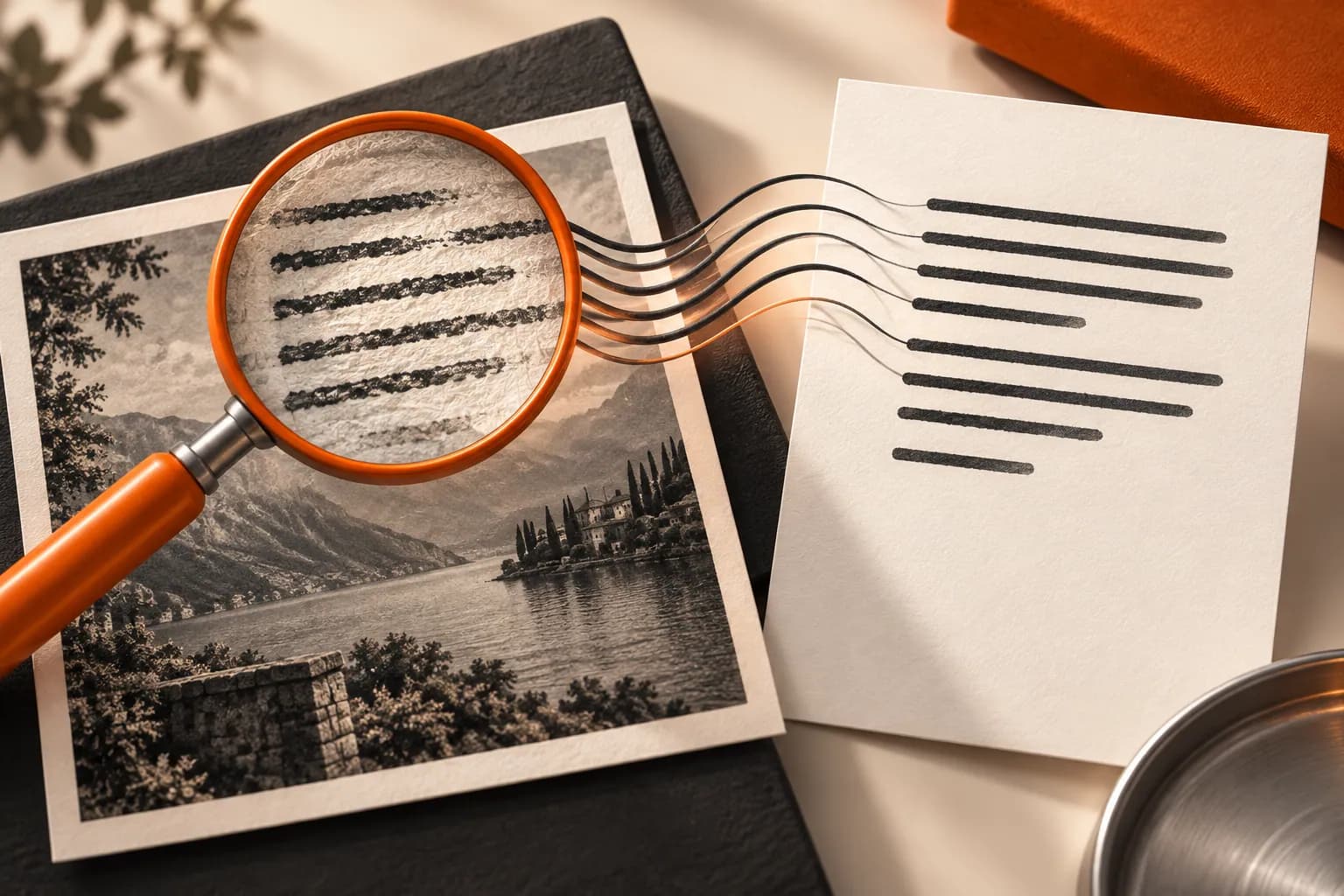
Paste's current help says it captures copied images on Mac and can search text visible inside screenshots. Its filters can narrow by type, source app, date or device.
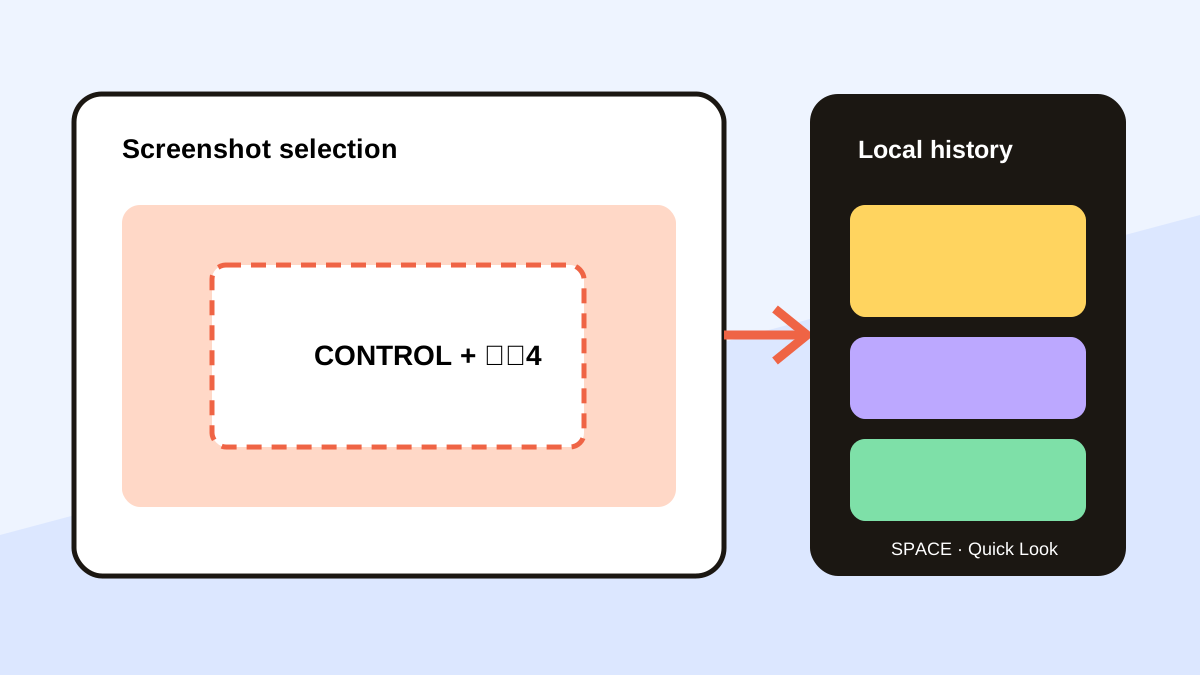
Historr captures images copied to the clipboard while running, keeps them on the Mac, displays thumbnails and supports Quick Look. Its documented history search does not claim OCR search inside those images; its Drag Shelf has a separate Extract Text action for staged images.
Your step-by-step guide
Copy a real screenshot
Use a screenshot-to-clipboard shortcut or copy an image from your actual work. Confirm it appears in the chosen history app before relying on recovery.
Replace the clipboard deliberately
Copy a different item, then reopen history. In Historr press Option-H and inspect the image thumbnails; in Paste search by visible text or use the image filter when that is more reliable.
Preview before pasting
Open the full-size image and check revision, crop, visible names and confidential details. A visual match at thumbnail size is not sufficient for a client handoff.
Choose the durable home
Paste the approved image into the target or save the original export in the project folder. Clipboard history is a recovery layer, not the asset archive.
Common mistakes to avoid
- Assuming Historr searches words inside screenshot pixels.
- Assuming Paste's OCR result proves the image is the approved version.
- Using a copied preview as the only stored design asset.
Small changes. A faster workflow.
- Use a unique visible phrase when testing Paste's image search.
- Inspect the entire screenshot at full size.
- Save approved exports outside clipboard history.
Compare your options
| Option | Best for | Limits |
|---|---|---|
| Historr | Free local screenshot recovery and preview on one Mac | No documented OCR search inside history images |
| Paste | Image-text search, filters and visual pinboards | A broader library workflow |
| Project folder | Approved original exports | Requires naming and version control |
Historr
Best forFree local screenshot recovery and preview on one Mac
LimitsNo documented OCR search inside history images
Paste
Best forImage-text search, filters and visual pinboards
LimitsA broader library workflow
Project folder
Best forApproved original exports
LimitsRequires naming and version control
Put it into practice with Historr
Historr is useful when your copy history should stay on one Mac. It retains supported copied images with thumbnails and lets you preview before reusing them.
For text extraction from an image, use the documented Drag Shelf action when appropriate. Do not treat that as automatic OCR indexing of every history image.
- Instant search
- Unlimited history
- Favorites
- Keyboard shortcuts
- Privacy
- Offline storage
- Quick preview
- Paste Stack

Keep your next good idea.
Free, private clipboard history for your Mac.
Questions, answered.
Can Historr find a screenshot I copied before installation?
No. It can search only supported copies recorded while it was running.
Does Paste search words inside screenshots?
Yes. Paste's current help documents text recognition inside images.
Can Historr paste a recovered image?
Yes. Select a recorded image and press Return; check that the destination accepts image paste.
Which is better for a visual reference library?
Paste's pinboards and image-text search suit a lasting visual library; Historr suits a simpler local recovery workflow.
Take it from here
Pick the tool by the search you actually need: visual recognition and local reuse, or OCR-assisted retrieval across a broader library.
If you're looking for a faster way to search, organize, and reuse everything you copy, try Historr and see how much time you can save.
Continue with these guides
- Image and screenshot clipboard history
See the basic Mac image recovery workflow.
- Extract text from staged images
Use a deliberate OCR action for an image on a shelf.
- Paste search and filters
Check Paste's current image-text search behavior.