How to Keep Image and Screenshot Clipboard History on Mac
Learn how to keep searchable image and screenshot clipboard history on Mac, preview thumbnails, recover captures, and protect private images.

The short answerA clipboard manager for images and screenshots on Mac records copied visual content, shows thumbnail previews, and lets you paste an earlier capture without finding a desktop file. Hold Control with a Mac screenshot shortcut to copy the capture directly. Choose local storage, fast preview, individual deletion, and clear retention controls for private images.
The overview
Mac screenshots normally become files unless you add Control to the capture shortcut or choose Save to Clipboard. After a clipboard-only capture, copying anything else replaces the current system item.
Design reviews, support tickets, documentation, and QA sessions can produce 10 or more temporary captures. Saving every image to the desktop creates cleanup work, while keeping only one clipboard item creates recovery risk.
Why it happens
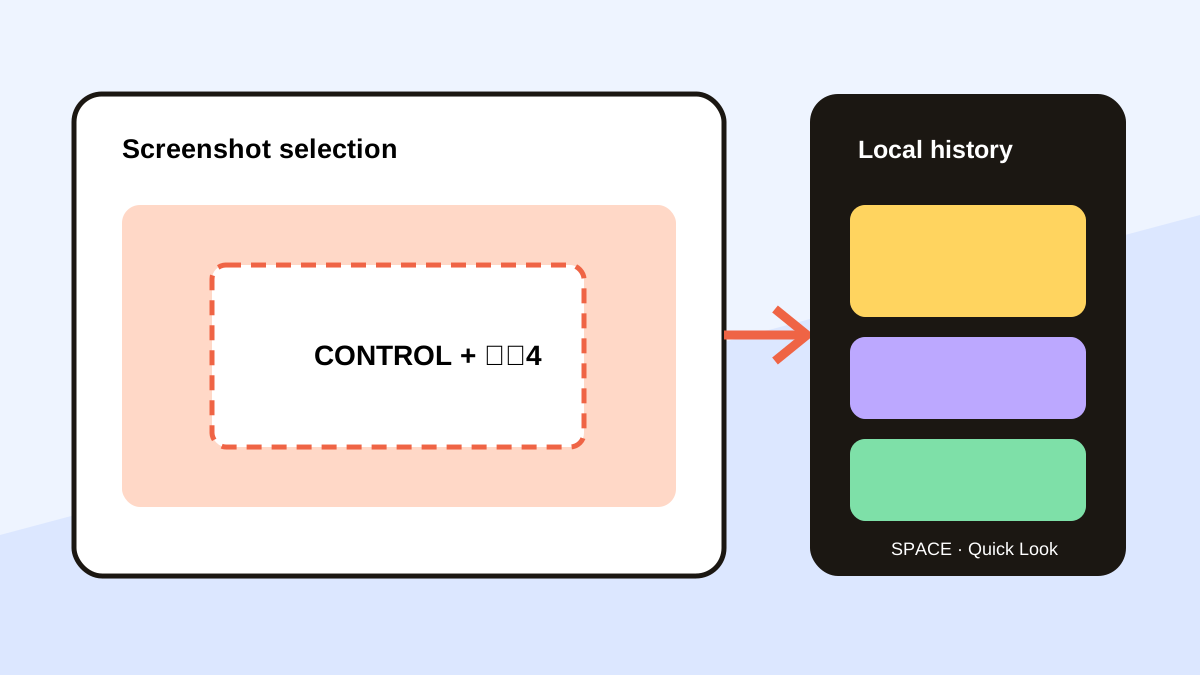
Apple supports full-screen, window, and selected-area screenshots. Control-Shift-Command-3 copies the full screen, while Control-Shift-Command-4 copies a selection instead of creating the usual desktop file.
The macOS pasteboard supports images, strings, URLs, colors, and other data types. A history app adds persistence and a visual interface around those copied items.
Your step-by-step guide
Capture directly to the clipboard
Hold Control with Shift-Command-3 for the full screen or Shift-Command-4 for a selected region.
Confirm the thumbnail
Open clipboard history and check that the newest entry has the correct image preview before taking another capture.
Search by time and context
Use Today or recent groups, then preview nearby images at full size to distinguish similar states.
Paste or promote the image
Paste temporary captures directly. Save important evidence into the project, ticket, or document where it belongs.
Delete private captures
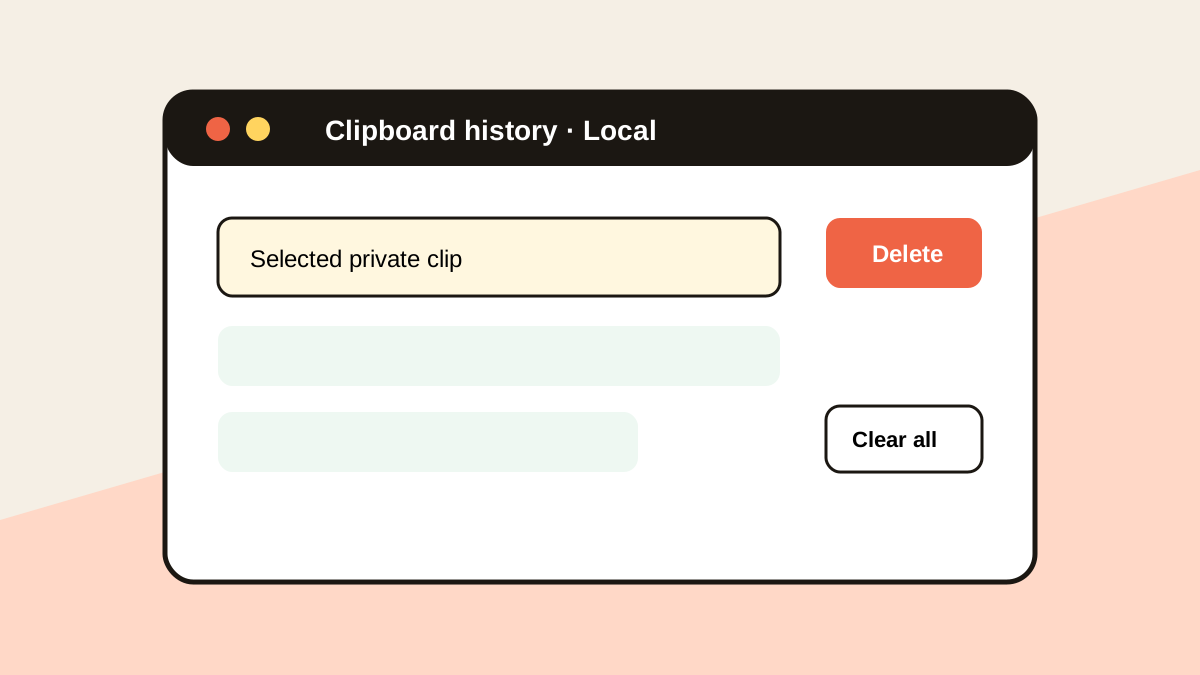
Remove screenshots containing customer data, messages, access codes, or unreleased product details as soon as the task ends.
Common mistakes to avoid
- Assuming a clipboard-only screenshot also exists on the desktop.
- Keeping private screenshots indefinitely.
- Pasting a similar-looking but incorrect application state.
- Using clipboard history as the only archive for evidence.
Small changes. A faster workflow.
- Preview before every image paste.
- Use file storage for durable evidence.
- Capture only the relevant screen region.
- Clear sensitive images before screen sharing.
Compare your options
| Option | Best for | Limits |
|---|---|---|
| Desktop screenshot file | Durable files and later editing | Creates file clutter |
| Current Mac clipboard | One immediate image paste | Replaced by the next copy |
| Image clipboard history | Recent capture recovery and reuse | Needs storage and privacy controls |
Desktop screenshot file
Best forDurable files and later editing
LimitsCreates file clutter
Current Mac clipboard
Best forOne immediate image paste
LimitsReplaced by the next copy
Image clipboard history
Best forRecent capture recovery and reuse
LimitsNeeds storage and privacy controls
Put it into practice with Historr
Historr remembers copied images and screenshots locally and displays a thumbnail for each visual clip.
Open history with Option-H, use Quick Look to inspect the full capture, then press Return to paste it into the current app.
Images stay on your Mac. Delete private captures when their short-term value ends.
- Instant search
- Unlimited history
- Favorites
- Keyboard shortcuts
- Privacy
- Offline storage
- Quick preview
- Paste Stack

Keep your next good idea.
Free, private clipboard history for your Mac.
Questions, answered.
How do I copy a Mac screenshot without saving a file?
Hold Control with the normal screenshot shortcut, such as Control-Shift-Command-4 for a selected area.
Can clipboard history recover an older screenshot?
Yes, if an image-capable clipboard manager was running when the screenshot was copied.
Does macOS show image clipboard history by itself?
Apple documents clipboard history in macOS Tahoe or later; capabilities depend on the OS version. Historr supports macOS 13 and later.
Are copied screenshots private?
They can contain sensitive visual data, so prefer local storage and delete them when no longer needed.
Take it from here
Clipboard-only screenshots keep temporary visual work fast and tidy. Pair thumbnails and Quick Look with deliberate deletion, and move lasting evidence into a proper file or record.
If you're looking for a faster way to search, organize, and reuse everything you copy, try Historr and see how much time you can save.