Prepare Localized App Store Screenshots for Europe on Mac
Stage localized screenshots and previews by language on Mac, then check copy, device size and App Store Connect requirements before upload.

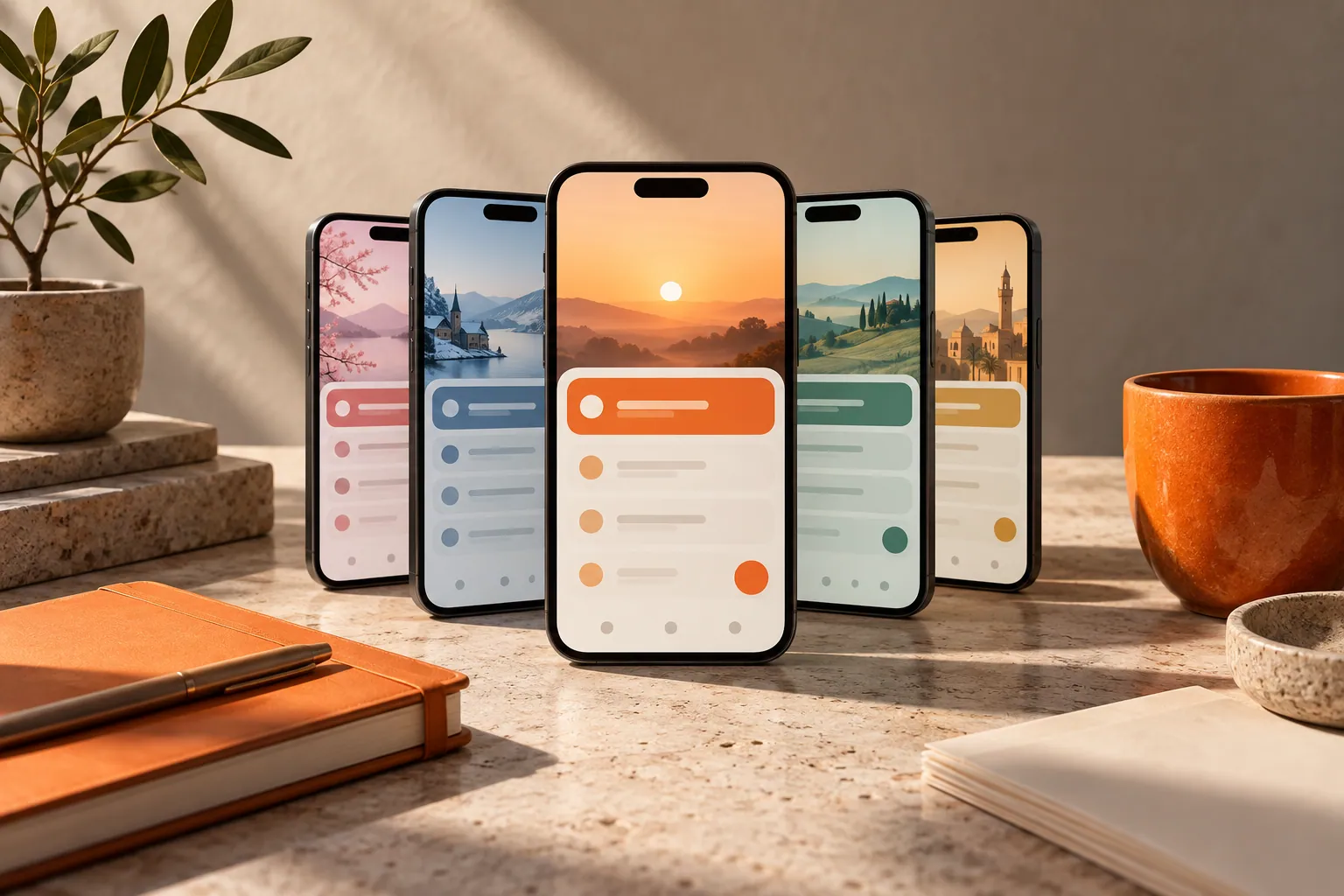
Original conceptual cover; no real customer, applicant or project data is shown.
The short answerCreate one reviewed asset manifest per App Store language and device family. Use Historr's Option-Shift-D Drag Shelf to gather screenshots and optional previews from their export folders, keeping languages in separate shelves. Inspect each export and Save to Folder before uploading through App Store Connect. Apple's current documentation controls accepted formats and placement; Historr stages files but does not localize text or validate store requirements.
The overview
Localized store assets combine UI language, marketing copy and device framing. A correctly named file can still display the wrong in-app language or an outdated feature.
Apple lets teams provide screenshots and previews for localizations and device sizes. Those upload rules should be checked when the team submits, not copied blindly from an old project checklist.
Why it happens
Exports often live in separate designer, QA and video folders. Historr's shelf references the original local files in place, so one session can gather candidates without moving masters.
Shelves are temporary and clear when Historr quits. The durable handoff is a saved folder with a manifest, while App Store Connect is the actual submission destination.
Your step-by-step guide
Define the locale matrix
List the supported languages, device families and screenshot order. For each frame, note the approved UI build and marketing line.
Gather one locale at a time
Open a shelf with Option-Shift-D. Add the reviewed screenshots and preview from their source folders; use another shelf for the next language.
Inspect at full size
Expand the shelf and preview every frame. Check in-app language, truncation, visible personal data, dimensions and sequence against the matrix.
Save and upload
Save the approved batch to a versioned folder. Upload through App Store Connect following Apple's current specifications, then inspect the localized product page preview.
Common mistakes to avoid
- Mixing a French caption with an English interface screenshot.
- Assuming a shelf name proves the files inside are localized.
- Leaving the only approved batch in a temporary shelf.
Small changes. A faster workflow.
- Put locale and device in filenames.
- Capture from the approved build.
- Review the actual store preview after upload.
Compare your options
| Option | Best for | Limits |
|---|---|---|
| Historr shelf | Staging scattered exports | No localization QA |
| Asset manifest | Tracking locale and device coverage | Must be kept current |
| App Store Connect | Submission and preview | Applies platform-specific rules |
Historr shelf
Best forStaging scattered exports
LimitsNo localization QA
Asset manifest
Best forTracking locale and device coverage
LimitsMust be kept current
App Store Connect
Best forSubmission and preview
LimitsApplies platform-specific rules
Put it into practice with Historr
Historr's free Drag Shelf gives a designer a fast holding area for screenshot variants while the originals stay in their source folders. Outgoing drags copy rather than move those originals.
It does not generate screenshots, translate copy or prove that Apple will accept a file. Use the source build, the matrix and Apple's live help page for those checks.
- Collect files & folders
- Images, links & text
- Multiple shelves
- Quick Look
- Save to Folder
- Compress to ZIP
- Resize Images
- Extract Text

Give your next drag a place to land.
Drag Shelf is included in Historr 0.1.5 and later.
Questions, answered.
Can I keep separate shelves for French and German screenshots?
Yes, during the current session. Save each approved set to a folder before quitting Historr.
Does Historr resize screenshots for App Store Connect?
No. Export to Apple's current specifications using your design workflow.
Do localized previews replace the need to inspect copy?
No. Check both the file content and the resulting store preview.
Take it from here
Localized assets need a language-by-device review. A shelf makes collection faster; the matrix and live store preview make the handoff reliable.
For supported actions, shortcuts, and settings, see the Drag Shelf documentation.
Continue with these guides
- Cross-border design review files
Keep locale-specific design review exports traceable.
- Apple screenshot upload guidance
Check current localization and device requirements.