Universal Clipboard Not Working? 7 Fixes
Fix Universal Clipboard between Mac, iPhone, iPad, and Vision Pro by checking Handoff, Wi-Fi, Bluetooth, Apple Account, distance, and updates.

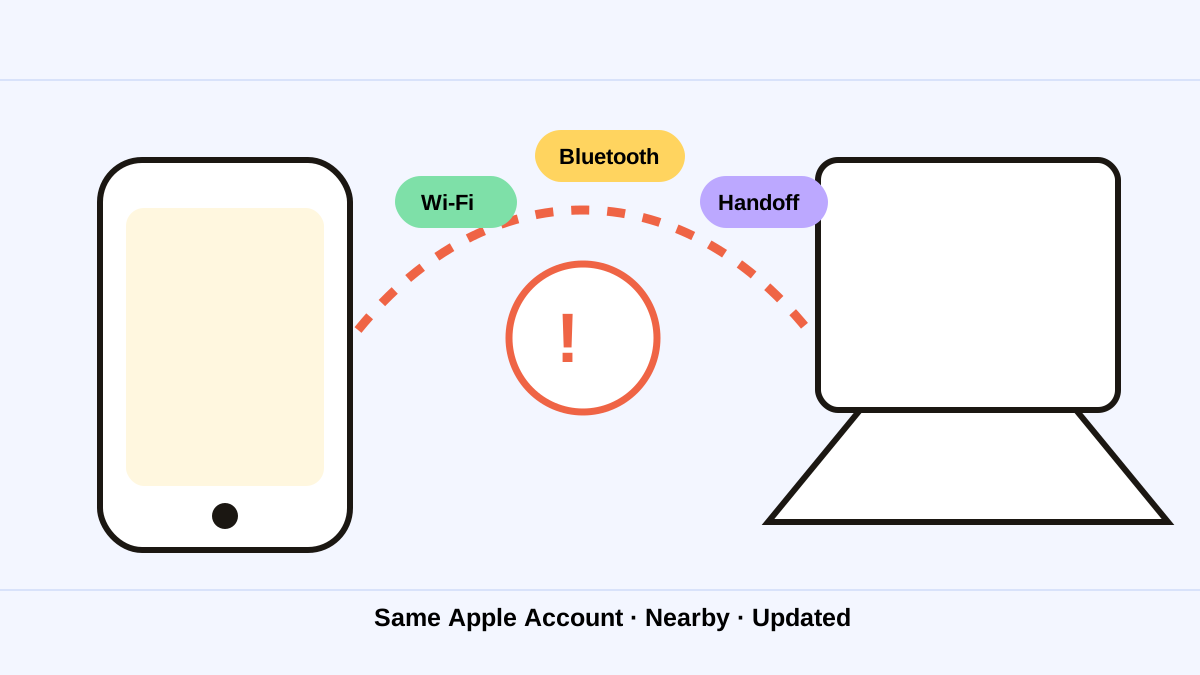
The short answerWhen Universal Clipboard is not working, confirm both devices use the same Apple Account, are nearby, and have Wi-Fi, Bluetooth, and Handoff enabled. Copy again and paste promptly because shared content remains available only briefly. If setup is correct, install available software updates, restart both devices, and test with a short plain-text sample.
The overview
The feature depends on several services at once. One disabled Handoff setting or a different Apple Account can break the path even when local copy and paste works.
Large media, weak connectivity, and an expired clipboard window can make the failure appear random.
Why it happens
Apple requires nearby devices, the same Apple Account, Wi-Fi, Bluetooth, and Handoff. Content stays available briefly or until another item replaces it.
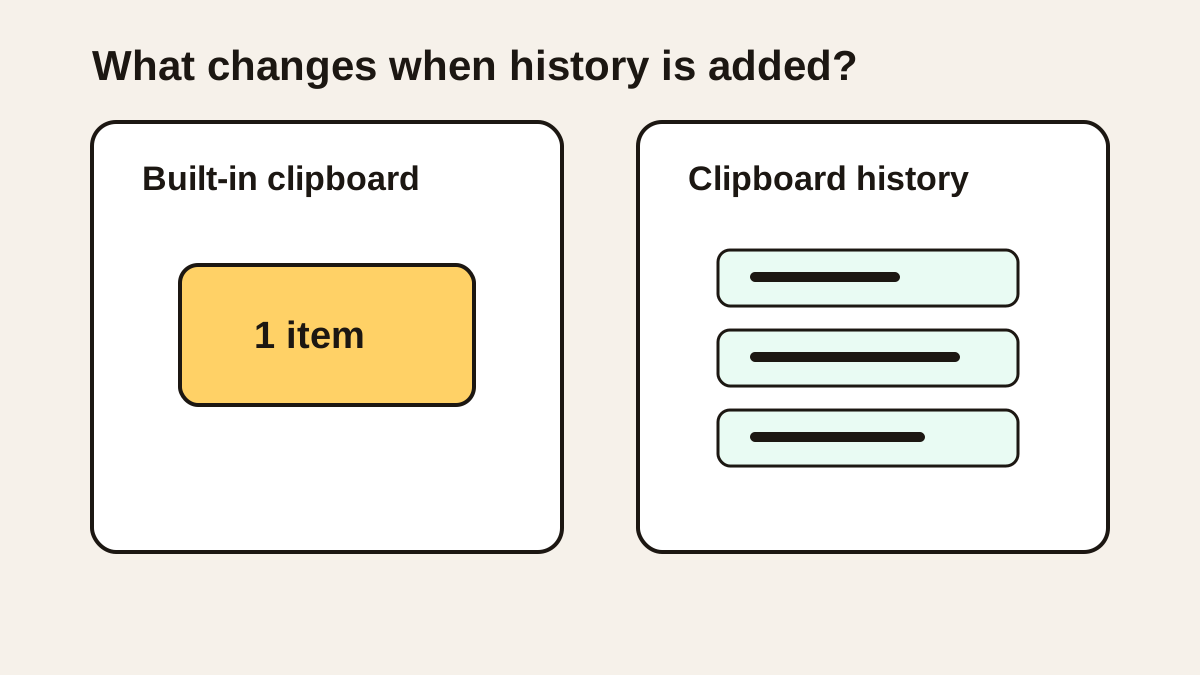
Because no persistent shared list appears, testing must isolate the device pair and copied content.
Your step-by-step guide
Verify the Apple Account
Confirm both devices are signed in to the same Apple Account.
Enable three required services
Turn on Wi-Fi, Bluetooth, and Handoff on both devices.
Bring devices close together
Place them nearby, unlock them, and keep the receiving app active.
Test a short text sample
Copy one short sentence, switch immediately, and paste before copying anything else.
Update and restart
Install available Apple software updates, then restart both devices if the basic test fails.
Common mistakes to avoid
- Expecting Universal Clipboard to show a history list.
- Testing while signed into different Apple Accounts.
- Copying a second item before pasting the first.
- Starting with a large image or video instead of plain text.
Small changes. A faster workflow.
- Test one device pair at a time.
- Use a 10-word text sample.
- Keep devices unlocked and nearby.
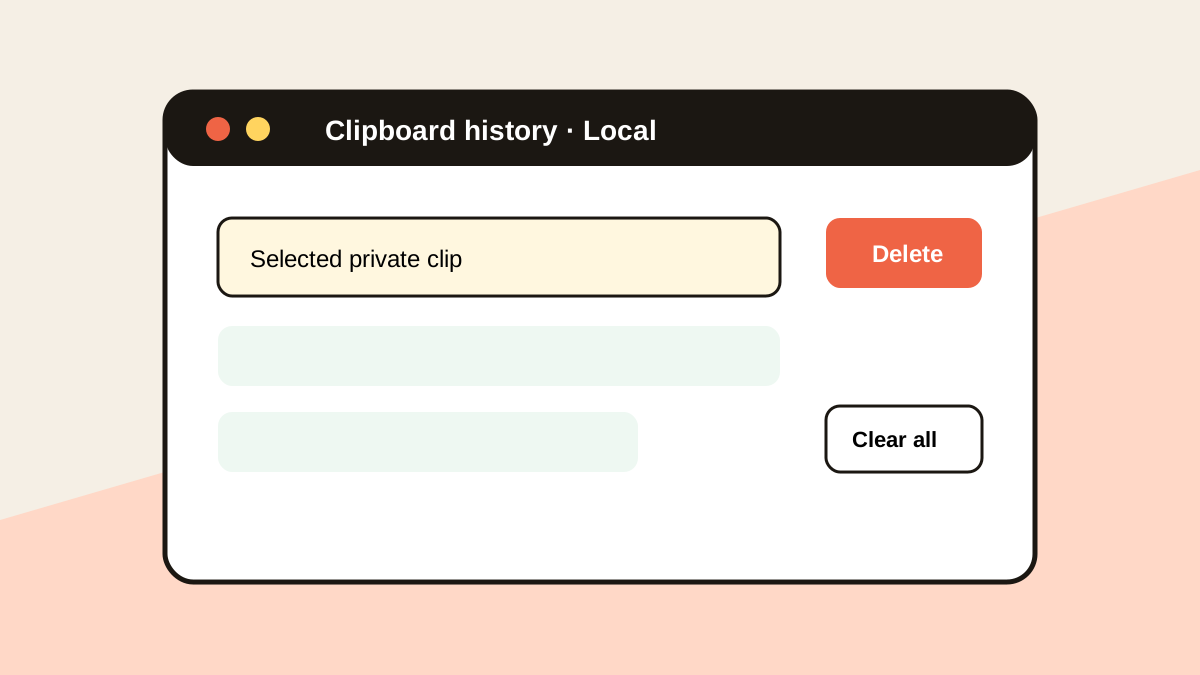
- Use local clipboard history for long-term recovery.
Compare your options
| Option | Best for | Limits |
|---|---|---|
| Universal Clipboard | One recent item across Apple devices | Brief availability; no search |
| AirDrop | Deliberate file transfer | More steps for short text |
| Local clipboard manager | Searchable history on one Mac | No automatic device sync |
Universal Clipboard
Best forOne recent item across Apple devices
LimitsBrief availability; no search
AirDrop
Best forDeliberate file transfer
LimitsMore steps for short text
Local clipboard manager
Best forSearchable history on one Mac
LimitsNo automatic device sync
Put it into practice with Historr
Historr does not replace Universal Clipboard sync. It provides a local searchable history on your Mac.
Use Universal Clipboard for one immediate cross-device transfer and Historr when you need to recover, preview, favorite, or transform older Mac clips.
This separation keeps cross-device convenience and local history easy to understand.
- Instant search
- Unlimited history
- Favorites
- Keyboard shortcuts
- Privacy
- Offline storage
- Quick preview
- Paste Stack

Keep your next good idea.
Free, private clipboard history for your Mac.
Questions, answered.
Does Universal Clipboard need Wi-Fi and Bluetooth?
Yes. Apple lists Wi-Fi, Bluetooth, Handoff, proximity, and the same Apple Account as setup requirements.
How long does a shared clip remain available?
Apple says it remains briefly or until another item replaces it.
Does Universal Clipboard store history?
No. It shares the current item; it is not a searchable archive.
What should I test first?
Copy a short plain-text sentence and paste it immediately on the nearby device.
Take it from here
Check the five dependencies before changing advanced settings: Apple Account, proximity, Wi-Fi, Bluetooth, and Handoff. Then update, restart, and test with plain text.
If you're looking for a faster way to search, organize, and reuse everything you copy, try Historr and see how much time you can save.