Check Copied Text Before Pasting Into a Spreadsheet
Quick Answer: Identify whether each value is a label, identifier, date, or number before changing it. Test a small sample in the destination sheet and verify both the content and its cell placement.
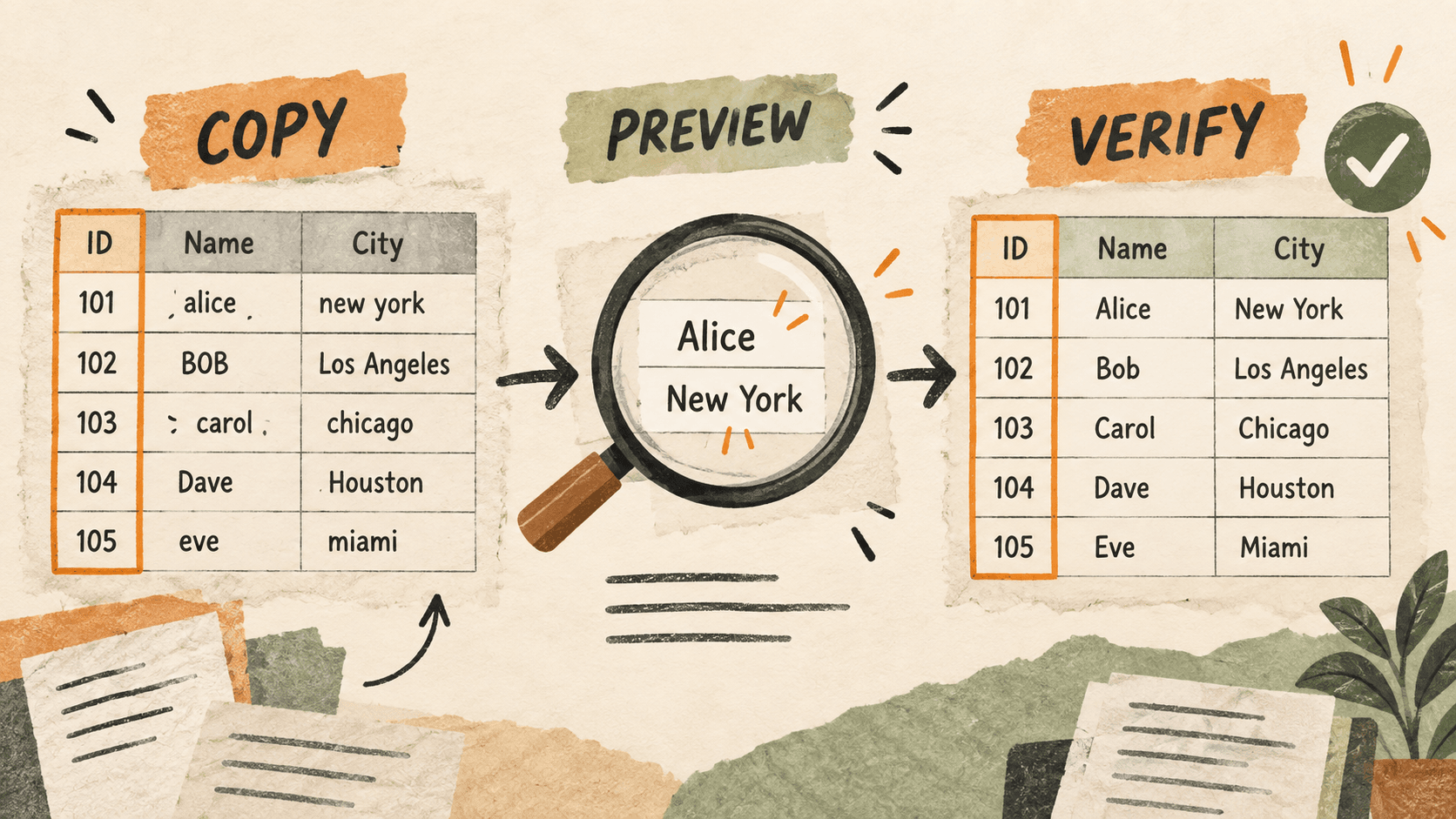
What problem does spreadsheet text preparation solve?
Text copied from documents or messages can carry extra whitespace, line breaks, or inconsistent capitalization. Cleaning it seems simple until an identifier or a multi-line value changes meaning.
For example, a display label may be safe to convert to lowercase, while a case-sensitive code may need to remain exactly as supplied. Decide what the field represents first.
Why do spreadsheet text preparation issues happen?
Visual similarity does not guarantee identical text. A trailing space is hard to see, and a line break can affect how pasted content is placed.
The spreadsheet’s destination format also matters. Clipboard cleanup alone cannot determine how every field should be interpreted.
How can you solve it step by step?
1. Classify the destination fields
Separate descriptive text from identifiers, numeric values, and dates. Note any fields where capitalization, leading zeros, punctuation, or spacing must remain unchanged.
2. Keep a reference copy
Retain the original values in an approved working source or a separate sheet area before editing. This gives you something concrete to compare with the cleaned result.
3. Transform only the appropriate text
For a simple label, a trim or case transform may be useful. Preview the whole clip first. Do not apply one text rule to a mixed record containing names, codes, dates, and free-form notes.
4. Paste a small sample into the intended layout
Check the selected cell and destination formatting. Inspect where line breaks and separators land before repeating the operation across many rows. Correct the layout or format before proceeding.
5. Compare the result field by field
Check row alignment, identifier spelling, leading zeros, punctuation, and expected blanks against the original. If the job is large or requires repeatable rules, use the spreadsheet’s own documented import or cleanup workflow.
Which common mistakes should you avoid?
- Lowercasing codes just because adjacent labels need cleanup.
- Pasting a large block without checking the first few rows.
- Assuming a visually tidy table preserved every original value.
Which expert tips make the workflow faster?
Comparison table for spreadsheet text preparation
| Option | Best for | Limits |
|---|---|---|
| Clipboard text transform | Cleaning a simple copied label | Does not understand column meaning |
| Spreadsheet formatting | Controlling destination presentation | Must match the field type |
| Structured import workflow | Repeating a defined cleanup process | Requires deliberate setup |
How does Historr make clipboard management easier?
Historr supports trimmed, lowercase, and uppercase text transforms. Use them when the field’s meaning permits the change, and preview the clip with Quick Look first.
Historr does not validate your spreadsheet schema or guarantee row alignment. Verify the actual pasted result in the destination sheet.
What do people ask about spreadsheet text preparation?
Should I trim every copied value?
Only when surrounding whitespace is not meaningful for that field. Keep a reference copy and check the result.
Can I use lowercase on identifiers?
Only if the identifier’s rules allow it. Some values need exact character case.
Why test a small sample?
It exposes placement and formatting problems before they affect a large set of rows.
What is the final verdict?
Clean text is only useful if it still means the same thing. Match the transformation to the field, test the destination, and compare the result with the original.
If you're looking for a faster way to search, organize, and reuse everything you copy, try Historr and see how much time you can save.