How to Format JSON From Your Clipboard on Mac
Pretty-print copied JSON on Mac, validate objects and arrays, preserve UTF-8 text, avoid common syntax errors, and keep private payloads local.

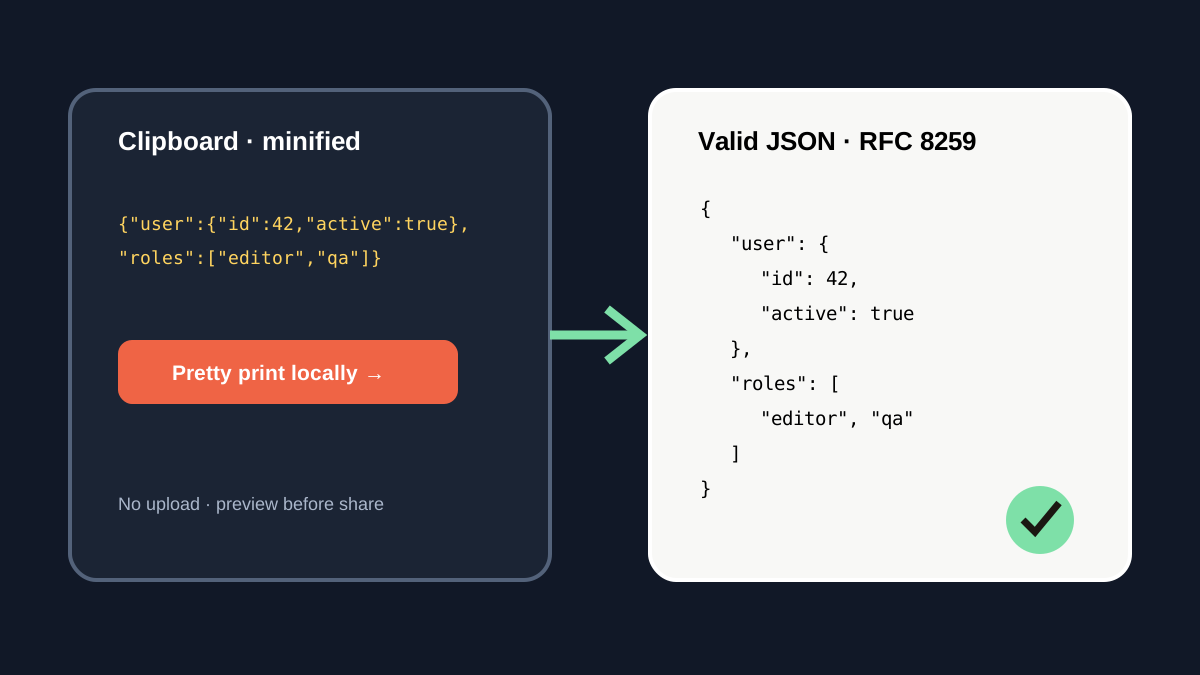
The short answerTo format JSON from your clipboard on Mac, select the copied payload in a clipboard tool that supports a pretty-print transform, preview the indented result, and copy or paste the transformed text. Valid JSON follows RFC 8259: strings use double quotes, literal names are lowercase, and objects or arrays require correct separators. Remove secrets before sharing.
The overview
API responses and logs often arrive as one compact line. A payload with 50 keys may be valid but nearly impossible to inspect safely in that form.
Online formatters add an avoidable transfer when JSON contains tokens, customer records, internal URLs, or unreleased configuration.
Why it happens
RFC 8259 defines JSON as a text-based data interchange format with objects, arrays, four primitive types, and strict structural tokens.
Common invalid input includes single-quoted strings, trailing commas, comments, uppercase literal names, or text copied before and after the JSON value.
Your step-by-step guide
Identify the complete JSON value
Select from the opening object or array character through the matching closing character.
Run a local pretty-print transform
Format the selected clipboard item without uploading the payload to a third-party website.
Read the validation result
If formatting fails, check double quotes, commas, brackets, escapes, and lowercase true, false, or null.
Preview the structure
Confirm nested keys, arrays, Unicode text, numbers, and null values before reuse.
Redact before sharing
Remove tokens, email addresses, IDs, private URLs, and customer data from examples.
Common mistakes to avoid
- Using eval to parse untrusted JSON.
- Uploading private payloads to an unknown formatter.
- Changing numeric or string values during cleanup.
- Sharing formatted output without secret review.
Small changes. A faster workflow.
- Keep a raw copy until validation succeeds.
- Search history by a distinctive key.
- Format locally.
- Use synthetic values in documentation.
Compare your options
| Option | Best for | Limits |
|---|---|---|
| Manual indentation | Tiny examples | Slow and error-prone |
| Online formatter | Public test data | Uploads content to another service |
| Local clipboard transform | Fast private workflow | Requires valid JSON input |
Manual indentation
Best forTiny examples
LimitsSlow and error-prone
Online formatter
Best forPublic test data
LimitsUploads content to another service
Local clipboard transform
Best forFast private workflow
LimitsRequires valid JSON input
Put it into practice with Historr
Historr can detect a copied JSON payload and paste it as pretty-printed JSON directly from local clipboard history.
Quick Look lets you inspect the full result before paste, and search recovers earlier payloads by endpoint, key, or error fragment.
Keep secrets out of reusable examples even when formatting stays local.
- Instant search
- Unlimited history
- Favorites
- Keyboard shortcuts
- Privacy
- Offline storage
- Quick preview
- Paste Stack

Keep your next good idea.
Free, private clipboard history for your Mac.
Questions, answered.
Does pretty printing change JSON values?
A correct formatter changes insignificant whitespace and indentation, not the represented values.
Are single quotes valid JSON strings?
No. RFC 8259 JSON strings use quotation marks represented by the double-quote character.
Can JSON begin with an array?
Yes. RFC 8259 defines a JSON text as a serialized value, which may be an array, object, or another JSON value.
Is local formatting safer than an online tool?
It avoids sending the payload to another service, but you must still protect and redact local secrets.
Take it from here
Local JSON formatting turns an unreadable clip into inspectable structure without adding a network hop. Validate first, preserve the raw value, and redact before sharing.
If you're looking for a faster way to search, organize, and reuse everything you copy, try Historr and see how much time you can save.