Clipboard Manager for Spreadsheets and Data Entry
Speed up Google Sheets and Excel data entry with clipboard history, Paste Stack, paste values only, previews, and safer validation.

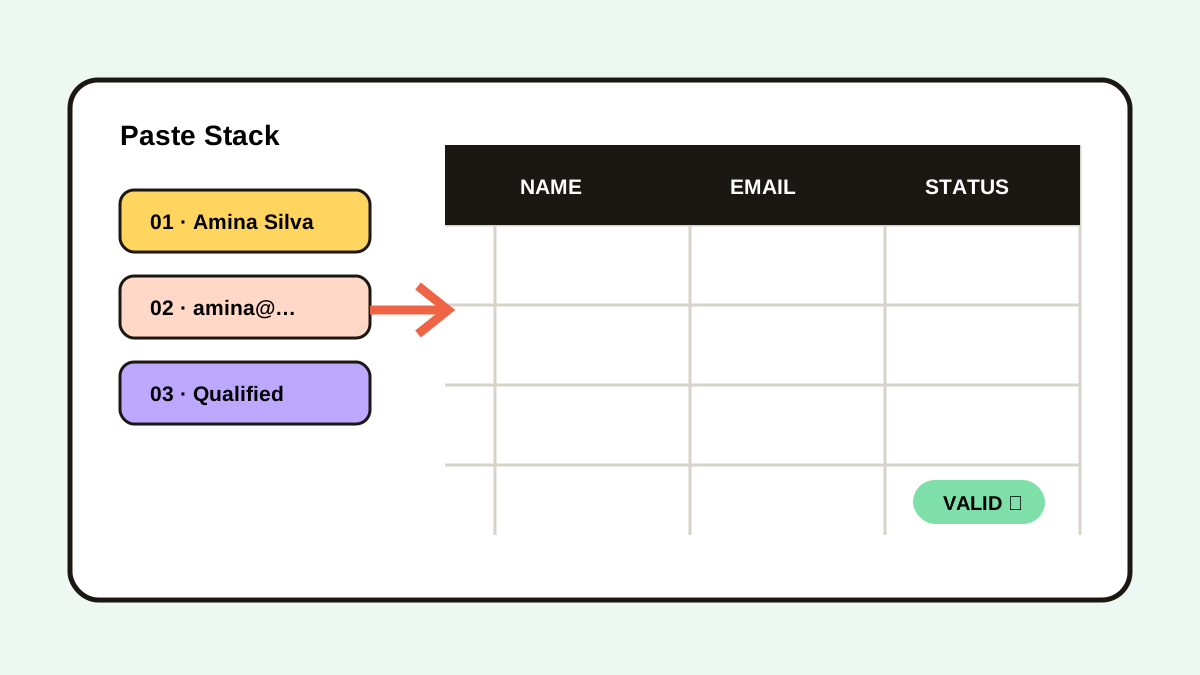
The short answerA clipboard manager improves spreadsheet work by keeping copied cells searchable and letting you reuse several values without returning to each source. Use Paste Stack for ordered fields, preview tab-separated rows before insertion, and choose Paste values only when formulas or source formatting should not move. Always test one row before a large batch.
The overview
Data entry often repeats 4 to 10 fields per record. Returning to the source after every field adds context switches and increases ordering errors.
A normal paste may carry formulas and formatting, while values-only paste keeps the displayed cell values.
Why it happens
Spreadsheet clips may contain tabs, line breaks, formulas, numbers, dates, and styles. The destination interprets each layer differently.
Large multi-cell pastes can overwrite neighboring formulas before the mistake is noticed.
Your step-by-step guide
Copy fields in a fixed order
Choose one field sequence and keep it consistent across every record.
Queue the values
Use Paste Stack to collect several fields, then paste them one by one into the destination.
Use values-only paste when needed
In Google Sheets, Command-Shift-V on Mac or Ctrl-Shift-V on Windows pastes values only.
Validate one complete row
Check dates, decimal separators, leading zeros, formulas, and column alignment before repeating.
Common mistakes to avoid
- Pasting formulas when only displayed values are needed.
- Losing leading zeros in IDs.
- Mixing field order halfway through a batch.
- Running a large paste without a one-row test.
Small changes. A faster workflow.
- Preview tab-separated clips.
- Keep headers visible.
- Use data validation in the destination.
- Undo immediately when the pasted range is wrong.
Compare your options
| Option | Best for | Limits |
|---|---|---|
| Normal paste | Cells with formulas and formatting | Can overwrite destination styles |
| Paste values only | Clean calculated results | Drops formulas |
| Paste Stack | Ordered multi-field entry | Requires a fixed sequence |
Normal paste
Best forCells with formulas and formatting
LimitsCan overwrite destination styles
Paste values only
Best forClean calculated results
LimitsDrops formulas
Paste Stack
Best forOrdered multi-field entry
LimitsRequires a fixed sequence
Put it into practice with Historr
Historr’s Paste Stack queues several copied items and pastes them one by one with Option-Command-V.
Quick Look helps you inspect tab-separated text before it reaches a sheet, while Instant Undo protects against accidental history deletion.
Use spreadsheet validation and version history as the final safety layer.
- Instant search
- Unlimited history
- Favorites
- Keyboard shortcuts
- Privacy
- Offline storage
- Quick preview
- Paste Stack

Keep your next good idea.
Free, private clipboard history for your Mac.
Questions, answered.
What is paste values only in Google Sheets?
It pastes displayed text or numbers without the source formulas and formatting.
What is the Google Sheets values-only shortcut?
Google lists Command-Shift-V on Mac and Ctrl-Shift-V on Windows or ChromeOS.
Can Paste Stack fill repeated forms?
Yes. Queue fields in a stable order and paste them sequentially.
How do I avoid damaging a spreadsheet?
Test one row, verify the selected range, and keep undo or version history available.
Take it from here
The fastest spreadsheet workflow is ordered and testable. Queue fields, choose the correct paste mode, validate one row, and only then repeat at scale.
If you're looking for a faster way to search, organize, and reuse everything you copy, try Historr and see how much time you can save.