Clipboard Manager Workflow for Translators and Localization
Keep source segments, target translations, terminology, URLs, and locale notes searchable without mixing languages or losing text direction.

The short answerA clipboard manager helps translators recover source segments, target variants, approved terminology, locale notes, and reference URLs across CAT tools, browsers, and documents. Keep source and target text clearly paired, preview direction and punctuation, and favorite only approved reusable terms. Final translations belong in the translation memory or project system, not clipboard history.
The overview
A translator may copy the source, two target variants, a glossary term, and a reference link within one minute. A single-item clipboard loses the sequence.
Languages with different direction, punctuation, or plural forms make a visually plausible wrong paste harder to notice.
Why it happens
Clipboard history records content and time, but it does not automatically know the locale, translation status, or approval state.
Translation memory and terminology systems hold durable language assets; clipboard history fills the temporary gap between tools.
Your step-by-step guide
Mark the source and target
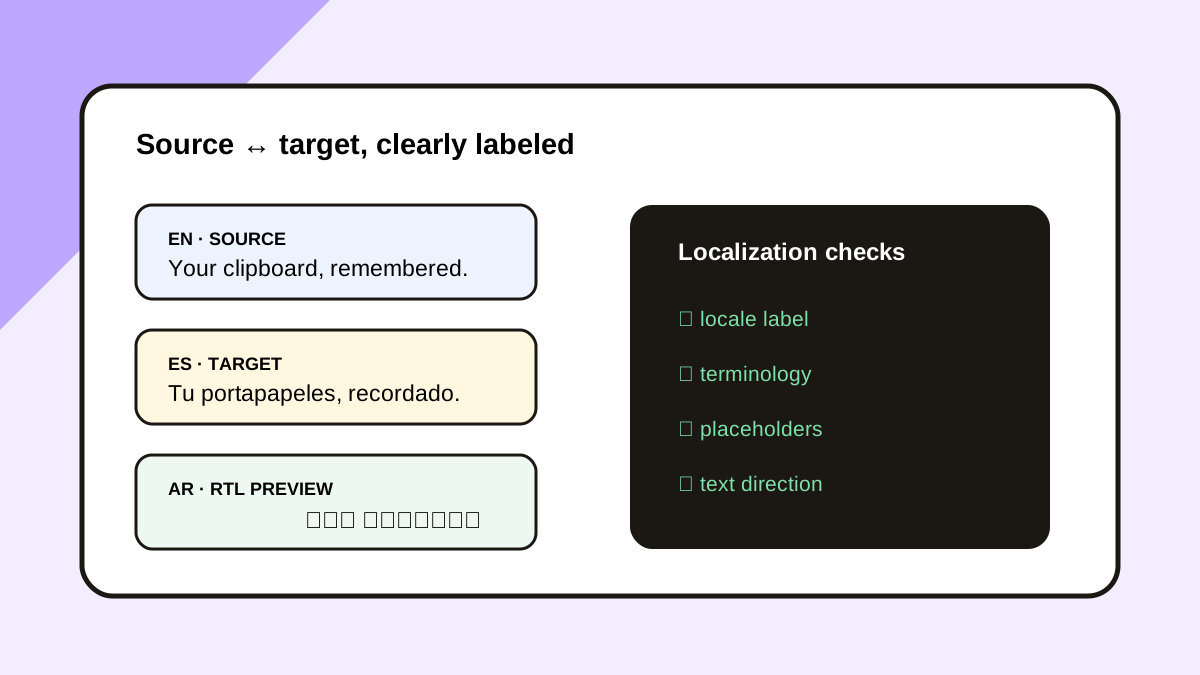
Copy a short locale label with working segments when source and target could be confused.
Search by distinctive terminology
Use an approved product term, feature name, or sentence fragment to recover a variant.
Preview direction and punctuation
Inspect the full clip before inserting right-to-left text, variables, tags, or bidirectional content.
Favorite only approved language
Keep stable terms and safe templates in favorites, not unreviewed drafts.
Promote final translations
Move approved segments into translation memory, the CAT tool, or the project repository.
Common mistakes to avoid
- Favoriting an unapproved translation.
- Mixing two locale variants.
- Losing placeholders or markup tags.
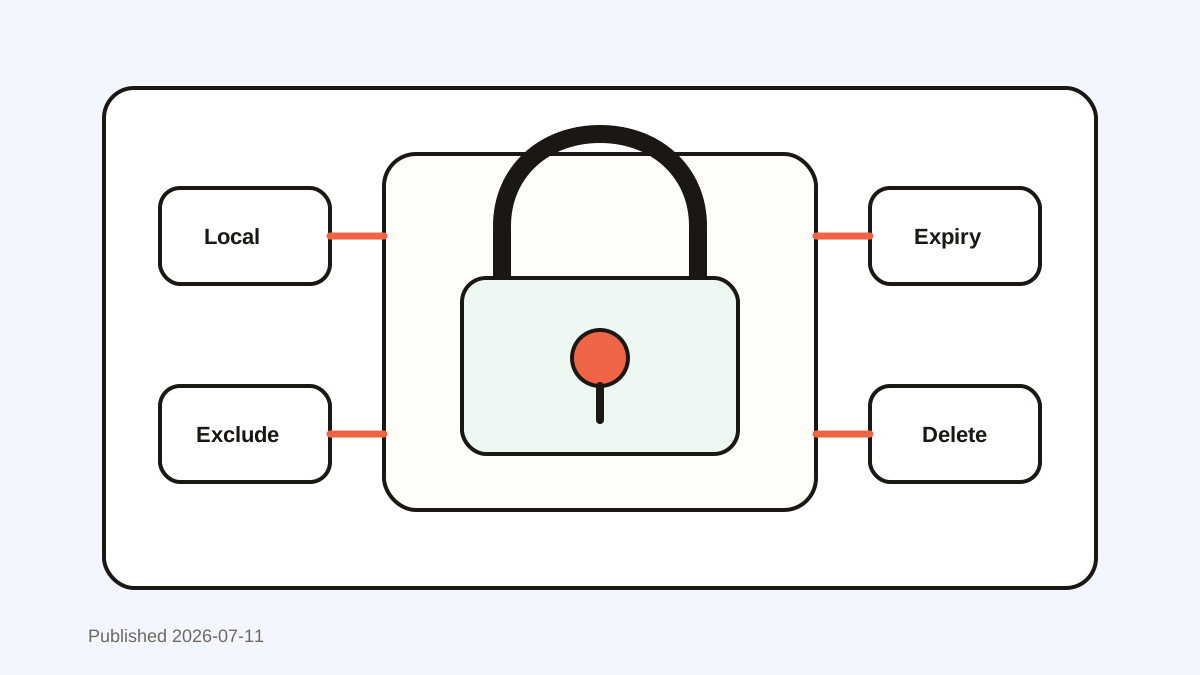
- Keeping confidential client copy after project completion.
Small changes. A faster workflow.
- Include locale codes in reusable snippets.
- Preview bidirectional text.
- Search by product terminology.
- Keep final approval status outside the clipboard.
Compare your options
| Option | Best for | Limits |
|---|---|---|
| Translation memory | Approved segment reuse | Tool and project setup required |
| Terminology database | Controlled product language | Not a draft recovery tool |
| Clipboard history | Temporary cross-app variants | No locale or approval model |
Translation memory
Best forApproved segment reuse
LimitsTool and project setup required
Terminology database
Best forControlled product language
LimitsNot a draft recovery tool
Clipboard history
Best forTemporary cross-app variants
LimitsNo locale or approval model
Put it into practice with Historr
Historr provides local search and full-text preview for source segments, target variants, terminology, and reference links.
Favorites keep approved safe phrases accessible, while time groups help reconstruct a recent translation sequence.
Use the project’s CAT tool and translation memory for reviewed final language.
- Instant search
- Unlimited history
- Favorites
- Keyboard shortcuts
- Privacy
- Offline storage
- Quick preview
- Paste Stack

Keep your next good idea.
Free, private clipboard history for your Mac.
Questions, answered.
Can clipboard history replace translation memory?
No. It recovers temporary working text; translation memory stores approved aligned segments.
What should translators favorite?
Approved terms, locale-labeled boilerplate, safe tags, and frequently used project links.
How do I avoid source-target confusion?
Use locale labels, preserve sequence, and preview the complete clip before paste.
Does text direction matter in clipboard history?
Yes. Preview right-to-left and mixed-direction text because punctuation and inline variables can shift visually.
Take it from here
Use clipboard history for short-term bilingual context and formal localization systems for approved language. Labels and previews prevent the most expensive variant mistakes.
If you're looking for a faster way to search, organize, and reuse everything you copy, try Historr and see how much time you can save.