How Sensitive Data Auto-Expiry Protects Clipboard History
Learn how clipboard sensitive-data detection and auto-expiry reduce exposure for OTPs, card numbers, tokens, and other short-lived copied secrets.

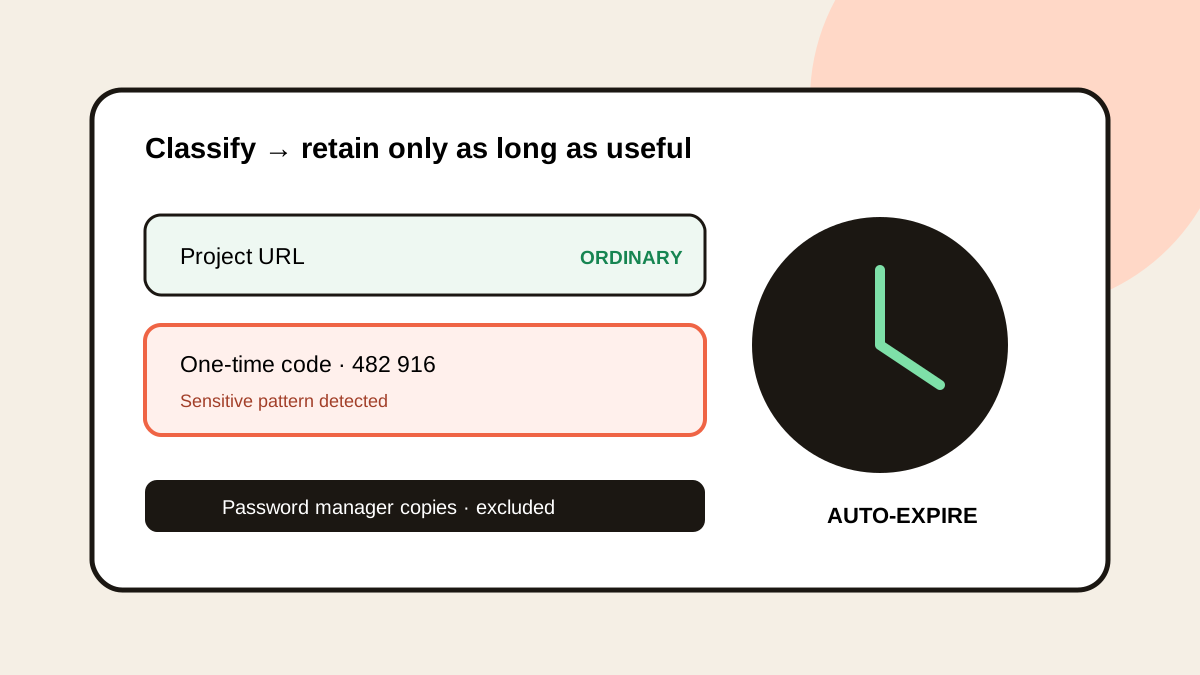
The short answerA clipboard manager with sensitive data auto-expiry detects patterns such as one-time codes, card numbers, and tokens, then removes matching clips after a short retention window. It should also ignore password-manager copies and allow immediate deletion. Detection reduces exposure but cannot classify every secret, so users still need safe copying habits and approved storage tools.
The overview
A one-time code may be useful for 30 seconds, while an unlimited clipboard history can keep it for months. The same mismatch affects tokens, card details, and private identifiers.
Manual deletion is easy to forget because the user’s attention moves to the destination immediately after paste.
Why it happens
Clipboard capture happens across apps and data classes. Without exclusions or classification, a harmless URL and a production token receive the same retention treatment.
Pattern detection can identify some structured values, but a random secret may look like ordinary text. That makes layered controls essential.
Your step-by-step guide
Exclude credential sources
Ignore copies from password managers and other apps that should never feed long-term history.
Detect high-risk patterns
Classify one-time codes, payment numbers, access tokens, and similar structured content.
Apply a short expiry
Keep sensitive matches for minutes rather than using the ordinary history window.
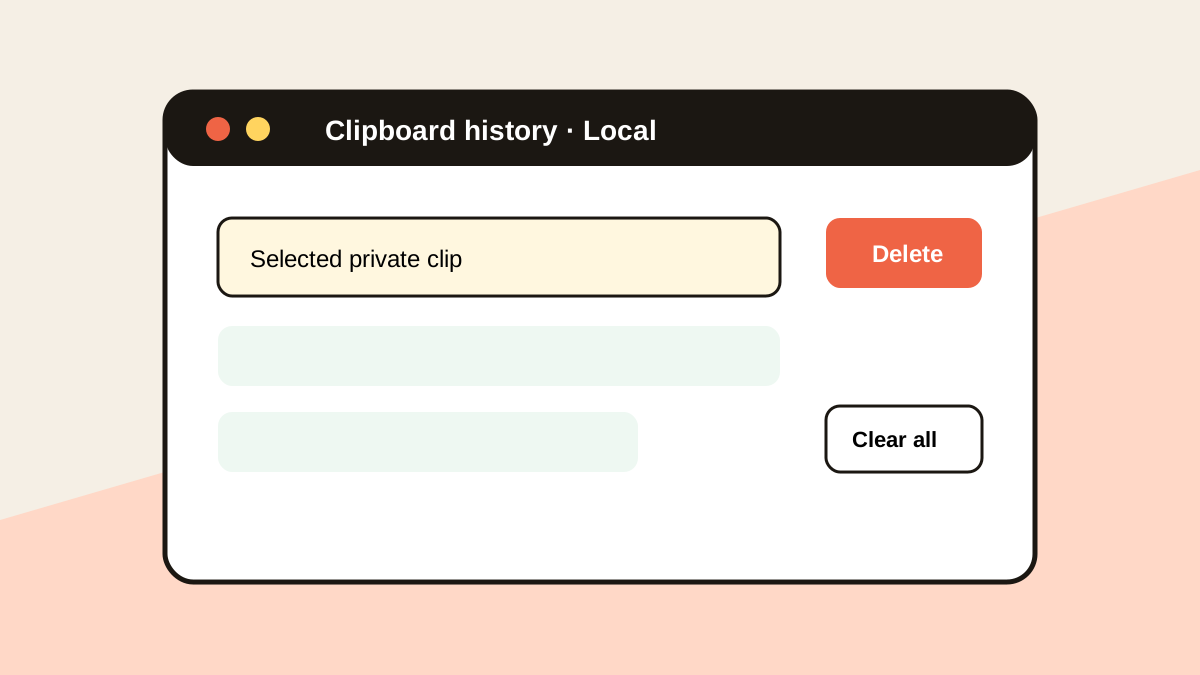
Provide immediate deletion
Let users remove a missed secret as soon as it appears and clear all history when required.
Review false positives and gaps
Test the rules with safe samples and document data that users must still handle manually.
Common mistakes to avoid
- Treating pattern detection as perfect data-loss prevention.
- Keeping secrets in favorites.
- Syncing history without a policy review.
- Assuming Base64 encoding protects a copied secret.
Small changes. A faster workflow.
- Use a password manager for credentials.
- Prefer short-lived secrets.
- Store history locally when possible.
- Delete unexpected sensitive clips immediately.
Compare your options
| Option | Best for | Limits |
|---|---|---|
| No clipboard history | Restricted sessions | No recovery or reuse |
| Unlimited retention | Maximum recall | High accumulation risk |
| Classified auto-expiry | Balanced everyday recovery | Detection has edge cases |
No clipboard history
Best forRestricted sessions
LimitsNo recovery or reuse
Unlimited retention
Best forMaximum recall
LimitsHigh accumulation risk
Classified auto-expiry
Best forBalanced everyday recovery
LimitsDetection has edge cases
Put it into practice with Historr
Historr ignores password-manager copies and detects sensitive-looking items so they can expire after a few minutes.
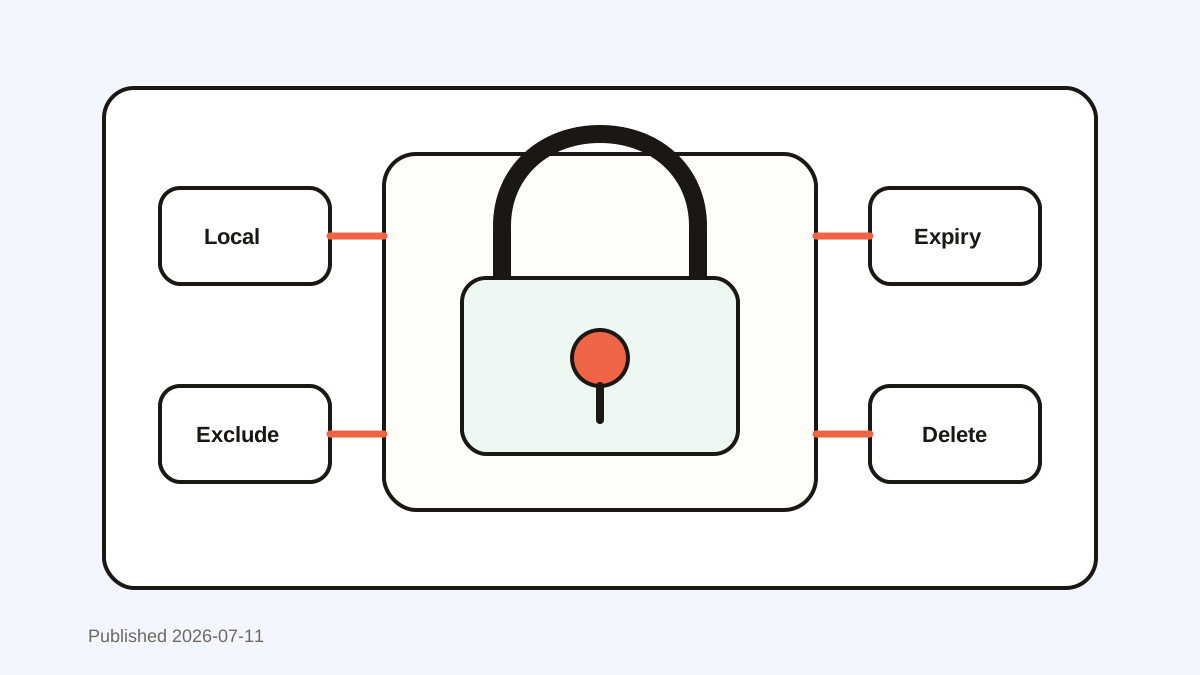
All history stays local on the Mac with no cloud account or telemetry. Individual delete, Clear All, and Instant Undo provide direct control.
Auto-expiry is a safety net, not permission to copy secrets into untrusted destinations.
- Instant search
- Unlimited history
- Favorites
- Keyboard shortcuts
- Privacy
- Offline storage
- Quick preview
- Paste Stack

Keep your next good idea.
Free, private clipboard history for your Mac.
Questions, answered.
What clipboard items should auto-expire?
One-time codes, tokens, card numbers, credentials, and other short-lived sensitive values are strong candidates.
Can detection find every API key?
No. Secret formats vary, so exclusions and user deletion are still required.
Should sensitive clips be synced?
Only after a deliberate security and policy review; local-only storage reduces unnecessary transfer.
Does Base64 make a secret safe?
No. Kubernetes documentation explicitly notes that Base64 encoding is not encryption.
Take it from here
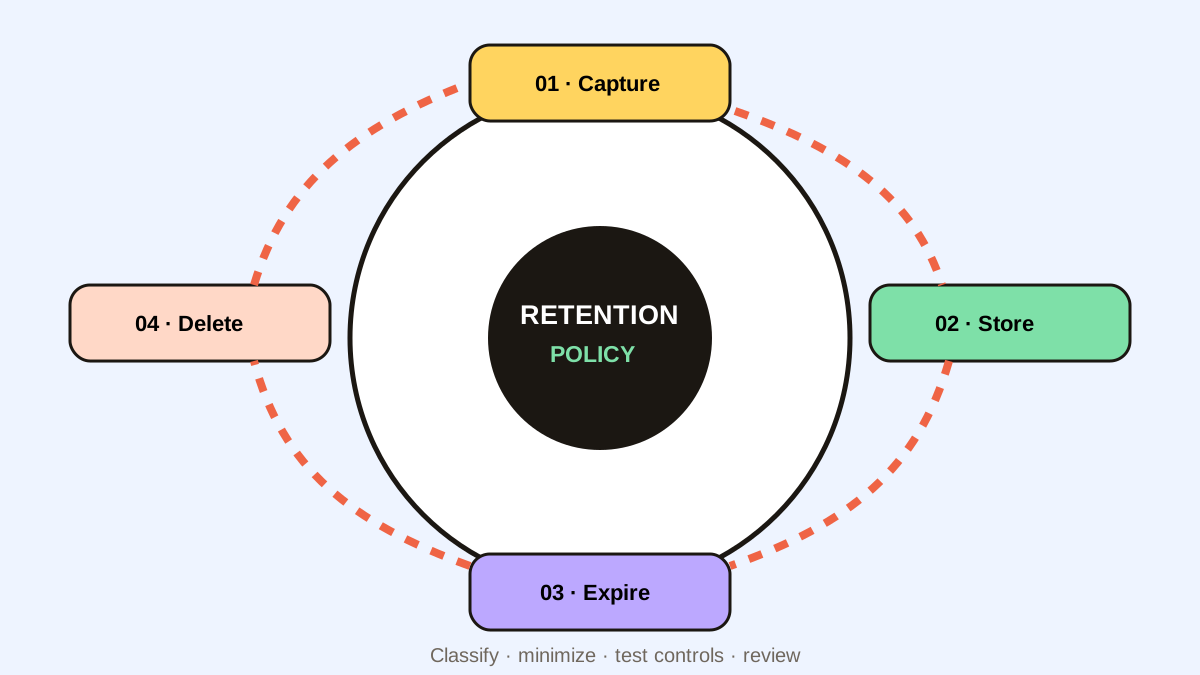
Good clipboard security is based on lifespan. Exclude what should never be captured, expire what is briefly useful, and give users fast deletion for everything detection misses.
If you're looking for a faster way to search, organize, and reuse everything you copy, try Historr and see how much time you can save.