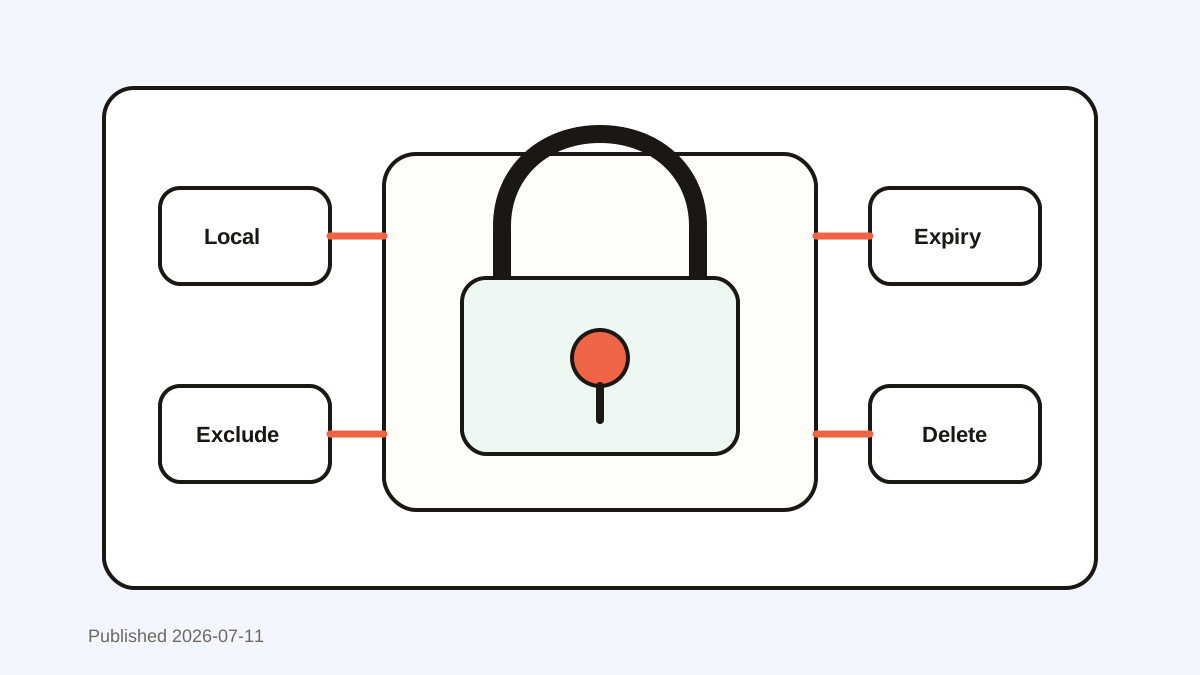
How to Set a Practical Clipboard Retention Policy
Create a clipboard retention policy with data classes, local storage, exclusions, expiry windows, deletion controls, and team review.

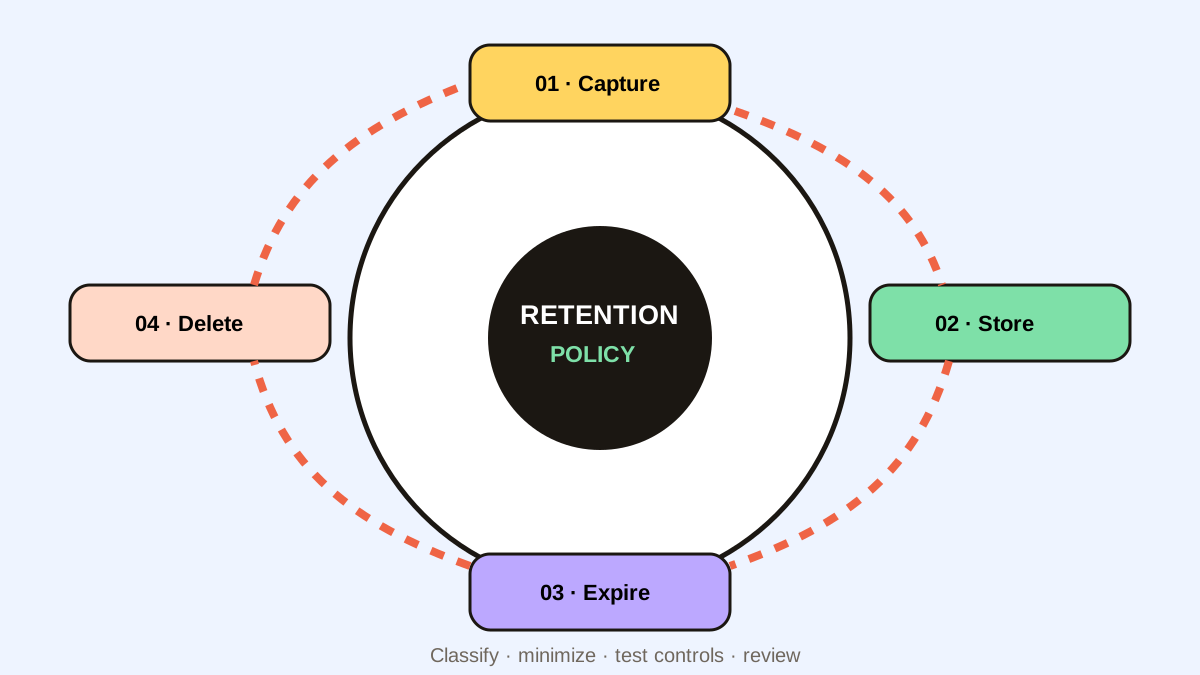
The short answerA clipboard retention policy should define four things: which data may be captured, where history is stored, how long each data class remains, and who can delete or export it. Exclude credentials and regulated data by default, prefer local storage, use minutes for sensitive patterns, days for ordinary work context, and review exceptions regularly.
The overview
Automatic history can turn short-lived copy actions into a long-lived dataset. Without a policy, passwords, personal data, and internal documents may share one retention window.
A useful policy maps content to 4 lifecycle stages: capture, store, expire, and delete.
Why it happens
Default clipboard managers optimize recovery, so they may keep more history than a regulated workflow permits.
Users also create favorites, which can bypass ordinary time-based cleanup unless the policy addresses them.
Your step-by-step guide
Classify clipboard content
Separate prohibited secrets, sensitive short-lived data, ordinary work context, and approved reusable snippets.
Choose approved storage
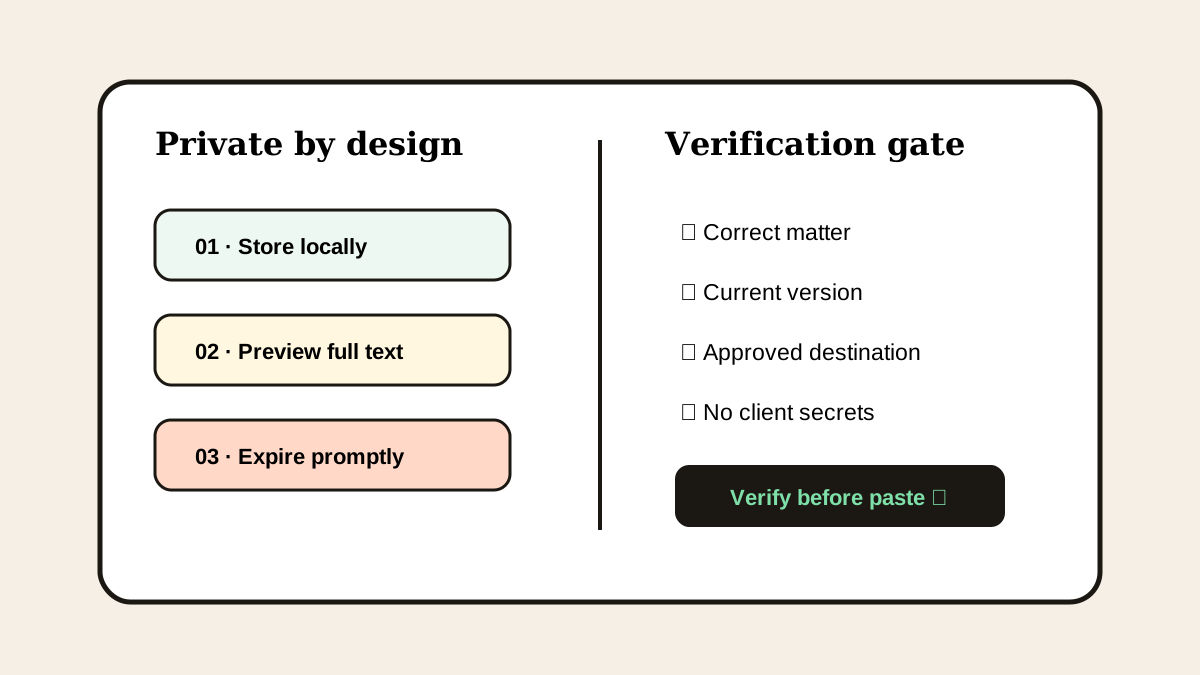
Prefer local device storage unless a reviewed business case requires sync.
Set retention by class
Use no capture for credentials, minutes for one-time or sensitive patterns, and a limited number of days for ordinary context.
Define deletion controls
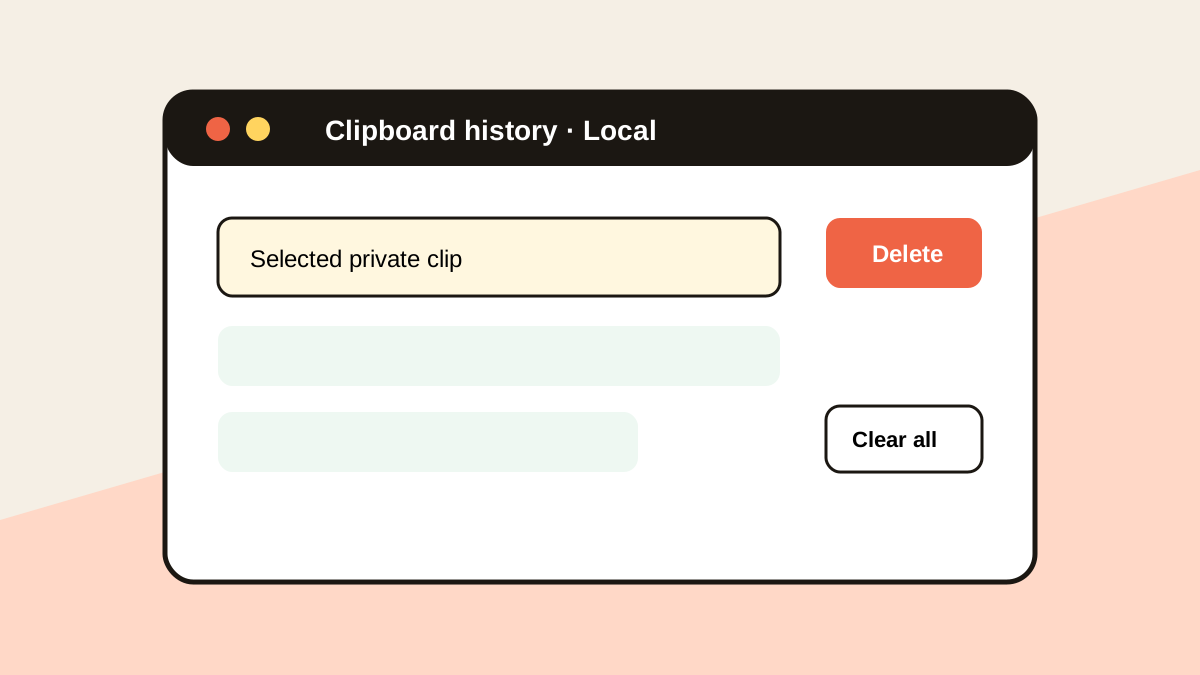
Require individual delete, Clear All, and predictable treatment of favorites and backups.
Review exceptions
Reassess app exclusions, sync, exports, and retention after workflow or policy changes.
Common mistakes to avoid
- Using one unlimited window for all content.
- Allowing secrets into favorites.
- Ignoring copied images and files.
- Writing a policy without testing the actual app controls.
Small changes. A faster workflow.
- Default sensitive classes to no capture.
- Document whether favorites expire.
- Test Clear All behavior.
- Review the policy after major app updates.
Compare your options
| Option | Best for | Limits |
|---|---|---|
| No capture | Passwords and prohibited data | No recovery |
| Short expiry | One-time and sensitive context | May disappear during long tasks |
| Limited history | Ordinary work context | Needs deletion controls |
No capture
Best forPasswords and prohibited data
LimitsNo recovery
Short expiry
Best forOne-time and sensitive context
LimitsMay disappear during long tasks
Limited history
Best forOrdinary work context
LimitsNeeds deletion controls
Put it into practice with Historr
Historr is local-first and does not use an account, cloud sync, or telemetry.
It ignores password-manager copies, can auto-expire sensitive-looking items, and provides individual deletion, Clear All, and up to 10 levels of Instant Undo.
Match these controls to your organization’s data classes instead of relying on one default.
- Instant search
- Unlimited history
- Favorites
- Keyboard shortcuts
- Privacy
- Offline storage
- Quick preview
- Paste Stack

Keep your next good idea.
Free, private clipboard history for your Mac.
Questions, answered.
How long should ordinary clipboard history remain?
Keep it only as long as it supports the active workflow; many teams choose a limited number of days rather than unlimited storage.
Should passwords ever be retained?
No. Exclude password-manager copies and prohibit credentials from favorites.
Is cloud clipboard sync always unsafe?
No, but it adds systems and policy questions that need explicit review.
What deletion features matter?
Individual deletion, Clear All, defined favorite behavior, and verifiable removal are the minimum controls.
Take it from here
A strong clipboard retention policy is short enough to follow and specific enough to test. Classify, store, expire, delete, and review.
If you're looking for a faster way to search, organize, and reuse everything you copy, try Historr and see how much time you can save.