Dropover Alternative: Open a Drag Shelf Without Shaking
Shake-to-open is clever but not for everyone. Three other ways to open a drag shelf on Mac, and a free Dropover alternative that supports all of them.

Original cover made from Historr screenshots with sample data.
The short answerIf shaking the pointer is awkward for you, use a shelf app that also opens from the keyboard or the menu bar. Historr, a free Dropover alternative, opens an empty shelf with Option-Shift-D and creates one when you drop items onto its menu bar icon, as well as supporting shake-to-open. You can turn shaking off entirely in Settings, or make it more or less sensitive.
When shaking is the wrong gesture
On a trackpad, shaking while holding a drag is tiring and easy to fumble. For people with RSI, tremor or limited mobility, it can be a real barrier. Designers doing precise drags sometimes trigger a shelf by accident.
A shelf app should not depend on one gesture. The goal is the same either way: get a holding area on screen without letting go of your work.
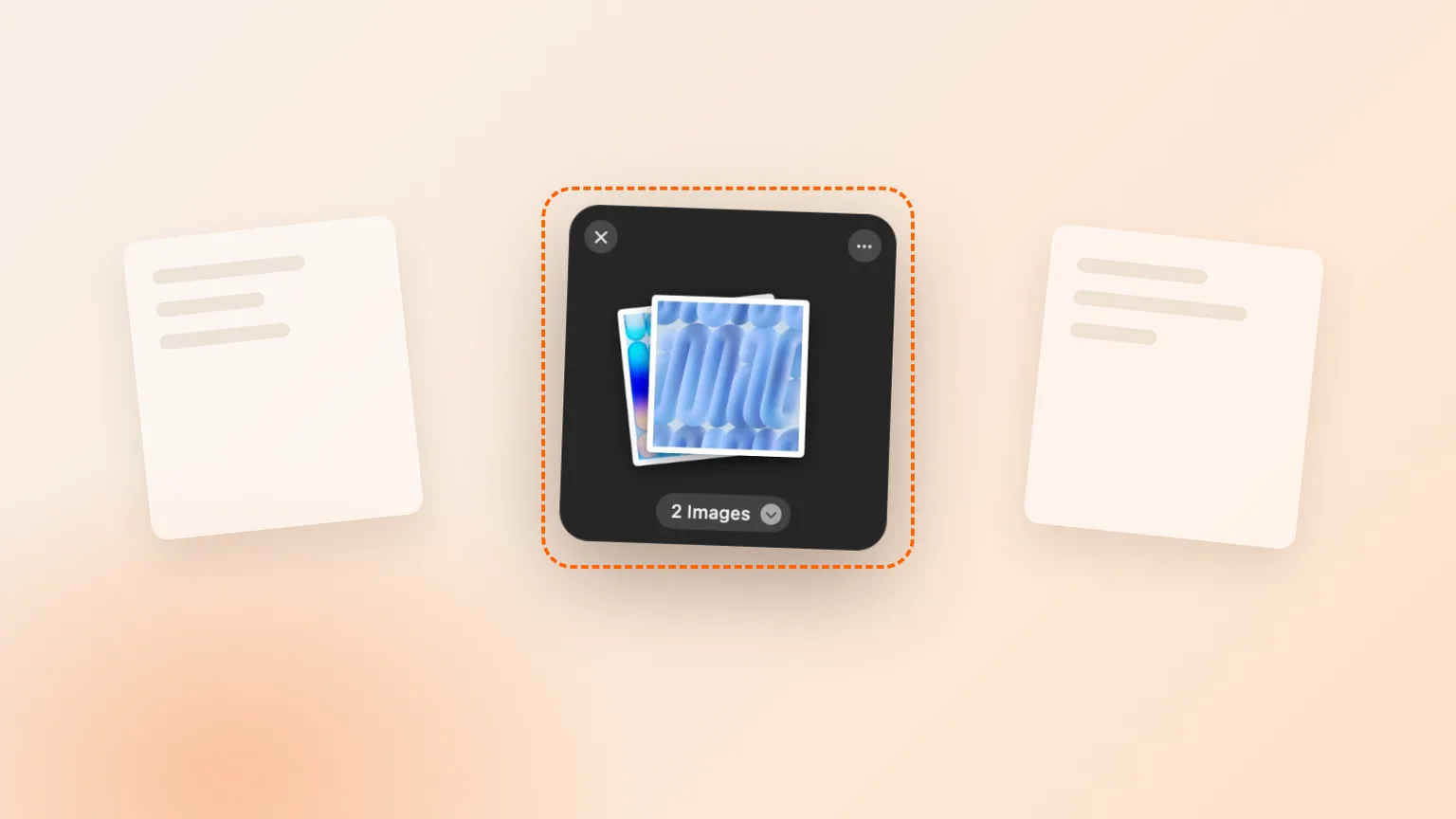
There is also a planning difference. Shaking suits the moment you realize mid-drag that you need a shelf. When you already know you will collect five files from three folders, opening the shelf first and filling it calmly is often faster and less error-prone.
Why gestures misfire
Shake detection watches for quick left-right reversals while a drag is in progress. Set it too sensitive and normal movement triggers it; too strict and you have to shake hard.
Trackpads make this harder because a drag already uses a finger held down, so the side-to-side motion competes with the drag itself. Keyboard and menu bar alternatives avoid the problem completely.
Some apps only offer the gesture, so turning it off means losing the shelf. That is the real reason people look for an alternative: they want the shelf, just not the shake.
Three ways to open a shelf without shaking
Open a shelf from the keyboard first
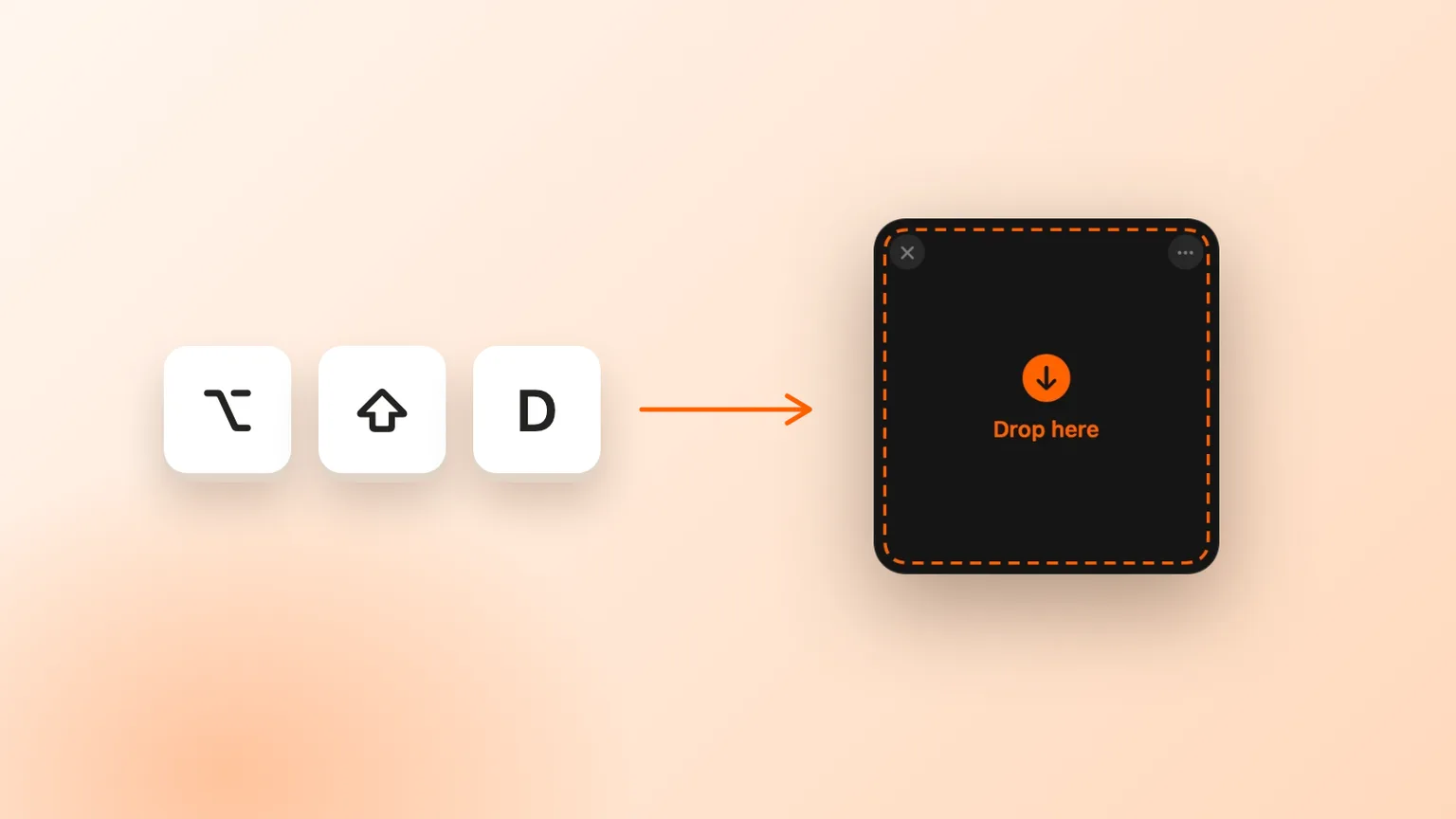
Press Option-Shift-D in Historr to open an empty shelf at your pointer, then drag items onto it at your own pace.
Drop onto the menu bar icon
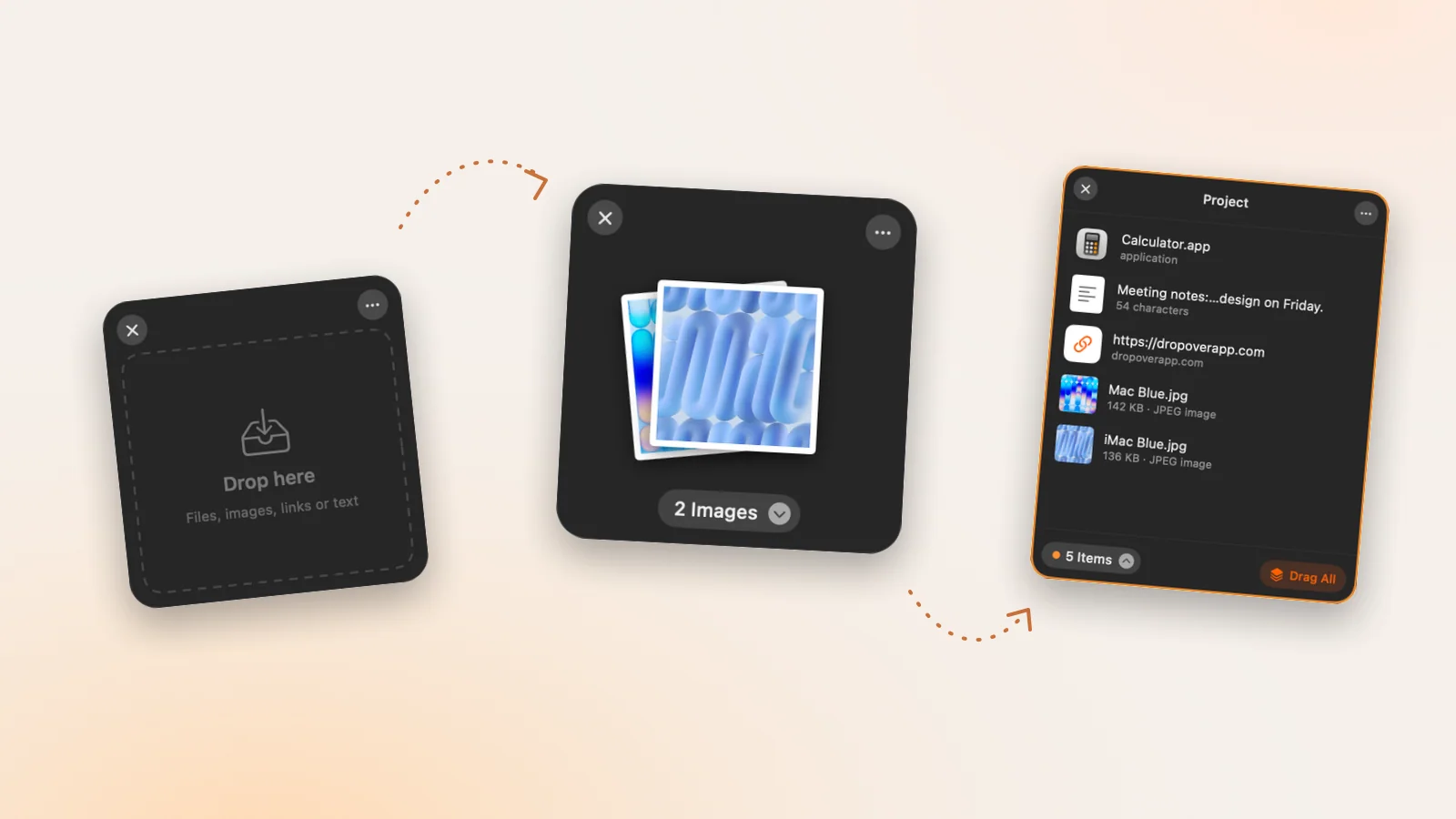
Drag files, images, links or text onto the Historr icon in the menu bar. A new shelf appears holding them.
Tune or turn off shaking
In Settings, Drag Shelf, choose Low, Medium or High sensitivity, or switch shake-to-open off if it ever gets in the way.
Drag everything out together
When you have collected what you need, drag the whole pile into its destination in one move.
Common mistakes to avoid
- Giving up on shelves because the shake gesture felt clumsy.
- Setting sensitivity to High on a trackpad, which can cause accidental shelves.
- Running two shelf apps with shaking enabled in both.
Small changes. A faster workflow.
- Open the shelf before you start dragging when you know you will collect several items.
- Keep one shelf per task and close it when the task is done.
- Use the Recent Shelves menu to bring back a shelf you closed too soon.
Compare your options
| Option | Best for | Limits |
|---|---|---|
| Shake to open | Mouse users mid-drag | Awkward on trackpads; can misfire |
| Keyboard shortcut | Planned collecting and accessibility | Need to remember one key combination |
| Drop on menu bar icon | One-off drags from anywhere | Menu bar must be visible |
Shake to open
Best forMouse users mid-drag
LimitsAwkward on trackpads; can misfire
Keyboard shortcut
Best forPlanned collecting and accessibility
LimitsNeed to remember one key combination
Drop on menu bar icon
Best forOne-off drags from anywhere
LimitsMenu bar must be visible
How Historr handles it
Historr supports all three methods, so you can use whichever suits the moment. The shortcut and the menu bar drop work even with shaking turned off.
Unlike Dropover after its trial, there is no delay and no purchase. You also get Quick Look, AirDrop, Compress to ZIP, Resize Images and Extract Text on every shelf, plus a clipboard manager in the same app.
Items dragged out of a Historr shelf are copies, so you can experiment freely: the originals stay in their folders until you decide what to do with them.
- Instant search
- Unlimited history
- Favorites
- Keyboard shortcuts
- Privacy
- Offline storage
- Quick preview
- Paste Stack

Keep your next good idea.
Free, private clipboard history for your Mac.
Questions, answered.
Can I open a drag shelf without shaking the mouse?
Yes. In Historr press Option-Shift-D for an empty shelf, or drop items onto its menu bar icon.
Can I turn off the shake gesture?
Yes. Historr's Settings let you switch off shake-to-open or set its sensitivity to Low, Medium or High.
Is Historr a free Dropover alternative?
Yes. Its drag and drop shelf is free with no trial, delay or purchase.
Does the shelf work with a trackpad?
Yes. The keyboard shortcut and menu bar drop are the easiest ways to use it with a trackpad.
Can I have more than one shelf open?
Yes. Each Option-Shift-D or menu bar drop opens a new shelf, and closed shelves stay under Recent Shelves in the menu until you quit.
Choose the gesture that fits you
A shelf should fit your hands, not the other way round. Try the shortcut and menu bar drop, keep shaking for when it is convenient, and switch it off if it never is.
If you're looking for a faster way to search, organize, and reuse everything you copy, try Historr and see how much time you can save.
Continue with these guides
- Fix the shake gesture
What to check when shaking does not open a shelf.
- Historr vs Dropover
Feature and pricing comparison.