Best Mac Clipboard Manager: A 10-Point Checklist Before You Install
Use this 10-point checklist to find the best Mac clipboard manager for you: privacy, speed, images, secrets, price and more, with what to test in each.

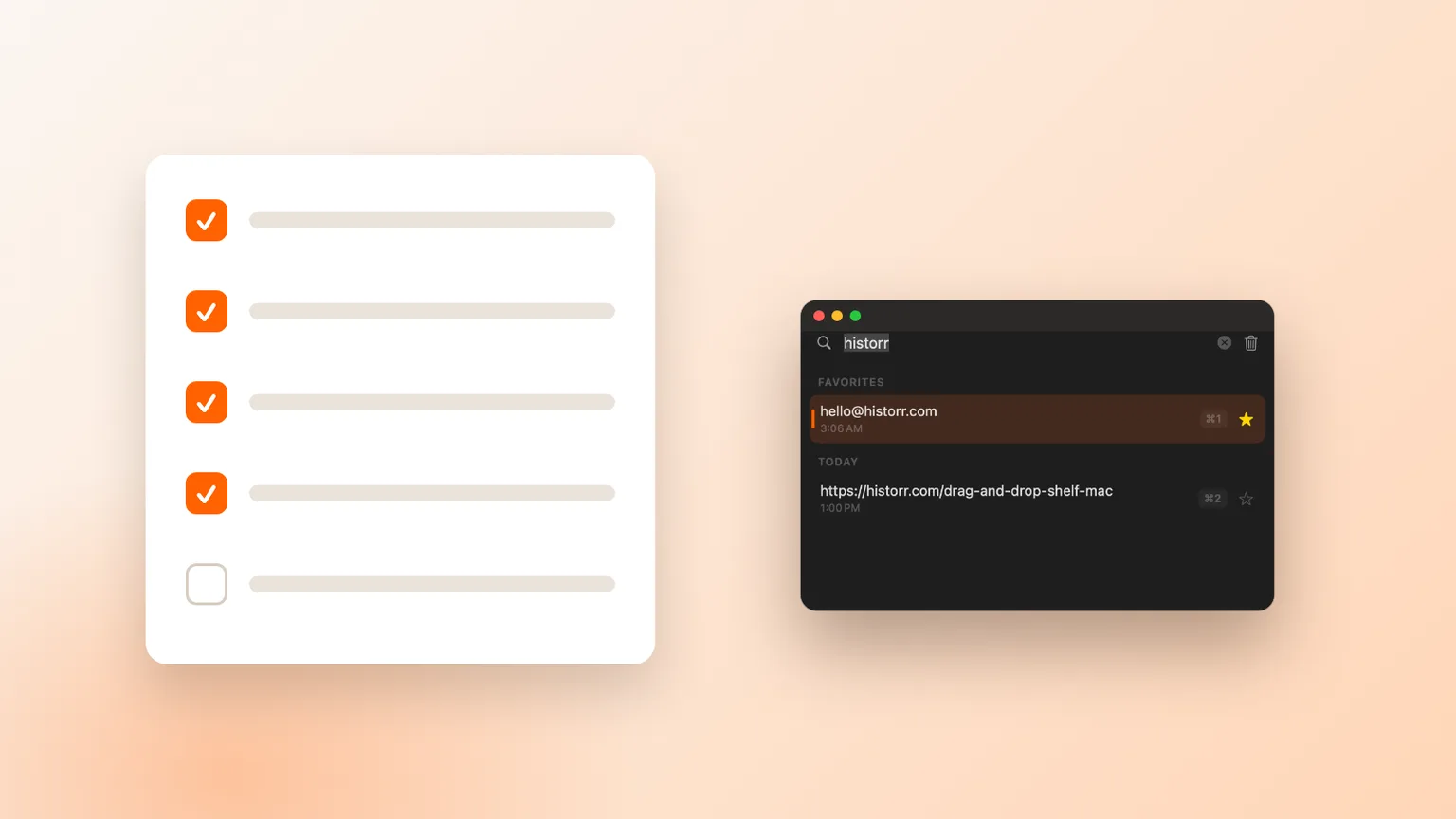
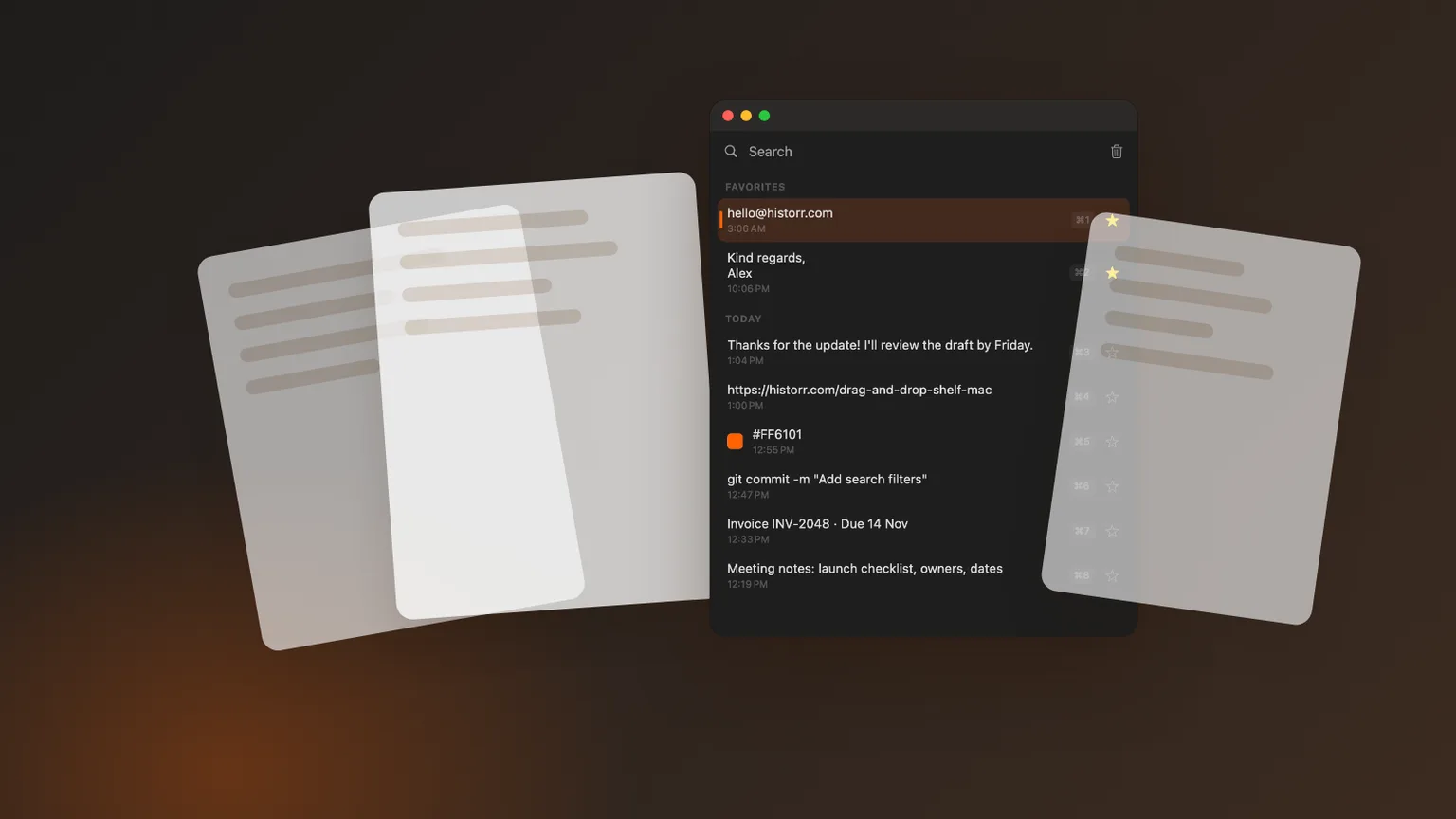
Original cover made from Historr screenshots with sample data.
The short answerThe best Mac clipboard manager passes ten checks: local storage, password-manager awareness, automatic removal of secrets, one-shortcut access, instant search, image support, plain-text paste, a sensible price, support for your macOS version, and a way to pause recording. Test each in your first week. Historr passes all ten for free.
Why a checklist beats a ranking
A clipboard manager sees everything you copy: passwords, client notes, codes, private messages. It also sits in the middle of your most frequent action. A bad choice is either a privacy risk or a daily annoyance.
The checklist below covers both sides: trust and speed. Run through it before installing, and again after a week of use.
The checklist is also useful if you already have a clipboard manager. Many people keep the first one they installed for years without checking whether it still suits them. Running the ten checks takes a few minutes.
What can go wrong with the wrong app
Some clipboard apps sync history to a server by default. Some keep everything forever, including tokens. Some are fast but text-only, which hurts if you copy screenshots.
Others are excellent but require a subscription or a newer macOS than you have. The checklist surfaces these issues before they cost you time.
Most of these checks take seconds to test. Copy something, open the app, search, paste. If a basic action feels slow or uncertain on day one, it will feel worse on day one hundred.
The 10-point checklist
Privacy (checks 1 to 3)
Is history stored only on your Mac? Does it skip password manager copies? Does it remove card numbers, codes and tokens automatically?
Speed (checks 4 and 5)
Does one shortcut open it from any app? Can you type to search and press Return to paste without touching the mouse?
Content (checks 6 and 7)
Does it keep images and screenshots? Can it paste as plain text?
Fit (checks 8 to 10)
Is the price acceptable for how often you will use it? Does it support your macOS version? Can you pause recording when needed?
Common mistakes to avoid
- Skipping the privacy checks because an app looks polished.
- Testing for one afternoon instead of a working week.
- Choosing by feature count rather than the features you use.
Small changes. A faster workflow.
- Copy a fake token like a long random string and see whether it expires.
- Copy a screenshot and check that you can preview and paste it.
- Try opening history from three different apps.
Compare your options
| Option | Best for | Limits |
|---|---|---|
| Must pass | Local storage, password skipping, one-shortcut access | Fail any of these and move on |
| Should pass | Secret expiry, search, images, plain text | Depends on your workflow |
| Nice to have | Paste Stack, smart actions, drag shelf | Extras, not essentials |
Must pass
Best forLocal storage, password skipping, one-shortcut access
LimitsFail any of these and move on
Should pass
Best forSecret expiry, search, images, plain text
LimitsDepends on your workflow
Nice to have
Best forPaste Stack, smart actions, drag shelf
LimitsExtras, not essentials
How Historr scores
Historr stores history locally, skips concealed password manager copies, removes detected secrets after one to ten minutes, opens with Option-H, searches as you type, saves images, pastes as plain text, is free, runs on macOS 13 or later, and has Pause Recording in the menu bar.
Beyond the checklist, it adds a Paste Stack, smart actions and a drag and drop shelf.
It is free, so testing it against the checklist costs nothing but a few minutes, and removing it is as simple as dragging it to the Trash.
- Instant search
- Unlimited history
- Favorites
- Keyboard shortcuts
- Privacy
- Offline storage
- Quick preview
- Paste Stack

Keep your next good idea.
Free, private clipboard history for your Mac.
Questions, answered.
What should I look for in a Mac clipboard manager?
Local storage, password manager awareness, secret expiry, one-shortcut access, fast search, images, plain-text paste, fair price, macOS support and a pause option.
Are clipboard managers a security risk?
They can be if they sync or keep secrets forever. Choose one that stores history locally and expires sensitive items.
Should I pay for a clipboard manager?
Only if a paid feature, like sync or visual boards, is something you will use daily. Free apps cover the essentials.
Which clipboard manager passes all ten checks?
Historr passes all ten and is free.
How long should I test a clipboard manager?
About a working week. That covers your usual mix of tasks and shows whether the shortcut has become a habit.
Make the call
Use the checklist, test for a week, and keep the app that passes. The best Mac clipboard manager is the one you trust with everything you copy, and then stop thinking about because it simply works.
If you're looking for a faster way to search, organize, and reuse everything you copy, try Historr and see how much time you can save.
Continue with these guides
- Keep your clipboard private
Privacy settings in more depth.
- Historr documentation
Check each feature for yourself.