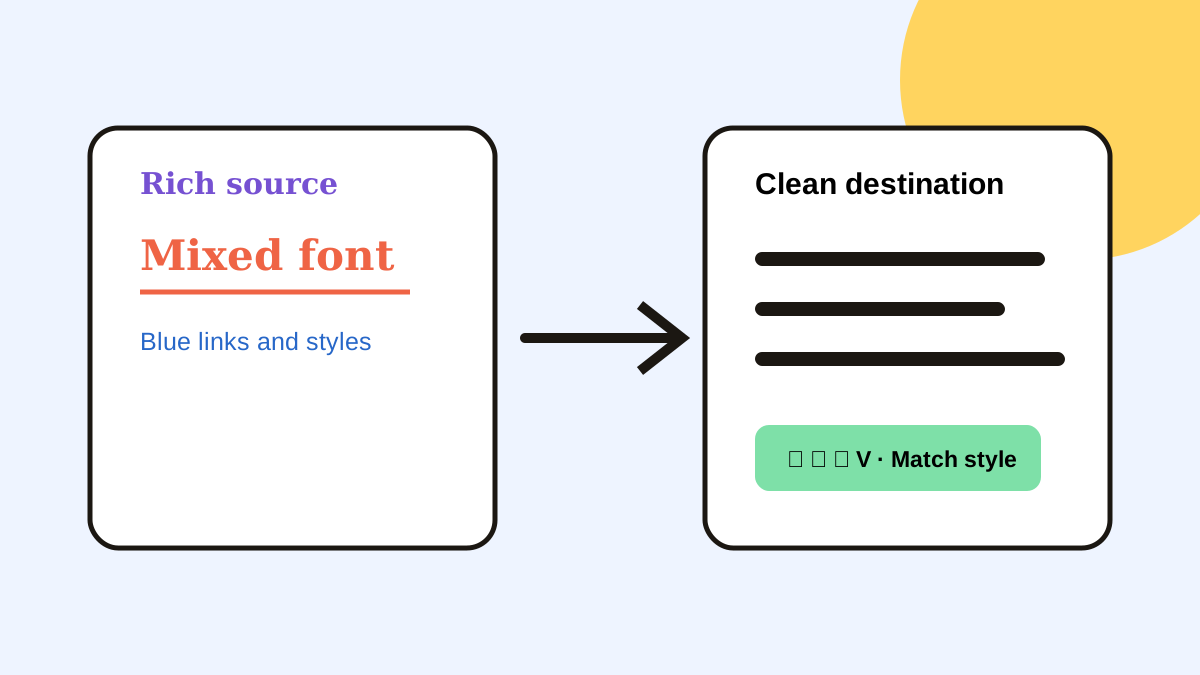
Paste Alternative for Plain-Text Copy History on Mac
Compare Paste and Historr for removing formatting from older copied text, trimming whitespace and preparing clean CMS content on Mac.


Original conceptual cover; no real client or design data is shown.
The short answerBoth Paste and Historr can paste a previous copy as plain text on Mac. Paste can strip formatting for a selected item or use an always-plain-text setting. Historr can paste a selected history item as Plain Text and also offers Trimmed, lowercase, UPPERCASE, slug-case and Pretty JSON transforms. For CMS work, first verify the source copy and destination field; neither app checks editorial accuracy or guarantees how the receiving editor will render it.
The overview
Rich text may look acceptable in the editor while carrying inconsistent formatting. At the same time, stripping all formatting can remove useful emphasis or links.
A content editor may also need a slug, a trimmed label or valid JSON for a structured field. Those are different transformations and should not be confused with editorial review.
Why it happens
Paste's official help documents a per-item plain-text action and an optional always-plain-text setting. It does not require replacing the original item just to paste without styles.
Historr documents Plain Text plus specific text transforms. Its actions run on the selected copied text, not on every CMS field automatically. The destination app can still alter or reject incoming content.
Your step-by-step guide
Check the approved source
Open the current draft, not merely the most recent history item. Confirm the paragraph, link and revision before cleaning formatting.
Choose the minimal transform
Use Plain Text when styles are the only problem. Use Trimmed for leading or trailing whitespace, slug-case for a URL path, or Pretty JSON only for valid JSON.
Paste into a draft field
Inspect the result in the actual CMS. Check paragraph breaks, apostrophes, link targets, heading levels and mobile preview.
Keep the canonical draft
Store approved copy in the editorial system. Clipboard history is a convenient transport and recovery layer, not version control.
Common mistakes to avoid
- Claiming Paste cannot paste plain text; it can.
- Using an always-plain-text mode when rich formatting is needed in other tasks.
- Mistaking a cleaned paste for approved editorial copy.
Small changes. A faster workflow.
- Test in the actual destination editor.
- Use the smallest transform that solves the formatting problem.
- Compare the published preview with the approved draft.
Compare your options
| Option | Best for | Limits |
|---|---|---|
| Paste | Per-item or default plain-text paste | A global setting can be surprising in mixed workflows |
| Historr | Plain text plus targeted text transforms | No editorial or CMS validation |
| CMS editor | Final rendered review | May alter pasted markup |
Paste
Best forPer-item or default plain-text paste
LimitsA global setting can be surprising in mixed workflows
Historr
Best forPlain text plus targeted text transforms
LimitsNo editorial or CMS validation
CMS editor
Best forFinal rendered review
LimitsMay alter pasted markup
Put it into practice with Historr
Historr's local copy history lets you recover a paragraph after another copy, preview it, then choose an output transform. The app is free and does not upload clipboard history.
It is especially useful for short publishing tasks with different target fields: body copy as plain text, a trimmed label and a slug. Inspect every result.
- Instant search
- Unlimited history
- Favorites
- Keyboard shortcuts
- Privacy
- Offline storage
- Quick preview
- Paste Stack

Keep your next good idea.
Free, private clipboard history for your Mac.
Questions, answered.
Can Paste paste an older item as plain text?
Yes. Paste documents a selected-item plain-text action and an optional always-plain-text setting.
Does Historr change the saved source clip when I use a transform?
The documented Paste as actions reshape text on the way out; review the output in the destination.
Can Pretty JSON fix invalid JSON?
No. Treat it as a formatting action for valid JSON, not a repair or validation process.
Why did the CMS change my paste?
The destination editor may apply its own formatting or content rules; inspect the final preview.
Take it from here
Plain-text paste removes style friction. Good publishing still depends on selecting the right source and reviewing the rendered destination.
If you're looking for a faster way to search, organize, and reuse everything you copy, try Historr and see how much time you can save.
Continue with these guides
- Paste without formatting on Mac
See the general Mac workflow and shortcuts.
- Paste's plain-text guidance
Check its current per-item and default options.