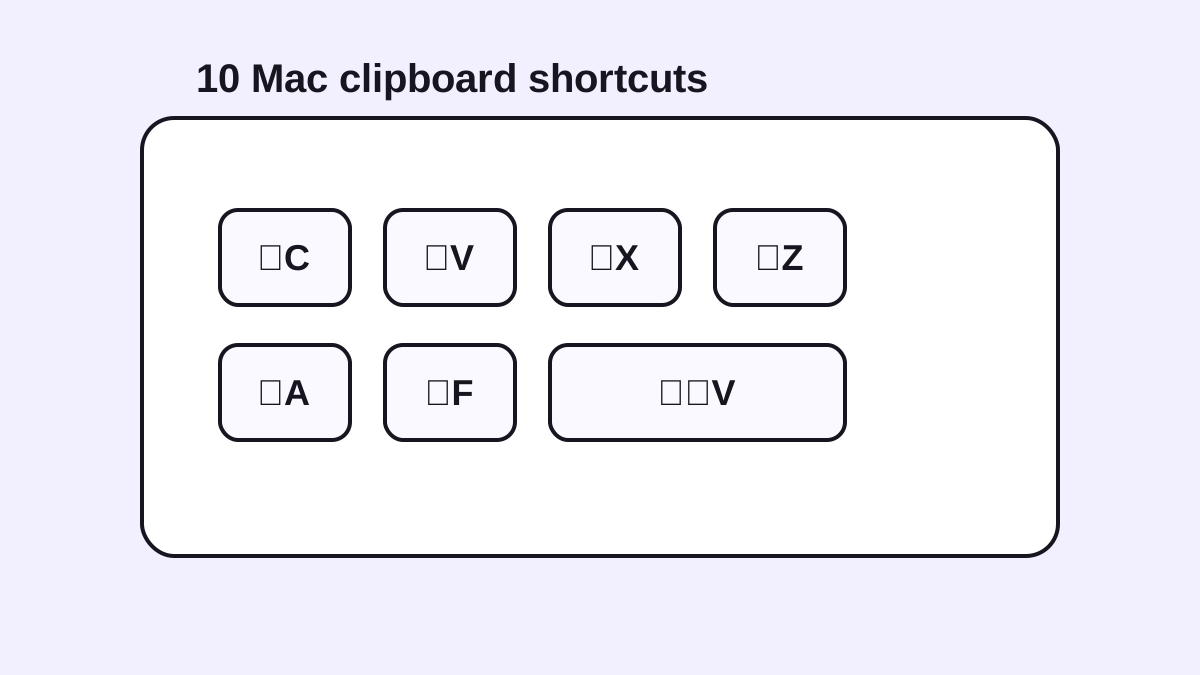
How to Paste Without Formatting on Mac
Use Paste and Match Style on Mac, learn why shortcuts differ by app, and create a reliable plain-text clipboard workflow.

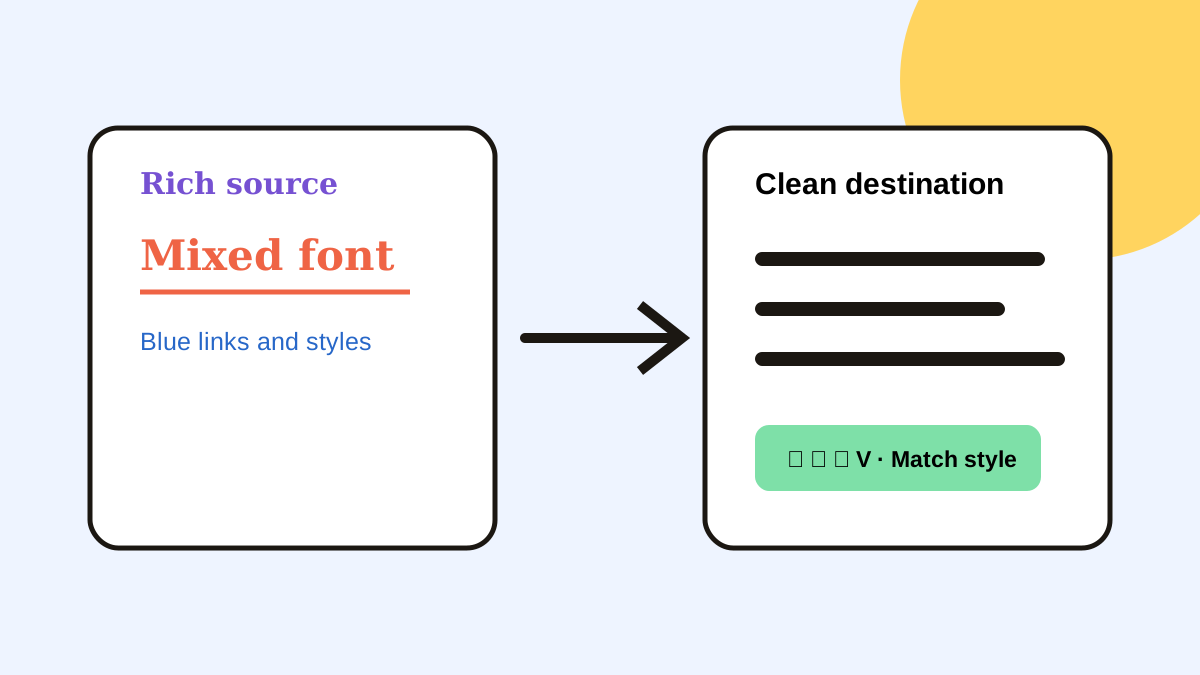
The short answerTo paste without formatting on Mac, use the destination app’s Paste and Match Style command. Many apps map it to Option-Shift-Command-V, while Google Docs commonly uses Command-Shift-V for plain text. Shortcut behavior varies by app, so check the Edit menu first and use a clipboard text transform when you need one consistent workflow.
The overview
A normal Command-V can carry HTML or rich-text styling from a web page, document, or email. That can introduce mismatched fonts, spacing, and links.
The problem is inconsistent commands: native Mac apps often say Paste and Match Style, while browser editors may use a different shortcut.
Why it happens
The clipboard can contain several representations of one copy, including plain text, rich text, HTML, and images. Each destination chooses which representation to accept.
Shortcut conflicts and web-app interception explain why a combination works in one editor but not another.
Your step-by-step guide
Check the Edit menu
Look for Paste and Match Style or Paste without formatting. The menu shows the shortcut the current app supports.
Try the app-specific shortcut
Use Option-Shift-Command-V in many Mac apps or Command-Shift-V in Google Docs and other web editors.
Use a plain-text bridge
For an occasional edge case, paste into a plain-text editor, copy again, and paste into the destination.
Create a repeatable transform
For frequent work, use a clipboard manager that can paste a selected clip as plain or trimmed text.
Common mistakes to avoid
- Assuming one shortcut works in every Mac app.
- Using a plain-text paste when links or emphasis must be preserved.
- Pasting into spreadsheets without checking formulas and delimiters.
- Cleaning text in an online tool when the content is private.
Small changes. A faster workflow.
- Use the Edit menu as the source of truth.
- Preview long text before transforming it.
- Keep line breaks when structure matters.
- Test one sample cell before a large spreadsheet paste.
Compare your options
| Option | Best for | Limits |
|---|---|---|
| Command-V | Preserving source formatting | Can break destination style |
| Paste and Match Style | Matching destination text | Shortcut varies by app |
| Clipboard transform | Consistent keyboard workflow | Needs a clipboard manager |
Command-V
Best forPreserving source formatting
LimitsCan break destination style
Paste and Match Style
Best forMatching destination text
LimitsShortcut varies by app
Clipboard transform
Best forConsistent keyboard workflow
LimitsNeeds a clipboard manager
Put it into practice with Historr
Historr can paste saved text in trimmed, lowercase, uppercase, slug, or pretty-printed JSON forms.
That gives keyboard-heavy users a consistent transformation layer even when app menus differ.
Preview the clip first when whitespace, Markdown, or code indentation matters.
- Instant search
- Unlimited history
- Favorites
- Keyboard shortcuts
- Privacy
- Offline storage
- Quick preview
- Paste Stack

Keep your next good idea.
Free, private clipboard history for your Mac.
Questions, answered.
What is the Mac shortcut for paste without formatting?
Many apps use Option-Shift-Command-V, while Google Docs commonly uses Command-Shift-V.
Why does Command-Shift-V not work?
The current app may use a different shortcut or reserve the key combination.
Does plain-text paste remove links?
Usually yes; it keeps text while discarding rich formatting and link metadata.
Can I paste clean text from clipboard history?
Yes, if your clipboard manager provides plain-text or transform actions.
Take it from here
Use the destination app’s own clean-paste command for accuracy. A clipboard transform is the better option when you want the same keyboard-first behavior across many apps.
If you're looking for a faster way to search, organize, and reuse everything you copy, try Historr and see how much time you can save.